

TL;DR
- PAC is a free Windows tool that checks PDFs against PDF/UA and WCAG standards. On Mac, use axesCheck instead.
- To test a PDF, open it in PAC and review the results across the PDF/UA, WCAG, Quality and AI tabs. Each checkpoint is marked Pass, Warning, Failed or Not applicable.
- PAC 2026 adds AI-assisted checks for semantic structure like headings, lists and tables, but they still need manual review.
- PAC identifies accessibility issues but doesn’t fix them. You’ll need to remediate in the source document or a PDF editor and retest.
- The most reliable workflow is to build accessibility in at the design stage using a tool like Venngage, then verify the exported PDF with PAC.
PAC is one of the most widely used tools for testing PDF accessibility. It’s free, runs on Windows and checks PDFs against PDF/UA and WCAG standards.
Using PAC is straightforward. Open your PDF, run the test and review the results. The report flags accessibility issues, but you still need to understand what each error means, fix it in your source file or PDF editor and test the file again. PAC also can’t check every part of PDF accessibility.
This guide covers how to use PAC Accessibility Checker, how to fix common errors and what to check beyond the automated test.
What is the PAC Accessibility Checker?
PAC or PDF Accessibility Checker is a free desktop tool from axes4 that tests whether a PDF is accessible against PDF/UA (ISO 14289), WCAG 2.1 Level AA and WCAG 2.2.
It includes a built-in screen reader preview and a structure tree view so you can see how assistive technology would interpret your document. PAC runs only on Windows and is entirely offline. So, no files are uploaded to axes4 or to the internet.
Alongside the automated tests, PAC 2026 offers AI-assisted checks that evaluate semantic structure like headings, paragraphs and tables, things that previously required manual review.
PAC is useful for PDF accessibility audits and compliance work, including requirements such as ADA Title II and Section 508. Its checks are based on the Matterhorn Protocol, the reference checklist for PDF/UA compliance.
But you can use PAC only to check your PDF for accessibility. It doesn’t help with PDF remediation.
How do you test a PDF for accessibility using PAC?
You can easily test PDF accessibility in PAC by uploading your PDF and checking the detailed results.
Step 0: Install PAC
PAC is a Windows-only desktop tool, so you’ll need a Windows computer to run the test. Download and install PAC 2026.1 from the official PAC website, then open your PDF or drag it into the PAC window. The test starts automatically.
On Mac, use axesCheck, the free browser-based version from axes4.
Step 1: Open your PDF in PAC
Open PAC and select ‘Open document’ to choose your PDF. You can also drag the file anywhere into the PAC window.
Step 2: Run the PDF accessibility test in PAC
PAC automatically evaluates the document against PDF/UA and WCAG requirements and also runs its Quality and AI-assisted checks.
Step 3: Review the summary report
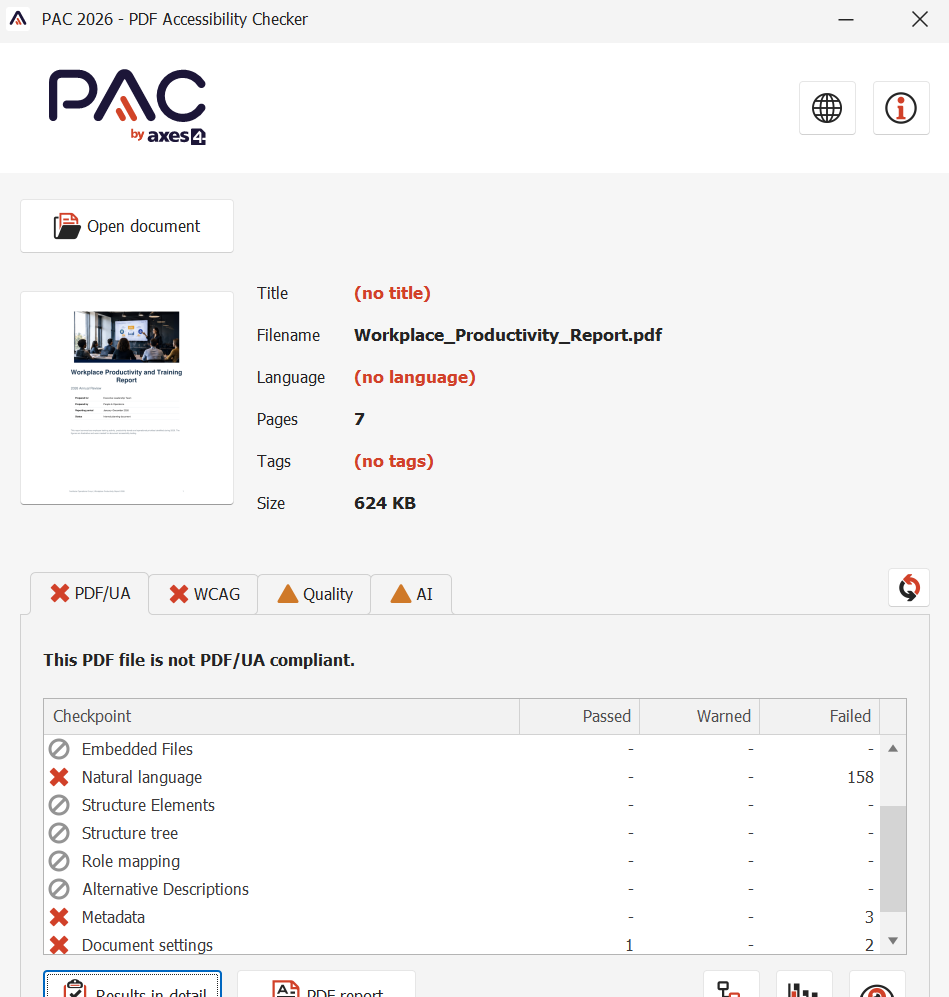
PAC displays a summary when the test is complete. At the top, it shows the compliant status, which tells whether your PDF is accessible or not.
If your PDF is not accessible, check the different checkpoints under the PDF/UA, WCAG, Quality and AI tabs. These checkpoints are basically all the PDF accessibility guidelines and rules that PAC runs through.
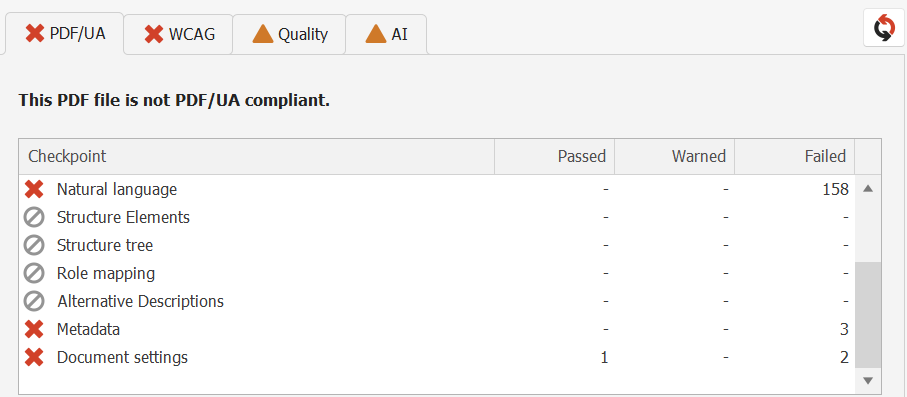
Each checkpoint is marked as Pass, Warning, Failed or Not applicable, so you can quickly see the accessibility issues in the PDF.
Step 4: Check the detailed results
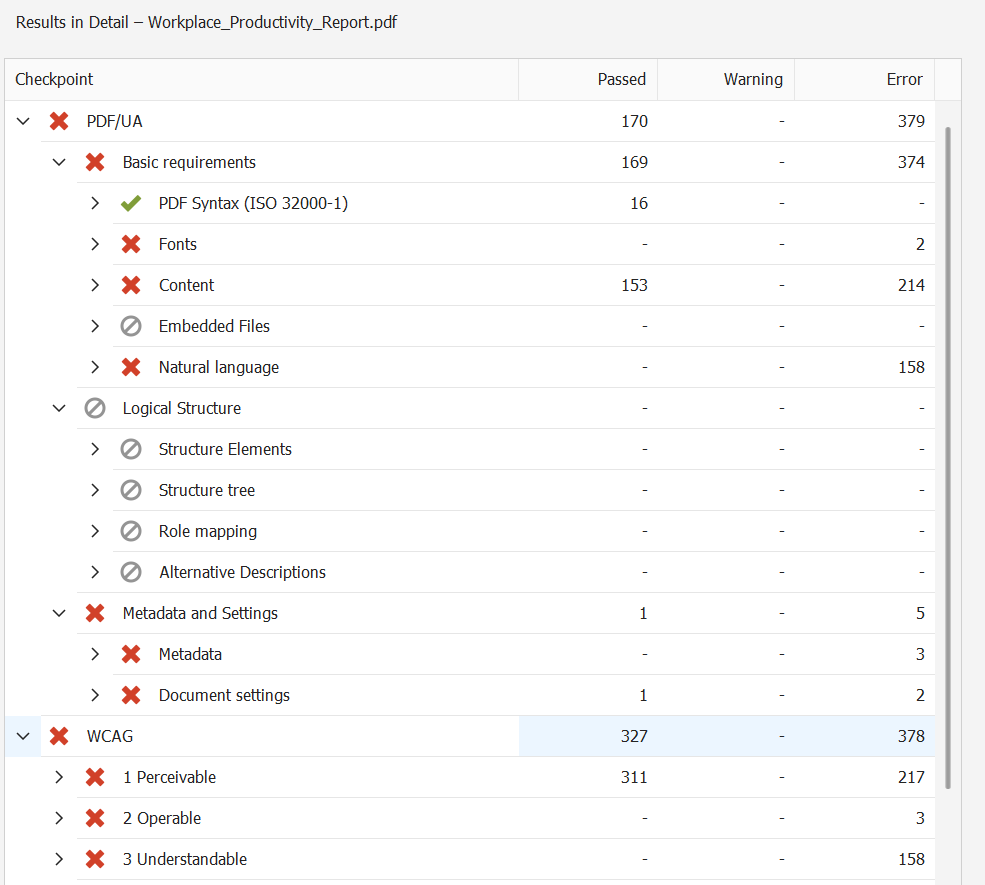
Once you’ve gone through the summary, click ‘Results in detail’ at the bottom to view a comprehensive report and understand exactly where each issue appears in the PDF.
You can also click on any checkpoint in the summary tab to go directly to detailed results. This helps you identify which sections of the PDF need fixing.
Related: How Much Does PDF Accessibility Cost? Complete Pricing Guide for 2026
How to read the PAC report?
PAC Checker report is divided into four areas: PDF/UA, WCAG, Quality and AI.
- PDF/UA and WCAG contain the technical checks.
- Quality checks flag potential problems that may need a closer look
- AI checks in PAC 2026 look for issues with the document’s semantic structure, such as whether headings, paragraphs, lists and tables are correctly identified and structured.
Under each tab, you’ll see three main results:
PAC also has a Technical error result. This means it couldn’t complete a specific check due to a technical issue with the document. It doesn’t necessarily mean a failed accessibility check.
Go through each checkpoint
Double-click a checkpoint in the summary to open its detailed results. You’ll see the specific error message along with the page where PAC found the problem.
For example, PAC might flag missing alternative text for a figure. The detailed report helps you locate that figure, but you still need to decide what the appropriate image alt text should be and add it using your source document or PDF editor.
Along with all the checkpoints mentioned in the summary and detailed results, PAC also gives two other views to ensure PDF accessibility: screen reader and tag tree.
- Screen reader preview shows the order in which assistive technology would read the document. This helps spot problems with the reading order.
- The tag tree shows the structure behind the document, including headings, paragraphs, lists, images and tables. You can use it to check whether the content has been tagged correctly and whether the heading hierarchy and semantic structure make sense.
Review warnings carefully
Don’t treat every warning as an automatic failure, though. Some PDF accessibility checks are designed to point you toward potential problems that still need human judgment.
For example, PAC’s Quality checks can flag whether something looks like a heading, but you still need to decide whether it should actually be a heading and whether it has the right structure.
Treat the PAC Checker report as the starting point for finding accessibility issues, investigate them in the PDF and decide what you need to fix before moving on to a manual review.
Prioritize accessibility fixes
PAC doesn’t rank accessibility issues by severity, so you’ll need to decide what to fix first. Here’s how you should prioritize PDF accessibility fixes:
- Missing information: Missing document language, title, tags or alt text for informative images. Fix these first because the information isn’t available to assistive technology.
- Incorrect structure: Incorrect reading order, heading hierarchy, list structure or table headers. The information is there, but it’s structured incorrectly, which can make it difficult for assistive technology to interpret.
- Navigation issues: Missing bookmarks, unclear link structure or other issues that make the document harder to navigate.
- Lower-priority findings: Decorative elements, stylistic issues and Quality warnings that don’t directly affect how the content is accessed.
Do manual checks
PAC can catch a lot of the technical stuff, like missing heading tags, incorrect structure or missing alt text. But it can’t tell you whether the alt text describes the image correctly or whether the reading order works for someone using a screen reader.
That’s where you need to do a manual check, too. Review the reading order, alt text and document structure before you publish a PDF.
What are AI-assisted checks in PAC 2026?
PAC 2026 offers AI-assisted checks for PDF accessibility that were traditionally done manually. It can analyze the document’s semantic structure and identify headings, paragraphs, lists, tables, images, captions, or any other structural element.
For example, PAC can flag a heading that looks like a heading visually but isn’t tagged as one, or content that appears on the page but has no corresponding tag. The AI looks at the content, formatting, position and context rather than relying on something simple like bold text to identify a heading.
But don’t treat the AI checks as final. PAC 2026’s AI checks are supporting information. The AI tab reports warnings rather than errors. While it can point you toward possible semantic problems, you’ll still need to decide whether the structure is actually correct.
What are the most common accessibility failures in PAC?
Accessibility checkpoint failures, such as missing tags and incorrect reading order, usually happen at the document creation stage. This is more common in PDFs that have visual elements such as images, charts, tables and infographics, which need the right tags, reading order and alt text for assistive technology.
Let’s look at the most common accessibility failures in PAC and why they happen.
Most of these failures trace back to the same thing: accessibility wasn’t built into the document at the design stage. By the time you’re running a PAC test, you’re fixing problems that shouldn’t have existed.
How does PAC compare with other PDF accessibility checkers?
PAC is one of the most commonly used tools for testing PDF accessibility, but it isn’t the only option. You can also use PDF accessibility checkers such as Adobe Acrobat Pro, axesCheck and CommonLook PDF Validator, depending on your workflow.
Let’s compare what each tool can check, how it handles accessibility issues and where it fits into your workflow.
How to reduce PDF accessibility issues before PAC testing?
One of the best ways to avoid PAC accessibility failures is to make PDFs accessible during the creation process, especially for documents with a complex layout.
Accessible design tools like Venngage can help you here. Venngage has a built-in Accessibility Checker that flags and helps you fix accessibility issues as you work on the document.
This way, you can create accessible documents right from the start and verify them using PAC. It reduces back-and-forth and simplifies the process.
Venngage offers a large library of accessible templates. They are designed with accessibility considerations, such as color contrast, tagging and document structure already in place. You can easily edit any template without worrying about accessibility issues.
Let’s understand how you can use Venngage to design accessible PDFs.
Identify and fix accessibility issues at the design stage
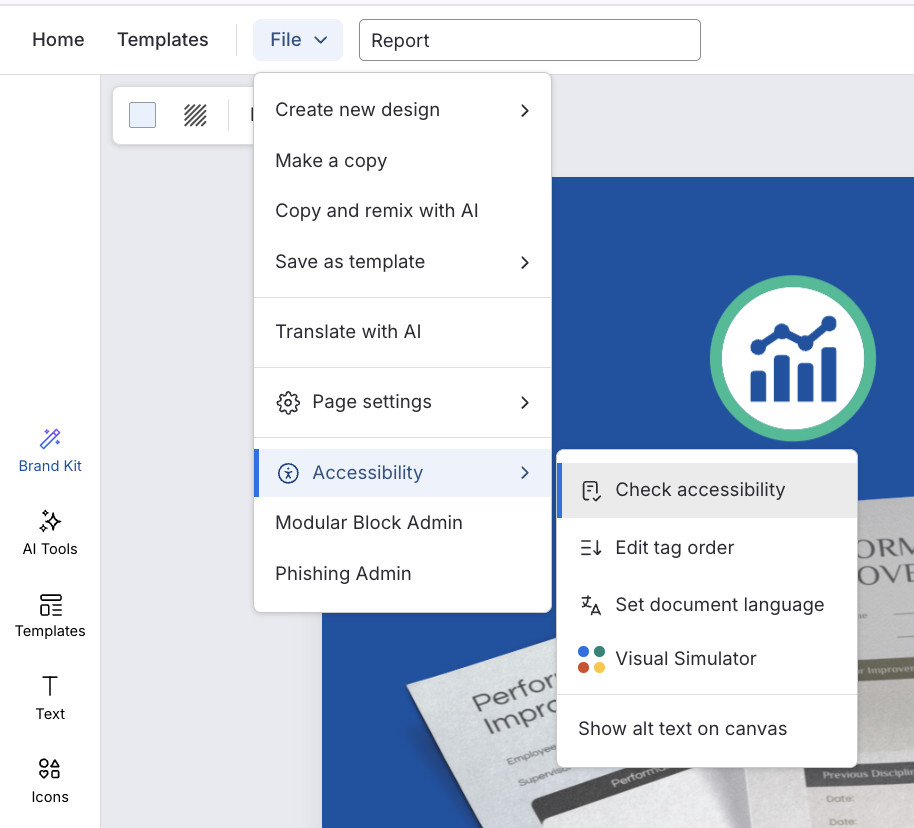
Venngage’s Accessibility Checker helps you identify accessibility issues while you’re creating the PDF. Simply go to File > Accessibility > Check Accessibility, and you can see if your PDF has any accessibility errors, such as missing alt text, insufficient color contrast, or small font size.
The Accessibility Checker also highlights where the issue is so you can easily make your document accessible before exporting.
Control reading order and tag structure
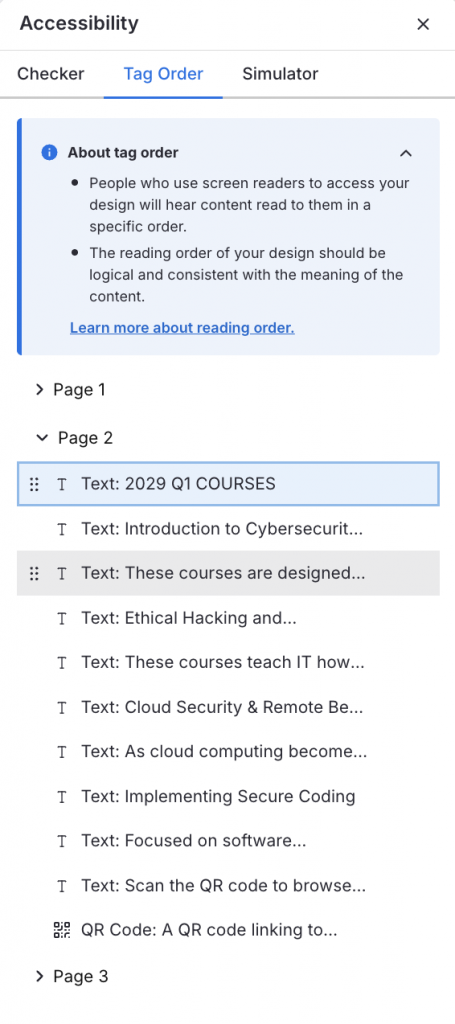
Reading order can be difficult to correct after export, particularly in documents with complex layouts or multiple content sections.
Venngage lets you adjust the reading order directly in the editor using drag-and-drop controls. This helps set the sequence for screen readers while you’re still designing the document.
Add alt text with AI
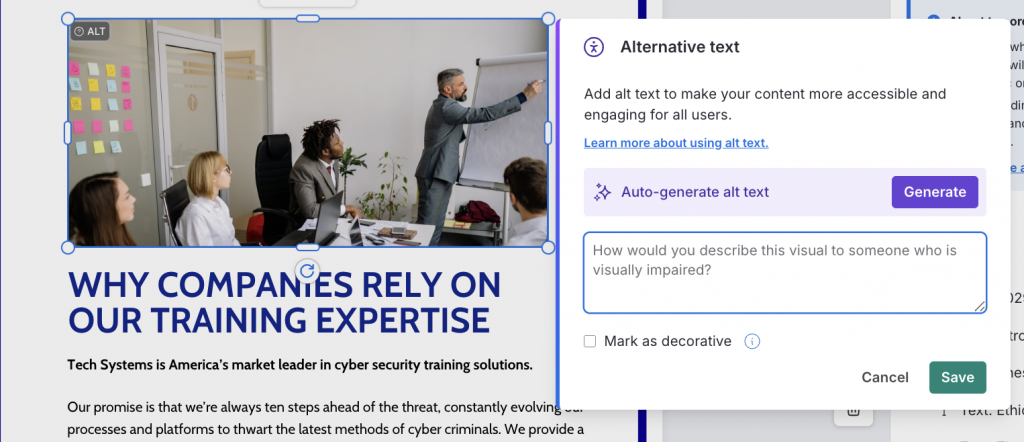
Venngage’s AI can generate alt text for images, charts and graphs as you create the document. You can review and edit the generated descriptions before publishing, rather than waiting until PDF remediation to add them.
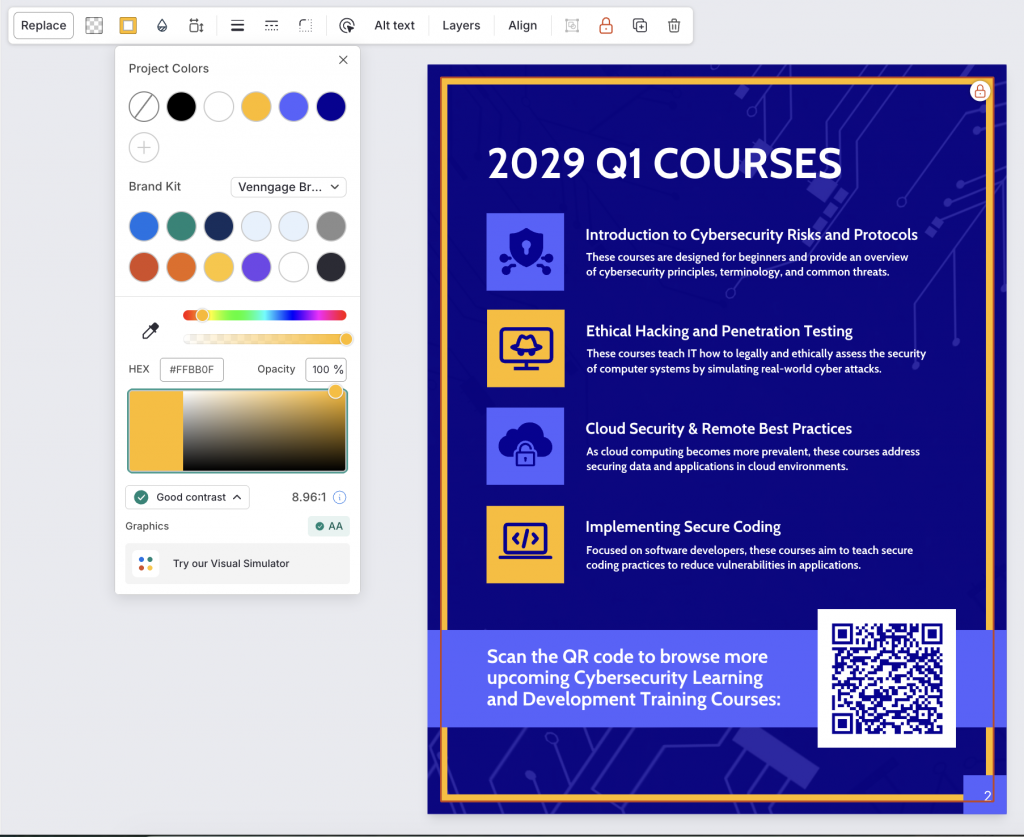
Check color contrast as you design
The built-in color Contrast Checker helps you identify contrast issues while you’re working. You can see which color combinations meet the required contrast ratio before you finalize the design.
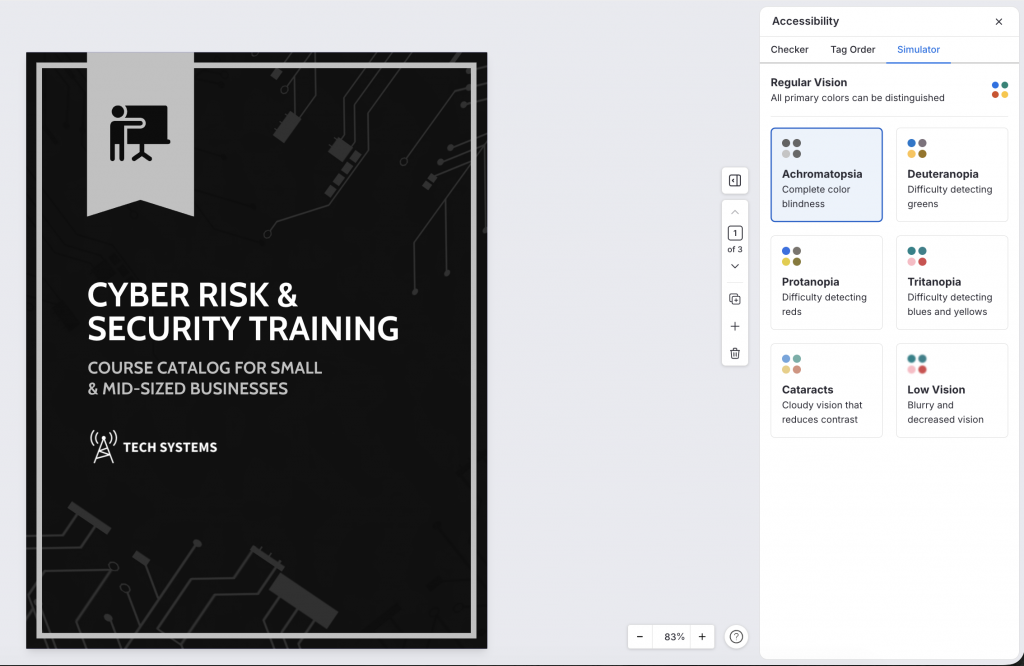
Venngage also has a Visual Simulator that shows how your design may appear to people with different visual impairments. This helps you spot contrast and visibility issues before they become a problem in the final PDF.
Venngage’s accessible PDF export preserves elements such as tags, reading order and document structure, so you can carry that work into the final PDF.
This is especially useful when you’re producing multiple documents to the same standard, like reports or guides.
Simplify your PDF accessibility workflow
PAC is a great tool to test your PDFs for accessibility. However, it only helps verify the PDF against PDF/UA and WCAG standards. It can’t fix the issues it finds. That can lead to a lot of back and forth: test the PDF, go back to the source document or another tool to fix the issues, export it again and then run another PAC test.
A better approach is to address accessibility while you create the document. Venngage helps you do this with built-in accessibility tools, so you can check things like color contrast, reading order, heading structure and alt text before exporting your PDF. You can then use PAC to check the final document rather than uncovering a long list of issues after export.
Frequently asked questions
1. What is PAC used for?
PAC is a free PDF accessibility checker that tests PDFs against PDF/UA and WCAG requirements. It helps you identify accessibility issues before publishing a PDF.
2. How much does PAC cost?
PAC is free to download and use. It’s available as a Windows desktop application.
3. Does PAC fix PDF accessibility issues?
No. PAC identifies accessibility issues but doesn’t remediate them. You’ll need to fix the issues in your source document or another PDF tool, then run the test again.
4. Does a passing PAC test mean a PDF is fully accessible?
No. PAC can automate many technical checks, but some accessibility requirements still need human review. You should manually check things such as reading order and whether alt text actually describes the visual content.
5. Does PAC work on Mac?
No. PAC is currently a Windows-only tool. If you’re on Mac, you can use axesCheck, the web-based accessibility checker from axes4.
6. What’s new in PAC 2026?
PAC 2026 introduced AI-assisted checks that can identify potential issues with the semantic structure of a PDF, including headings, paragraphs, lists and tables. These checks complement PAC’s existing automated tests but don’t replace manual review.
7. Should I use a design tool or a PDF editor to fix PAC failures?
If the problem is with the document’s layout, structure, reading order or visual content, it’s usually better to fix it in the source or design tool and export the PDF again. For issues that only appear after export, a PDF editor can be useful for making targeted fixes.
Ideally, you should build accessibility into the document from the start, then use a tool like PAC to verify the exported PDF. This can help you avoid repeated rounds of remediation.