

The DOJ recently extended the ADA Title II compliance deadline by a year. Public entities serving populations of 50,000 or more now have until April 2027 to meet WCAG 2.1 Level AA requirements, while smaller entities and special district governments have until April 2028.
If you’re planning for ADA compliance, one of the first questions you’ll likely ask is: How much does PDF accessibility actually cost?
A complete accessibility budget should account for remediation, accessibility software, staff time, accessibility reviews and documentation audits. Your total cost will also depend on how many PDFs you need to remediate and how complex those documents are.
In this guide, I’ll explain the factors that influence PDF accessibility costs, where organizations typically spend the most time and resources and how an accessibility-first workflow with Venngage can help reduce long-term costs.
What is the cost of PDF accessibility?
While remediation is often the first expense organizations think about, it’s usually just one part of the total cost. Staff time, disconnected tools and inefficient workflows often contribute to PDF accessibility costs.
Here are the major categories you need to consider for an accessibility budget:
1. PDF remediation
The average PDF remediation cost is $5-$25 per page. Every vendor sets its own pricing based on document complexity, volume, turnaround, and their own tooling and QA process.
Here’s what published rates look like across a few known vendors:
The cost of remediation increases with document complexity. A simple PDF with mostly text and images requires far less work than one with tables, charts, forms and complex layouts.
2. Staff time and accessibility reviews
One of the most overlooked PDF accessibility costs is staff time. Accessibility teams spend a lot of time identifying accessibility issues, requesting revisions and coordinating with designers and content creators.
According to Indeed, the average salary of a digital accessibility specialist in the U.S. is $80,210 per year. If you have a large document inventory, you need to hire more accessibility professionals, which increases the total cost.
Outsourcing PDF accessibility to external vendors is often seen as a way to reduce this burden, but it doesn’t reduce the cost in reality. You still need an internal team member to manage the vendor, QA their output and route documents through internal review. That’s a recurring cost on top of your internal staff time.
3. Software and accessibility tools
You might be designing a document in one platform, exporting it as a PDF, editing it in another application, and running an accessibility check using a separate tool. Then going back to the original platform to fix your document.
Every additional tool adds licensing costs. Here’s how it works:
- Outsourced per-page vendors (Accessible.org, Skynet, Allyant, etc.). They have no upfront license cost, but recurring per-document spend.
- In-house licensed tools (Equidox, CommonLook, PREP, Adobe Acrobat Pro). These tools have upfront/annual licensing and offer customized quotes depending on your organization’s requirements.
4. QA testing
Once the PDF is remediated, you need to do a final quality assurance test to ensure it complies with the required WCAG 2.1 AA, Section 508 and PDF/UA requirements.
Third-party vendors usually bundle PDF remediation and QA pricing. However, if you have done remediation in-house, you might have to pay extra for the audit.
There are two ways to do it:
- Self-testing using a PDF accessibility checker: If you want to check a small number of documents, you can use free PDF Accessibility Checkers like Venngage’s Accessible PDF Checker, PAC 2024, axesCheck and VeraPDF. Some of these tools run AI-assisted accessibility. However, you still need a human for reading order, alt-text meaning, and semantic tag review.
- By third-party vendors: If you’re publishing at scale and have hundreds of documents, you need a third-party vendor for QA testing. The pricing for QA testing again varies from vendor to vendor. According to Accessible.org, the cost of a digital accessibility audit is $1,250 to $2,750. DigitalA11Y charges $1,500 to $5,000 for web accessibility audits. PDF accessibility audit might cost you a bit less.
5. Workflow issues
The biggest factor driving PDF accessibility costs across organizations is the traditional review loop. The document goes through multiple rounds of revisions, testing and approvals and accessibility is treated as the final step.
Each time the document re-enters the workflow, designers, content creators and accessibility reviewers need to revisit it before it can move forward. What starts as a simple accessibility fix can quickly turn into multiple rounds of edits and reviews, especially for complex documents or organizations publishing at scale.
These repeated review cycles extend publishing timelines, increase labor costs, delay important communications and create unnecessary operational overhead.
How much does ADA non-compliance cost?
The Department of Justice (DOJ) extended the ADA Title II compliance deadline because many public entities, especially smaller organizations, flagged that they didn’t have the cost, resources, or technical capacity to meet the original timeline.
The extension gives ample time for organizations to plan for PDF accessibility. If you want to reduce PDF accessibility costs, it’s best to start sooner to avoid higher rush surcharges on remediation, emergency vendor fees, and last-minute hires closer to the deadline.
ADA Title II (which covers state and local government) doesn’t have its own civil penalty schedule, but public entities face DOJ enforcement actions and private lawsuits that carry their own financial consequences. Depending on the court’s ruling, you may face:
- Payouts to individuals who were denied access to your PDFs
- Legal fees, both yours and the plaintiff’s, which stack quickly in a drawn-out case
- Ongoing reporting and audits, often for years after settlement
- Loss of federal funding under Section 504 of the Rehabilitation Act (relevant for public higher ed and any grant-receiving entity)
Even for private organizations that fall under ADA Title III, the civil penalties for non-compliance with ADA are up to $118,225 for first offenses and $236,451 for subsequent violations.
How to reduce PDF accessibility costs?
You can reduce PDF accessibility costs by creating accessible documents from the start, standardizing templates, training teams on accessibility best practices and automating repetitive tasks using PDF accessibility tools.
These changes help minimize remediation, improve efficiency and reduce manual work.
Design for accessibility, not remediation
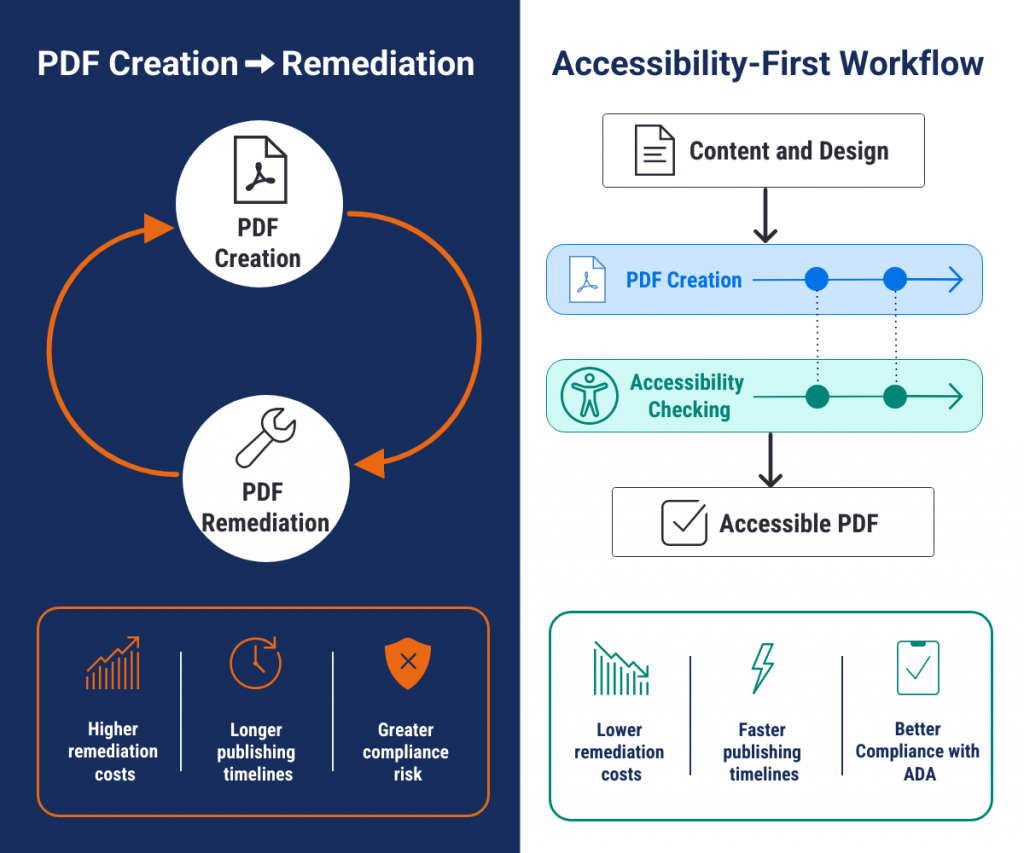
A design-first, remediate-later mindset is one of the biggest reasons PDF accessibility costs continue to rise. Teams often find themselves stuck in a cycle of designing, reviewing, revising and publishing, only to repeat the process when accessibility issues are identified.
The goal is to move away from this traditional workflow and adopt an accessibility-first approach to create documents.
While you fix existing PDFs to comply with ADA Title II requirements, any new content that you create needs to be accessible. This is where you need to focus on accessibility from the start so you don’t get in a constant loop of PDF creation and remediation
Venngage’s Accessibility PDF Maker helps you apply accessibility principles right from the beginning while designing the document. This reduces high PDF remediation and manual labor costs and helps you publish documents faster.
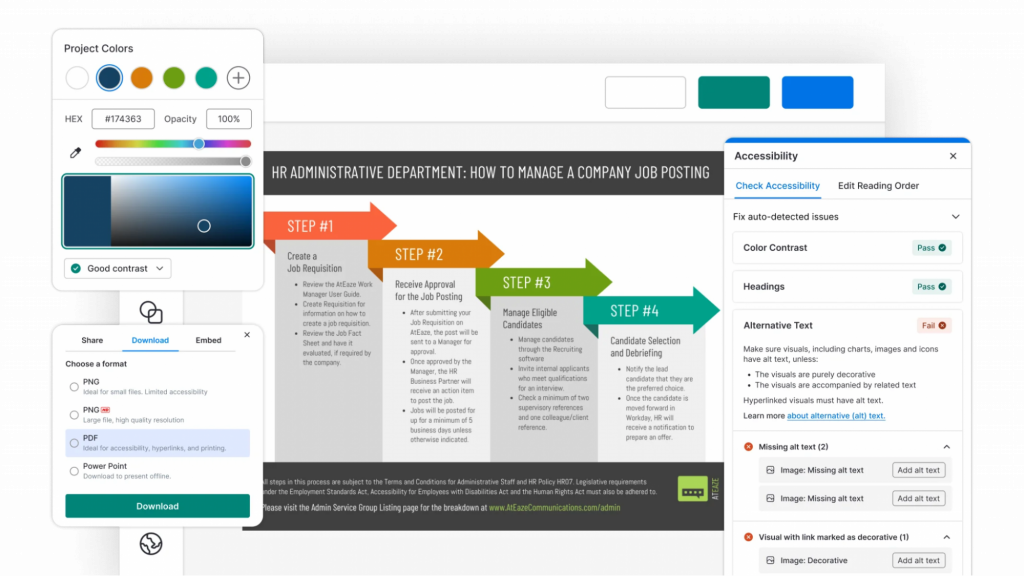
Here’s how you can create accessible PDFs using Venngage:
- Check color contrast: Select your text to see whether it has sufficient contrast against the background with Venngage’s Color Contrast Checker.
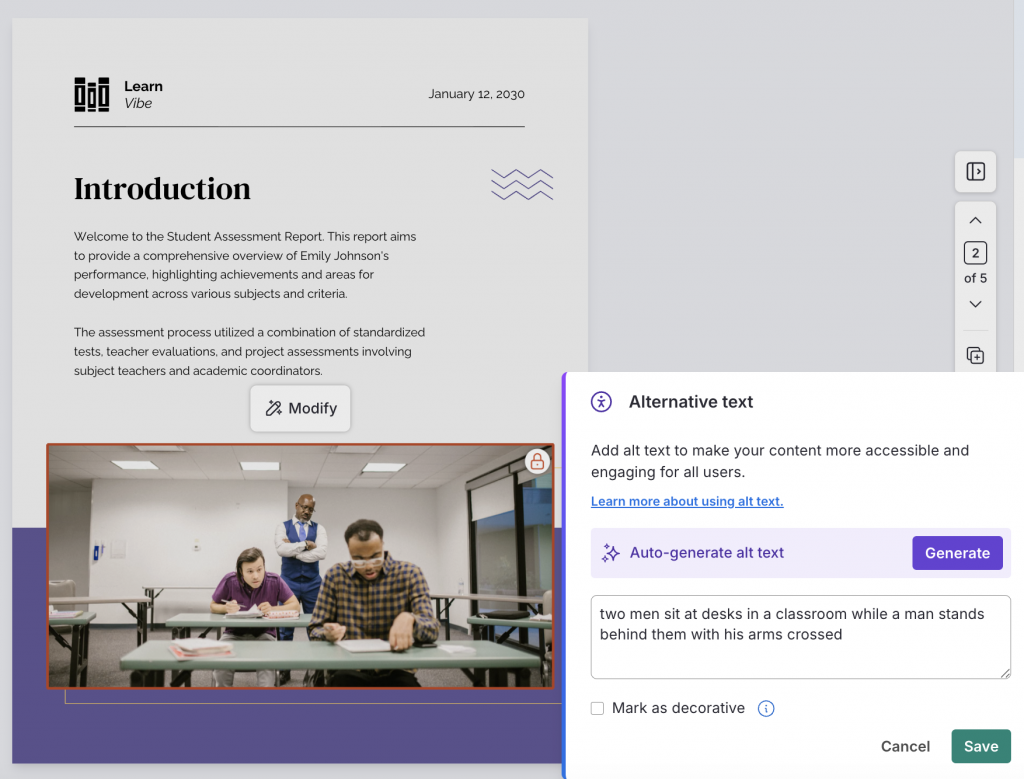
- Add alt text to images: Make sure every meaningful image includes descriptive alt text so screen reader users can understand the visual content. Venngage lets you add alt text directly within the editor.
- Fix heading tags and document structure: Apply the correct heading hierarchy (H1, H2, H3…) and organize your content in a logical reading order so assistive technologies can navigate the document correctly.
- Review tables and links: Ensure tables use proper headers and descriptive link text so users can understand the content without relying on visual cues.
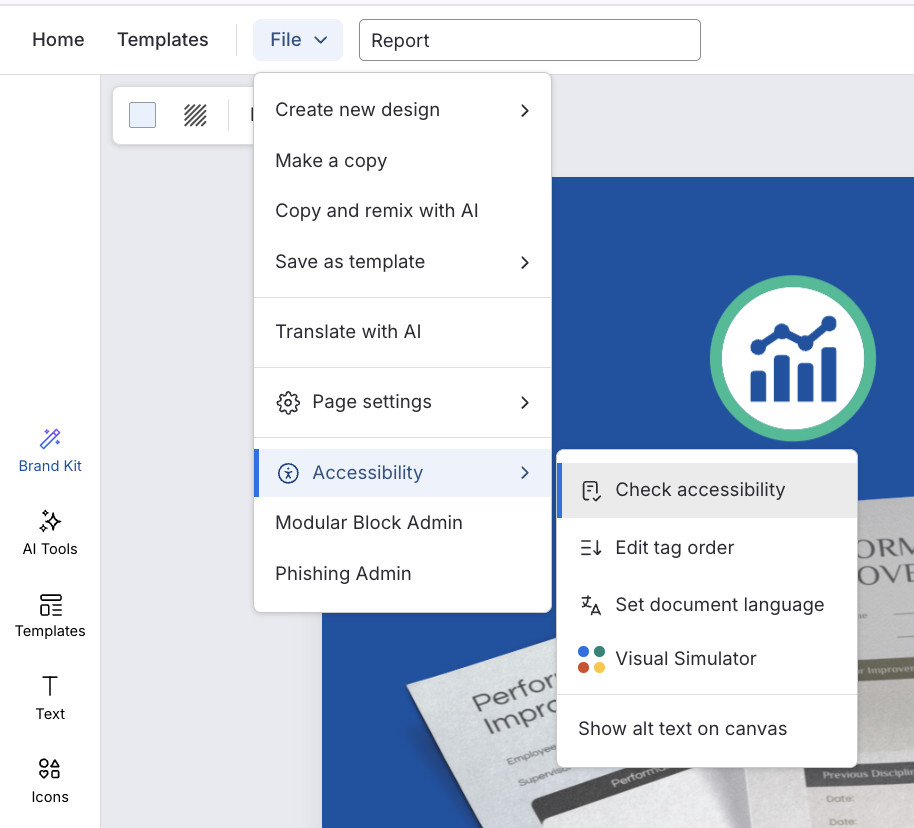
- Run a full accessibility check: Before exporting, use Venngage’s Accessibility Checker to scan your document for accessibility issues and work through the recommendations until everything has been addressed.
- Export as a PDF/UA: Once the document passes the PDF accessibility checks, export it as a PDF/UA to create a document that’s compatible with assistive technologies and aligned with accessibility standards.
Standardize document templates
Another way to reduce PDF remediation and labor costs is to standardize the templates your team uses. When every document starts from an accessible foundation, there’s less time spent fixing the same accessibility issues over and over again. It also creates consistency across teams, making reviews faster and easier.
Venngage offers a large library of accessible templates for reports, presentations, infographics, brochures and more.
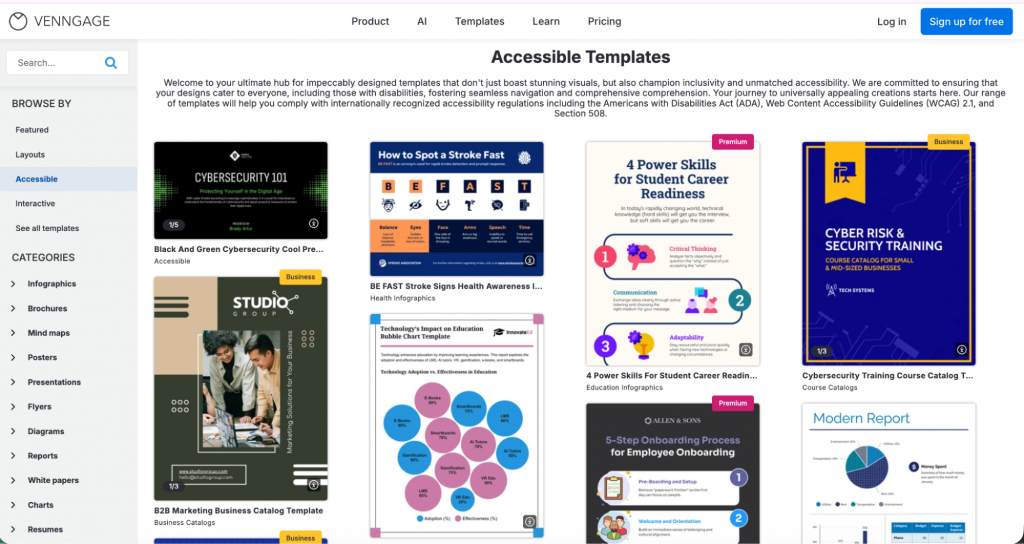
Simply browse the template library and choose one that fits your needs. You can also describe the document you want to create or upload an existing document, and Venngage AI will generate a customizable design based on your requirements.
From there, use the drag-and-drop editor to personalize the content while maintaining an accessible structure. With Venngage, you can even save your designs as templates and share them with your team to ensure accessibility.
Learn how to design accessible PDFs using Venngage.
Train teams on accessible document creation
When accessibility knowledge is limited to a small group of specialists, every document needs to go through additional review cycles.
Instead, train everyone involved in document creation on basic accessibility principles to reduce operational costs. Focus on practical skills like using proper heading structures, maintaining sufficient color contrast and understanding logical reading order.
You can also create an internal accessibility checklist or style guide so teams follow the same standards for every document.
Automate repetitive accessibility tasks
Writing alt text, checking color contrast and reviewing accessibility requirements for every PDF can quickly become repetitive, especially when you’re creating documents at scale.
AI tools like Venngage can help automate many of these routine tasks to speed up the accessibility workflow. For example, its AI Alt Text Generator automatically generates descriptive alt text for images.
The Accessibility Checker scans your document for common issues such as missing text, insufficient color contrast, missing table headers, heading hierarchy and other accessibility requirements. Instead of manually reviewing every page, you can work through the recommendations and fix issues before exporting your PDF.
Traditional workflow vs. accessibility-first workflow
Traditional PDF workflows often rely on fixing accessibility issues after a document is finished. An accessibility-first workflow shifts those checks earlier in the process, reducing manual work, shortening review cycles and lowering the overall cost of creating accessible PDFs.
Design accessible documents
PDF accessibility costs include per-page remediation, staff time, software licenses, QA testing and the workflow overhead of managing all of them across every document you publish.
The single biggest factor that decides how much you spend is your workflow. If accessibility is treated as the final step, you’ll pay for remediation, reviews and rework on every document. If accessibility is built into the design process, most of those costs shrink and stay lower as your document volume grows.
Venngage helps you design accessible PDFs from day one, so accessibility becomes part of how you create documents, not a review step at the end.
FAQs on PDF accessibility cost
1. How much does it cost to make one PDF accessible?
Making a single PDF accessible typically costs $5 to $25 per page, depending on complexity. A simple text document sits at the lower end, while PDFs with tables, forms, charts or complex layouts cost more. Volume discounts and in-house tools can lower the per-page cost.
2. Is PDF accessibility mandatory?
Yes, for public entities. Under ADA Title II, state and local governments must make their digital content, including PDFs, accessible to WCAG 2.1 Level AA standards. Private businesses fall under ADA Title III, which also requires accessible digital content.
3. What is the deadline for ADA Title II compliance?
Public entities serving populations of 50,000 or more must comply by April 2027. Smaller entities and special district governments have until April 2028. Both must meet WCAG 2.1 Level AA standards.
4. What makes a PDF inaccessible?
A PDF is inaccessible when it lacks the structure assistive technologies need to read it. Common issues include missing document tags, no alt text on images, incorrect reading order, unlabeled tables and poor color contrast.