

TL;DR
Password-protected PDF accessibility depends on how the file is secured. A password alone doesn’t necessarily make a PDF inaccessible, but certain security permissions can prevent assistive technology from accessing its content. To secure a PDF without breaking accessibility:
- Know the difference between an open password, which controls who can open the PDF and a permissions password, which controls what users and software can do after opening it.
- Check that Content Copying for Accessibility or the equivalent screen-reader access permission, is set to Allowed.
- You can restrict ordinary copying, editing or printing while still allowing assistive technology to access the PDF.
- After applying security, inspect the final PDF’s permissions and test it with an accessibility checker and representative assistive technology.
- Always test the secured PDF you’ll actually distribute, not just the accessible version you created before applying security.
One small step at the end of your PDF workflow could undo all the accessibility work you’ve put in.
Let’s say you’re a stickler for PDF accessibility. You check the tags, fix the reading order and make sure the document meets all the accessibility requirements.
Then, just before publishing, you password-protect it.
Sure, the PDF still looks exactly the same. It opens normally for anyone with the password. But depending on the security permissions you apply, a screen reader may no longer be able to access its content.
That’s where password-protected PDF accessibility gets tricky.
In this guide, I’ll explain why this happens, which PDF permissions to check and how to protect your PDFs without locking out screen reader users.
How does password protection affect PDF accessibility?
Password protection can impact accessibility if the security settings applied to the PDF prevent assistive technology from accessing its content.
The password itself isn’t what makes the PDF inaccessible. The problem can occur when you password-protect the file and inadvertently apply a security permission that also blocks screen-reader access.
That’s easy to miss because the PDF may still open normally, look exactly as intended and retain all its accessibility tags.
Section508.gov’s PDF accessibility testing guidance specifically tells testers to check that Content Copying for Accessibility is set to Allowed. If it’s set to Not Allowed, assistive technology cannot access the PDF’s content.
So, a PDF that looks perfectly usable to you can be effectively unreadable to someone using a screen reader.
Two kinds of PDF passwords (and which one matters)
When someone says a PDF is “password protected,” that doesn’t necessarily mean it’s inaccessible. PDFs can use two types of passwords for different jobs. Understanding the difference helps you find where the accessibility problem actually sits.
Document open password
This is the one you’re probably most familiar with. You open a PDF and, before you can see anything inside, you’re asked for a password.
Think bank statements, payslips, tax documents or medical reports sent as password-protected PDFs. Here’s an example from a statement I recently downloaded from my bank:
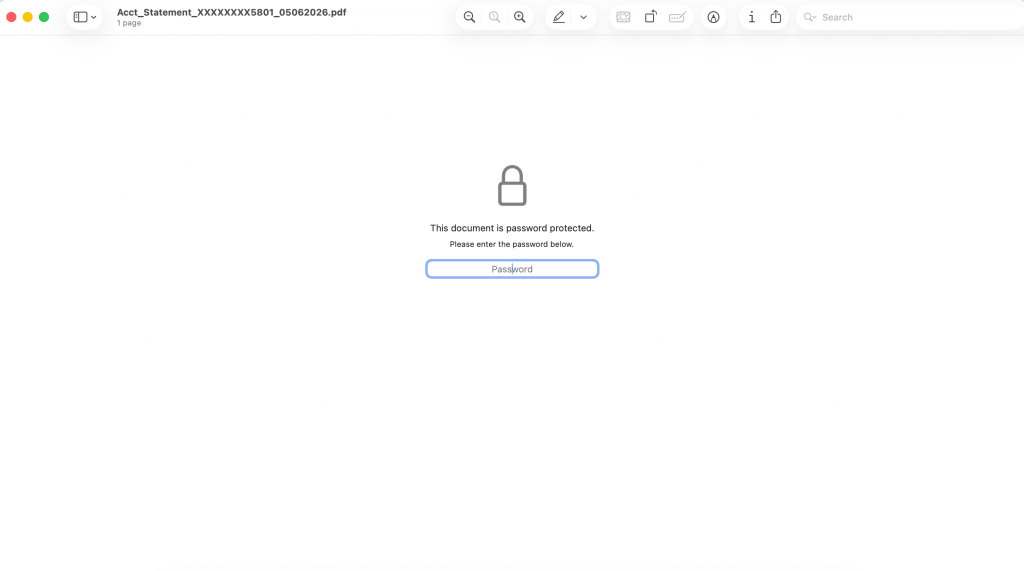
The job of such password-protected documents is simple: Who gets to open this PDF?
Once an authorized user enters the password, the file opens. That extra authentication step doesn’t inherently remove the PDF’s tags, headings or other accessible structure.
So if you’re troubleshooting password-protected PDF accessibility, the fact that a file asks for a password isn’t enough to diagnose the problem.
Permissions password and document restrictions
A permissions password controls something different: What can someone or their software do after opening the PDF?
Think of a confidential company report that employees can read but not edit, a paid research report that can’t be copied or a controlled document that users aren’t allowed to print.
For example, a paid Statista report may let subscribers view and download the PDF while restricting how its content can be copied, edited or shared:
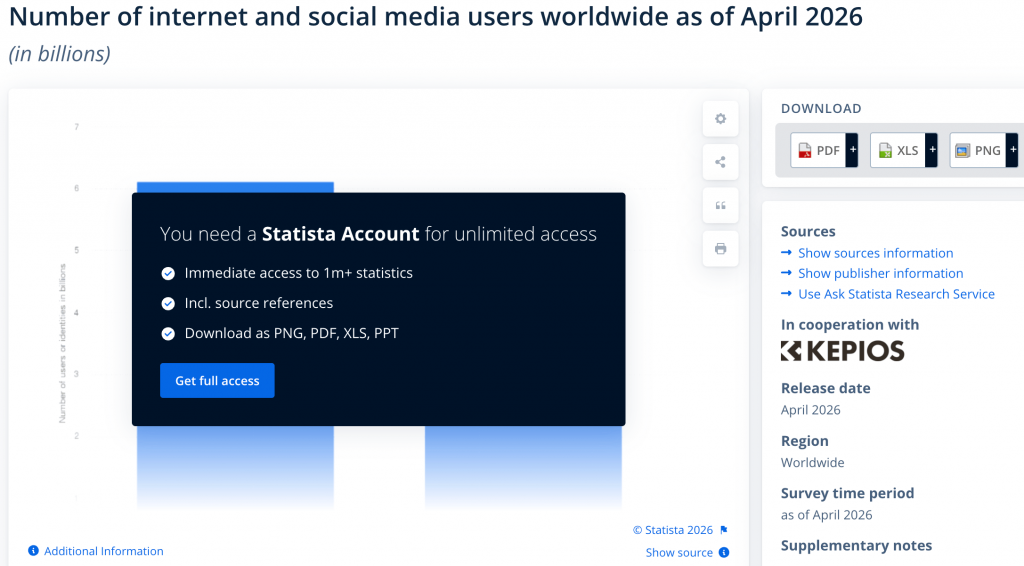
Depending on how the file is secured, its permissions can restrict:
- Printing
- Editing
- Copying
- Content extraction
- Access by assistive technology
That last one is where accessibility enters the picture.
A user might access the document and still find that their screen reader can’t access its content because the PDF’s permissions don’t allow it.
Bottom line: Of the two types, the permissions password is the one to pay attention to because it protects the restrictions applied after the PDF is opened, including settings that can affect assistive-technology access.
But removing every password isn’t the answer. You need to identify which permissions are actually getting in the way.
The PDF permission that can block screen readers
This is where PDF security gets a little counterintuitive. Restricting someone from copying text and allowing a screen reader to access that same text can be two separate permissions.
In Acrobat, for example, depending on the version you’re using, you may see an option called “Enable text access for screen reader devices for the visually impaired.”
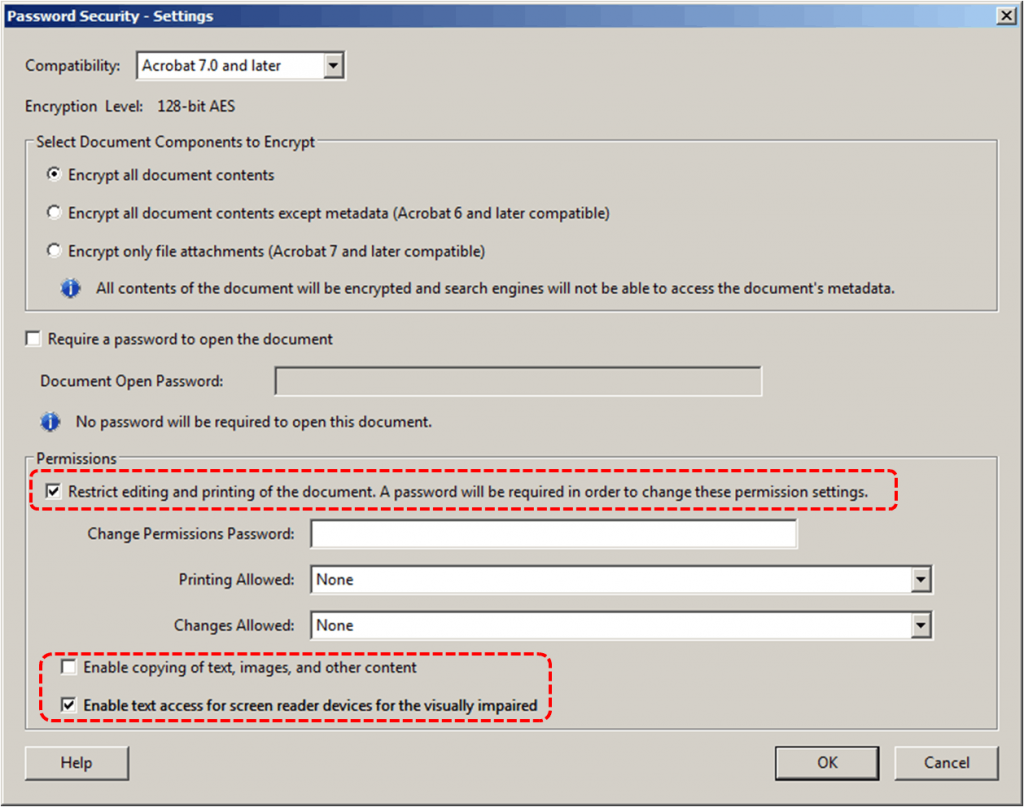
In the PDF’s properties, the same permission may appear as “Content Copying for Accessibility.” That permission matters because PDF security screen reader access can come into conflict when assistive technology is blocked from accessing the document’s underlying content.
Section508.gov’s PDF testing guidance is explicit about this: if Content Copying for Accessibility is set to “Not Allowed,” assistive technology won’t be able to access the PDF’s content.
Acrobat treats ordinary content copying and screen-reader text access as separate security options. You can restrict someone from copying text or images while still allowing a screen reader to read the document.
In other words, you don’t have to make a PDF less secure to make it accessible. You have to set the right permissions.
Where legacy PDF security enters the picture
Older PDF security makes this slightly messier. In fact, the W3C’s early PDF accessibility techniques distinguished between 40-bit encryption, which required copying to be permitted and 128-bit encryption, which introduced a separate accessibility permission.
But you don’t need to become an encryption expert to solve the problem. Don’t assume that choosing AES or any other encryption method makes the PDF accessible. Check the actual accessibility permission on the final file.
How to check if a password-protected PDF is still accessible
The safest way to check a secured PDF is to test the exact file you plan to distribute. If you tested it before adding security, that result only tells you the earlier version was accessible.
Here’s what to check on the protected file.
1. Check the final PDF’s security permissions
Start with the document’s security properties. In Acrobat, you can find these under Document Properties > Security > Document Restrictions Summary.
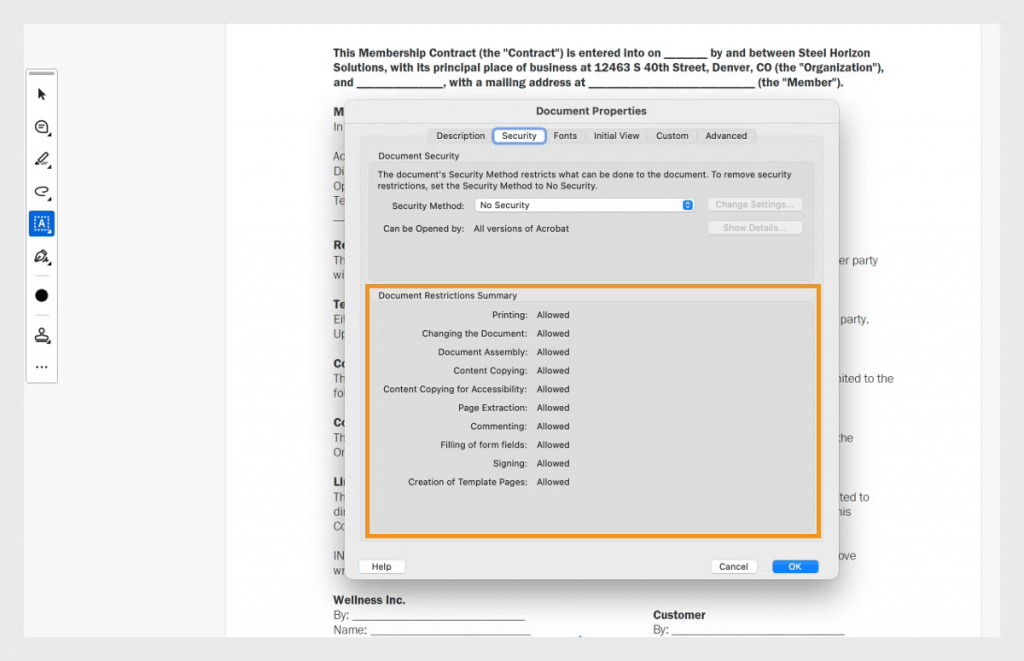
Look for Content Copying for Accessibility. It should say Allowed.
This isn’t just an Acrobat setting worth knowing. Section508.gov includes this exact check in its PDF accessibility testing process. If it says “Not Allowed,” assistive technology can’t access the PDF’s content.
Other PDF tools may use different labels or put this information elsewhere, so focus on the permission rather than the menu path.
2. Test the protected PDF with a screen reader
“Allowed” is a good sign, but it isn’t the end of the test.
Open the protected file with a screen reader and try to use it as a reader would. Can you read the text? Move through headings? Follow links? Navigate tables and form fields where applicable?
I dropped my password-protected bank statement into a free PDF accessibility checker tool, and here’s what it returned:
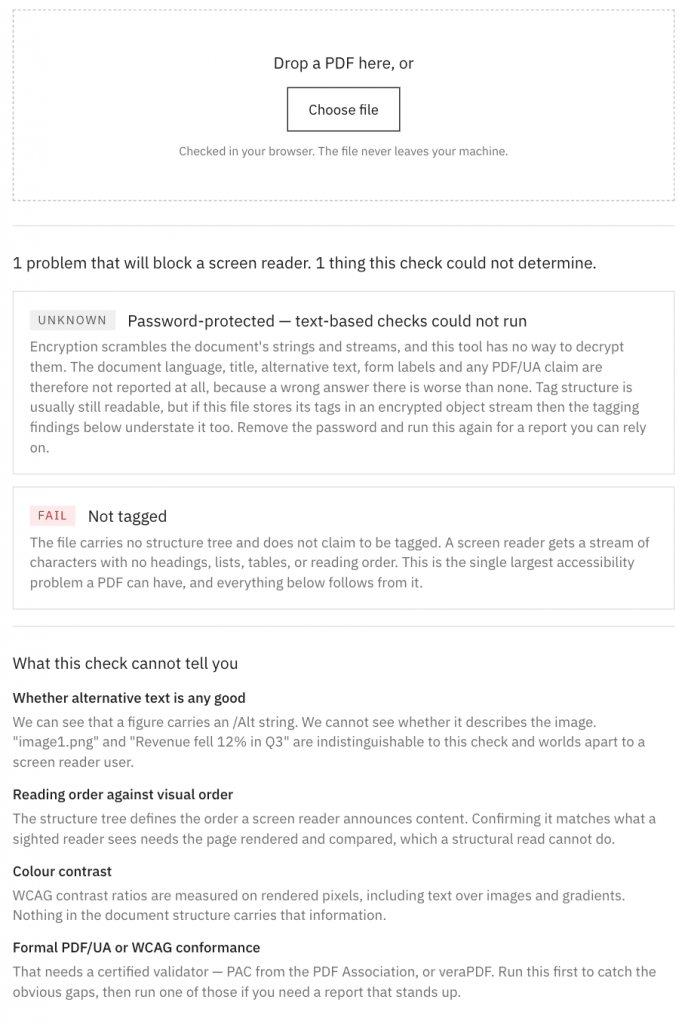
The free tool detected the password protection and missing tags, but couldn’t verify several other accessibility requirements. Not all PDF accessibility checkers can correctly evaluate every accessibility issue in a protected file.
3. Run your accessibility checker again
Finally, run the protected file through your usual accessibility checker. If you use PAC, follow this guide to checking PDF accessibility with PAC and review any issues it finds.
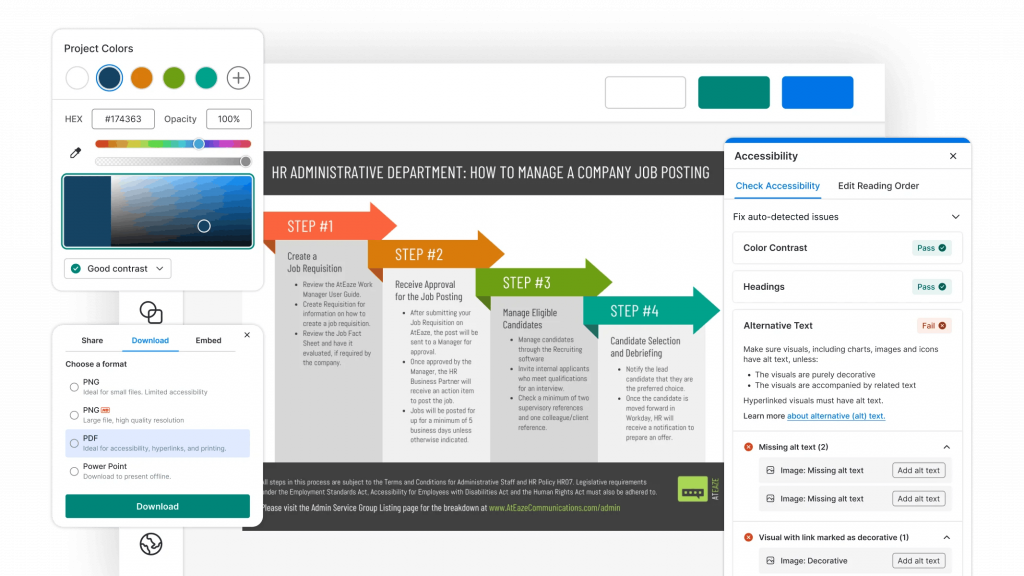
You can also use Venngage’s PDF Accessibility Checker to scan your PDF before publishing. It checks for issues such as missing image alt text, incorrect PDF reading order, tag structure and poor color contrast.
The rule is simple: don’t accessibility-test a PDF and then secure it. Test it after you secure it.
How to secure a PDF without breaking accessibility
You don’t need to choose between protecting sensitive information and making it accessible. A better approach is to be intentional about what you restrict.
Decide what you actually need to restrict
Start by understanding the actual reason you’re securing the PDF.
Do you need to stop unauthorized users from opening it? Prevent edits? Restrict printing? Keep people from copying text or images?
Each calls for a different level of control. Applying the most restrictive preset available may feel safer, but it can introduce restrictions you never needed in the first place.
Preserve assistive-technology access
When your PDF software provides a separate permission for screen-reader or accessibility access, keep it enabled.
Use modern encryption such as AES, avoid legacy restriction presets, and explicitly allow screen-reader access in the PDF’s permissions.
As we covered earlier, this doesn’t necessarily mean allowing unrestricted copying. Restricting ordinary copying doesn’t necessarily require restricting assistive-technology access.
When it comes to PDF permissions and accessibility, the important part is knowing what each permission actually controls instead of treating every restriction as additional security.
Test after security is applied
Make security part of the publishing workflow rather than something added after accessibility QA:
Create an accessible PDF > Apply the required security > Save the final file > Inspect its permissions > Run your accessibility checker > Test with assistive technology > Distribute
That final-file check is easy to skip. It’s also what tells you whether the document you’re about to send or publish is actually the accessible one you intended to create.
What to do if security has already made a PDF inaccessible
If you’ve found the problem after the PDF has already been secured, the fix depends on what you control. Resist the temptation to simply remove the protection and call it done.
If you control the PDF
If the document is already accessible and security is the problem, change the relevant permission to allow assistive-technology access.
In Acrobat, go to Document Properties > Security and review the document’s permission settings. Look for Content Copying for Accessibility or Enable text access for screen reader devices for the visually impaired and make sure access is allowed.
Other PDF tools may use different labels or menu paths, so look for the equivalent permission controlling screen-reader or assistive-technology access.
Save the secured PDF, then test that final copy again.
If you control the source document
Sometimes security isn’t the only problem you’ll uncover. If the PDF also has missing tags, incorrect reading order, inaccessible images or other issues, fix those in the source document where practical.
Then export a new PDF, apply the required security settings and test the final protected file again. Venngage’s PDF accessibility checklist can help you catch the broader accessibility issues before publishing.
If the security is required by policy
Don’t remove a required restriction simply to get an accessibility check to pass.
HR records, financial documents, student information and government records may need protection for legitimate security, privacy or records-management reasons.
Check with whoever owns that requirement, whether that’s IT, compliance or the document owner and adjust the PDF permissions without removing protections the file still needs.
The goal is to fix the accessibility barrier without creating a security problem somewhere else.
What ADA Title II and Section 508 mean for secured PDFs
If you work in government or higher education, there’s another reason to pay attention to PDF security settings: they can intersect with your accessibility obligations.
But the rules aren’t as simple as “password-protected PDFs must always meet the same requirements.”
Section 508
For federal accessibility workflows, the guidance is direct. Section508.gov’s PDF testing process requires testers to verify that Content Copying for Accessibility is set to Allowed. If it’s Not Allowed, assistive technology can’t access the PDF’s content.
So, checking PDF permissions isn’t an optional technical detail. It’s part of testing a PDF for Section 508 conformance.
ADA Title II has an important exception
For public-facing PDFs covered by Title II, security settings that prevent screen-reader access can create an accessibility compliance problem.
The DOJ’s Title II web accessibility rule makes an exception for certain individualized documents that are password-protected or otherwise secured. To qualify, the document must be about a specific person, property or account. A PDF water bill inside a resident’s secure account is one example.
A general policy PDF doesn’t qualify for the exception simply because it sits behind a login.
Even where the exception applies, public entities still have broader ADA obligations, including effective communication with people with disabilities.
For more context on this topic, read Venngage’s guide to the ADA Title II web accessibility rule.
Security should be part of your PDF accessibility QA
Think about where security sits in a typical PDF publishing workflow:
Author > Design > Accessibility remediation > Approval > Security > Publish
There’s a problem with that sequence. The accessibility team may have tested and approved the PDF before security settings were applied.
That means the file that passed accessibility QA isn’t necessarily the file your audience receives.
This matters beyond password protection. Any meaningful change made after accessibility testing can affect the final document. Security is particularly easy to overlook because it may not visibly change the PDF at all. The document opens. The layout looks right. Nothing appears broken to the person publishing it.
For an accessibility or compliance team, the fix is mostly procedural. Treat security as part of your PDF accessibility and remediation process rather than a separate publishing task.
If security is applied after remediation, the secured version needs to go back through the relevant accessibility checks before release. A better workflow looks like this:
Author > Design > Accessibility remediation > Apply security > Accessibility QA > Approval > Publish
The takeaway here is simple: test the PDF your users will actually receive, not just the version your accessibility team approved earlier.
That small change closes a surprisingly easy gap between creating an accessible PDF and actually publishing one.
Build accessibility into the PDF before you protect it
Security settings are only one layer of PDF accessibility. As PDF standards have evolved to support accessibility, security and compliance, a screen reader still needs a properly structured document underneath those security settings.
That means getting the fundamentals right first: tags, headings, logical reading order, alt text and other accessibility information. If you need a refresher, see how accessible PDFs differ from standard PDFs and use this PDF accessibility checklist before publishing.
Venngage can help you build accessibility into your document earlier in the creation process, so you’re not trying to repair everything at the end.
Password-protected PDF accessibility checklist
Before you publish or distribute a secured PDF, run through this final check:
Frequently asked questions (FAQs)
Here are quick answers to the most common questions about password-protected PDF accessibility, security permissions and screen-reader access.
1. Does password protection affect PDF accessibility?
It can. A password to open a PDF doesn’t inherently make it inaccessible. However, PDF security permissions can block assistive technology from accessing the document’s content, even when the PDF itself was created accessibly.
2. Can a password-protected PDF be accessible?
Yes. A password-protected PDF can be accessible if the document is properly structured and its security settings allow assistive technology to access the content. Always test the final secured PDF before distributing it.
3. What PDF security setting can block a screen reader?
Check Content Copying for Accessibility, sometimes labeled Enable text access for screen reader devices for the visually impaired. If this permission is disabled, assistive technology may be unable to access the PDF’s content.
4. Can I prevent copying and still allow a screen reader to read my PDF?
Yes. Some PDF security settings separate ordinary content copying from assistive-technology access. This lets you restrict users from copying text or images while preserving the access a screen reader needs to read the PDF.
5. How do I know if my encrypted PDF works with a screen reader?
To check whether an encrypted PDF works with a screen reader, first make sure the final secured file allows assistive-technology access. Test the actual distribution copy, not the unsecured version you tested earlier.
Protect your PDF without locking people out
Password protection and PDF accessibility can work together. The key is to apply only the security you need, preserve assistive-technology access and test the secured PDF your users will actually receive.
More importantly, don’t wait until the final accessibility check to start thinking about accessibility. Build it into the document from the beginning and carry it through every step, including security.
Venngage’s accessible templates can help you start with that foundation already in place, rather than trying to fix accessibility at the end.