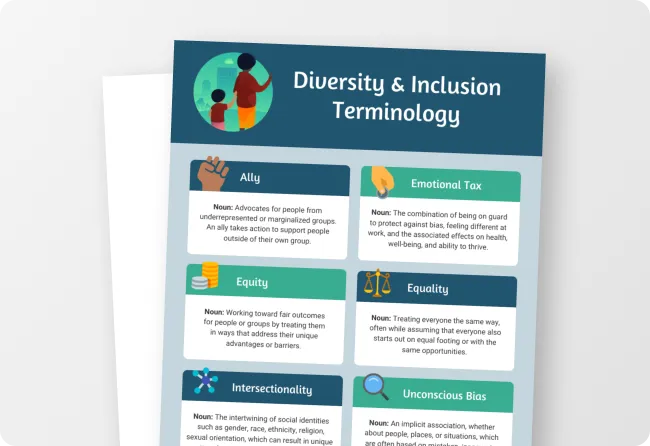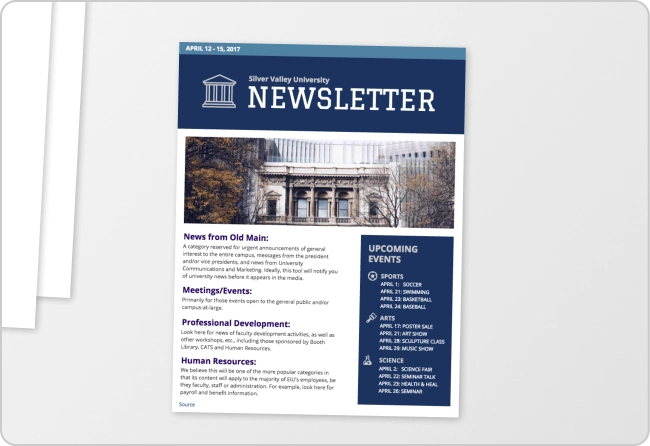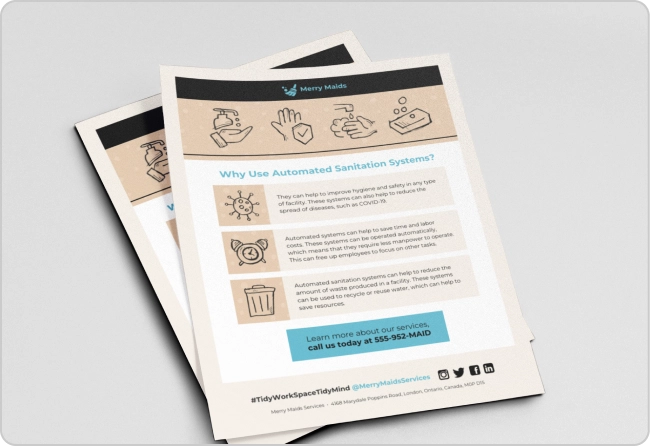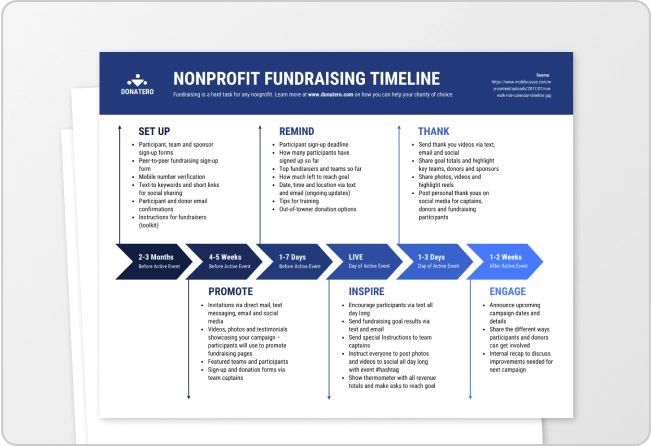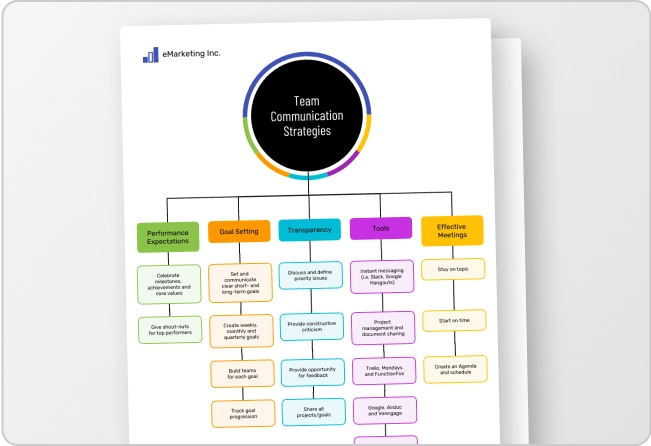


The average PDF remediation cost is $5 to $25 per page, and it increases with the number of images, charts and layout elements the document has.
Since higher ed materials include images and complex formatting, the remediation cost per PDF is usually on the higher end. For example, if you have to remediate PDFs worth 3,000 pages in a year, the total cost could go up to $75,000.
And for a college managing hundreds or even thousands of PDFs annually, remediation costs can turn out to be one of the largest hidden expenses in accessibility compliance.
However, the good thing is that you can easily reduce your PDF remediation costs.
In this guide, we’ll explain why PDF remediation costs continue to rise in higher education and how colleges can significantly reduce them by changing their traditional document-creation workflow.
Why PDF remediation costs are increasing
Before you can reduce PDF remediation costs, it’s important to understand why they’re increasing in the first place.
Compliance requirements
The scope of accessibility compliance in higher ed has broadened over the past few years. For example, the ADA Title II regulation, announced in 2024, mandates all public colleges and universities to make public-facing documents, including online course materials, syllabi and PDFs accessible.
For PDFs specifically, that means tagged structure, logical reading order, alt text for images and charts and more standards precisely defined by PDF/UA alongside WCAG 2.1 AA.
On top of that, Section 504 obligations add more ground to cover. Section 504 has required equal access since 1973 and WCAG has been the accessibility benchmark for years, but in 2024, Section 504 was updated to point directly to WCAG 2.1 AA.
So colleges now have to comply with stricter PDF accessibility standards.
Document volume
Another reason remediation costs keep increasing is the growth of online learning. Colleges are putting more lesson plans, course materials and assignments onto learning management systems. Every one of those becomes a document that needs to be created, and eventually remediated.
According to the 2025 Educause Horizon Report, educational institutions are under pressure to redesign degree programs and curricula to match real-world applicable skills. Every curriculum revision means new course materials, updated syllabi and revised assignments, on top of what’s already being created.
More documents moving through the same manual workflow means remediation costs keep climbing.
What drives PDF remediation costs?
These five issues account for most of the manual work accessibility teams and vendors bill for:
- Missing alt text: In a traditional workflow, alt text gets added at the end, if at all, and someone has to manually review and describe every chart, icon and infographic before the document can pass an accessibility check. The more visuals a document has, the higher the remediation cost.
- Poor reading order: This usually happens because the reading order was never set correctly when the document was created. Fixing it means manually re-tagging the document element by element, which takes the longest in reports with multiple columns, sidebars or callout boxes.
- Incorrect heading structure: If headings were tagged incorrectly during creation, someone has to go back through the entire document and tag every section header manually.
- Unstructured tables: Simple tables usually auto-tag correctly. Merged header cells and multi-level tables, common in financial reports and course schedules, don’t, and someone has to manually define what each cell’s header actually is before a screen reader can read the data correctly.
- Color contrast problems: These are the cheapest fix on this list, usually a color swap, but they still require someone to test every color combination in a document since automated contrast checkers can miss combinations used only in charts or graphics.
Picture a college communications team building out an annual report, a student handbook and a course syllabus. Each one goes through the same design process: finalize the layout, add the images, check branding. Then the PDF goes for remediation.
The typical PDF remediation process looks like this:
- Create the document in the design tool
- Export it as a PDF
- Send it to the accessibility office for review
- Get a list of issues back, like missing alt text, broken reading order, or unlabeled tables
- Fix those issues, often without the original file’s source layers intact
- Re-export the PDF
- Send it back for a second review
- Publish, once it finally clears
Documents rarely clear this loop in one pass. A report with multiple sections, charts and callout boxes almost always comes back at least twice, once for structural issues like reading order, and again for details like missing alt text or unlabeled table headers.
This creates a lot of back-and-forth between accessibility and other teams.
Plus, every extra round adds cost in two ways. Internally, it means staff hours spent re-opening a file, fixing tags, and re-exporting, work that wasn’t budgeted for when the document was first commissioned. Externally, if the college outsources remediation to a vendor or contractor, every round of fixes adds to the invoice.
This same loop is followed for every handbook, syllabus, course packet and public notice the college publishes that year. Ultimately, accessibility becomes a second workflow running in parallel to document creation.
Create accessible documents to reduce PDF remediation costs
As colleges create more PDFs, the remediation costs continue to pile up. An effective way to reduce the overall costs is to ensure accessibility at the time of creating the document. This means checking alt text, reading order, heading tags, color contrast, etc. while you are working on the document.
From considering accessibility as a factor towards the end, you need to create accessible designs from the very start.
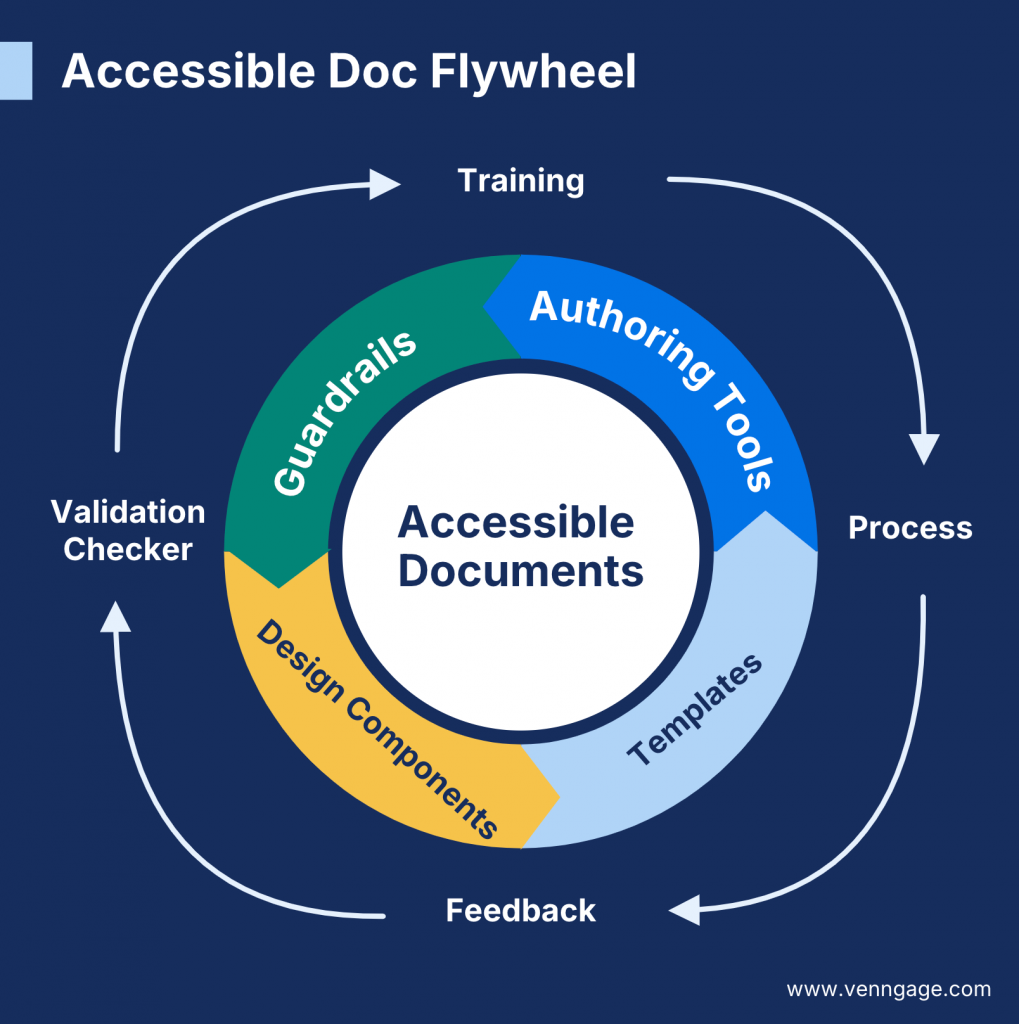
Venngage calls this principle the Accessible Document Flywheel: instead of relying on PDF remediation tools to catch every issue after documents are already created, document creators build accessibility in as they go, using accessible templates, built-in checkers and clear standards.
When accessibility is built into documents from the start, fewer PDFs need remediation, helping reduce overall costs.
How colleges can focus on accessibility first
For colleges, that could look like: giving departments accessible templates for course materials and reports, folding an accessibility check into the existing review process instead of running it as a separate step, and training the staff who actually create documents day to day, not just the compliance office.
How does an accessibility-first approach help:
- Fewer accessibility reviews, so less staff time billed to fixing documents
- Less manual remediation work, since fewer issues make it to that stage
- Faster publishing, which cuts the cost of delays and re-review cycles
- Lower spending on remediation vendors and contractors
- Fewer compliance gaps, which lowers the risk of costly last-minute fixes or penalties
How Venngage helps reduce PDF remediation costs
Creating an Accessible Document Flywheel or even following an accessibility-first approach for PDFs is only possible with the right design and accessibility tools. This is where Venngage helps. It has built-in accessibility features that help you check font size, color contrast, reading order, heading tag and other accessibility requirements right at the document creation stage.
AI Accessibility Checker
Venngage’s has a built-in AI Accessibility Checker that auto-detects and highlights issues like low color contrast, small text size and missing alt text for icons and images. It also checks for proper reading order, heading tags, links and tables in your document.
Moreover, the tool offers suggestions to fix accessibility issues in your document to help you create compliant PDFs.
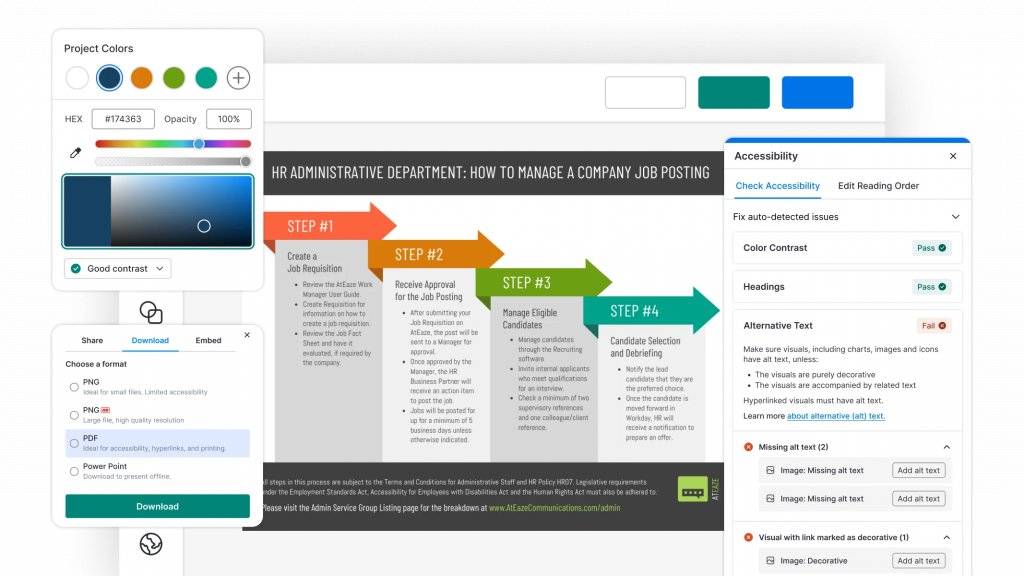
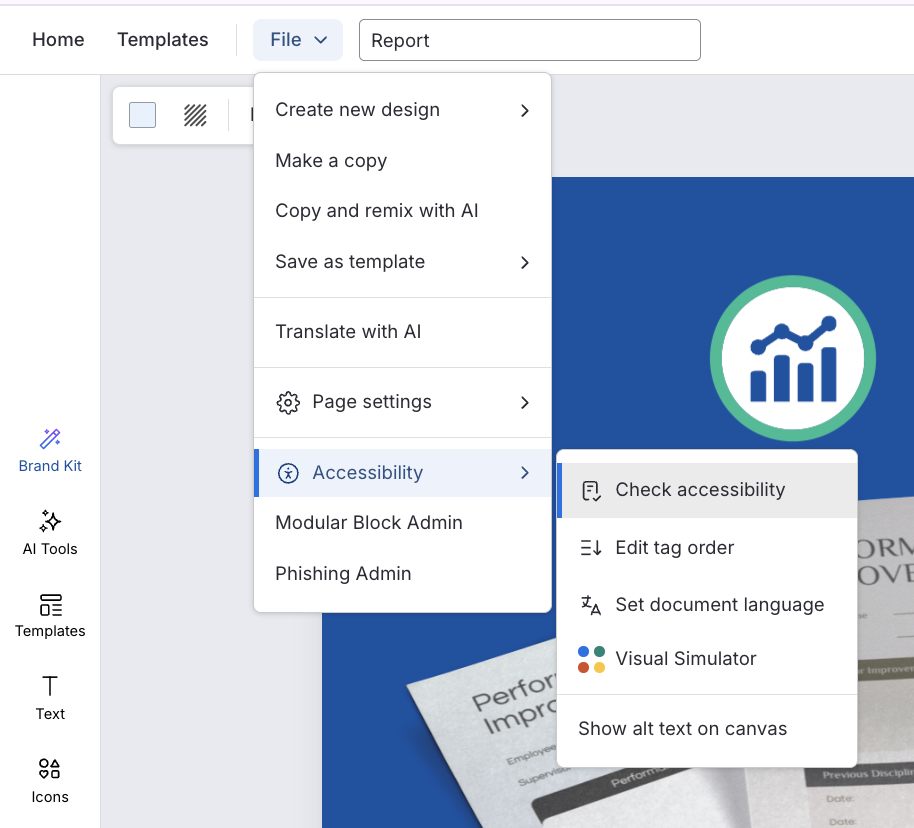
All you have to do is go to File > Accessibility > Check Accessibility. The checker highlights every issue in your document, and you can fix them right there before finalizing. The whole process takes minutes. This saves teams the hassle and cost spent on PDF remediation later.
AI-generated alt text
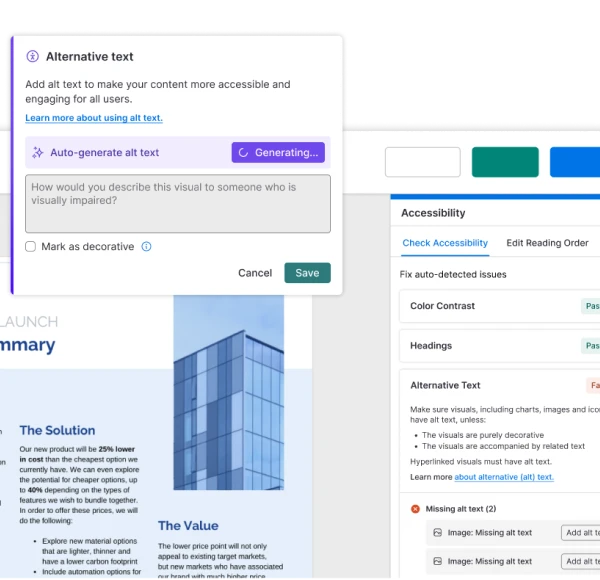
Writing alt text by hand is one of the slowest parts of remediation, since every chart, icon and image needs its own description.
Venngage’s AI generates alt text automatically for images, charts and graphs as you build the document, which is especially useful for lesson plans and reports that are often heavy on visuals like enrollment charts, comparison graphics and diagrams. You can still review and edit the generated text before publishing to ensure accuracy.
Reading order controls
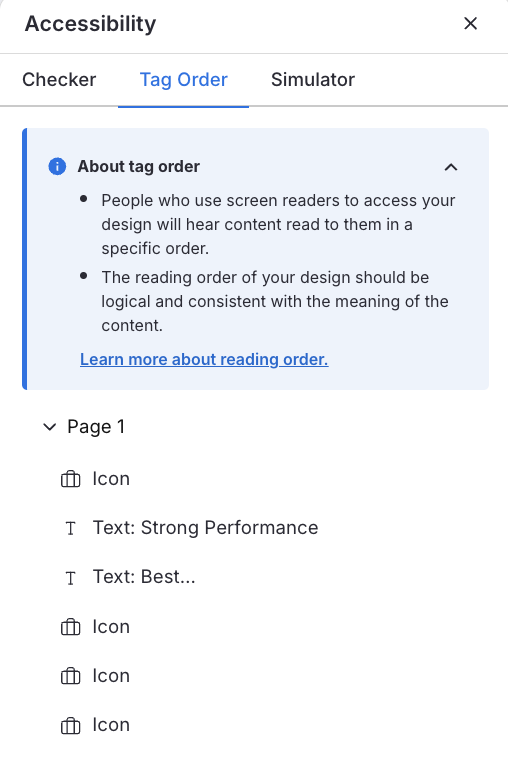
Reading order is usually the hardest thing to fix after a document is finished, since it means going back and manually re-tagging content element by element. Venngage lets you set and adjust reading order directly in the editor with a drag-and-drop interface.
This matters most for course packets and multi-section reports with charts and multi-column layouts, program guides mixing text and tables.
Accessible templates
Colleges have multiple people creating different documents at once, such as faculty writing course materials, staff building reports and communications teams designing handouts. Getting everyone to follow the same accessibility standard is hard to enforce manually.
Venngage offers a set of pre-designed accessible templates for reports, infographics, brochures and other formats, with color contrast, tagging and structure already built in. Such documents need fewer fixes at the review stage, since the structure that usually causes remediation work is already correct.
PDF/UA-Compliant Export
Even a well-designed document can lose its structure on export if the file isn’t tagged correctly on the way out. Venngage’s PDF exports preserve tagging, reading order and structure so the accessibility work done during design doesn’t get lost in the final file. This means colleges don’t need a second remediation pass in a separate tool before the document is publish-ready.
Cost comparison: remediation vs accessible creation
Start creating accessible documents today
Remediation costs keep climbing because most colleges fix accessibility after a document is published, not while it’s being built. That gap is what makes the cost recur every year, for every report, handbook and course packet a college puts out.
For higher education institutions facing increasing accessibility requirements, cheaper remediation vendors only treat the symptom. Creating accessible documents from the start is what actually brings the cost down.
That’s why more colleges are moving toward accessibility-first content creation workflows, ones that help teams publish accessible reports, presentations, handouts and PDFs without the remediation burden that follows the traditional process.