

If you’re evaluating Canva for enterprise design, you already know the upsides. It is fast, intuitive and keeps your branding consistent. But if accessibility is a requirement for your organization, because of legal obligations to meet, or you just want your documents to be readable for everyone, Canva might not be the complete solution you think it is.
Canva is built for visual impact. It does not have the in-built accessibility features to handle compliance natively. If you use Canva for your documents, you will have to use a different tool for PDF remediation. For government agencies, higher education, or any business relying on public-facing communication, creating accessible PDFs with Canva can be a challenge.
In this guide, I will review Canva’s accessibility features and explain what it does well and where it falls short, so you can decide if it is the right tool for your organization.
What Canva does well
Canva is a graphic design tool that helps you create reports, presentations, proposals, brochures, flyers and other business documents. It works well for both designers and non-designers. Even if you do not have design skills, the templates provide a solid foundation for designing PDFs.
On the accessibility front, it has the following features:
- Color contrast checker: It flags when your text might be hard to read against a background.
- Alt text support: You can manually add descriptions to your images.
- PDF export: The files you download generally hold enough structure to be picked up by basic screen readers.
Despite these features, Canva is primarily a design-first tool. It focuses on visuals first and accessibility features can be applied at a later stage, which requires additional effort. If you want to create visually appealing documents, Canva is a good choice.
But if your core focus is PDF accessibility, Canva might not be the right fit. I will explain why in the next sections.
Accessibility features in Canva and how they perform
According to WCAG 2.1 AA guidelines, an accessible PDF must have proper heading structure, logical reading order, alt text for all non-decorative visuals, sufficient color contrast, tagged content and document metadata. Let’s see how Canva’s Accessibility features hold up against each of those requirements.
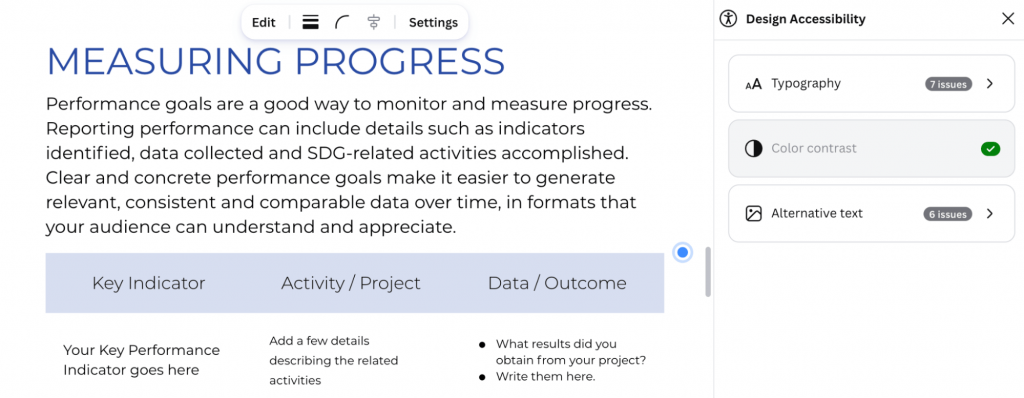
Canva’s Accessibility Checker tests three parameters for design:
- Typography
- Contrast checker
- Alt text
1. Typography
Canva’s Accessibility Checker flags small text throughout your document that may be difficult to read. It also gives you the option to increase the text size to 12 points in one click, which is a nice touch. This saves you the effort of finding every instance of small text manually.
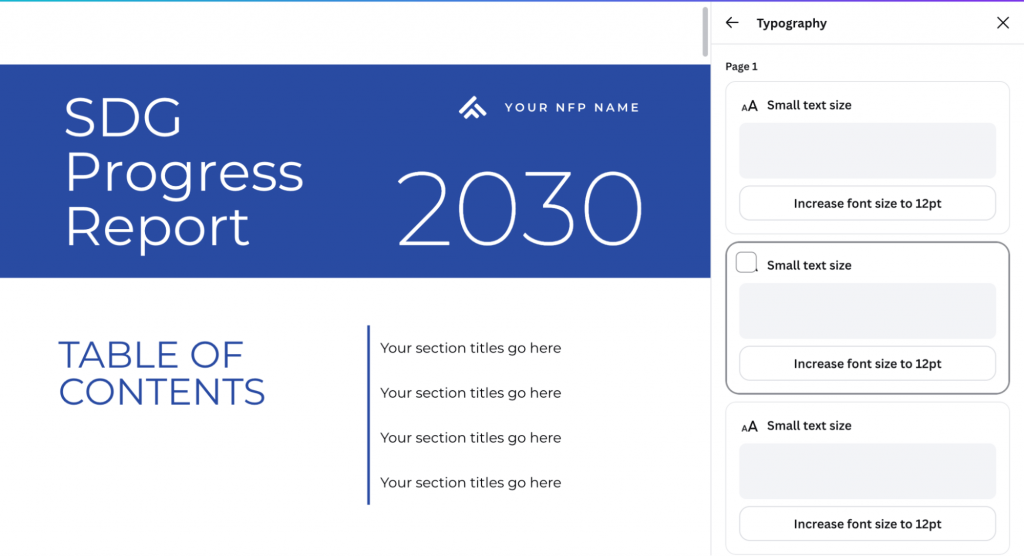
However, typography checks for accessibility go beyond font size. WCAG guidelines also require sufficient line spacing, clear font choices and text that does not overlap with background elements. Canva flags the small font size, but does not guide you on the rest.
2. Color contrast checker
This works pretty well. I changed the text color of one section in the template and the color contrast checker flagged it. Canva also suggested appropriate font colors to improve color contrast and make sure the text is readable.
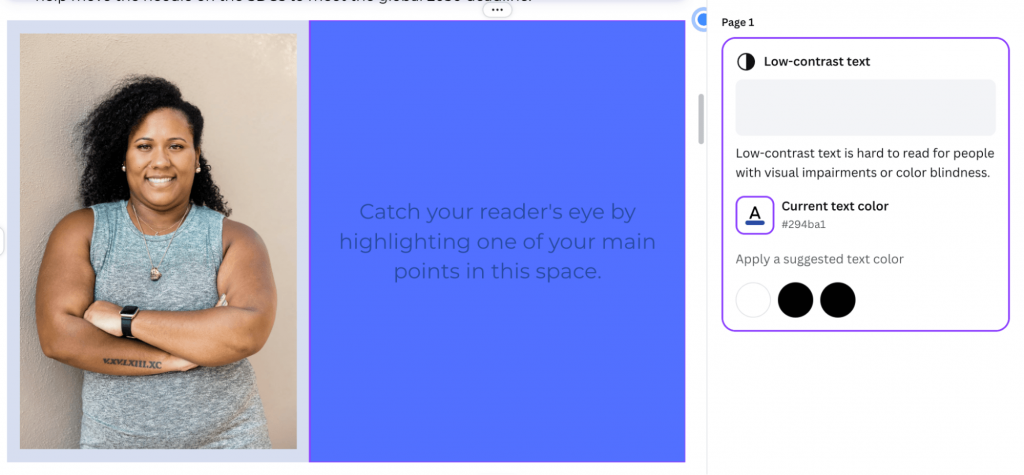
But color contrast is only one piece of the accessibility puzzle. A document can pass every contrast check and still be inaccessible if it uses color as the only way to convey information, relies on charts or graphs without text descriptions, or has poor reading structure. Canva’s checker will not catch any of that. It tells you your text is readable.
Related: Best Free PDF Accessibility Checker Tools [2026 Tested List]
3. Alt text for images and graphics
Even the alt text detection is smooth. The Accessibility Checker highlights all the elements with missing alt text.
However, the drawback is that it doesn’t automatically generate alt text for images and icons. You need to write it manually for every image, icon and graphic in your document. For a single one-pager that is manageable, but if you are producing multiple reports, presentations and public-facing PDFs at scale, it will take too much time.
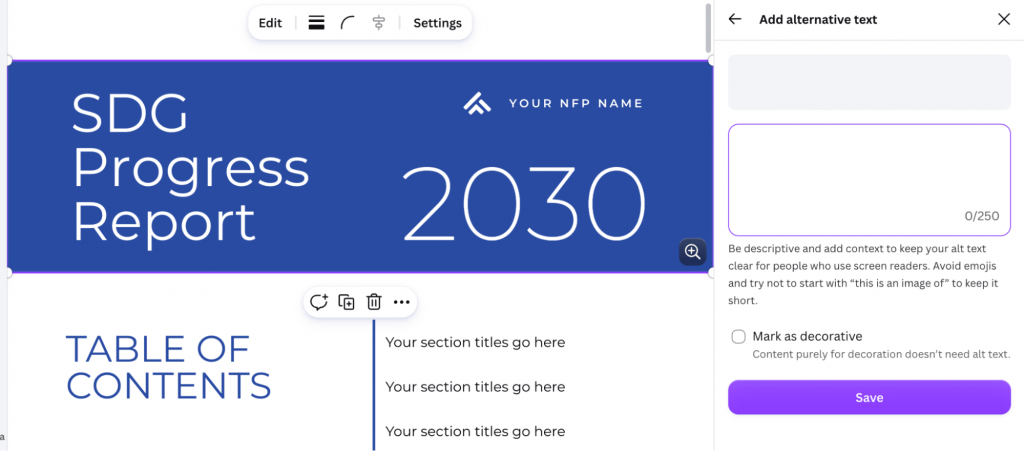
Other accessibility checkers like Venngage automatically generate alt text for images, charts, and uploaded visuals, which reduces the time and effort required significantly.
Heading tags are present under semantics. You can easily set the heading for each section and also view the outline to ensure the PDF is in the correct order. However, I struggled to edit the reading order in Canva.
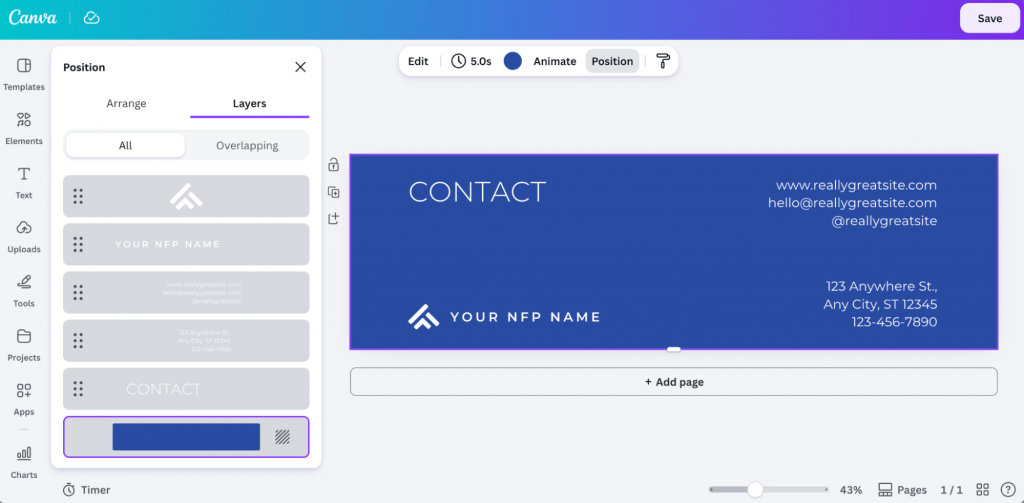
After watching some tutorials on YouTube, I figured that we have to select each element in the report, go through Edit Design, then Position, then Layers and manually drag elements into the right sequence. For someone who is not already familiar with Canva’s layer system, this is not intuitive at all.
On a simple one-page document, it is manageable. But on a report with multiple sections, charts, callout boxes and mixed content, getting the reading order right in Canva takes a significant amount of time and still may not produce a clean result on export.
Even after going through the process, the exported PDF may still have structural problems
A Reddit user also faced a similar issue:
“Canva is not designed to produce standards-compliant accessible documents and its output is a pain to work with. While Canva’s recent updates have added tags to output, the entire system is still pretty rudimentary. If you are also looking to tag to PDF/UA standards specifically, Canva also seems to make some fundamental PDF syntax errors in its tagging structure, to which my solution is to just delete all of Canva’s tags and restart from scratch with Adobe auto tag. I’m not sure if these errors have much of a practical effect for most assistive software, but it will be flagged by accessibility checkers.”
Reddit User
Another Reddit user asked a question on Reddit to get advice for creating accessible ebooks in Canva:
“I am building out a lot of digital products (ebooks) in Canva and then going to further edit them in Adobe Acrobat to make sure they are screen-reader friendly.
Any advice? I’m a beginner at this and want to make sure my digital products are accessible.”
Reddit User
Overall, even if Canva designs a visually appealing PDF, it would be hard to read it with assistive technology. You’ll have to manually edit the tags, which makes it difficult to create PDFs at scale. Moreover, this also increases PDF remediation cost.
4. Screen reader compatible PDF export
On paper, Canva exports PDFs that work with screen readers. The option is available under PDF Standard download and as long as you keep the Flatten PDF checkbox unchecked, the accessibility tags are preserved in the exported file. Canva also lets you set a document language, which helps screen readers interpret content correctly.
In practice, it is more complicated. Canva does not reliably set a logical reading order, particularly in graphic-style designs. Heading structure works more reliably in Canva Docs, but most visual design formats like presentations lose semantic structure when exported. For a simple, linear document, this may not matter much, but for a report with charts, callout boxes and multi-column layouts, which is exactly what enterprise and government teams are creating, the exported PDF can behave unpredictably with assistive technology.
The bigger issue is compliance. Canva PDFs are not PDF/UA or WCAG compliant. Teams need to manually remediate their PDFs before distribution.
Santa Clara University’s review of Canva’s accessibility features states that, in many cases, remediation in Adobe Acrobat Pro is required and for this reason, Canva is not recommended as a primary tool for creating accessible PDFs.
PDF remediation would require additional software, staff time and a second review process before a document can go out. This increases the overall cost.
Final verdict: Does Canva create accessible PDFs?
Accessibility is an afterthought, not a foundation
Canva’s accessibility features are easy to use, but they are available toward the end of the design workflow. You first create your document and then you run the checker. This requires extra effort because once you finalize the design, you still need to spend more time fixing accessibility issues.
Canva’s accessibility checker is not enough
Canva’s checker tests three things: typography, color contrast and alt text. That is it. It will not tell you if your reading order is wrong, if your headings are tagged incorrectly, if your tables are readable by a screen reader, or if your charts have meaningful descriptions.
Color contrast passing does not mean the document is accessible. If your chart uses red and green to distinguish data points, a colorblind user cannot tell them apart, even if the contrast ratio is technically correct. If your infographic conveys critical information through visuals alone with no text alternative, a screen reader user gets nothing. Canva’s checker will pass both of those documents without a single warning.
Canva struggles with complex documents
Canva works well for simple designs, a social post, a quick flyer and an internal announcement. However, higher education teams produce course materials, syllabi and student-facing documents that must meet ADA and Section 508 requirements. Government agencies publish public notices, forms, policy documents and reports that are subject to Section 508 and, in some states, additional mandates.
Canva struggles to make such documents accessible. Here’s how:
- Reading order becomes unpredictable in multi-column layouts.
- Charts are exported as flat images with no text descriptions.
- Forms lack proper field labels.
- Tables are not structured in a way that assistive technology can interpret correctly
Hidden PDF remediation costs add up
Canva looks affordable on paper, but there are hidden costs that do not show up in the license fee. Because Canva does not produce fully accessible PDFs, you need another tool to fix them. That usually means Adobe Acrobat Pro, which is an additional subscription. Then someone on your team has to actually go through each document, correct the tags, fix the reading order and make sure charts and visuals have proper descriptions before anything gets published.
For teams publishing one or two documents a year, that is manageable. For organizations in higher ed or government that are regularly producing reports, policy documents, public notices and course materials, it adds up fast. And most teams only realize this after the fact, when an audit flags something or a complaint comes in about a document that is already live.
Try Venngage to create accessible PDFs
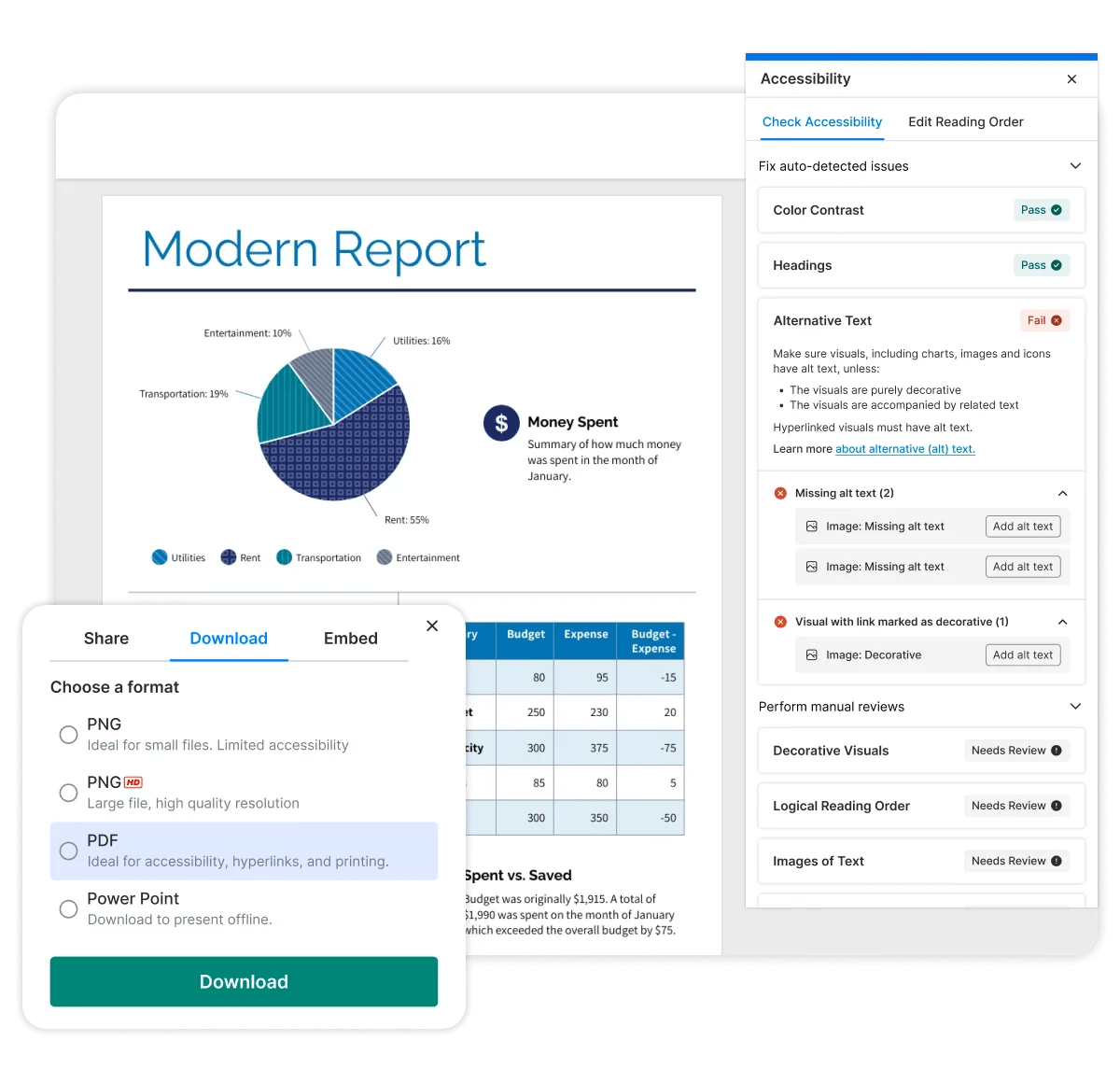
Unlike Canva, Venngage’s PDF Accessibility Checker is built with accessibility as part of the creation process, not something you check at the end. If your organization needs to produce accessible PDFs, reports, presentations and visual documents at scale, here is what Venngage offers.
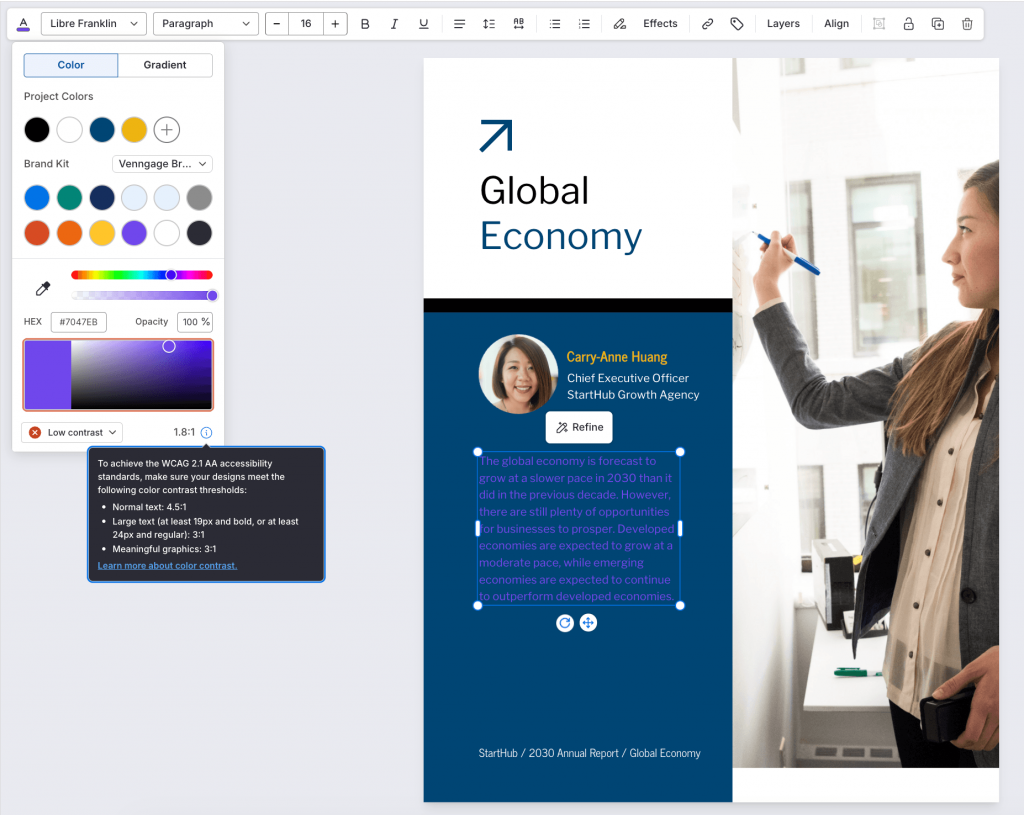
Real-time color contrast checks
Venngage’s color panel has a built-in contrast checker that works as you design. When you pick a color combination that does not meet WCAG standards, it flags it immediately and nudges you toward compliant alternatives.
You do not have to run a separate check or remember to test before export. You can see accessible colors while you are working on the design. Moreover, Venngage has an Accessible Color Palette Generator to help you decide accessible colors for your design.
Comprehensive PDF Accessibility Checker
Venngage’s Accessibility Checker (in comparison to Canva) goes beyond contrast and alt text. It reviews reading order, heading hierarchy, tag structure, color dependency and missing descriptions. When it flags an issue, it also tells you how to fix it, so you can generate compliant documents easily.
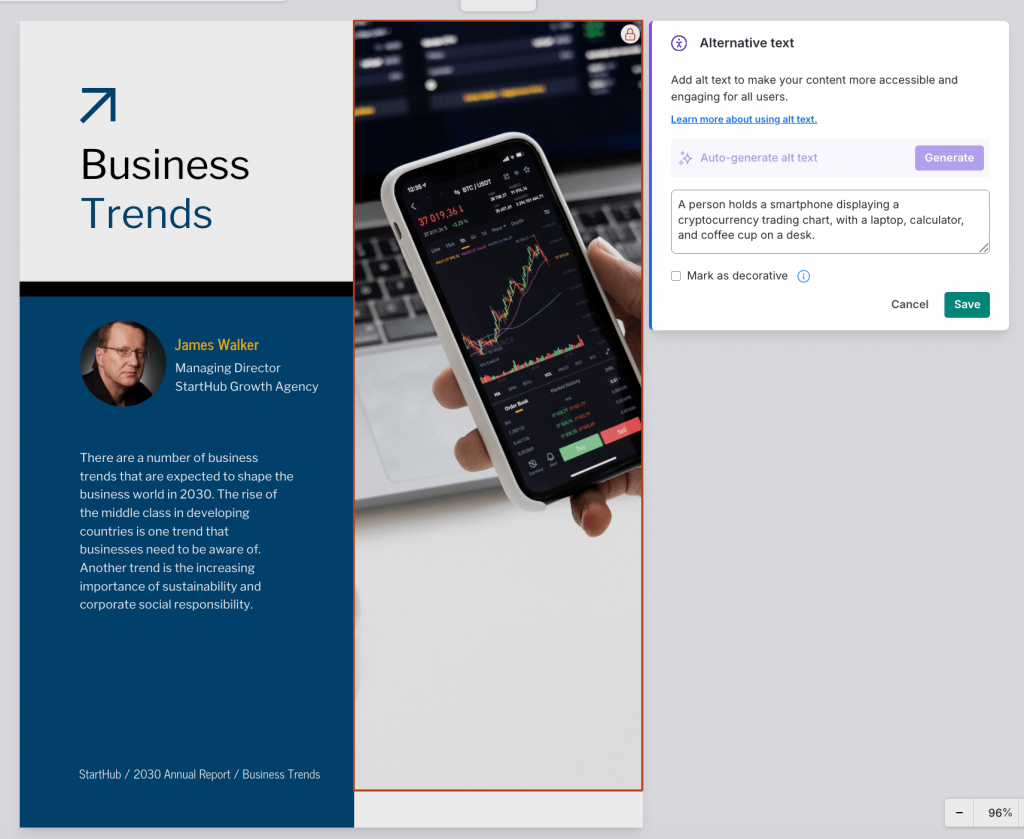
AI-generated alt text for images, charts and visuals
Unlike Canva, Venngage automatically generates alt text for images, icons, charts and uploaded visuals. You can review and edit the generated descriptions before export, which means you get the time-saving of automation without sacrificing the accuracy that public-facing documents require.
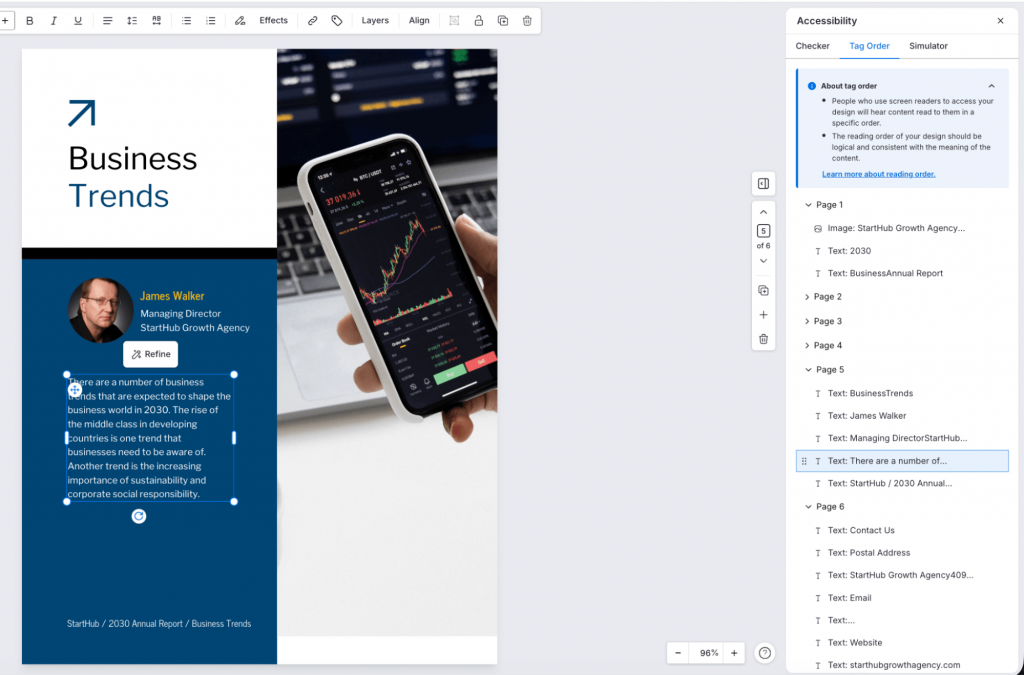
Full control over reading order and tag structure
Venngage gives you a dedicated tag order panel where you can see exactly how a screen reader will move through your document and drag and drop elements to adjust the sequence. You do not need to navigate through layers or guess whether the export will come out in the right order.
PDF/UA-compliant exports out of the box
Venngage’s PDF exports comply with the PDF/UA standard, which means they are compatible with screen readers and assistive technologies without requiring remediation in a separate tool. No Adobe Acrobat Pro workaround. No second workflow. The document you create is the document you publish.
Accessible templates built for complex documents
Venngage’s accessible templates are built with proper tag order, heading structure and logical reading order from the start. They are designed for the kinds of documents higher ed and government teams actually create: reports, presentations, public notices and data-heavy PDFs. And if you are currently using Canva, Venngage offers design migration support so your team does not have to start from scratch.
The bottom line on Canva for accessibility
Canva is a genuinely good design tool and for teams that need to move fast and create visually polished content. But it doesn’t work well to generate accessible PDFs.
For teams in higher education, government and enterprise that are creating PDFs and visual documents at scale, the gaps in reading order, tag structure and PDF export compliance create a remediation burden that adds up over time. A tool that makes design easy but requires a second workflow to make it accessible is not a complete solution.
That is where Venngage comes in. Built with accessibility as part of the creation process, Venngage lets teams produce accessible PDFs, reports, presentations and visual documents without the remediation step. If your organization needs documents that work for everyone, it is worth making the switch before the next audit does it for you.
FAQs on Canva’s accessibility features
1. Does Canva have accessibility features?
Canva has some accessibility features, including a color contrast checker, alt text support and screen reader-compatible PDF exports. However, the accessibility checker only covers the basics and complex documents like reports, presentations, and public notices still require manual remediation before they meet compliance standards.
2. Does Canva create accessible PDFs?
Canva exports PDFs that can be read by screen readers at a basic level, but they are not PDF/UA or WCAG compliant. Complex documents with charts, tables and multi-column layouts often require manual remediation in a separate tool like Adobe Acrobat Pro before they can be published.
3. Is Canva’s accessibility checker enough?
No. Canva’s checker only tests typography, color contrast and alt text. It does not check reading order, heading tags, table structure, form fields, or chart descriptions, all of which are required for a fully accessible PDF.
4. Is Canva suitable for government or higher ed PDFs?
Not as a standalone tool. Government agencies and higher education institutions are required to meet Section 508 and ADA standards. Canva’s PDF exports do not meet these standards natively and require additional remediation before distribution.
5. What is a better Canva alternative for accessible PDFs?
Venngage is built specifically for accessible PDF creation. It includes a real-time Accessibility Checker, AI-generated alt text, full reading order and tag control and exports PDFs that comply with the PDF/UA standard out of the box, without needing a separate remediation step.