

Every year, organizations invest thousands of hours remediating presentations, handouts, reports, and PDFs. Accessibility teams review documents, remediation teams fix tags, staff attend training, and yet accessibility backlogs keep growing.
The reason is straightforward: most organizations focus on fixing inaccessible documents after they’re created rather than helping people build accessible ones from the start. This is especially common in higher education, government, healthcare, and enterprise environments, where presentations and handouts are produced by hundreds or thousands of employees across different departments.
This guide covers how to create accessible presentations and handouts that meet PDF/UA standards, the mistakes that most commonly create accessibility barriers, and how organizations can move from fixing problems after publishing to preventing them during creation.
Why most accessibility programs struggle to scale
Most organizations follow a familiar workflow:
- Create a presentation
- Export it as a PDF
- Publish it
- Discover accessibility issues
- Send it for remediation
For a small number of documents, this is manageable. As volume grows, it breaks down quickly.
Accessibility teams may remediate a set of documents today, but dozens more are created tomorrow, and the cycle continues without resolution. The challenge compounds when document creation is decentralized, as it often is in larger organizations where faculty members, communications teams, department staff, and program managers are all producing content independently, using different tools and following different practices. Accessibility issues end up entering the workflow faster than remediation teams can remove them.
What is PDF/UA and why does it matter?
PDF/UA (Universal Accessibility) is the international standard for accessible PDF documents.A PDF/UA-compliant document ensures that people using assistive technologies can understand and navigate content effectively.
PDF/UA focuses on:
- Proper document structure
- Heading hierarchy
- Reading order
- Alternative text
- Tagged content
- Accessible tables
- Meaningful navigation
Without these elements, a document can look perfectly fine visually while remaining difficult or impossible for screen reader users to follow. For higher education institutions and government agencies, PDF/UA compliance is becoming increasingly important as accessibility expectations continue to evolve.
What makes a presentation accessible?
Many people assume accessibility starts when a PDF is exported. In reality, it starts during creation:
Clear heading structure
Users should immediately understand the hierarchy of information.
Good presentations use:
- Titles
- Section headings
- Subheadings
- Consistent structure
This improves navigation for both visual users and people using assistive technologies.
Accessible typography
Text should be easy to read, appropriately sized, and consistent throughout the presentation. Small font sizes, decorative typefaces, and cluttered layouts create unnecessary barriers for many users.
Sufficient color contrast
Text must be readable against its background, but meeting contrast requirements is a starting point, not an endpoint. A presentation can pass every contrast check and still exclude users if color is doing all the communicative work, separating chart categories, flagging important information, or indicating status without any supporting text or labels. Good contrast is necessary, but accessibility goes further than that
Meaningful alternative text
Images, charts, icons, and graphics should include alt text that explains their purpose, not just their appearance. A label like “Image” tells a screen reader user nothing. A description like “Students attending an accessibility workshop on inclusive course design” provides better context.
Common accessibility mistakes in PowerPoint, Google Slides, and Canva
Popular presentation tools make design straightforward, but accessibility usually requires additional effort. These are the issues that come up most often:
Missing reading order
Visual order and screen reader order aren’t always the same. Content that looks logical on screen may be announced in a completely different sequence by assistive technology, which makes the information confusing or hard to follow.
Untagged graphics
Charts, icons, and images frequently lack descriptions, which means users relying on screen readers miss information that everyone else can see.
Improper heading structure
Many presentations use large bold text to signal headings without any underlying structure that assistive technologies can recognize. What looks like a heading visually doesn’t automatically function as one for screen reader users.
Color-dependent information
Charts often use color to distinguish categories, but without additional labels or patterns, users with color vision deficiencies may not be able to interpret the data at all.
Accessibility as an afterthought
The most common issue comes down to process. Accessibility checks tend to happen after design decisions are already finalized, which makes fixing problems significantly more expensive than catching them during creation.
How to create accessible handouts from the start
Handouts are most often distributed as PDFs, but many accessibility problems begin well before export.
Use Logical Structure. Organize content using clear sections and headings so the document is easy to navigate from the start.
Keep Layouts Simple. Complex layouts create reading order challenges that are difficult to resolve after publishing, so simpler layouts are recommended.
Label Visuals. Every meaningful visual should have descriptive text that communicates its purpose to users who can’t see it.
Avoid Using Color Alone. Combine color with text, icons, labels, or patterns so information is accessible to everyone, regardless of how they perceive color.
Review Accessibility Before Export. Catching issues before a document is published is far easier and less costly than addressing them afterward, and a pre-export check is the most practical way to do that.
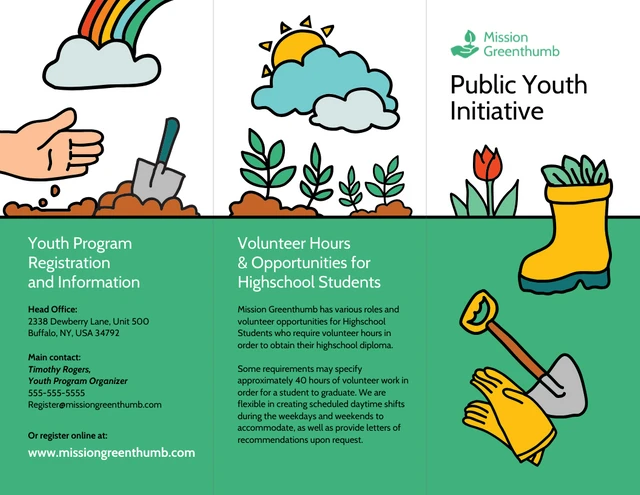
Reading order: The hidden accessibility problem
Reading order is one of the most important accessibility topics that comes up in our training sessions, and one of the least understood by the people creating documents. Screen readers don’t interpret documents visually. They follow a structural order, and when that order is incorrect, information appears out of sequence, instructions become confusing and navigation breaks down entirely.
This issue is particularly common in presentations, infographics, reports, handouts, and multi-column layouts, where visual design and structural order often diverge. Even well-designed documents can fail accessibility checks because of incorrect reading order, which is why reviewing it before publication is far more efficient than discovering it during remediation.
Why training alone doesn’t solve document accessibility
Many organizations respond to accessibility challenges by investing more in training but it doesn’t guarantee accessible documents on its own. People forget, staff turn over, new tools get introduced, and processes change. Relying on training as the primary safeguard means accessibility standards are only as consistent as individual memory, which isn’t a reliable foundation at scale.
The organizations making the most progress are combining accessibility training with accessible templates, accessibility governance, and tools that support accessible creation by default. This approach reduces reliance on individual knowledge and makes it easier to maintain accessibility standards across the organization, regardless of who is creating the document or which department they’re in.
How to create PDF/UA-Compliant presentations and handouts
Accessibility becomes manageable when it’s built into the workflow rather than added at the end. The tools worth using surface accessibility issues during creation, so problems are caught while changes are still easy to make. Reading order controls let creators verify how assistive technology will navigate content before publishing.
Alt text support means users can add meaningful descriptions to visuals without leaving the creation tool. Accessible templates provide a strong, compliant foundation before content creation even begins. And PDF/UA-compliant export means the final document meets accessibility standards without requiring extensive remediation afterward.
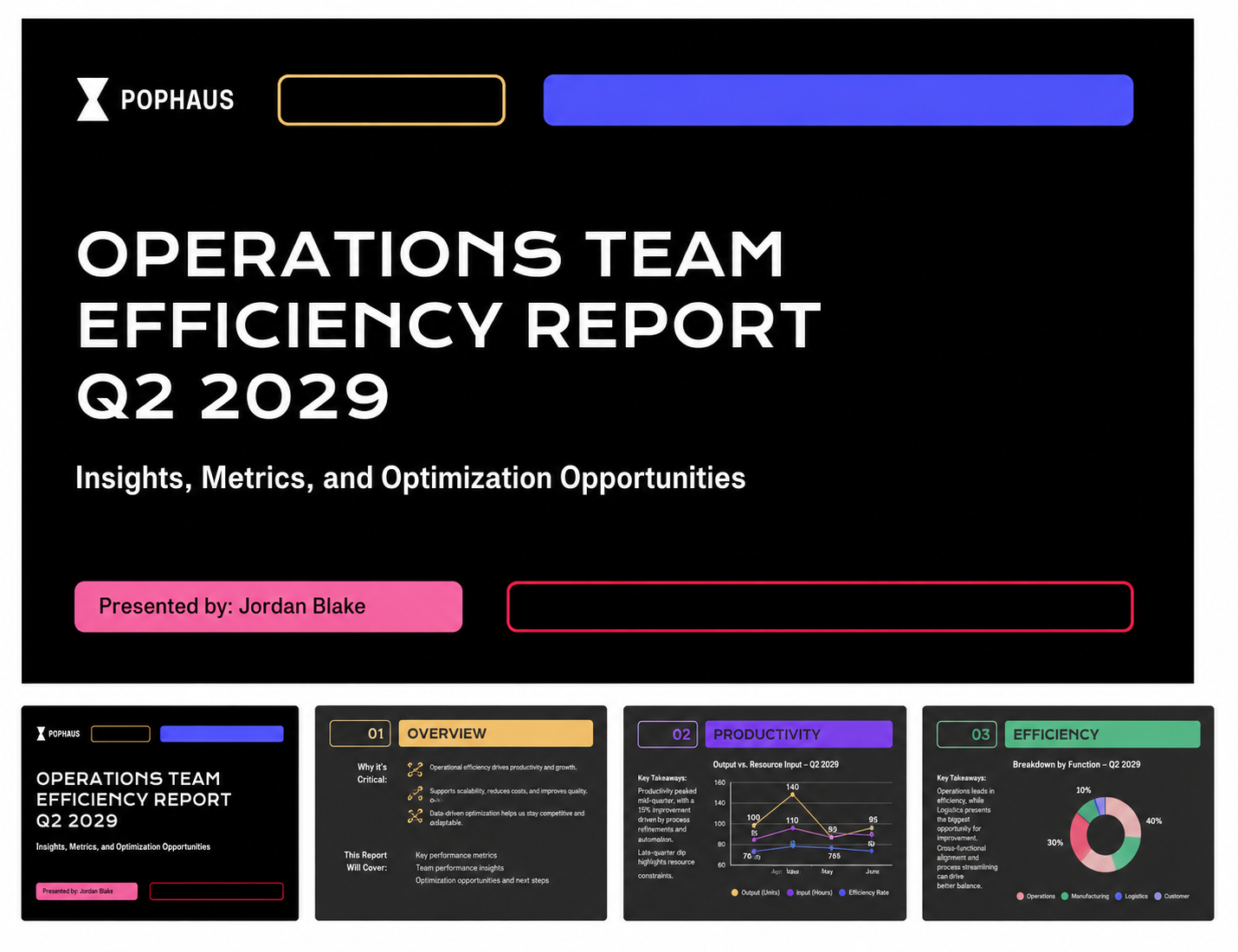
Try Venngage for accessible presentations and handouts
Venngage helps organizations move from reactive remediation to accessible-by-default document creation.
Accessibility features include:
Accessibility Checker: Identify issues before publication.
Reading Order Controls: Review and manage document structure before export.
AI-Generated Alt Text: Reduce manual effort when describing visuals.
Accessible Templates: Start with templates designed for accessibility from the ground up.
PDF/UA-Compliant Export: Create accessible PDFs without complex remediation workflows.
Where accessible creation makes the difference
The core issue for most organizations isn’t how quickly they can remediate documents. It’s that inaccessible presentations and handouts keep entering the workflow in the first place, and backlogs grow faster than teams can address them.
The organizations making real progress have shifted accessibility to the creation stage, combining accessible workflows, accessible templates, and PDF/UA-compliant tools to reduce remediation costs, improve outcomes and maintain standards across the entire organization, and at scale, that difference is significant.
FAQs
What is PDF/UA?
PDF/UA is the international standard for accessible PDF documents. It ensures PDFs can be understood and navigated using assistive technologies.
How do I make a presentation accessible?
Use proper headings, sufficient color contrast, descriptive alt text, logical reading order, and accessible document structure throughout the creation process, not just at export.
Why is reading order important?
Screen readers follow structural order, not visual order. When reading order is incorrect, content can appear out of sequence and become difficult or impossible to follow.
Are PowerPoint presentations automatically accessible?
No. Accessibility depends on how the presentation is created, structured, and exported. The tool itself doesn’t guarantee compliance.
What is the difference between PDF accessibility and PDF/UA?
PDF accessibility refers broadly to making PDFs usable for people with disabilities. PDF/UA is a specific technical standard that defines accessibility requirements.
How can organizations reduce PDF remediation costs?
By building accessibility into the creation process rather than relying on post-production remediation. Accessible templates, pre-export checks, and tools that support accessibility during creation all reduce the volume of remediation work downstream.