

TL;DR
PDF metadata is information stored with a PDF that describes the document, such as its title, author, subject and keywords. For accessibility, two document properties deserve particular attention: the document title and default language.
- A descriptive document title helps users identify the PDF without relying on an unclear filename.
- The default language setting helps screen readers apply the correct pronunciation rules.
- You can usually review and edit these properties in your PDF editor or set them in your authoring tool before export.
- Accessibility checkers can flag missing or incorrect title and language settings before the PDF is published.
A PDF contains more information than the text and visuals you see on the page. It also stores details about the document itself, including its title, author, subject and language. This information is known as PDF metadata.
Most of these details are easy to overlook, but some play an important role in accessibility. The document title helps screen reader users identify what they’ve opened, while the language setting helps the screen reader pronounce the content correctly.
For example, without a descriptive title, someone may hear a filename like “report_final_v2.pdf” instead of “2026 Annual Report.” A missing or incorrect language setting can also affect how the document is read aloud.
In this article, I’ll explain what PDF metadata is, why it’s important for accessibility and how you can edit it.
What is PDF metadata?
PDF metadata is information stored with a PDF that describes the document. It can tell you what the document is called, who created it, what it is about and when it was last modified.
Common PDF metadata includes the document title, author, subject, keywords, creator and creation or modification dates. You may also see the document language alongside these properties when checking a PDF for accessibility.
PDF metadata is separate from the content you see on the page. For example, a file named annual_report_final_v3.pdf might have a document title of 2026 Annual Report, list Acme Inc. as the author and use Annual financial performance as its subject. None of those details need to appear on the page itself to be stored with the PDF.
Why does PDF metadata matter for accessibility?
Metadata is used to provide context about a PDF that may not be obvious from the page itself, so that PDF viewers, screen readers and other assistive technologies can identify the document and interpret certain parts of it correctly.
Some document properties therefore have a direct accessibility impact. The document title helps users identify the PDF they have opened, while the default language helps screen readers pronounce the content correctly.
These two properties also map to specific WCAG requirements. WCAG 2.4.2: Page Titled requires documents to have titles that describe their topic or purpose, while WCAG 3.1.1: Language of Page requires the default language to be programmatically identified.
Other metadata fields have a more indirect role. Details such as the author, subject and keywords can make a document easier to identify, organize or find, but they do not affect how a screen reader interprets the document in the same way.
Where can you find a PDF’s metadata?
PDF metadata is usually available through the document properties in a PDF reader or editor. You can use Adobe Acrobat to check it. The exact steps might vary for each tool.
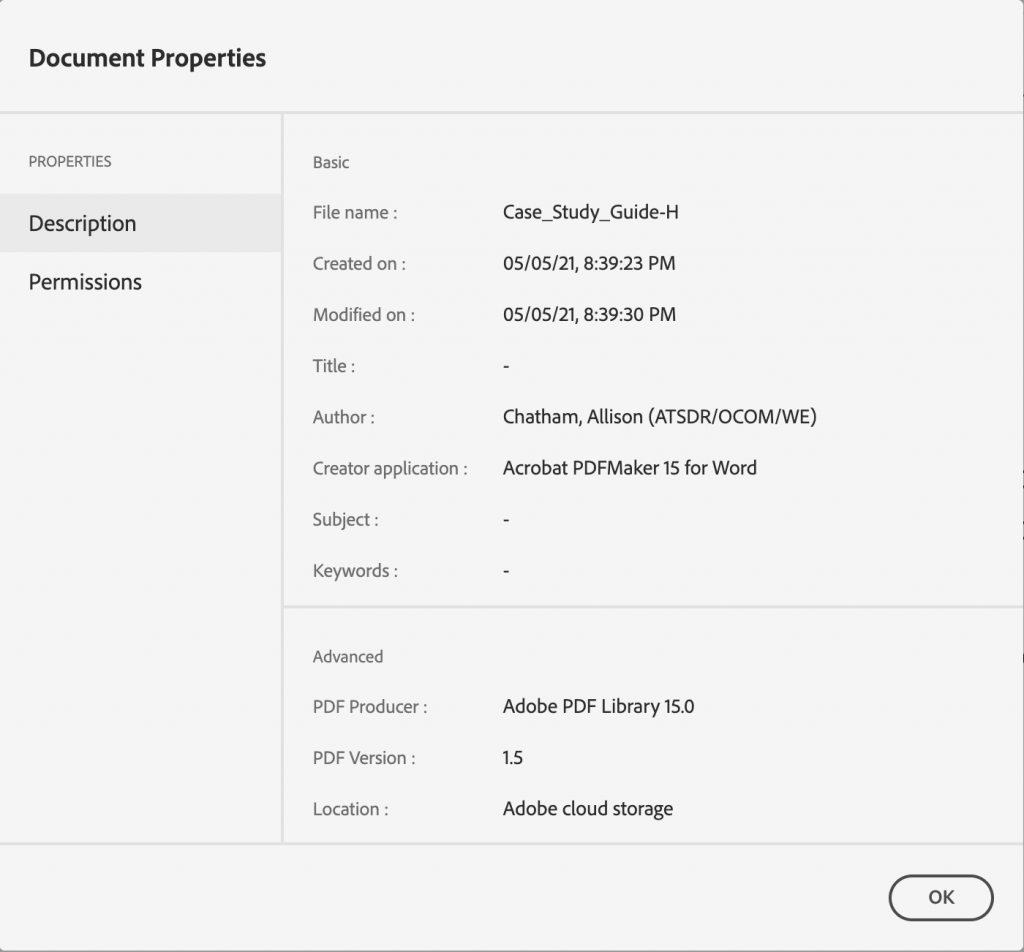
In Adobe Acrobat, open the PDF and go to File → Properties. This opens the document properties window, where you can review the information stored with the file.
Under Description, you’ll find the main metadata fields:
- Title: The name assigned to the document
- Author: The person or organization listed as the creator
- Subject: A short description of what the PDF is about
- Keywords: Terms used to describe the document and its content
You may also need to check a few settings outside the Description tab.
Under Advanced or Reading Options, you can see the document language. This helps assistive technologies use it to determine how the text should be read.
The Initial View settings control whether the PDF viewer displays the file name or the document title.
For example, a file named “annual-report-final-v3.pdf” can still appear as 2026 Annual Report in the PDF viewer if the document title has been set correctly and the viewer is configured to display it.
How do you set PDF metadata correctly?
Start with two document properties: the title and the primary language. Set them while creating the document when possible, then check the exported PDF to make sure the settings have carried over correctly.
Other metadata such as the author, subject and keywords can still be useful for organizing and identifying files. But the title and language have a more direct role in PDF accessibility.
Set the document title before exporting the PDF
A PDF title should clearly identify the document without relying on the filename.
For example, 2026 Annual Accessibility Report gives the reader useful context. A title such as Report, Untitled or final-report-v3.pdf does not.
W3C’s PDF accessibility guidance recommends setting a descriptive title in the PDF metadata and configuring the PDF so that the document title, rather than the filename, is displayed.
Before exporting, check that the title:
- Describes what the document is about
- Is specific enough to distinguish it from similar files
- Does not contain an old template name or placeholder
- Uses the same language as the document
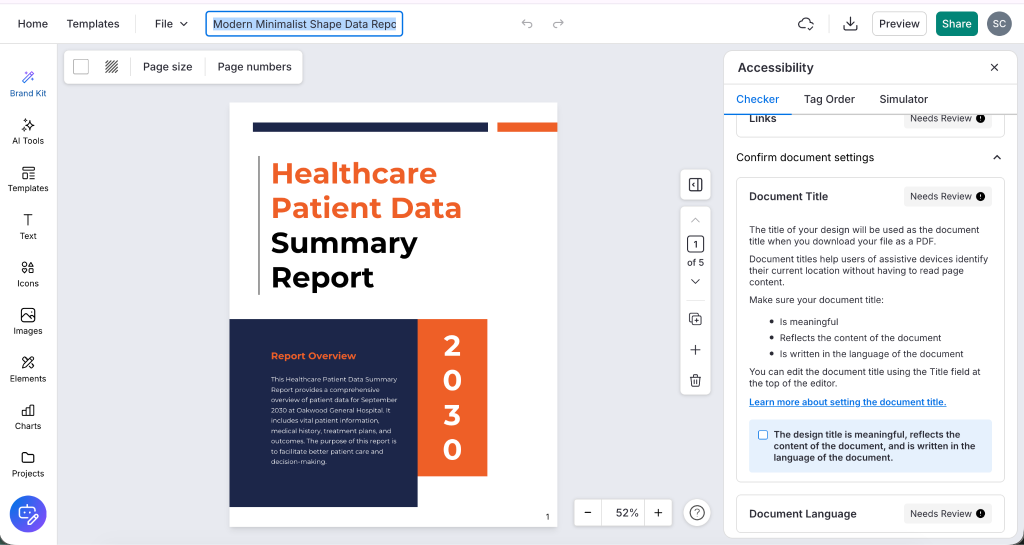
Venngage lets you handle the document title while creating the document, rather than adding it later to the exported PDF. The design title at the top of the editor is used as the PDF document title when the file is downloaded.
If the PDF contains occasional passages in another language, setting the primary document language may not be enough. Those sections can also be assigned their own language at the tag level so a screen reader knows when pronunciation rules need to change.
Check the metadata again after export
Even if the title and language were set correctly in the source document, check the final PDF before publishing it.
The goal here is not to re-enter the metadata, but to confirm that the exported file still contains the right information.
Check that:
- The document title is still correct
- The PDF is set to display the document title rather than the filename
- The primary language matches the content
- No old template names or placeholder values have carried over
You can review these settings in the PDF’s Document Properties. We covered where to find each field in Adobe Acrobat earlier.
If anything is missing or incorrect, update it before publishing the final PDF.
Watch for metadata inherited from templates
Reusing a template can also mean reusing its document properties.
A Q2 2026 Performance Report might be duplicated for the next quarter, for example, while the underlying document title still says Q2. The same problem can happen when a template contains a generic title such as Annual Report Template or an incorrect default language.
Before publishing a PDF created from a template, check:
- The document title reflects the current file
- The primary language is correct
- Old titles and placeholder information have been replaced
- The final exported PDF contains the same settings
For reusable documents, it makes sense to set predictable properties such as the primary language at the template level, while updating changing information such as the document title each time the template is reused.
What are common PDF metadata accessibility mistakes?
Most PDF metadata accessibility issues come from missing, outdated or incorrectly configured document properties.
PDF metadata accessibility checklist
Before publishing a PDF, check that:
- The document has a clear, descriptive title
- The title accurately reflects the current document
- The PDF is configured to display the document title instead of the filename
- The default document language is correct
- Language changes within multilingual content are identified where needed
- Any metadata inherited from a template has been updated
- The final exported PDF passes your accessibility check
Venngage’s Accessible PDF Maker lets you address these checks while creating the document. Start with an accessible template for a report, presentation, infographic or other document, then use the Accessibility Checker to review the document title, language and other accessibility issues before exporting the final PDF.
Frequently asked questions about PDF metadata
1. What metadata does a PDF contain?
A PDF can contain information such as the document title, author, subject, keywords, creation and modification dates, document language and details about the software used to create the file. The exact metadata available depends on how the PDF was created and exported.
2. Does PDF metadata affect accessibility?
Yes. Some PDF metadata has a direct role in accessibility. A descriptive document title helps identify the file, while the document language tells screen readers which pronunciation rules to use when reading the content aloud.
3. Is a PDF filename the same as its document title?
No. The filename is the name of the file itself, such as annual-report-2026.pdf. The document title is stored in the PDF metadata and can be displayed by the PDF viewer instead of the filename.
4. Does the title on the first page automatically become the PDF title?
Not necessarily. A visible heading on the first page and the title stored in the PDF metadata are separate. The metadata title should be checked independently before publishing the PDF.
5. Can PDF metadata be changed after export?
Yes. PDF editors such as Adobe Acrobat let you review and update properties including the title, author, subject, keywords and document language after the PDF has been created.
6. What language should I set for a multilingual PDF?
Set the document’s primary language as the default language. If parts of the PDF are written in another language, those passages should also be identified with the correct language at the tag level where needed.
7. Can templates carry old PDF metadata?
Yes. Reusing a document or template can also carry over properties such as an old document title or language setting. Check these details each time the template is used for a new PDF.