

TL;DR
- What is graphic design automation? Using AI to automate repetitive design tasks such as resizing graphics, repurposing content, creating charts, applying brand assets and checking accessibility.
- What should you automate? Repetitive, rule-based workflows with predictable outcomes, including content repurposing, data visualization, image editing, design resizing and more.
- What shouldn’t you automate? Brand strategy, campaign decisions, data interpretation and other work that depends on human judgment.
- Key takeaway: The most effective AI workflows automate execution, not judgment.
If you’re a marketer, chances are you’re designing more than you signed up for. One day it’s a LinkedIn carousel. The next it’s a presentation, infographic or email banner. And the design itself is only half the work. The rest is resizing layouts, applying brand colors, removing backgrounds, exporting files and making the same edits again and again.
Naturally, you want to automate as much of that work as possible. But not every graphic design task should be automated. Some are repetitive and easy to streamline. Others still need human judgment.
This guide covers which graphic design tasks to automate, which to handle yourself and how to build a faster, more efficient workflow.
What is graphic design automation?
Graphic design automation is the process of using AI-powered graphic design tools like Venngage to handle repetitive graphic design tasks that would otherwise be done manually.
This includes resizing graphics, removing image backgrounds, applying brand assets, generating design variations or exporting files in multiple formats. AI can complete many of these tasks in seconds. This frees you up to focus on higher-value work like developing creative concepts, refining your messaging and making design decisions.
The goal is to automate repetitive execution so you can spend more time on creative thinking.
Where are marketers already using AI in design?
Before diving into specific workflows, we need to understand where marketers and designers are already using AI.
According to Venngage’s Design and Marketing Trends 2026 Report, people are using AI across several parts of their design workflow. Here’s where they’re seeing the biggest impact today:
- 38% use AI for data visualization and chart creation.
- 36% use AI for content ideation and copy support.
- 35% automate accessibility processes and design systems.
- 32% create mockups and previews.
AI adoption isn’t stopping there. Marketers also plan to expand AI into:
- 44% want more support for idea generation and marketing prompts.
- 42% want to maintain brand consistency with AI.
- 37% want help with layout design and resizing visuals.
- 32% plan to automate accessibility checks.
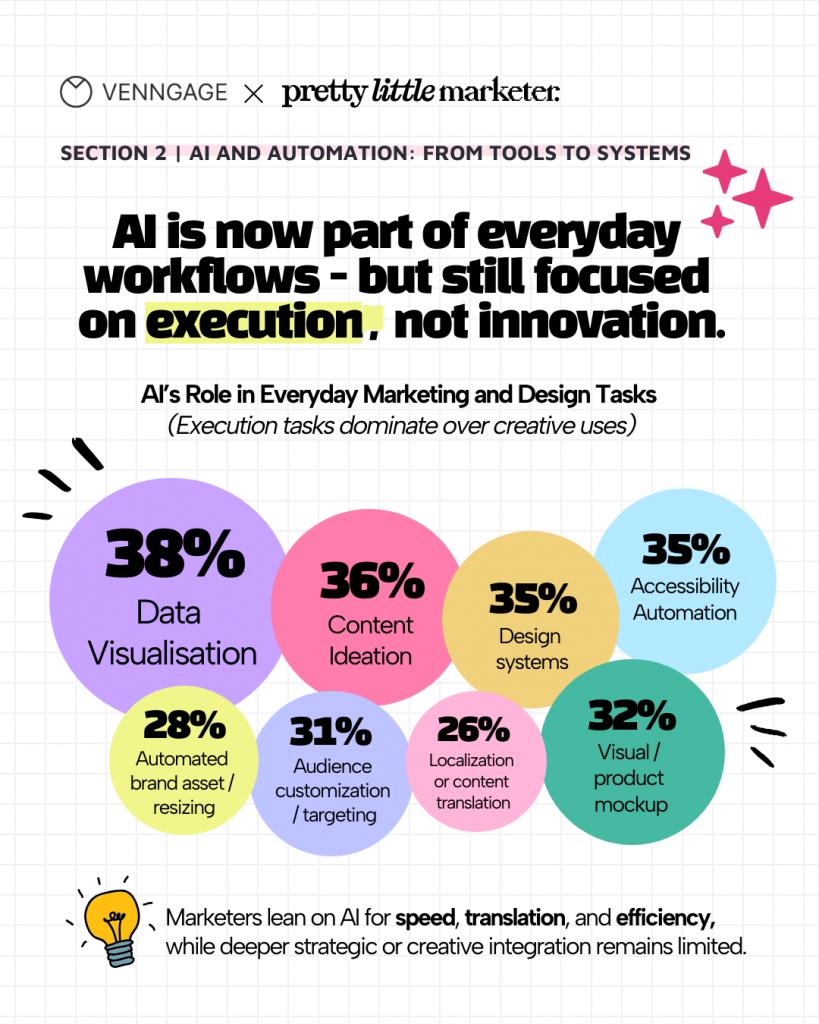
The pattern is clear. Marketers are automating the execution work first and treating strategy and brand as protected territory.
What parts of your design workflow should you automate?
The design workflows worth automating have a few things in common. They’re repetitive, they follow a predictable process and the outcome doesn’t depend on creative judgment.
Here are 7 graphic design tasks that are worth automating:
- Content repurposing: Turning one blog post into five different formats
- Data visualization: Rebuilding the same chart types every reporting cycle
- Resizing designs: Making one file work across every platform
- Design generation: Getting past the blank page with a fast first draft
- Brand application: Applying the same logo, colors and fonts to every new design
- Accessibility checks: Contrast, alt text and reading order reviews
- Image editing: Background removal, lighting fixes and quick cleanups
Let’s look at how you can automate each one and where you should still review the final output.
1. Turn existing content into designs
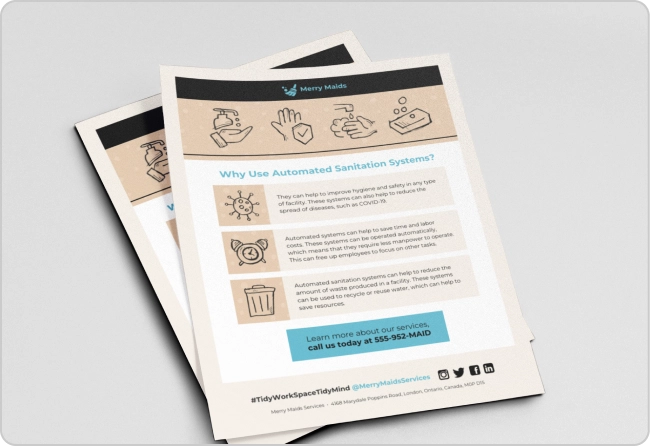
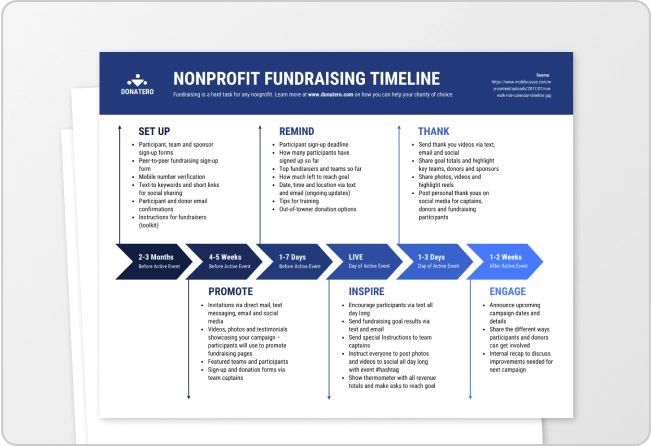
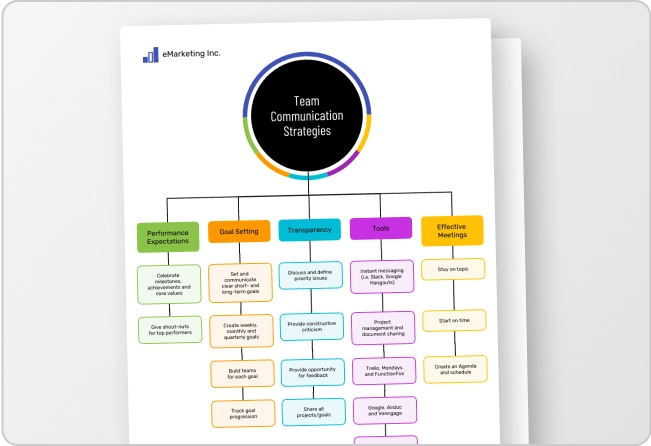
Most marketing teams already have more content than they know what to do with. Blog posts, reports, webinars, newsletters and case studies all need to be repurposed into infographics, presentations, social posts and other visual content.
But constant repurposing is time-consuming. Thankfully, you can automate most of this process.
Here’s a simple workflow:
- Ask an AI tool like Claude or ChatGPT to extract the key insights from your content.
- Rewrite the content for the format you’re creating, such as an infographic, presentation or social post.
- Group related points into clear sections with concise headings.
- Import the content into an AI design tool to generate the first draft, then refine the layout and messaging.
For example, my AI content repurposing workflow involves using Claude to extract key insights from blog posts and rewrite them into infographic copy.
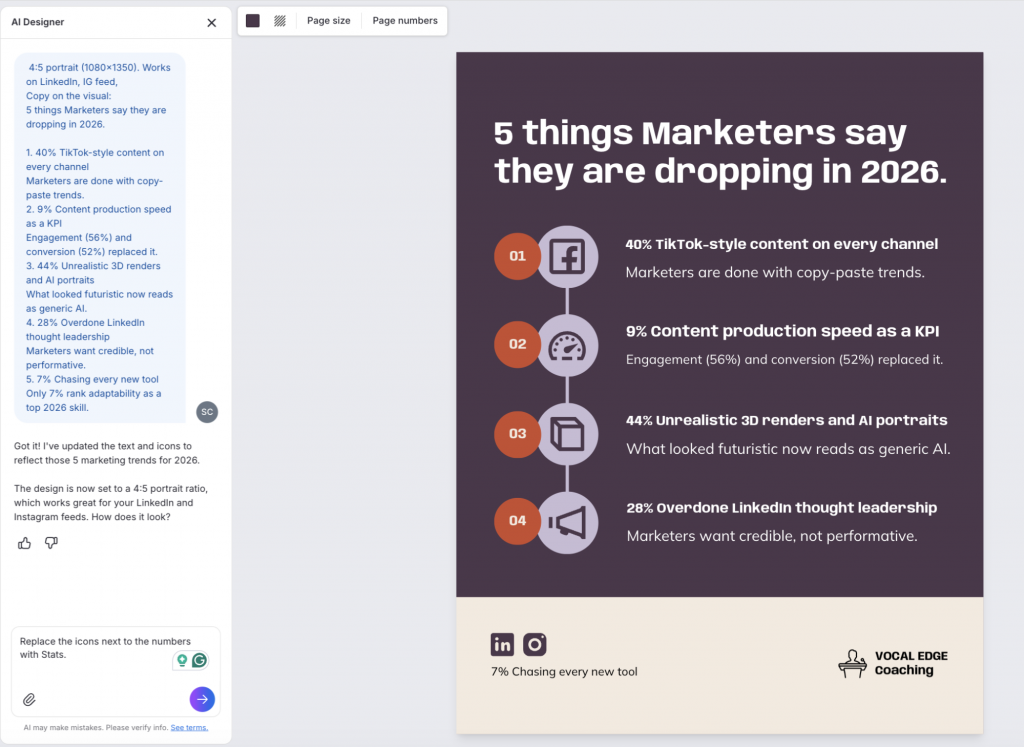
I then import the content into Venngage AI Design Generator, either by using a detailed text prompt or uploading a PDF or Doc. It automatically generates the design and adds my content so I don’t have to spend time copying and pasting every heading, paragraph and statistic. From there, I edit the design, adjust the hierarchy and refine the messaging.
I’ve found this approach works much better than relying on a single AI tool to handle both writing and design.
2. Visualize data and create charts
Data visualization is another repetitive design task that’s easy to automate.
I saw a LinkedIn post recently that said writing a LinkedIn post from scratch is psychopath behavior. That’s exactly how I feel about creating charts manually.
General-purpose AI tools like Claude and ChatGPT are great at analyzing data. You can paste a spreadsheet or dataset into them and ask for the key insights, the best chart type or even a summary to accompany the visualization.
But you can’t really edit the charts. That’s where a dedicated AI chart tool comes in handy.
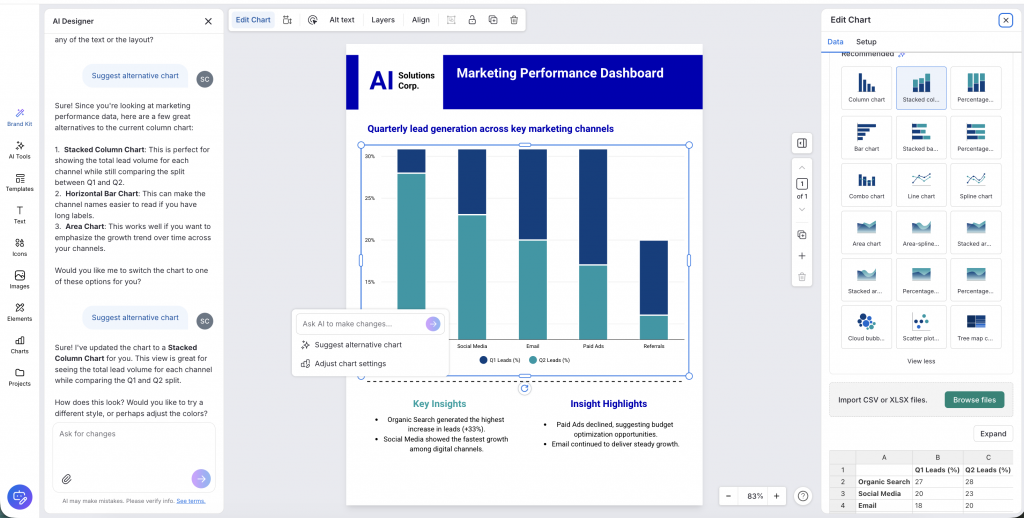
For example, Venngage’s AI Chart Generator lets you paste data or upload a CSV, spreadsheet or PDF to generate editable charts.
It also recommends chart types based on your data, making it much easier to customize labels, colors and values before adding the chart to a report, presentation or social media post.
3. Resize and repurpose designs for every platform
Imagine creating a design, downloading it for LinkedIn, then opening the same file again just to resize it for Instagram. Then doing it again for Stories, Pinterest, Facebook and your email banner. This repetitive process can make image editing unnecessarily time-consuming when the same design needs to be adapted for multiple platforms.
If you use ChatGPT or any other Generative AI tool to create designs, ask it to adapt the layout without changing the design itself. This is one of the best AI design hacks. A prompt like this works well:
Prompt
Resize this design for the following formats:
- Instagram Post (1080 × 1080)
- Instagram Story (1080 × 1920)
- Pinterest Pin (1000 × 1500)
- LinkedIn Banner (1584 × 396)
Preserve every design element exactly as it is. Do not rewrite the copy, change the colors, replace icons, modify typography or redesign the layout. Only reposition and scale existing elements so each version fits the new dimensions while maintaining the original visual hierarchy.
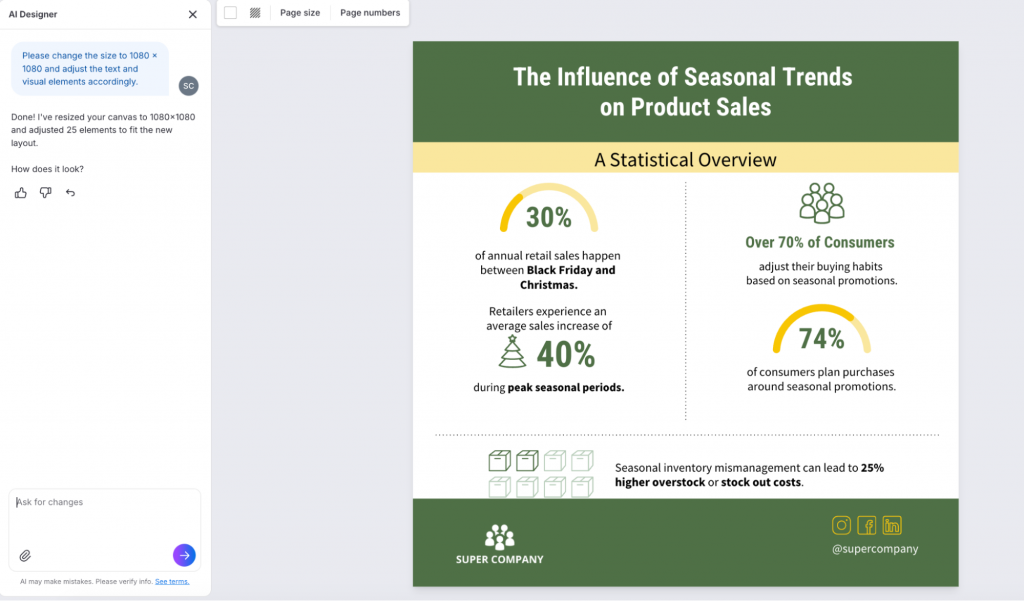
Venngage AI Designer Chat supports dynamic page resizing, so you can adapt an existing design to new dimensions without manual reformatting.
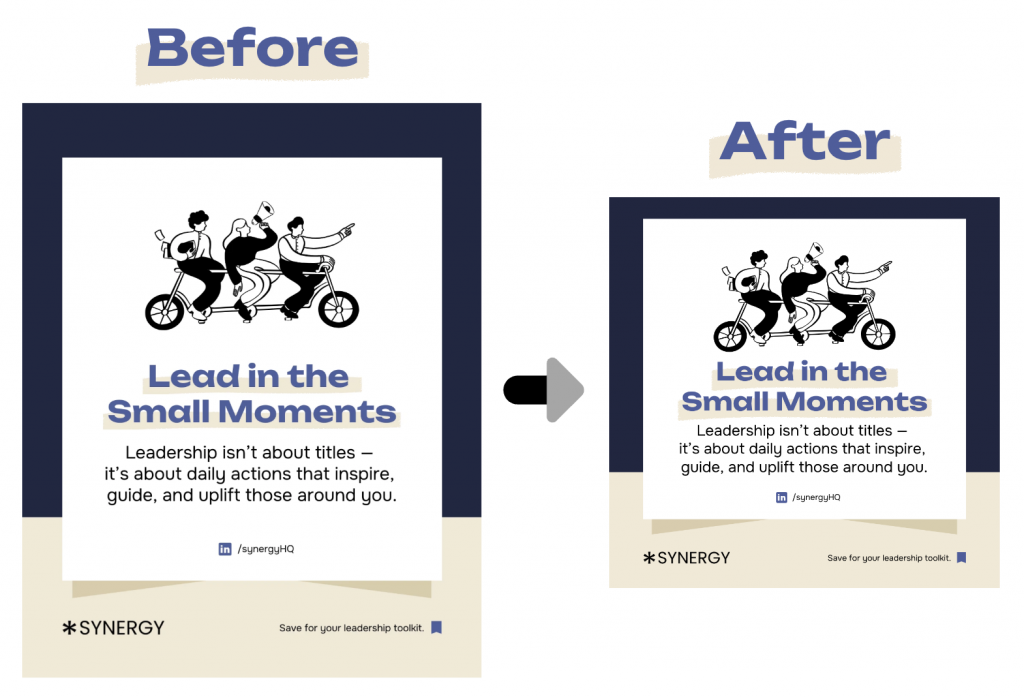
Open your design and ask AI Designer to:
- Resize this design to 1080 × 1920.
- Convert this landscape presentation into a portrait layout.
- Turn this infographic into a square social media post.
The AI automatically adjusts the layout, repositions text and images and preserves the overall visual hierarchy, making it much faster to repurpose designs for different platforms.
4. Generate designs from references
We’ve all saved designs we’d love to recreate someday. But recreating that look from scratch takes a lot of time.
Instead of trying to reverse-engineer a design manually, upload it as a reference and ask AI to analyze the typography, layout, spacing, color palette, illustration style and visual hierarchy.
AI design tools can then apply those same design principles to your own content and generate a completely new design with a similar look and feel.
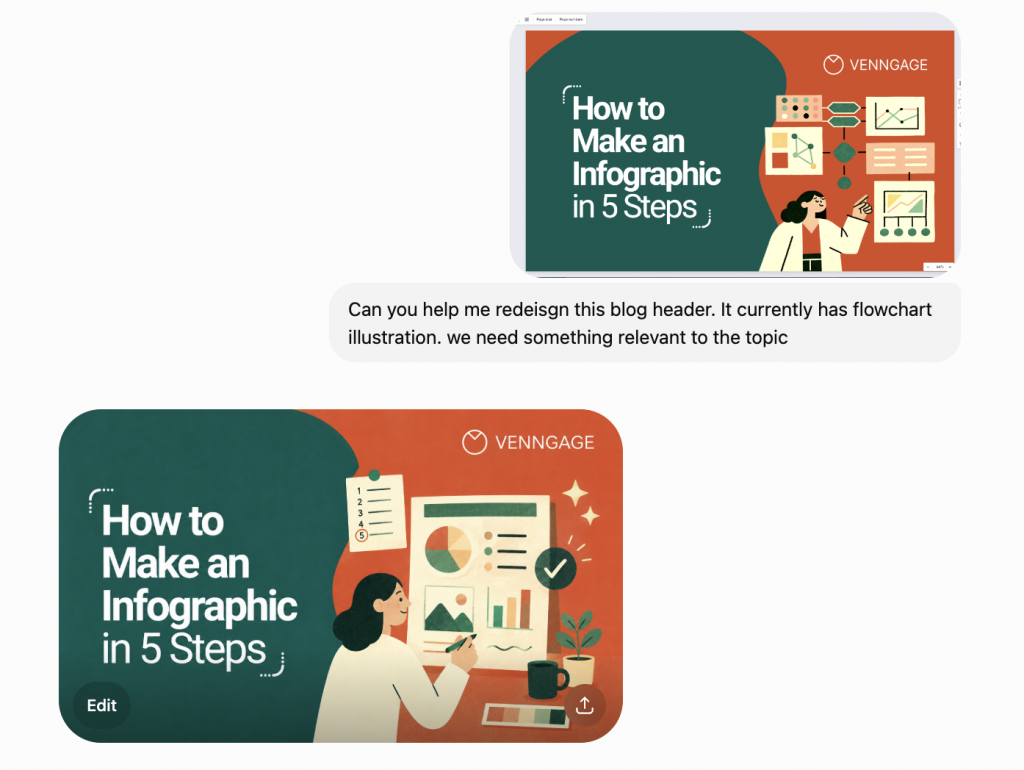
For example, I recently used ChatGPT to redesign one of our blog headers. I uploaded the existing design along with a few references and asked it to keep the same illustration style, color palette and overall aesthetic while making the visuals more relevant to the topic. The result looked consistent with our brand.
You don’t have to stop at one concept either. Ask AI to generate a few different directions from the same references, such as a minimal version, a bold version and an editorial version. Comparing a handful of concepts is much faster than designing each one from scratch and helps you choose the strongest direction before refining the final design.
AI can generate multiple variations of the same creative in minutes. Keep the same message but experiment with different headlines, CTAs, layouts, visuals or color palettes. It’s a quick way to explore ideas before investing time in refining a final design.
5. Apply branding automatically
Half the work of branding a design isn’t designing at all. It’s finding the latest logo, checking you’re using the correct brand colors and fonts, then updating everything manually.
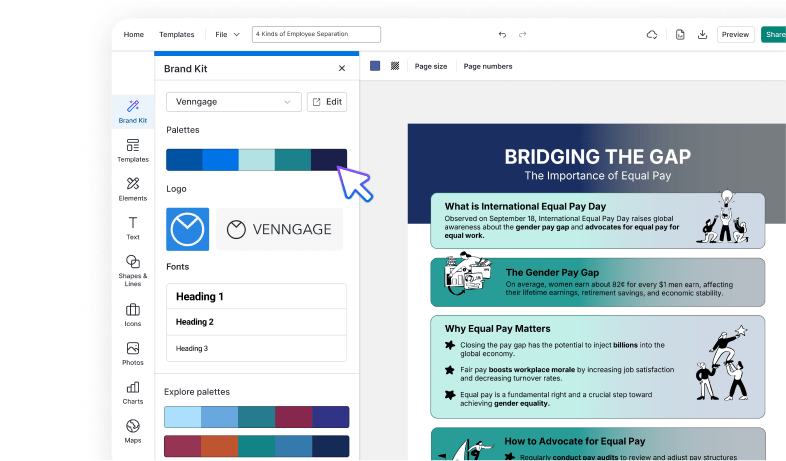
AI branding tools automate most of that work. Upload your brand assets once and AI can apply your logo, colors and fonts to new designs automatically.
For example, Venngage Brand Kit feature stores your logos, fonts and brand colors in one place. Once your Brand Kit is connected, you can apply your branding to any design with a single click. Yon’t have to update every heading or text element manually. The change is applied across the entire design automatically.
6. Automate accessibility checks
Accessibility is often overlooked in the design process, partly because accessibility issues aren’t always obvious and partly because reviewing every page manually takes time.
AI accessibility checkers can automate much of that review by checking color contrast, generating alt text, reviewing reading order and flagging missing accessibility elements before you publish.
If accessibility is already part of your design workflow, you don’t have to switch between multiple tools. Venngage Accessibility Checker scans your design as you edit and highlights accessibility issues.
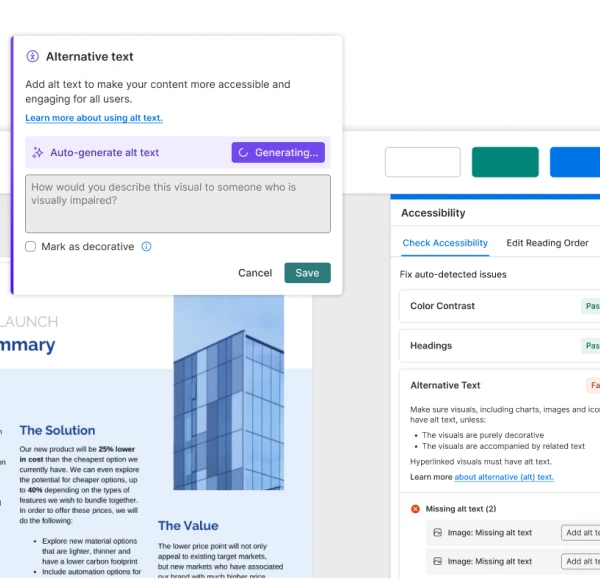
Venngage Accessibility checker can:
- Automatically generate alt text suggestions for images
- Flag low color contrast that may affect readability using the Color Contrast Checker
- Check heading structure and reading order
- Identify missing accessibility elements
- Provide recommendations to help meet WCAG accessibility guidelines
7. Edit and enhance images
Removing a background used to mean opening Photoshop. Now it’s usually a 30-second job.
AI image generation and editing tools can remove backgrounds, erase unwanted objects, expand image backgrounds, improve image quality and even fix basic lighting with a single prompt. It’s especially useful when you’re working with product photos, team headshots or marketing visuals and just need a quick cleanup before adding them to a design.
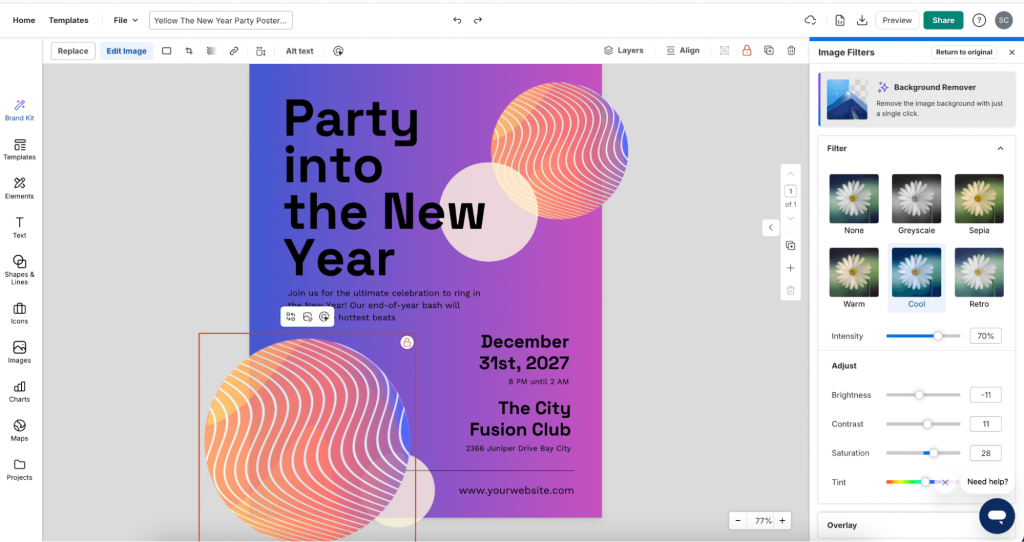
For example, you can upload an image and prompt AI to “Remove the person in the background, expand the image to a 16:9 aspect ratio and improve the lighting while keeping everything else unchanged.” You’ll usually get a usable result in one or two attempts.
I’d still give every image a quick review before publishing. Hair edges, shadows, reflections and AI-generated details are the first places where edits start to look unnatural.
Design tasks that should use human judgment
AI is great at speeding up execution, but we still need to draw a clear line when it comes to judgment.
In Venngage’s Design and Marketing Trends 2026 Report, respondents said these are the areas where people should remain in charge:
- Brand tone and identity: 40%
- Emotional storytelling: 38%
- Campaign strategy: 35%
- Sensitive or high-stakes content: 34%
- Ethical and cultural decisions: 31%
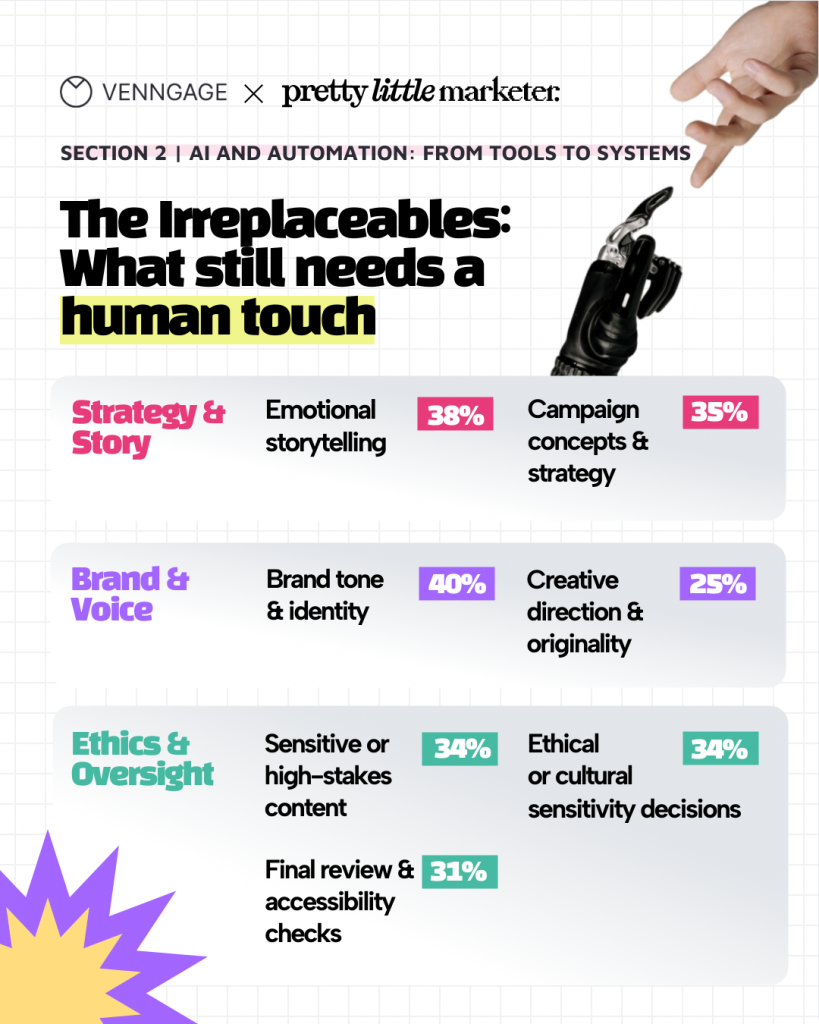
These aren’t repetitive production tasks, but the ones that rely on context, experience and understanding people. That’s why AI works best as a collaborator, not the decision-maker.
Brand strategy
One of the biggest mistakes teams make is asking AI to define their creative direction instead of executing it.
In our survey, 43% of marketers said their biggest AI challenge is keeping AI-generated visuals on-brand, while 31% still don’t fully trust AI outputs.
That’s because AI can generate visuals, layouts and marketing copy, but it doesn’t understand the design decisions behind your brand. It can’t decide what visual style best represents your company, how your brand should evolve or what makes your campaigns feel distinct from everyone else’s.
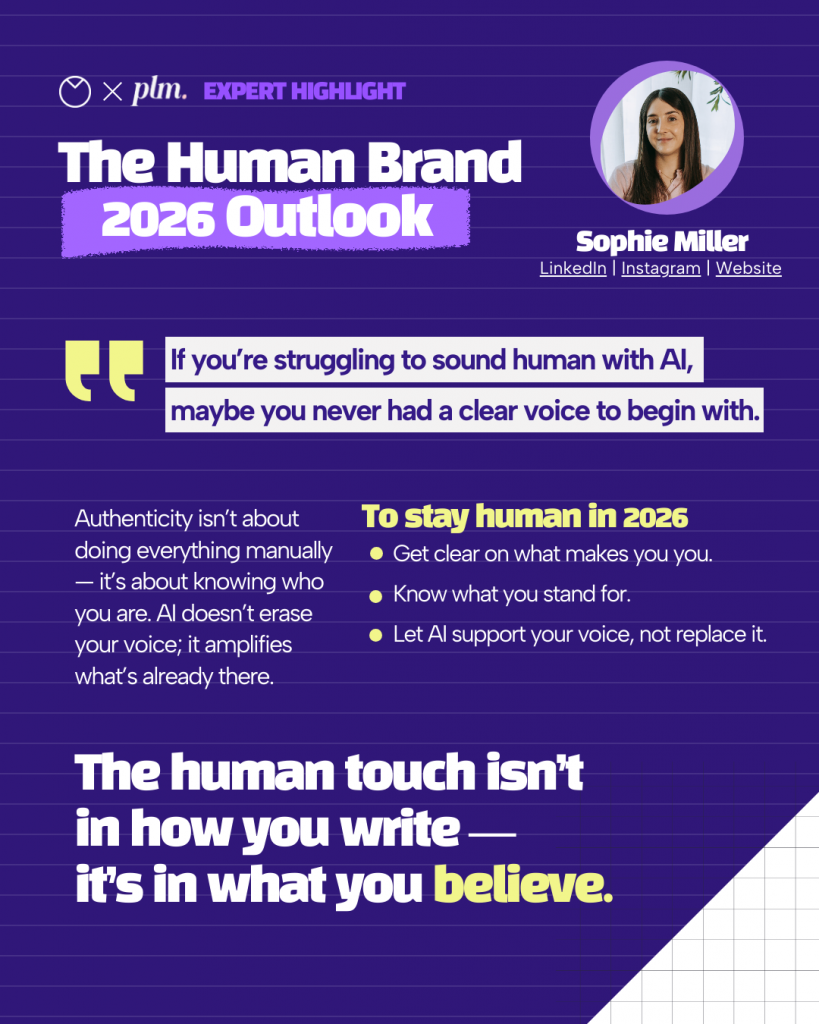
As Sophie Miller, Founder of PLM, explains:
“For brands trying to keep their human touch in 2026, the work is the same as it’s always been: get clear on what makes you recognisably you. What’s your take? What do you care about? How do you show up? Once you know that, AI becomes a lot less threatening because you’re not asking it to be you; you’re just asking it to help you do what you already do.”
Sophie Miller, Founder of PLM
Final creative decision
AI is really good at giving you options. That’s why it’s so useful during the early stages of the design process. But choosing the final design requires context.
When you decide what gets published, you’re thinking beyond the design itself. You’re considering your audience, campaign goals, brand priorities and what’s happening in the business. AI doesn’t have that context.
It can generate ten strong directions. Choosing the one that’s right for your audience and your campaign is still your decision.
Data interpretation
Every dataset can tell more than one story.
A quarterly sales report could become a growth story, a regional comparison or a product performance update. The numbers don’t tell you which one matters. You decide that before you ever create a chart.
AI is great at turning spreadsheets into visualizations, but it doesn’t know which insight deserves attention. That’s a marketing decision, not a design decision.
Before publishing any AI-generated chart, ask yourself one question: is this highlighting the insight I want people to remember?
Ethical decisions
Creating realistic images, testimonials and statistics used to take time. AI makes all of them almost instant.
That’s great for productivity. It also makes it much easier to publish something inaccurate without realizing it.
Before anything goes live, verify every statistic, check every source and think carefully before using AI-generated people, testimonials or product images where authenticity matters. The design might look convincing. That doesn’t make it true.
FAQs on graphic design automation
What is graphic design automation?
Using AI tools to handle repetitive design tasks like resizing, background removal, chart generation, brand application and accessibility checks. The goal is to automate execution so you can spend more time on creative decisions.
Can AI replace graphic designers?
No. AI can replace specific tasks, not the role. It can execute designs faster than any human, but it can’t decide what your brand should look like or which story your data should tell. The role is shifting from execution to direction, but the person is still needed.
Which design tasks should you not automate?
Anything requiring judgment: brand strategy, final creative decisions, data interpretation and ethical calls around synthetic imagery, bias and disclosure. AI can generate options for all of these, but the final call should stay with a person who understands the context.
What are the best tools for graphic design automation?
Depends on the task. Venngage’s AI Design Generator for end-to-end design and brand application. AI chart tools for data visualization. ChatGPT or Remove.bg for image editing.Venngage’s Accessibility Checker for contrast, alt text and reading order.
How do I start automating my design workflow?
List the design tasks you do most often, then split them into three buckets: execution (automate fully), first drafts (let AI start, refine manually) and judgment (keep human). Automate the first bucket now, use AI for the second, protect the third.
Is AI-generated design content on-brand?
Not by default. AI tends toward generic aesthetics unless you give it explicit brand direction. Tools with a Brand Kit feature let you upload your logo, colors and fonts once, then apply them automatically to every AI-generated design.
Start automating your design workflow today
Graphic design automation saves real time. Resizing, template population, chart generation, brand application and accessibility checks that used to take hours now take minutes.
But speed only helps when the decisions underneath are right. AI can generate a hundred layout variations without telling you which one fits. It can plot any dataset without deciding which story to tell.
The teams getting the most out of AI aren’t automating everything. They’re drawing a clear line between execution and judgment, automating aggressively on one side and staying deliberate on the other.
Try Venngage’s AI Design Generator to start automating the execution work today.