


If you’ve searched for an AI flowchart generator online, you’ve probably noticed that every tool claims it can magically turn anything into a clean diagram in seconds.
However, most of the tools feel the same once you actually start using them. I know this because I’ve personally tested most tools first-hand.
But that confusion stops here. I now know enough about these tools to separate the wheat from the chaff.
And by the end of this guide, you too will be in a position to know exactly which one to try first based on how you actually work.
TL;DR — Best AI flowchart generators
If you want a TL;DR version without reading everything, here’s a quick summary of what to expect from this post.
- Best AI flowchart generator if you start from text: Flowchartai.org
Most consistent at turning text prompts into structured charts; better handling of decisions and branching than most prompt-based tools.
- Best AI flowchart generator for meeting notes and brain dumps: Venngage
Great for turning messy ideas into clean, readable visuals you can refine, brand and share without friction. Try for free.
- Best AI flowchart generator for teams and collaboration: Miro
Strongest option for shared work, live editing, feedback and turning flowcharts into real team workflows.
- Best technical AI flowchart generators: Creately or Draw.io
Better suited for structured documentation, internal processes and controlled environments than exploratory thinking.
How I tested these AI flowchart generators
I didn’t pick these tools randomly. I only included tools that offered a free trial or free sign-up, because that made it easier to test them properly and show you what you’ll actually get before paying.
In total, I tested 10 AI flowchart generators for this guide.
To keep things fair, I gave the same prompt to every tool and evaluated the output without manual cleanup first. That way, you can see how each one performs out of the box.
Here’s the prompt that I used:
Create a flowchart that shows the steps a customer goes through when ordering a sandwich at Subway, from choosing bread and fillings to payment and pickup.
The real-world scenarios we tested
To see how these tools actually hold up in the real world, I tested them using everyday inputs you’re likely to work with:
- Clean, structured text instructions
- Messy meeting notes copied from a doc
- Long-form process documentation
- Collaboration-based prompts that require shared ownership
Evaluation criteria
We compared each tool on practical factors that affect how quickly you can go from raw input to a usable flowchart, such as:
- Text-to-flowchart accuracy
- Ease of editing after generation
- Time required to reach a usable diagram
- Usefulness of the free plan
- Collaboration and export options
Testing limitations
This wasn’t a perfect lab test and I want to be upfront about that.
For example, output quality can change based on how you phrase a prompt. For this guide, I used a simple scenario and plain language that didn’t demand nuanced results.
That’s because I want to keep my testing focused on practical business workflows, not edge cases or highly technical system diagrams.
Next, I didn’t have access to paid plans (except for Venngage). So my testing didn’t always cover advanced AI features or higher export limits unless they were part of the free tier.
I also tested each tool as a solo user, which means this comparison doesn’t reflect a real-time collaboration stress-test across all tools.
Best AI flowchart generators if you start from text
I’ll start with tools that actually turn what you write into a structured flowchart.
1. Flochartai.com
Flochartai is built around generating flowchart diagrams directly from text prompts. You just need to describe what you want and the AI creates a visual that you can edit later.
The interface is simple and focused on fast outputs, which I personally liked.
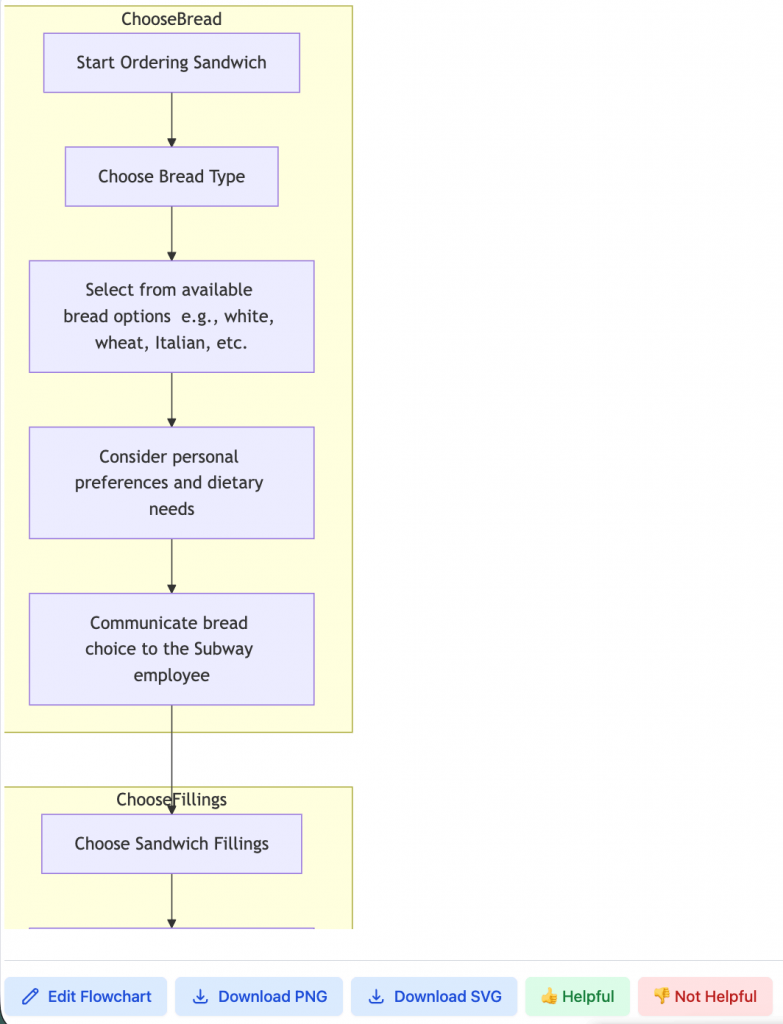
Here’s what Flochartai produced when I gave it the Subway sandwich prompt:
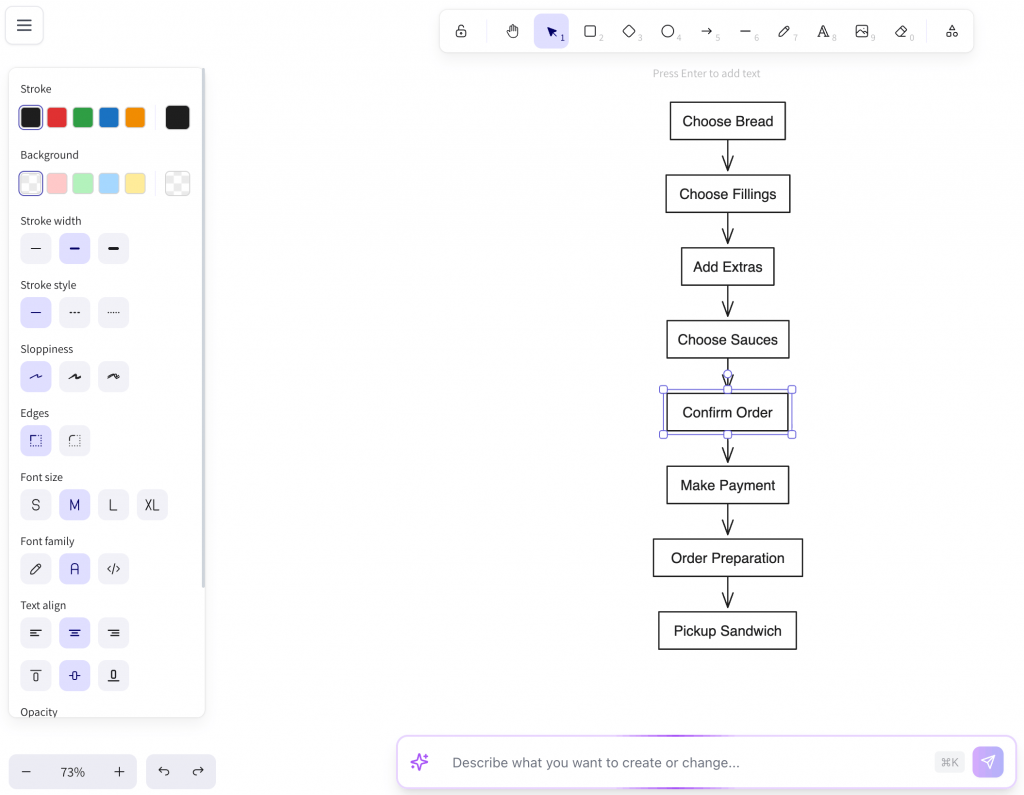
Once the chart is created, you can tweak the flowchart’s appearance such as colors, fonts, alignment and labels manually to suit your preference.
You can also use Flochartai to create a sequence diagram, class diagram, Gantt chart, pie chart, mind map, timeline infographic and more.
Limitations:
- Flochartai might give you poor-quality outputs even if you give it advanced prompts.
- Its AI tends to interpret text literally. If you feed it with vague phrasing, it can miss decision nodes or give you oversimplified outputs.
- The tool also doesn’t offer collaboration features at this point. It works best only for individual use rather than team needs.
Pricing:
- Free plan available; paid plans starting at $10/user/month.
2. Flowchartai.org
Flowchartai.org feels like a different version of Flochartai. Besides their names, their interfaces are eerily similar to each other.
So I dug into it further and found that Flowchartai.org is actually an open-source project on GitHub. This means anyone can self-host the tool or tweak it if they want full control over how it runs. My guess is that Flochartai may have been built using this open-source codebase.
Unlike Flochartai, Flowchartai.org lets you convert both text and images into flowcharts. However, I only tested its text-to-chart capability for my evaluation.
Flowchartai also lets you regenerate results without retyping your whole prompt and offers a workspace where you can save diagrams for later.
Here’s what Flowchartai.org produced with the same prompt:
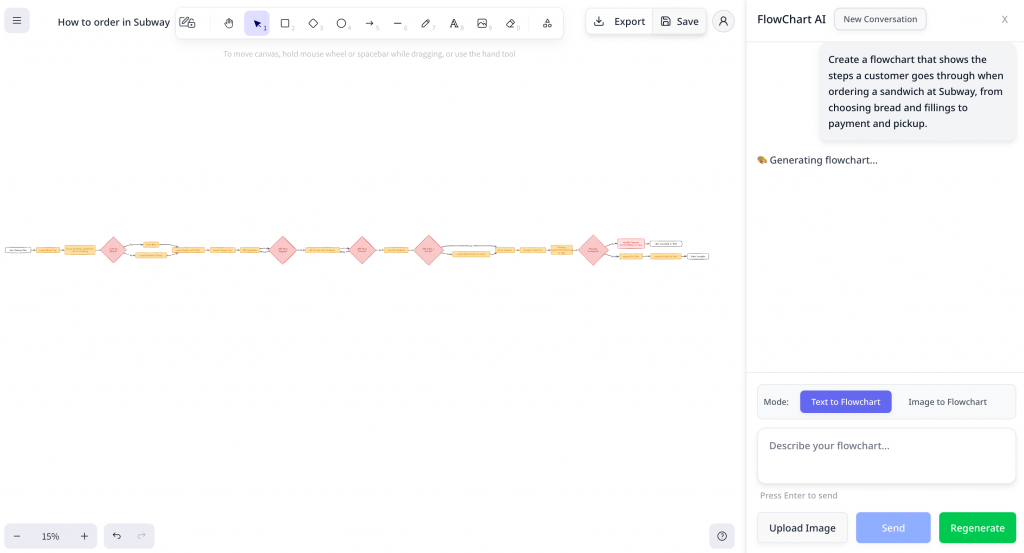
Flowchartai.org clearly handled decision points and branching logic better. It picked up on choices (like two bread options or add-ons) and placed them more clearly in the flow.
The result wasn’t perfect, but the output felt closer to a human draft version than that of Flochartai’s result.
Limitations:
- The free tier limits you to just one AI request per day. If you’re evaluating the tool for its capability or iterating rapidly, you’ll hit the wall after each iteration.
- Flowchartai also doesn’t offer any collaboration features as of yet.
Pricing:
- Free plan available; paid plans start at around $5/month.
Best AI flowchart generators for meeting notes and brain dumps
This section looks at AI flowchart tools that can turn those raw notes into organized flowcharts.
3. Mylens AI
MyLens AI approaches flowchart generation from a context-rich angle. When I fed it the prompt, the output read like a processed summary that felt more intentional and human.
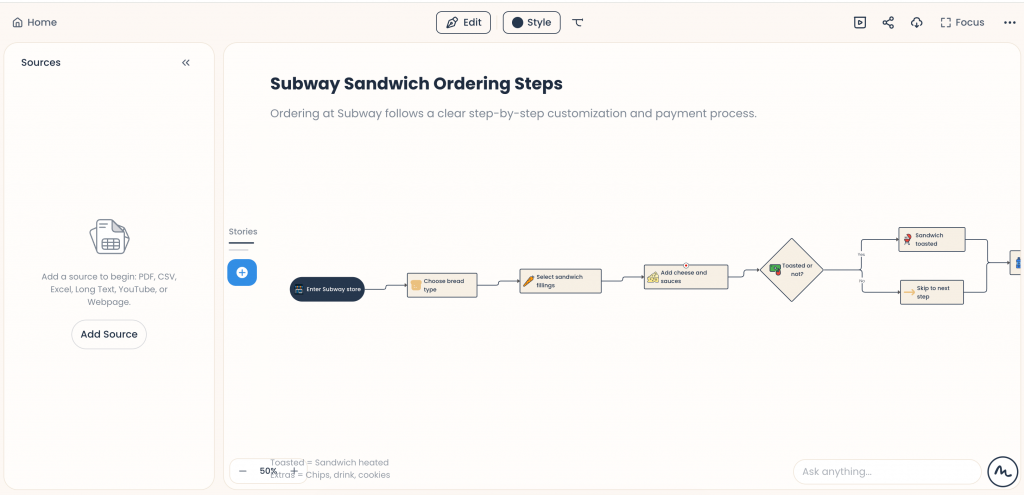
MyLens AI frames the logic visually with labels and descriptive connections. The steps are cleanly laid out and decision points (e.g., “Toasted or not?”) are placed logically in sequence.
I like its ability to interpret source context and turn it into a diagram story. Many other tools treat your prompt as isolated input. MyLens looks like it tries to understand the context behind it.
MyLens AI makes messy meeting notes, raw brainstorms or half-formed ideas into clear, structured flows that actually make sense to other people.
MyLens AI is a good choice if you’re building internal documentation, explainers, SOP summaries or any flow that needs to make sense quickly.
Limitations:
- The trade-off is that the flow isn’t as flexible or editable as you might find in a drag-and-drop diagramming tool. Once the diagram is ready, making manual changes can feel like a text-edit task than a visual rebuild.
- The editing canvas isn’t great to work with and you might end up tweaking labels and sequences rather than reshaping logic or structure.
Pricing:
- Free plan available; paid plans start at $12/user/month.
Best free AI flowchart generator
Venngage fits into multiple categories in this list, but it earns a section of its own because of how usable it is without paying.
The free plan is genuinely generous, and the learning curve is low enough that you can go from idea to flowchart without friction.
4. Venngage
The most striking feature about Venngage’s AI Flowchart Maker is that it ditches “boring” templates and diagrams for vibrant, branded visuals without design chops.
Unlike basic AI flowchart generators, Venngage combines AI prompts with a drag-and-drop editor loaded with icons, illustrations and data widgets for infographics-ready polish.
Here’s the flowchart it generated when I fed it the prompt:
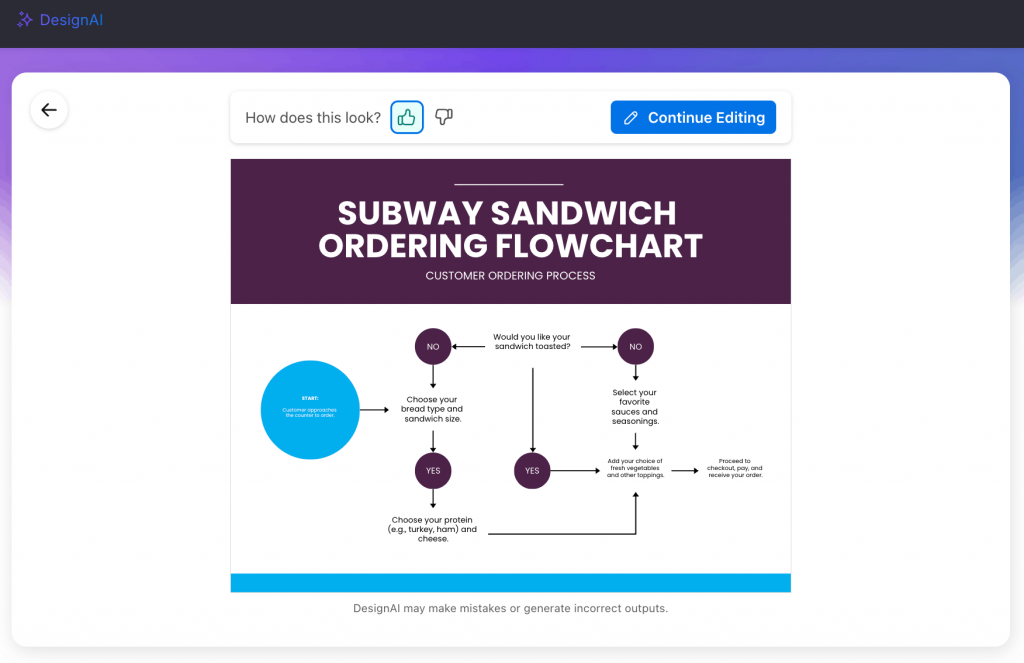
If you click on the “Continue Editing” button at the top, Venngage lets you tweak the design manually per your preferences.
Venngage also comes with Brand Kit features that let you auto-apply logos and colors. It might also be the only DIY design tool that comes with smart accessibility checks.
You can export Venngage flowcharts as interactive HTML, PDF or high-res PNG in moments.
Limitations:
- With Venngage, it’s up to you to make it more context-aware or domain-specific. That’s because Venngage’s design-first templates are great for creating visuals, but might lack technical depth.
Pricing:
- Free plan available; paid plans start at $10/user/month.
Best AI flowchart generators for teams and collaboration
In this section, I list AI flowchart tools that support shared ownership and team workflows.
5. Miro
To get started with Miro, I clicked the Miro AI “Sidekick” icon in the left toolbar and entered my prompt.
Here’s what Miro produced with the Subway ordering prompt:
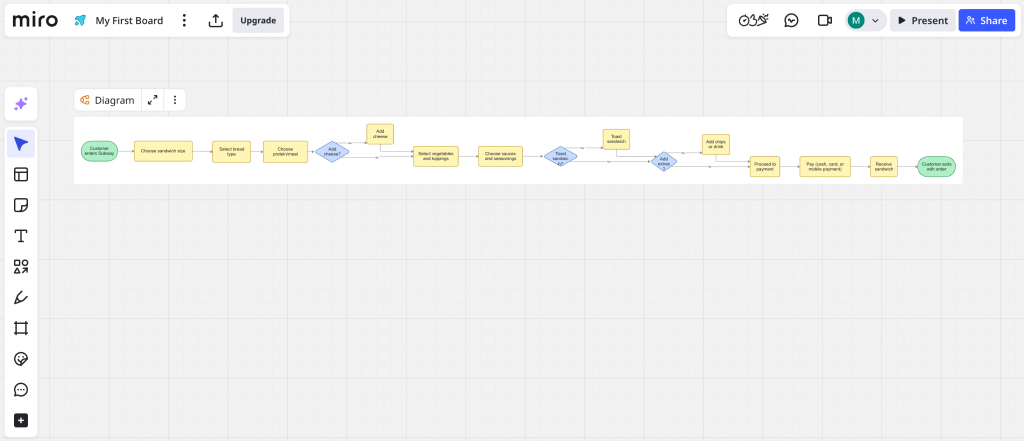
The AI nailed the branching logic with clear decision points (e.g., bread choices, add-ons).
What makes Miro apart is collaboration-based prompts for flowcharts. Miro drops these diagrams onto real-time team boards, where others users can co-edit live with @mentions, comments, video chat and voting.
Limitations:
- Its interface, though simple, can feel cluttered and unnecessarily sprawled out.
- I personally found it tedious to make manual tweaks after the AI generated the first draft.
Pricing:
- Free plan available; paid plans start at $8/user/month.
6. Lucidchart
My first impression of Lucidchart was that it didn’t feel like an “AI-first” flowchart tool. It’s more like an enterprise diagramming platform that has AI somewhere in the mix.
When I tested it with the prompt, the output looked less like a creative sketch and more like something built for documentation, onboarding or internal process mapping.
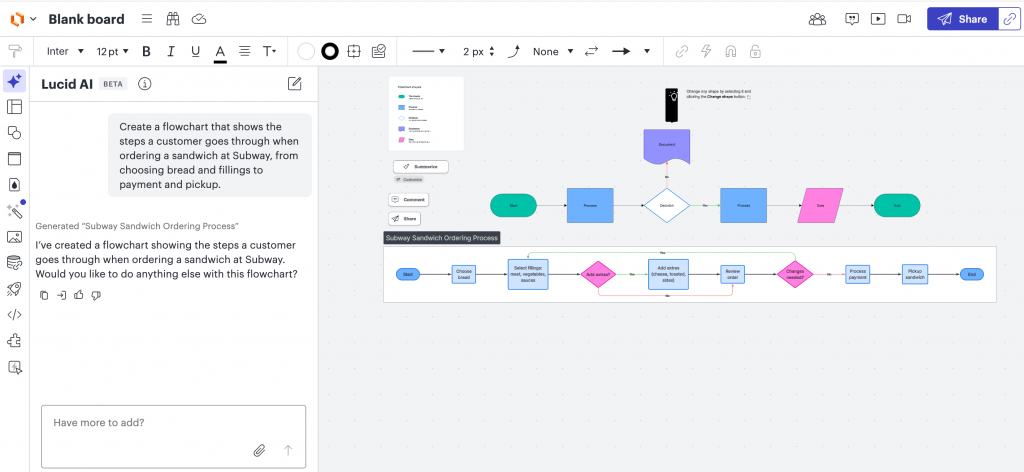
I liked that the AI didn’t overcomplicate the logic, which made it more reliable than a few tools I tested earlier.
Lucidchart also comes with a lot of control, such as user permissions, sharing controls and access management.
For teams that want to turn scattered meeting notes into standardized, repeatable process documentation, Lucidchart is a good choice.
The tool supports multiple formats, including PDF, PNG and SVG exports. This means it’s easy to move your flowcharts into slide decks, knowledge bases or internal documentation systems.
Limitations:
- The AI feels like an afterthought rather than the highlight of the show. Plus, you’ll need to spend additional time improving the diagram, structure, labels and layout to get to the final output.
- Lucidchart works better as a structured diagramming platform for technical teams than as an AI-first platform for business teams that need quick flowcharts.
Pricing:
- Free plan available; paid plans start at around $10/user/month.
7. Whimsical
Finding Whimsical’s AI was a bit of a task at first. The platform markets itself heavily around visual collaboration and whiteboarding, but the AI features feel buried once you’re inside the product. I find this personally frustrating when “AI-powered” is part of the positioning.
Thankfully, once I tested Whimsical’s Flowchart AI, it gave me a clean, structured and almost usable output. The flowchart followed a simple, linear structure with decision nodes and pretty good branching logic.
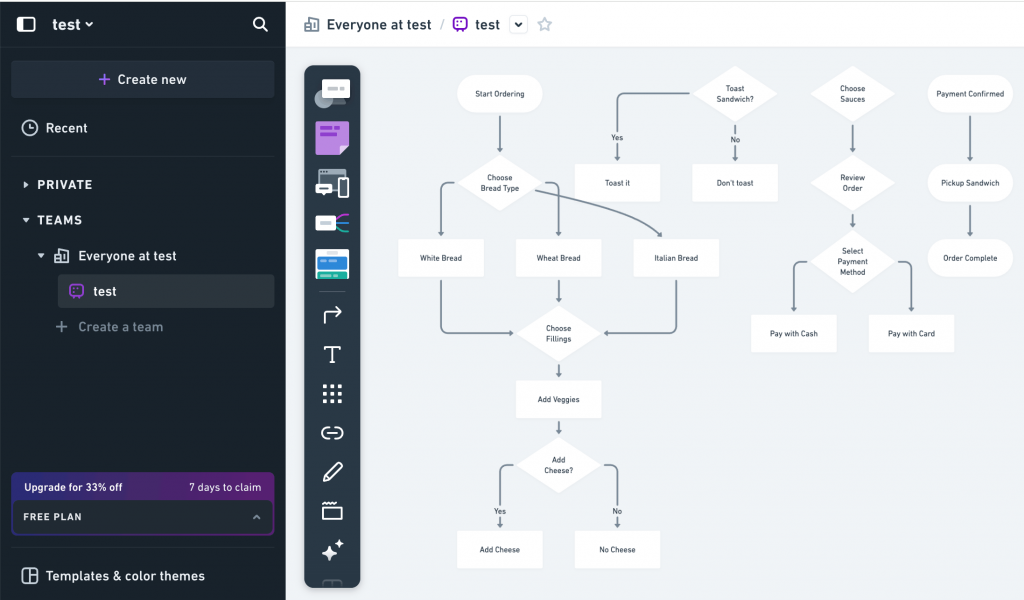
But “pretty good” doesn’t equal full-blow, expressive branching nuance. That’s probably because Whimsical optimizes for speed and visual clarity over reasoning depth:
In other words, it’s the opposite of Lucidchart: designed for quick outputs rather than deep flowchart modeling. But again, that’s only the AI draft. You can also tweak the result manually to your heart’s content.
In fact, Whimsical nudges you into manual refinement rather than AI iteration. It’s better to treat it like a visual thinking tool than an AI reasoning engine.
At the same time, Whimsical is a great tool for workshops, team planning sessions and collaborative brainstorms where clarity and speed matter more than perfect logic.
Limitations:
- The AI flowchart feature isn’t easy to find inside the product.
- The logic it generates tends to stay at a surface level rather than handling more complex reasoning or structure.
Pricing:
- Free plan available; paid plans start at around $10/user/month.
Best technical AI flowchart generators
In this section, I’ve listed down AI flowchart generators that are built for logic-heavy, system-level diagrams rather than everyday process flows.
8. Creately
Creately feels more like a process-mapping workspace than an AI flowchart tool.
When I tested it with the sandwich ordering prompt, it gave me an output that felt simple, structured and…predictable. Once again, there was no deep branching logic (which I’m fine with by now).
Creately doesn’t try to “think” too much for the users and that might actually work in your favor.
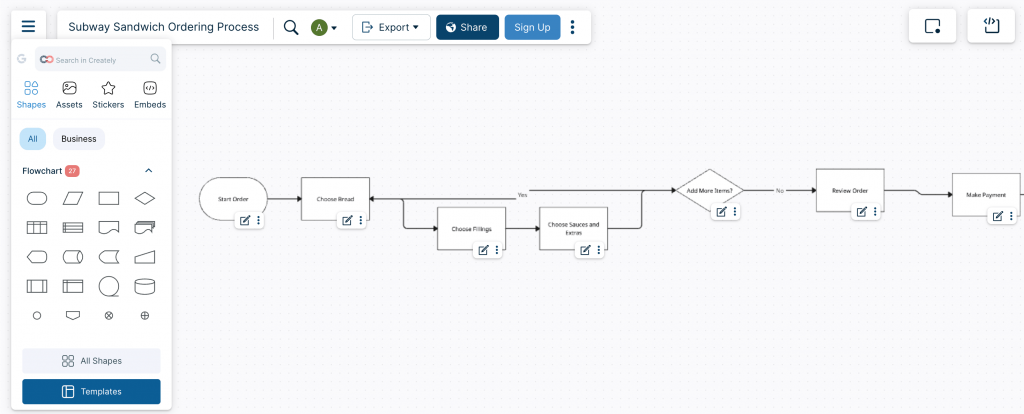
Editing the AI flowchart draft is easy. You can rearrange the steps, add new branches, connect flows or expand the process without breaking the structure.
Like a few other tools in this list, Creately also encourages you to create a “workspace” once you sign up. When you create flowcharts or other diagrams, Creately treats them as living documents that you can share with others in your team to collaborate, edit or brainstorm in real time.
Limitations:
- I spent a fair bit of time refining the flowchart in Creately and the canvas felt a bit sluggish, which I’m sure would get worse with more complex diagrams.
- Its free plan felt extremely restricted since I couldn’t export the flowchart and use more advanced shapes.
Pricing:
- Free plan available; paid plans start at $5/user/month.
9. Draw.io
Draw.io is a diagramming tool that’s built primarily for the Atlassian ecosystem, especially for Confluence and Jira, with AI added as a layer on top rather than at the core.
When I tested it with the prompt, the output felt very literal: a straight, linear sequence of steps with no interpretation layer, no reasoning and no structural intelligence added to the flow.
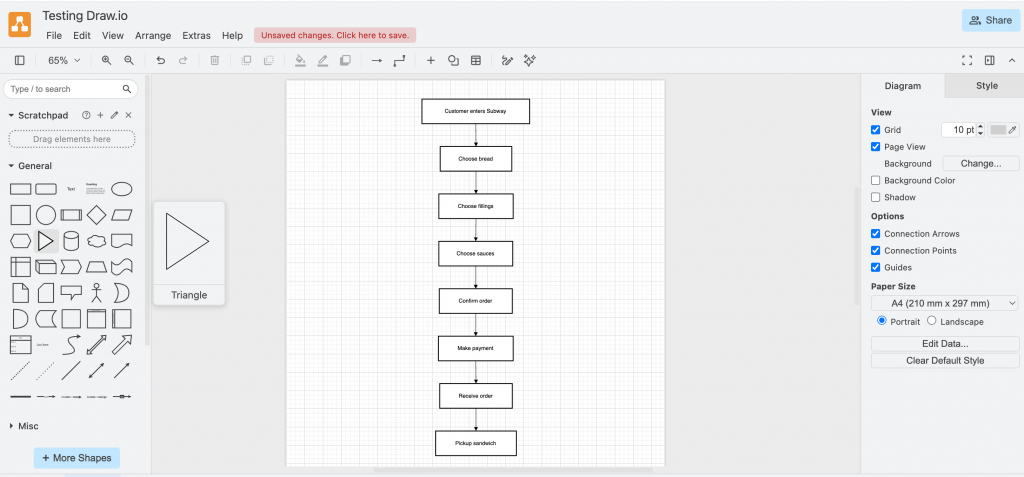
The structure is technically correct, but it’s also barebones. There are no decision nodes, no branching logic…no nuances whatsoever. It’s essentially a visual version of a checklist. That’s it.
But Draw.io shines when it comes to control. It comes with precise alignment tools, grid control, connectors, shape libraries, layering, grouping and layout structure that feels closer to professional documentation tools. That’s a rarity in most AI-first sketch tools.
But it feels more like a visual editor with light automation than an intelligent generator. You still have to do most of the thinking.
Limitations:
- The diagrams are clean and correct, but surface-level and lack depth.
- Overall, it works far better as a documentation tool than as a space for exploration or ideation.
Pricing:
- Free for up to 10 users; paid plans start at $37/month.
10. Codetoflow.com
Codetoflow is very basic compared to most tools in this list. It is AI-first, but in a very narrow way.
It’s the only tool here that’s truly code-based, although it accepts text prompts as input. The output is generated from structured logic and any real editing happens in the code, not on the canvas. That’s to say, the tool doesn’t offer a drag-and-drop interface at all.
Don’t expect real branching logic or nuanced process mapping either. The diagrams appear linear but shallow. And if you want to change anything meaningful, you’re editing the backend code to see those changes reflected visually.
I’m also not a fan of the interface. It felt cluttered, noisy and distracting…with third-party ads and multiple nudges to upgrade. The user experience felt more spammy than productive.
The only genuinely useful feature is that it gives you multiple flowchart variations for the same prompt. But beyond that, it’s hard to justify using it over more flexible tools.
Limitations:
- Codetoflow prioritizes automation over flexibility, which makes edits feel constrained and unnatural.
- The flowcharts feel technically correct, but not context-aware. The result seldom adapts well to nuance, edge cases or human decision-making.
Pricing:
- No account needed for limited daily usage; no true free trial either. Paid access is a one-time payment starting at $26.99.
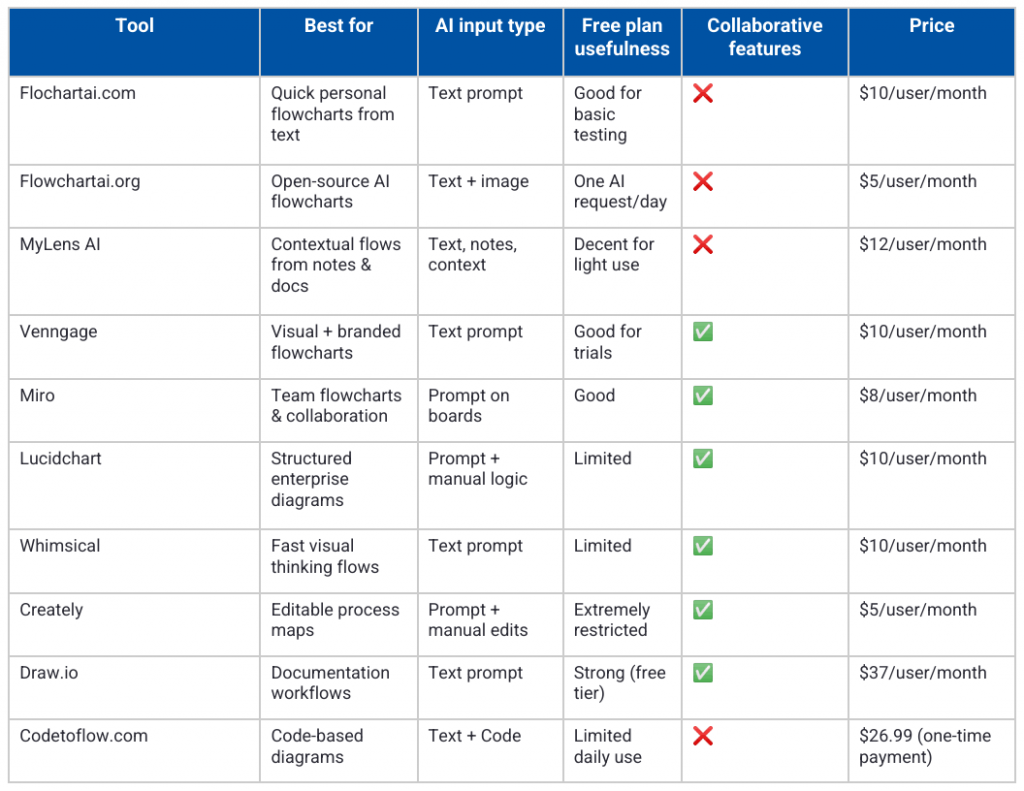
Comparison table: Which AI flowchart tool should you choose?
Here’s a quick, side-by-side view to help you choose fast without overthinking it.
Key questions people ask about AI flowchart generators (FAQ)
Here are answers to some of the most common questions people usually ask about AI flowchart makers:
1. Are AI flowcharts accurate?
They’re usually structurally correct, but accuracy also depends on your prompt quality. Vague inputs spit out surface-level results while specific, nuanced instructions often lead to usable first drafts.
2. Can I edit diagrams after AI generates them?
Yes. Most tools allow editing, but the range of control varies. Most tools offer flexible, drag-and-drop canvases. Others can feel more rigid and hard to work with.
3. Are these tools actually using AI?
Most tools are AI-first. Others add AI as a feature on top of their existing diagramming features. The experience and depth of intelligence often vary by the tool.
4. Are AI flowchart generators worth paying for?
They’re worth it if you create flowcharts regularly. For occasional use, free plans are usually enough.
5. What are the limitations of AI-generated diagrams?
Most tools struggle with getting the nuance, edge cases and real-world complexity right. AI drafts structure well, but most of them don’t truly understand context.
When an AI flowchart generator is not the right tool
AI flowchart tools are helpful for brainstorming and creating first drafts, but they’re not a fit for everything.
For instance, if you’re mapping highly complex systems with interdependencies, exceptions and deep logic, AI drafts tend to oversimplify the process. The same goes for compliance-heavy workflows where accuracy, traceability and documentation standards matter more than speed.
In some cases, manual design is simply faster, especially when you already understand the process and need precision.
AI can save you time. But if you rely on it blindly, it can create more chaos than clarity.
Final recommendation: How to choose the right tool for you
Most of us aren’t really trying to “generate flowcharts.” What we are trying to do is make sense of messy thinking, scattered notes and unclear decisions.
If your goal is to move faster from messy ideas to something usable, start with a tool that treats AI as a starting point. Use AI to get the idea out of your head, then choose a platform that lets you improve, organize and collaborate with your team.
Try an intuitive flowchart generator first to shape your thinking. But if accuracy is more important than speed, go with a tool that supports depth, regeneration and easy editing.