

Presentation generators have become much more advanced. Features like AI-driven layout automation, instant brand application, and smart content suggestions allow you to build professional decks in seconds. These tools now handle the technical design work, helping you focus on your message instead of manual formatting.
Every tool works differently. A platform built for creative pitches offers a different experience than one optimized for technical reports. In this article, I’ll share the best presentation makers in 2026 to reduce your hassle.
To be transparent: Venngage is our own product. We’ve balanced its pros and cons against other tools to help you make the right pick.
TL;DR — Best presentation generators in 2026
Here are the tools that stood out and for different use cases:
- Best overall (most teams): PowerPoint or Google Slides (depending on org)
- Best for data-heavy decks: Venngage
- Best free/collaboration: Google Slides
- Best design speed: Canva
- Best AI-first: Gamma
- Best engagement: Mentimeter
- Best non-linear: Prezi
- Best video presentations: VEED
- Best for Mac: Keynote
- Best modern team workflow: Pitch
- Best auto-design guardrails: Beautiful.ai
- Best for startup pitch decks: Slidebean
Comparison table of the best presentation generators
| Tool | Platforms | Collaboration | AI Capability | PPTX I/E | Offline | Free Plan | Price (Feb 2026) |
|---|---|---|---|---|---|---|---|
| Venngage | Web | Team folders | Assist | I/E (Paid only) | No | Yes | $19/mo |
| PowerPoint | Desktop, Web, Mobile | Real-time (M365) | Generate (Copilot) | Native (Perfect) | Yes | Web only | $6.99/mo |
| Google Slides | Web, Mobile | High (Real-time) | Generate (Gemini) | I/E (Moderate) | Limited | Yes | Free |
| Keynote | Mac, iOS, Web | iCloud sharing | Assist | I/E (High) | Yes | Yes (Apple) | Free |
| Prezi | Web, Desktop | Basic comments | Generate | I/E (Low) | Paid only | Yes | $5/mo |
| Canva | Web, App, Mobile | Real-time | Generate | I/E (Moderate) | No | Yes | $15/mo |
| Veed | Web | Review links | Generate (Avatars) | Import only | No | Yes | $12/mo |
| Gamma | Web | Shared links | Generate | I/E (Low) | No | Yes | $10/mo |
| Mentimeter | Web, Mobile | Live voting | Assist | Import only | No | Yes | $9.99/mo |
| Slidebean | Web | Limited | Generate | I/E (Moderate) | No | Limited | $12/mo |
| Beautiful.ai | Web, PPT Add-in | Shared library | Generate | I/E (Moderate) | No | No (Trial) | $12/mo |
| Pitch | Web, Desktop | High (Workflow) | Generate | I/E (High) | No | Yes | $25/mo |
How we tested and ranked presentation software
The goal was to see which tools make work easier and which ones get in the way. I focused on the “core” experience: how the editor feels, how it handles data and how reliable it is when it’s time to present. We built the same 10-slide deck in each tool to see how they compared.
Scoring rubric
Each piece of software was scored across nine specific categories to find the best all-around performer.
- Templates: We looked for professional, modern designs that don’t feel like they belong in 1998.
- Speed: How long does it take to go from a blank page to a finished, polished slide?
- Design Control: Can you move elements pixel-by-pixel, or are you stuck in a rigid grid?
- Collaboration: How smoothly can two people edit the same slide at the same time?
- AI Usefulness: Even if it’s not the main focus, we tested if the AI actually helps with outlines or image selection.
- PPTX Fidelity: If you export to PowerPoint, does the layout stay exactly the same or does it break?
- Offline Access: Can you still work on your deck if your Wi-Fi drops out during a flight?
- Presenting Tools: Does it include a “Presenter View,” speaker notes, and smooth transitions?
- Pricing and Value: Is the cost worth the features, especially for small teams or solo users?
12 best presentation generators
Below I have reviewed each tool in detail and highlighted their pros, cons, use cases, export options and pricing.
1. Venngage

Allow me to be a little bit biased here but my top pick is none other than, you guessed it — Venngage! Venngage’s Presentation Maker goes beyond just presentations to focus on data visualization and transforming complex information into visually appealing and engaging visuals.
You don’t have to be a pro when designing with Venngage. Venngage’s drag-and-drop interface allows you to customize your presentations by simply dragging and dropping elements onto the canvas. You can tweak sizes, colors and layouts with ease, making your presentations visually cohesive and personalized, even if you’re not a design wizard.
Venngage boasts an extensive library of professionally designed templates, catering to a wide range of industries and presentation purposes. Whether you’re creating a marketing report, educational presentation or business pitch, Venngage’s presentation tool offers templates that provide a solid foundation for your designs.
Save 20+ hours of designing with Venngage’s fully customizable, pre-designed infographic templates. These presentation templates provide a good foundation with well-structured layouts and visually appealing aesthetics.
Best for: Creating data-heavy presentations and infographics that stay perfectly on-brand automatically.
Pros
- Automated branding: You can pull your logo, colors, and fonts directly from your website to style your entire deck in seconds.
- Accessibility tools: Includes built-in checkers for color contrast and screen-reader compatibility to ensure your slides are inclusive.
- High-quality assets: Access to over 4 million icons and professional stock photos that look better than standard clip art.
- Smart charts: The charts are easy to edit and automatically adjust their layout as you input your data.
Cons
- Expensive exports: You cannot download your presentation as a PowerPoint or PDF file unless you are on a paid Business plan.
- Limited free tier: The free version allows you to only create a few designs that must be shared via a public link.
PPTX compatibility
- Import: You can upload existing PowerPoint files to use as a starting point, though some complex formatting may need manual adjustment.
- Export: Exporting to PPTX is available only on the Business and Enterprise plans.
- Fidelity: Most layouts translate well, but certain text highlights and custom Venngage fonts may be substituted if they aren’t installed on your computer.
AI features
- DesignAI Generator: You enter a text prompt, and the AI builds a structured slide layout with relevant text and images.
- AI Accessibility Audit: Automatically scans your slides for WCAG compliance issues like poor text contrast or missing alt-text.
- AI Image & Icon Gen: Creates unique visuals based on your content if you can’t find what you need in the library.
- AI Text Tools: Can rewrite, summarize, or translate your slide content into multiple languages instantly.
Platforms
- Web (primary)
- Mobile-responsive web (for light editing on the go)
Pricing
- Free: $0/month (5 designs, public sharing only).
- Premium: $19/month per user (Unlimited designs, PNG exports).
- Business: $49/month per user (PPTX export, Brand Kit, Team collaboration).
- Enterprise: Starting at $499/month for larger teams with custom security.
Bottom line: Choose this if you need to present complicated data or reports and want your brand identity to be applied perfectly every time.
2. Microsoft PowerPoint
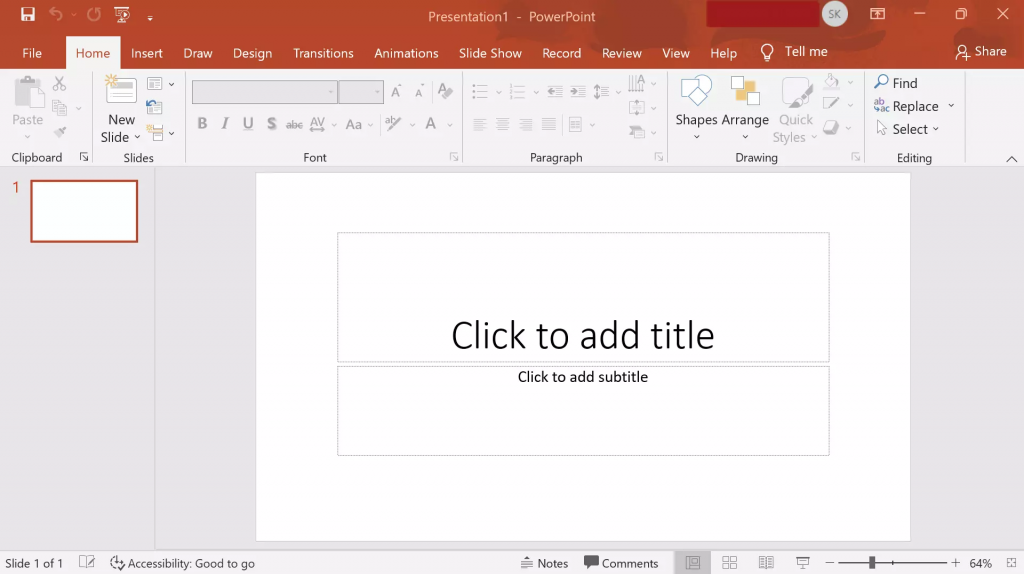
Source: Screenshot from Microsoft PowerPoint
Even with dozens of presentation software and tools out there, PowerPoint presentations have stood the test of time as one of the best presentation software. In fact, 89% of people still use PowerPoint presentations over competitor services.
Whether you’re a student, teacher, business professional or just a creative soul, PowerPoint’s user-friendly interface allows both beginners and experienced users to create presentations with ease.
PowerPoint delivers captivating and engaging presentations through its advanced animation and transition effects. You can create interactive PowerPoint presentations by captivating your audience and guiding them through your content with seamless transitions and eye-catching animations.
Seamless integration with other Microsoft Office tools is another significant advantage of PowerPoint as a presentation software. As part of the Microsoft Office suite, PowerPoint effortlessly integrates with other familiar applications such as Word and Excel. This integration allows you to incorporate charts, graphs and written content from these tools directly into your presentation.
However, collaboration features in PowerPoint can be somewhat limited compared to dedicated collaboration platforms. While you can share and co-edit presentations with others, the collaboration options may not be as robust as those offered by specialized presentation tools.
Best for: Professional business presentations, complex data visualization, and high-stakes meetings where offline reliability is critical.
Pros
- Advanced data control: You can link live charts from Excel that update automatically when your numbers change.
- Deep design tools: Features like Slide Masters and custom font support give you complete control over every pixel.
- Offline stability: Unlike web-based tools, it works perfectly without an internet connection, which is essential for travel or large venues.
- Presenter tools: Includes the industry-standard “Presenter View” with private notes, timers, and drawing tools for live delivery.
Cons
- Clunky for quick edits: The interface has hundreds of features, which can feel slow if you just want to make a simple visual.
- Large file sizes: Decks with high-resolution images or videos can become massive and difficult to email.
- Collaboration lag: While co-authoring has improved, it still feels less fluid than the “instant” experience of Google Slides.
- Learning curve: Mastering advanced animations or complex formatting takes time and often requires tutorials.
PPTX compatibility
- Import: This is the native format. It handles every type of file from old .ppt versions to modern .pptx with full fidelity.
- Export: You can save as PDF, MP4 video, or even a set of high-resolution images.
- Fidelity: It is the global standard. When you send a PowerPoint file to a client, you can be 99% sure it will look exactly how you intended.
AI features
- Microsoft Copilot: It can draft a full presentation from a Word document or a simple text prompt.
- Designer: Automatically suggests professional slide layouts based on the images and text you add to a slide.
- Presenter Coach: Listens to you practice and gives real-time feedback on your pacing, use of filler words, and body language.
- Live Captions: Can generate real-time subtitles in multiple languages while you are speaking to an audience.
Platforms
- Desktop (Windows and Mac)
- Web (via Microsoft 365)
- Mobile (iOS and Android)
Pricing
- Personal: $6.99/month (includes 1TB of cloud storage).
- Family: $9.99/month (for up to 6 people).
- Business: Starts around $6.00/user/month for basic web versions, up to $30+/user/month for plans with full AI Copilot features.
- One-time purchase: Office 2024 is available for a flat fee (approx. $150) if you don’t want a subscription.
Bottom line: Choose this if you work in a corporate environment, need to present complex data, or want the most reliable tool for live presentations.
3. Google Slides
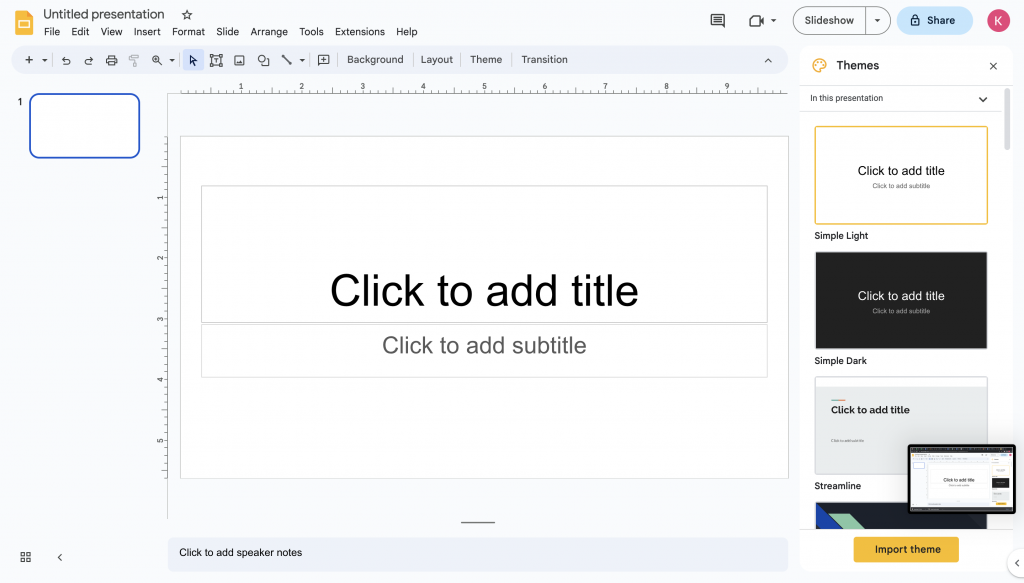
Source: Screenshot from Google Slides
Unlike PowerPoint which requires file sharing and manual syncing for teamwork, Google Slides enables real-time collaboration and easy access from any device with an internet connection.
Google Slides shines in its seamless collaboration capabilities. Multiple users can work on the same presentation simultaneously, enabling real-time editing and fostering efficient teamwork. The integrated commenting feature on Google Slides allows for shared feedback and discussions, enhancing collaboration even further.
Google Slides’ cloud-based storage and auto-saving feature ensures that your work is constantly saved, minimizing the risk of losing progress or important changes. No more panicking over unsaved slides and changes.
But that also means that Google Slides heavily relies on an internet connection for full functionality and access is more limited compared to desktop-based software. Although an offline mode is available, Google Slides has certain limitations and may not provide the same level of functionality as when connected to the internet.
Templates and customization features-wise, Google Slides also have fewer design options compared to other presentation tools. This may limit the level of visual creativity and flexibility for those seeking intricate designs or specialized effects.
Best for: Real-time collaboration and simple, web-based presentations that don’t require high-end design software.
Pros
- Seamless collaboration: Multiple people can edit the same slide simultaneously with zero lag, and every change is saved automatically.
- Completely free: All features are available for free to anyone with a personal Google account.
- Version history: You can easily track every edit made and restore a previous version of the deck with a single click.
- Cloud-native: No installation is required; you can access and present your work from any browser or device.
Cons
- Limited offline mode: While it has an offline setting, you must enable it in advance and use the Chrome browser to edit without Wi-Fi.
- Basic design tools: It lacks advanced animations, 3D effects, and the pixel-perfect control found in PowerPoint.
- Fewer templates: The built-in gallery is small, though you can easily import third-party templates from sites like Slidesgo.
- Internet dependency: Performance can slow down significantly on very large decks if you have a weak internet connection.
PPTX compatibility
- Import: You can open PowerPoint files directly in Google Slides. Most text and images transfer well, but complex animations and “Morph” transitions will be lost.
- Export: You can download your presentation as a .pptx file, but some formatting might shift when opened in Microsoft PowerPoint.
- Fidelity: Good for simple layouts; poor for decks that rely on custom fonts or advanced PowerPoint-only features.
AI features
- Gemini integration: In 2026, Gemini is built directly into the sidebar to help you generate slide outlines, rewrite text, or summarize a long deck.
- AI Image Generation: You can describe an image, and Gemini will create it directly on your slide so you don’t have to search stock libraries.
- Reference Drive Files: You can ask the AI to “create a slide based on this PDF in my Drive,” and it will pull the key data for you.
- Help Me Write: Summarizes meeting notes or long emails and turns them into concise bullet points for your slides.
Platforms
- Web (any browser)
- Mobile (iOS and Android)
- Desktop (as a Chrome Web App)
Pricing
- Personal: $0/month (includes 15GB of Google Drive storage).
- Business Starter: $7.20/user/month (30GB storage, custom email).
- Business Standard: $14.40/user/month (2TB storage, includes Gemini AI features).
- Google One AI Premium: $19.99/month (for personal users who want Gemini in Slides).
Bottom line: Choose this if you need to work with a team in real-time and want a simple, free tool that works everywhere.
4. Keynote (for Mac users)
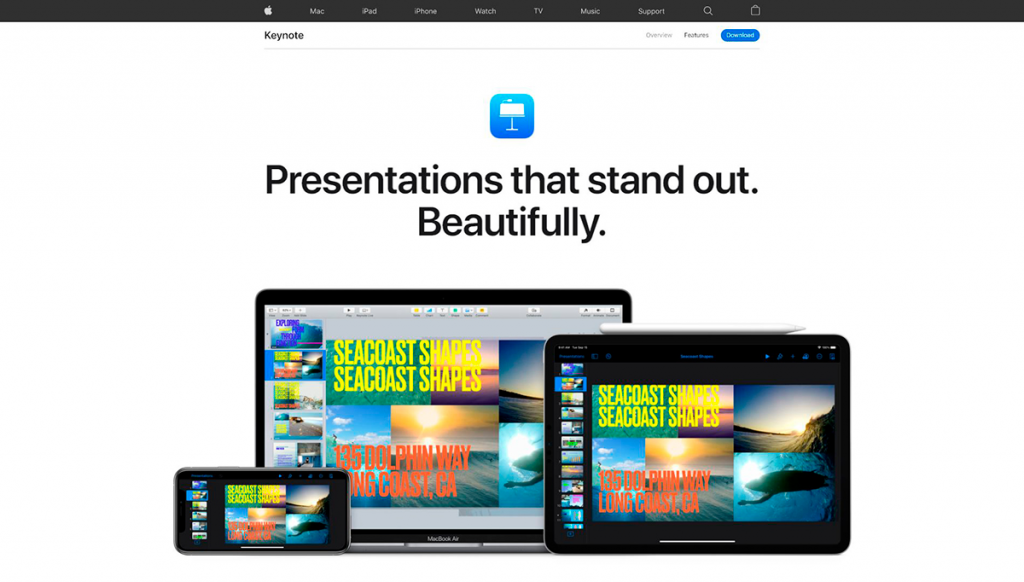
Source: Screenshot from Keynote
For Apple users, Keynote is a presentation tool designed exclusively for your Apple devices and is available on macOS, iOS and iPadOS. Keynote is known for its sleek and intuitive interface, reflecting Apple’s design aesthetics. However, some users have reported disconnecting issues with certain macOS updates, which can occasionally interrupt the seamless experience Keynote is known for.
It offers visually appealing templates, animations, and transitions, allowing users to create polished and modern-looking presentations. Keynote users can seamlessly incorporate images, videos, audio files and interactive elements into their presentations. The presentation software also includes a wide range of animations and transitions, enabling smooth and cinematic effects that bring slides to life.
Sharing presentations created in Keynote with users on different platforms may require exporting or converting the files to a compatible format, which can lead to potential formatting issues or loss of certain features.
Best for: Mac and iPad users who want to build sleek, visually stunning presentations without needing deep design skills.
Pros
- Cinematic transitions: Features like Magic Move allow you to animate objects across slides with professional-grade smoothness.
- Seamless ecosystem: You can start a deck on your Mac, edit it on your iPad with an Apple Pencil, and control the slideshow from your Apple Watch.
- High-end templates: The built-in themes are more modern and visually balanced than the standard options in PowerPoint or Google Slides.
- Free for Apple users: The core version is pre-installed on every Mac, iPhone, and iPad at no extra cost.
Cons
- Apple exclusive: You cannot install the app on Windows or Android, which makes it difficult to use in mixed-tech environments.
- Limited collaboration: While it supports iCloud sharing, it is not as fast or intuitive for real-time team editing as Google Slides.
- Weak data visualization: It handles basic charts well, but it lacks the deep Excel integration and advanced data tools found in PowerPoint.
- Subscription for AI: Some of the most powerful new AI features are locked behind the Apple Creator Studio subscription.
PPTX compatibility
- Import: You can open PowerPoint files in Keynote. Most text and images will import correctly, though some custom PowerPoint animations may be converted to basic fades.
- Export: You can save any Keynote file as a .pptx.
- Fidelity: Generally high for static slides, but cinematic transitions like Magic Move will not work in PowerPoint and are often turned into static jumps.
AI features
- Apple Intelligence: Includes writing tools to summarize text, proofread your work, and adjust the tone of your bullet points.
- Image Playground: Allows you to generate original images and graphics directly within a slide based on a text description.
- Outline-to-Slide (Beta): Can take a text outline and automatically generate a first draft of a deck with structured layouts.
- Smart Cleanup (Beta): Automatically realigns objects and fixes typography and spacing issues on a slide with one click.
Platforms
- Desktop (Mac)
- Mobile (iPad and iPhone)
- Web (via iCloud.com)
Pricing
- Standard: $0/month (Free for Apple device owners).
- Apple Creator Studio: $12.99/month or $129/year (Unlocks advanced AI features and premium themes).
- Education Discount: $2.99/month for students and teachers.
Bottom line: Choose this if you own a Mac and want to create the most beautiful, cinematic presentations possible with the least amount of effort.
5. Prezi
Source: Screenshot from Prezi
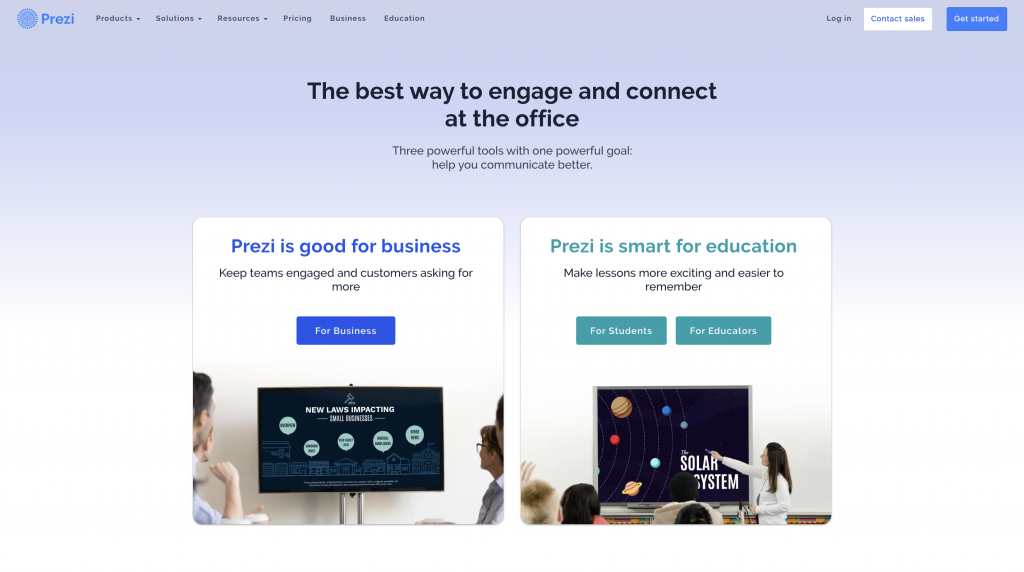
Known for its distinctive zooming presentation style, Prezi revolutionizes the way you create presentations by offering a visually engaging and non-linear approach.
One of Prezi’s renowned features is its unique zooming and transition effects, allowing presenters to navigate through a virtual canvas seamlessly. This dynamic presentation style enhances engagement by creating a sense of movement and spatial relationship between ideas.
Moreover, Prezi offers cloud-based collaboration, making it easy for multiple users to collaborate on a presentation in real-time. This feature facilitates seamless teamwork, enabling users to collectively develop and refine their presentations regardless of their physical locations.
Prezi presentations also include interactive elements, such as embedded videos, images and hyperlinks. Utilizing these elements would allow presenters to create interactive presentations and engage their audience on a deeper level.
However, Prezi has a steeper learning curve compared to more traditional presentation tools. Users may require some time and practice to become proficient in navigating the canvas, creating smooth transitions and effectively utilizing all of Prezi’s features.
Best for: Cinematic storytelling and high-energy presentations where you need to show the big-picture relationship between different ideas.
Pros
- Non-linear navigation: You can jump to any part of your presentation instantly, which is perfect for conversational meetings and Q&A sessions.
- Prezi Video: This feature overlays your graphics onto your live webcam feed, allowing you to stay on screen with your content during virtual calls.
- Spatial memory: Research shows that audiences remember information better when it is placed in a physical relationship on a map rather than a sequence of slides.
- High engagement: The cinematic motion and zooming transitions keep audiences from “zoning out” during long presentations.
Cons
- Motion sickness: If transitions are too fast or erratic, the constant zooming can make some audience members feel dizzy.
- Design complexity: Managing the “camera path” and nested topics is more difficult than just adding a new slide.
- No true offline editing: While there is a desktop app for presenting offline, most of the actual creation and AI work requires a stable internet connection.
- Limited data tools: It still lacks the robust chart-building and Excel-linking features found in PowerPoint.
PPTX compatibility
- Import: You can import PowerPoint slides and “spatialise” them, which turns your linear deck into a zooming Prezi map.
- Export: You can export your Prezi as a .pptx file from the dashboard.
- Fidelity: Each “frame” in Prezi becomes a static PowerPoint slide. You lose all the zooming animations and cinematic transitions in the export.
AI features
- Prezi AI Builder: Enter a prompt like “sales strategy for a tech startup,” and the AI generates a full spatial hierarchy with topics, subtopics, and images.
- AI Visual Stories: Automatically transforms blocks of text into flowcharts, animated lists, or zoomable sequences.
- AI Text Refinement: Can condense wordy paragraphs into concise points or expand short notes into detailed explanations.
- Document-to-Prezi: You can upload a PDF or Word document, and the AI will extract the key themes to build a visual narrative.
Platforms
- Web (any browser)
- Desktop (Windows and Mac)
- Mobile (iOS and Android for viewing and light editing)
Pricing
- Basic: $0/month (up to 5 projects).
- Standard: $5/month (unlimited projects, privacy controls).
- Plus: $15/month (unlimited AI credits, offline access, PPTX export).
- Premium: $59/month (powerful analytics and advanced training).
- EDU Plus: $3/month (full features for students and teachers).
Bottom line: Choose this if you want to stand out from standard slideshows and need a creative way to present “big picture” ideas or complex processes.
6. Canva
Source: Screenshot from Canva
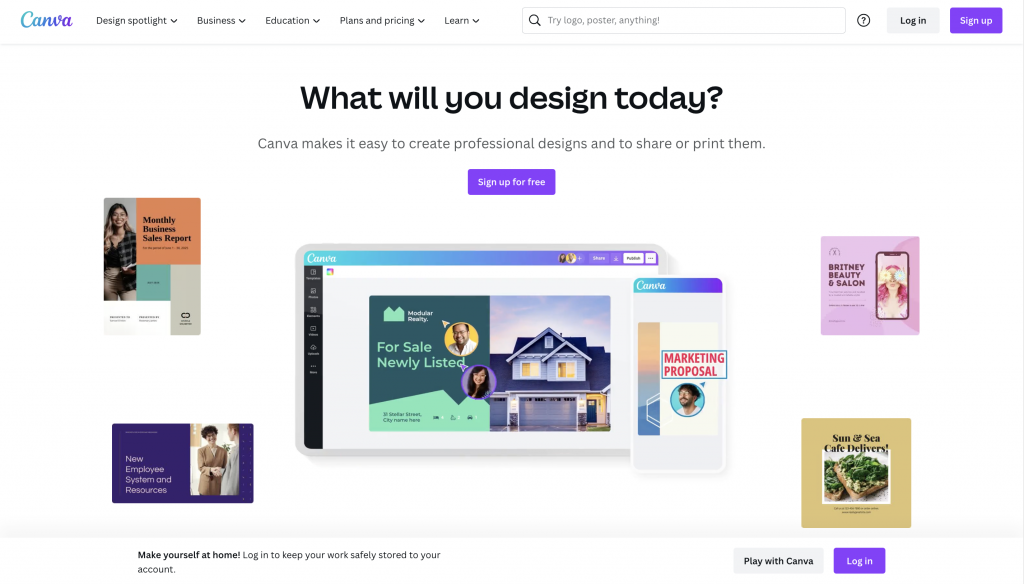
One of the great things about Canva as a presentation tool is its user-friendly interface, which makes it super easy to use even if you’re not a design pro. You can simply drag and drop elements to create your presentation slides without breaking a sweat.
Canva’s vast collection of pre-designed templates caters to various purposes and occasions. The availability of these templates allows users to jumpstart their design projects with professional-looking layouts, saving valuable time and effort.
For businesses or educational institutions working on group projects or marketing campaigns, Canva also offers collaboration features that enhance teamwork and co-creation. Users can invite team members or clients to collaborate on a design project, enabling real-time feedback and efficient design processes.
While Canva does offer some basic slide transition effects, the range and customization options for transitions may be limited compared to dedicated presentation software like Microsoft PowerPoint or Apple Keynote.
Best for: Creating visually stunning, creative presentations quickly using a massive library of modern assets and stock media.
Pros
- Huge asset library: You get instant access to millions of professional stock photos, videos, and graphics without needing to browse external sites.
- Beginner-friendly editor: The drag-and-drop interface is intuitive, making it easy to create beautiful layouts without any formal design training.
- Modern templates: It offers over 20,000 presentation-specific templates that feel current and stylish compared to standard corporate options.
- Magic Studio AI: Allows you to generate entire slide decks, edit photos, and automate animations with simple text commands.
Cons
- Internet dependency: Because it is cloud-native, you cannot access your assets or use AI features without a stable connection.
- Rigid formatting: It lacks the precise control of PowerPoint, such as complex slide masters or pixel-perfect object locking.
- Limited data tools: While it can create basic charts, it cannot handle complex data sets or live-link with Excel spreadsheets.
- Watermarked elements: If you are on the free plan, premium images and icons are marked with a watermark unless you pay to unlock them.
PPTX compatibility
- Import: You can upload PowerPoint files to edit them in Canva. Simple text and images convert well, but complex charts and SmartArt are often ignored.
- Export: You can download your work as a .pptx file, but the layout may shift and custom Canva fonts will be replaced if they aren’t on your computer.
- Fidelity: High for static visuals, but native Canva animations and video backgrounds do not translate to PowerPoint.
AI features
- Magic Design: Enter a one-sentence prompt, and the AI generates a multi-slide deck with themed layouts and placeholder text.
- Magic Media: Generates original AI images and short video clips directly on your slides based on your description.
- Magic Switch: Instantly converts your presentation into a blog post, a summary document, or social media graphics for different platforms.
- Magic Grab & Edit: Allows you to select objects within a photo to move them, resize them, or change their colors effortlessly.
Platforms
- Web (any browser)
- Desktop app (Windows and Mac)
- Mobile (iOS and Android)
Pricing
- Free: Basic tools, 5GB storage, limited AI uses.
- Canva Pro: $15/month or $120/year (1 user, full asset library, 100GB storage, all AI features).
- Canva for Teams: Starting at $30/month (Minimum 3 users, 1TB storage, team brand kits).
- Enterprise: Custom pricing (For large organizations needing SSO and advanced security).
7. Veed

Source: Veed
Veed is a video-first platform that specializes in turning static slides and scripts into professional, shareable video presentations. It is the best choice for remote teams and content creators who need to record themselves alongside their slides without using complex editing software.
Once recorded, its AI tools automatically clean up the footage by removing background noise and trimming out awkward silences or filler words.
The platform is particularly popular for “asynchronous” communication, such as training videos, product demos, and internal updates. Instead of hosting a live meeting, you can upload your deck and let an AI avatar present it for you in over 120 languages. This makes it an essential tool for global companies that need to scale their message quickly without the logistical headache of live scheduling.
Best for: Converting static slide decks into high-impact video presentations with AI avatars and automatic subtitles.
Pros
- Video-centric design: It combines a screen recorder, webcam recorder, and video editor in one browser-based tool.
- Automatic subtitles: Generates highly accurate captions in over 125 languages with one click, which is perfect for social media and global teams.
- AI Avatars: You can generate a “talking head” to present your slides if you don’t want to go on camera yourself.
- Magic Cut: Automatically identifies and removes filler words like “um” and “uh” from your recording to make you sound more professional.
Cons
- No live presenting: Unlike PowerPoint, you cannot use Veed for a “live” presentation; it is strictly for creating pre-recorded video content.
- Performance lag: Because it runs in the browser, editing long, high-resolution videos can be slow or glitchy on older computers.
- Export limits: The free plan includes a prominent watermark and limits your export quality to 720p.
- Storage constraints: Lower-tier plans have limited cloud storage, which can fill up quickly with large video projects.
PPTX compatibility
- Import: You can upload PDF, PPT, and PPTX files directly. Veed converts each slide into a video scene for you to narrate.
- Export: You cannot export back to a PowerPoint file. Your final product is an MP4 video or a shareable link.
- Fidelity: Static slide elements import well, but any animations or transitions from the original PowerPoint will be lost and must be recreated using Veed’s tools.
AI features
- Slides to Video: Upload a deck and the AI suggests a script for each slide and matches it with an AI avatar or voiceover.
- Eye Contact Correction: Uses AI to adjust your eyes in the video so it looks like you are looking at the camera even if you were reading notes.
- Clean Audio: Removes background noise and enhances your voice with a single click.
- AI Image Generator: Creates custom visuals and backgrounds to fill gaps in your slide content.
Platforms
- Web (any browser)
- Mobile (iOS app for quick edits and captioning)
Pricing
- Free: $0/month (Watermarked, 720p export, 30 mins of subtitles/mo).
- Lite: $12/month (No watermark, 1080p export, 144 hours of subtitles/year).
- Pro: $24/month (4K export, all AI tools, brand kit, and 5 editors).
- Enterprise: Custom pricing for large teams needing SSO and dedicated support.
Bottom line: Choose this if you want to turn your slide decks into professional video content for training, social media, or asynchronous team updates.
8. Gamma

Source: Gamma
Gamma is a web-native platform that moves away from the traditional slide-by-slide format in favor of a fluid, card-based canvas. In 2026, it is widely considered the fastest tool for turning a rough idea into a polished, interactive presentation or even a single-page website.
The platform uses a “card” system that acts like a hybrid between a PowerPoint slide and a modern landing page. These cards are responsive, meaning they automatically resize to look perfect on a laptop, tablet, or phone without any extra work. Instead of moving text boxes around, you simply type or paste your content, and the AI handles the visual hierarchy, image placement, and layout adjustments instantly.
Gamma is ideal for “asynchronous” sharing—sending a link to a client or stakeholder to review on their own time. Because it supports live embeds like YouTube videos, Figma files, and interactive charts, your presentation feels more like a living document than a static file. While it still offers traditional presentation features like a full-screen mode and speaker notes, its true power lies in how quickly it can structure complex information into a clean, modern narrative.
Best for: Generating high-quality, responsive presentations and documents from simple text prompts in seconds.
Pros
- Massive time savings: Can build a 10-15 card deck from a single sentence or a long-form document in less than a minute.
- Responsive design: Content automatically adjusts for mobile screens, which is something traditional slides cannot do.
- Interactive embeds: Supports over 50 types of live content including Loom videos, Typeforms, and live data charts.
- Built-in analytics: You can track who viewed your presentation and how much time they spent on each section.
Cons
- Format shock: The vertical “card” layout can feel unfamiliar to people used to 16:9 slides.
- Weak brand locking: It is harder to strictly lock down fonts and layouts for large teams compared to PowerPoint.
- Internet requirement: You need a stable connection to use the AI generator and most of the design tools.
- Credit system: The free plan uses a credit system that can run out quickly if you are doing a lot of experimentation.
PPTX compatibility
- Import: You can import PowerPoint and PDF files. The AI will attempt to re-theme them into Gamma cards.
- Export: You can export to PDF and PPTX.
- Fidelity: Moderate. Because Gamma uses a non-traditional layout, some text may wrap oddly or images might crop differently when forced into a standard 16:9 PowerPoint frame.
AI features
- AI Presentation Generator: Turns a prompt or a URL into a full deck with structured text and relevant imagery.
- AI Agent: A side-chat that allows you to make bulk changes (like “make all headers blue”) or rewrite entire sections instantly.
- AI Image Generator: Creates custom visuals on the fly to match the specific topic of your slide.
- AI Content Expansion: Can take a single bullet point and expand it into a detailed, professional paragraph.
Platforms
- Web (any browser)
- Mobile (optimized web view for all devices)
Pricing
- Free: $0/month (400 one-time credits, basic PDF/PPTX export with watermark).
- Plus: $10/user/month (1,000 monthly credits, no watermark, removal of Gamma branding).
- Pro: $20/user/month (Unlimited AI creation, advanced analytics, custom fonts, and domains).
- Ultra: $90/user/month (Priority access to the most advanced AI models and 20x higher credit limits).
Bottom line: Choose this if you need to build a professional-looking deck fast and want a modern, web-first way to share your ideas.
9. Mentimeter

Source: Screenshot from Mentimeter
Mentimeter is an audience engagement platform that prioritizes interaction over traditional static slides. In 2026, it has shifted from being a simple polling tool to a full presentation suite that uses AI to analyze audience sentiment in real-time.
The platform is designed to turn a one-way lecture into a two-way conversation. Instead of just showing charts, you invite the audience to contribute to them live via their smartphones. Whether it is a word cloud that grows as people type or a quiz that ranks participants on a leaderboard, Mentimeter is built to keep people from looking away from the screen.
It is particularly effective in large-scale settings like town halls, conferences, or university lectures where getting individual feedback is usually difficult. With its anonymous voting features, it encourages honest input from even the quietest members of the room. In 2026, its new “AI Grouping” feature even helps presenters instantly categorize hundreds of open-ended responses into key themes, making it easy to address the most important topics on the fly.
Best for: Driving high audience engagement through live polls, word clouds, and interactive quizzes during presentations.
Pros
- Instant interaction: Participants join via a simple QR code or URL on their own devices with no app download required.
- Anonymity: Encourages honest feedback and questions from the audience without the pressure of speaking up publicly.
- Dynamic visuals: Results appear and update on the screen in real-time with smooth, professional animations.
- Versatile question types: Includes everything from multiple-choice and scales to 2×2 grids and “pin on image” questions.
Cons
- Internet-dependent: Both the presenter and every single participant must have a stable connection for the tool to work.
- Design limitations: You have much less control over layout and “pixel-perfect” design compared to PowerPoint or Canva.
- Participant caps: The free version has a monthly limit on how many people can vote in your presentations.
- Distraction risk: Since the audience must use their phones to participate, there is a risk they may get distracted by other notifications.
PPTX compatibility
- Import: You can import PowerPoint, Keynote, or PDF files as static images to use as a backdrop for your interactive slides.
- Export: You can download your results as an Excel file or a PDF report, but you cannot export the “live” interactive slides back into a functional PowerPoint file.
- Fidelity: Since imports are treated as static images, your original PowerPoint animations and transitions will not work inside Mentimeter.
AI features
- AI Menti Builder: Generates a full interactive draft—including polls and content slides—from a simple topic prompt.
- AI Grouping: Automatically clusters hundreds of open-ended audience responses into thematic groups to identify common trends instantly.
- AI Slide Suggestions: Recommends the best interactive slide type (like a word cloud vs. a scale) based on the question you are typing.
- Profanity Filter: Uses AI to automatically block and scramble offensive language in live responses across multiple languages.
Platforms
- Web (any browser)
- Desktop App (for presenting offline results)
- Mobile (iOS and Android apps for presenters)
Pricing
- Free: $0/month (Up to 50 participants/month, unlimited presentations, basic slides).
- Basic: $9.99/month (Unlimited participants, PPTX import, Excel export).
- Pro: $24.99/month (Custom branding, team collaboration, moderate Q&A).
- Enterprise: Custom pricing (SSO, success manager, and workspace insights).
Bottom line: Choose this if your main goal is to stop people from multi-tasking and get them actively involved in your presentation through their phones.
10. Slidebean
Source: Screenshot from Slidebean
Slidebean offers a unique approach to slide design by automating the process and simplifying the creation of well-designed presentations. With its automation features, Slidebean streamlines the design process, saving users valuable time and effort.
The highlight of Slidebean is its automated slide design functionality. Using artificial intelligence (AI), the software generates visually appealing slide layouts based on the content provided. Slidebean also offers collaboration options, allowing multiple team members to work on a presentation simultaneously.
Another advantage of Slidebean is its AI-powered content suggestions. The software intelligently analyzes the presentation content and provides helpful suggestions for improving the messaging and overall flow. This feature ensures that users can effectively communicate their ideas and engage their audience.
Unlike Ludus, Slidebean may not cater to users who prefer extensive customization and control over their slide layouts. Certain advanced features are only available in premium plans, which may require an upgrade for those seeking more advanced functionality.
Best for: Startup founders who need to build investor pitch decks and financial models with automated design.
Pros
- Automated formatting: The AI handles all the layout work, so you never have to manually align an image or text block.
- Investor analytics: You can see exactly which slides an investor looked at and how much time they spent on each section.
- Specialized templates: Includes a library of successful pitch decks from companies like Airbnb and Uber to use as a blueprint.
- Fundraising tools: Integrated financial modeling and investor tracking help you manage the entire seed-round process in one place.
Cons
- Rigid customization: You cannot move elements freely; you are limited to the layouts the AI deems professional.
- High cost: The pricing is significantly higher than general tools like Canva or Google Slides because it targets business owners.
- No free exports: You cannot download or share your presentation unless you have a paid subscription.
- Niche focus: It is excellent for pitch decks but lacks the flexibility needed for creative portfolios or complex educational materials.
PPTX compatibility
- Import: You can upload an existing PowerPoint or PDF to have the AI re-theme and re-organize the content.
- Export: Exporting to .pptx is available on paid plans.
- Fidelity: Moderate. While the text and images transfer, Slidebean’s unique web-based layouts do not always match the 16:9 fixed environment of PowerPoint perfectly.
AI features
- AI Pitch Deck Builder: Uses a prompt or your website URL to generate a full deck with content relevant to your specific industry.
- Genetic Design Algorithm: Automatically rearranges slide elements in real-time to maintain visual balance and hierarchy.
- AI Pitch Review: Provides automated feedback on your deck’s structure based on common investor preferences and successful startup patterns.
- Financial Model Automation: Helps link your business assumptions to financial projections without needing advanced Excel skills.
Platforms
- Web (any browser)
- Mobile (optimized for viewing and tracking)
Pricing
- Free: $0/month (Access to the editor and templates, but no sharing or exports).
- Starter: $12/month (Unlimited AI builder, basic analytics, and PDF export).
- Accelerate: $99/month (Includes Investor Finder, CRM, financial modeling, and 1-on-1 strategy calls).
- Agency Services: Starting at $599 (For founders who want the Slidebean team to write and design the deck for them).
Bottom line: Choose this if you are a startup founder looking to raise money and want a tool that handles both the design and the data tracking of your pitch.
11. Beautiful.ai
Source: Screenshot from Beautiful.ai
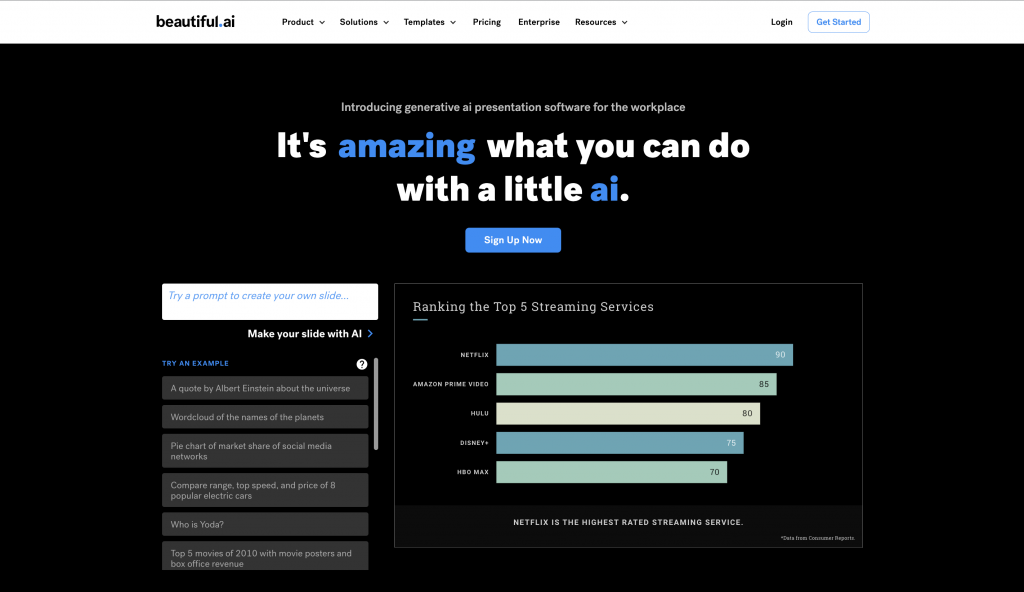
Beautiful.ai aims to simplify the process of creating visually stunning and professional-looking slides with minimal effort. One of the notable strengths of the presentation software is its collection of smart templates and design suggestions.
Their templates are intelligently designed to provide visually appealing layouts, saving users valuable time and effort in creating presentations. Unlike other types of presentation software, the platform leverages AI-powered technology to offer layout optimization, ensuring that slide elements are positioned optimally for maximum impact.
Beautiful.ai also offers time-saving features that streamline the presentation creation process. The software automatically adjusts the layout and formatting as users add or modify content, eliminating the need for manual adjustments.
As the software provides smart templates and design suggestions, customization options may be somewhat limited. Users may find that certain design elements or layout adjustments are not as flexible as they would like.
Best for: Professionals who need high-end, designer-quality slides quickly without doing any manual formatting.
Pros
- Smart Slide automation: Elements automatically shift and resize as you add content, keeping every slide visually balanced.
- Brand consistency: Teams can lock in fonts, logos, and color palettes so every deck remains professional and on-brand.
- Modern data viz: Turning a spreadsheet into an animated, interactive chart is much faster and more polished than in traditional tools.
- Viewer analytics: You can see who opened your deck, which slides they spent time on, and when they finished.
Cons
- Template rigidity: Because it follows strict design rules, you cannot move elements to any position you want; you must work within the “Smart” slots.
- No true free plan: There is only a 14-day trial; after that, you must pay to keep using the software.
- Expensive for individuals: The monthly cost is significantly higher than a basic Canva or Microsoft 365 subscription.
- Online only: While there is a desktop player for presenting, the actual creation and editing require an internet connection.
PPTX compatibility
- Import: You can import existing PowerPoint files to use as a baseline, but you may need to re-apply Smart Slide rules to them.
- Export: You can export as a .pptx file.
- Fidelity: You have two choices: export as static images (perfect look, non-editable) or as an editable file. Editable exports generally keep the layout well, but custom animations will be lost.
AI features
- DesignerBot: Generates a full first draft of a deck based on a prompt, a website URL, or an uploaded document.
- AI Image Generator: Creates unique photos and icons that automatically match the theme and color scheme of your presentation.
- AI Writing Assistant: Can rewrite text to be more concise, change the tone of your bullets, or translate your slides into 100+ languages.
- Smart Charts: Uses AI to suggest the most effective way to visualize your specific data set (e.g., suggesting a bar chart over a pie chart).
Platforms
- Web (any browser)
- Desktop Player (Windows/Mac for offline presenting)
- PowerPoint Add-in
Pricing
- Pro: $12/month (billed annually) or $45/month (billed monthly).
- Team: $40/user/month (billed annually).
- Enterprise: Custom pricing (includes SSO and advanced security).
Bottom line: Choose this if you want a tool that acts as a “silent designer” and ensures your slides always look professional with zero manual alignment.
12. Pitch

Source: Screenshot from Pitch
Pitch is a modern video presentation maker that stands out with its collaborative and iterative approach to presentation creation.
One of the key strengths of Pitch lies in its collaborative features. The presentation software provides robust collaboration tools that allow team members to work together in real-time. This makes it easy for users to collaborate on presentation content, provide feedback and make revisions collectively.
Pitch boasts an extensive slide library, offering a wide range of professionally designed templates to choose from. These templates serve as a foundation for creating visually stunning presentations while providing a starting point that saves time and ensures a polished look.
The availability of diverse templates caters to different industries, topics and presentation styles, allowing users to create presentations for their needs.
Seamless integration with project management tools is another advantage of Pitch. The software integrates well with popular project management platforms, enabling users to streamline their workflow by syncing tasks, deadlines and other project-related information with their presentations.
Best for: Collaborative teams and startups that want to create stylish, on-brand decks and track how viewers engage with them.
Pros
- Superior collaboration: Real-time editing is as smooth as Google Slides, with added features like slide statuses (To-do, In progress, Done).
- Pitch Rooms: Allows you to create a personalized, secure digital hub for your deck that includes contact buttons and resource links.
- Modern design library: The templates and icon sets are high-quality and specifically tailored for modern business needs.
- Smart workflows: Deep integrations with tools like Slack, Notion, and HubSpot help keep your presentation data synced with your other work.
Cons
- Rigid formatting: To keep designs clean, Pitch limits some styling options like exact font sizing, which can frustrate power users.
- Web-first limitations: While there is a desktop app, it relies heavily on an internet connection for its most powerful collaboration and AI features.
- Pricey for small teams: The cost per editor can add up quickly compared to more general-purpose tools.
- Limited data visualization: It is great for simple charts but lacks the deep spreadsheet linking capabilities of Microsoft PowerPoint.
PPTX compatibility
- Import: You can import PowerPoint files and edit them within Pitch. Most static elements transfer well, but complex PPTX animations will be lost.
- Export: You can export your deck as a .pptx or PDF file.
- Fidelity: Generally high for layouts. However, because Pitch uses specific web fonts and styles, some elements may shift slightly when opened in PowerPoint.
AI features
- AI Presentation Generator: Creates a full 11-slide draft with text and layouts based on a simple topic prompt.
- AI Image Generation: Built-in tool to generate custom visuals and remove backgrounds from photos instantly.
- AI Text Actions: Over 20 actions to rewrite, summarize, or change the tone of your content to match your brand voice.
- AI Data Insights: Automatically summarizes audience engagement data from your Pitch Rooms to show you what is working.
Platforms
- Web (any browser)
- Desktop (Windows and Mac)
- Mobile (iOS and Android for viewing and light editing)
Pricing
- Free: $0/month (2 members, unlimited presentations, AI drafting).
- Pro: $25/month for 2 editors (Includes analytics, custom fonts, and branded PDF exports).
- Business: $100/month for 5 editors (Includes Pitch Rooms, advanced analytics, and role permissions).
- Enterprise: Custom pricing (SSO, dedicated support, and unlimited members).
Bottom line: Choose this if you work in a fast-paced team and need a tool that makes it easy to build, share, and track beautiful decks without the clutter of traditional software.
PowerPoint vs Google Slides: Which is better?
PowerPoint is the gold standard for high-stakes business meetings. It is a desktop-first tool that handles heavy graphics, high-resolution videos, and complex data much better than web apps. It gives you total control over design elements like slide masters and custom fonts.
Google Slides is better for teams that need to collaborate in real-time. Because it lives in the cloud, you never have to worry about version conflicts or sending attachments. It is simple, free, and works on any device with a browser.
Canva vs PowerPoint: Which should you use for presentations?
Canva is the best choice if you need a visually striking presentation quickly. It offers millions of modern templates and stock photos that make it easy for non-designers to look professional. It is perfect for marketing pitches and internal team updates.
PowerPoint is better for presentations involving complex data, investor relations, or deep structural design. Its pixel-perfect placement and offline stability allow you to build sophisticated decks that Canva’s rigid grid system cannot match.
Keynote vs PowerPoint: Which is better (and for whom)?
Keynote is the best option for Apple users who want an elegant, simple interface. It features cinematic transitions like Magic Move that make slides feel like a high-end production. It is designed for individuals who want beautiful visuals with very little effort.
PowerPoint is the better choice for anyone working in a mixed-office environment. It offers more advanced features like complex data linking with Excel and a larger library of third-party plugins. It remains the global standard for business collaboration across different platforms.
Prezi vs PowerPoint: Is Prezi better?
Prezi uses an infinite canvas where you zoom in and out of different ideas to show their relationship. This makes it better for visual storytelling and explaining big-picture concepts to students or at large conferences.
PowerPoint is better for traditional business meetings where you need clear, structured data and specific bullet points. Prezi’s constant movement can be distracting, whereas PowerPoint provides a stable and familiar structure for professional information.
Create presentations with AI
There you have it — the top 12 best presentation tools for the year! Whether you value simplicity, collaboration, automation, design versatility or data visualization, these presentation software examples have a solution out there for your future presentations.
Got your mind set on your to-go presentation software? Great! Now it’s time to start creating your slides and ace that presentation.