


If you searched “how to create a genogram using Microsoft Word,” you probably learned something quickly: Word doesn’t really offer a native genogram maker.
The good news is that you can use Word to piece a genogram together if you know the right setup.
This guide walks you through a simple, step-by-step method using Shapes and Connectors, along with the symbols, layout tricks and export settings that keep your diagram from falling apart later.
We’ll also briefly look at better alternatives to making genograms in Word, including using ready-to-use genogram templates.
What you’ll need before you start
Let’s set this up right so you don’t rebuild the whole thing halfway through.
1. Use the desktop version of Word (Microsoft 365, 2019, 2021 or 2024) so you get full access to Shapes, connectors, alignment and grouping tools.
2. Use a mouse or trackpad so you can drag shapes, align rows and snap connectors precisely.
3. Decide the scope first so you know how many generations and how much horizontal space your diagram will need.
4. Gather your information before opening Word so you’re not redesigning the layout while adding names, dates and relationships. Have these details handy:
a. Full names
b. Date of birth
c. Date of death, if applicable
d. Marriage or partnership years
e. Divorce or separation years
f. Parent-child relationships
g. Optional notes like medical conditions or major life events
Genogram symbols cheat sheet
If you’re serious about learning how to make a genogram in Word, start with the symbols first rather than jumping straight into layout or design.
A genogram works best when the symbols are consistent and easy to read, and this is exactly where many diagrams start to fall apart. Instead of following standard markers, people often guess their way through it, which quickly makes the diagram confusing.
To avoid that, here’s a simple, here’s a simple and actionable cheat sheet of the core genogram symbols you’ll recreate in Word using Shapes and Lines:
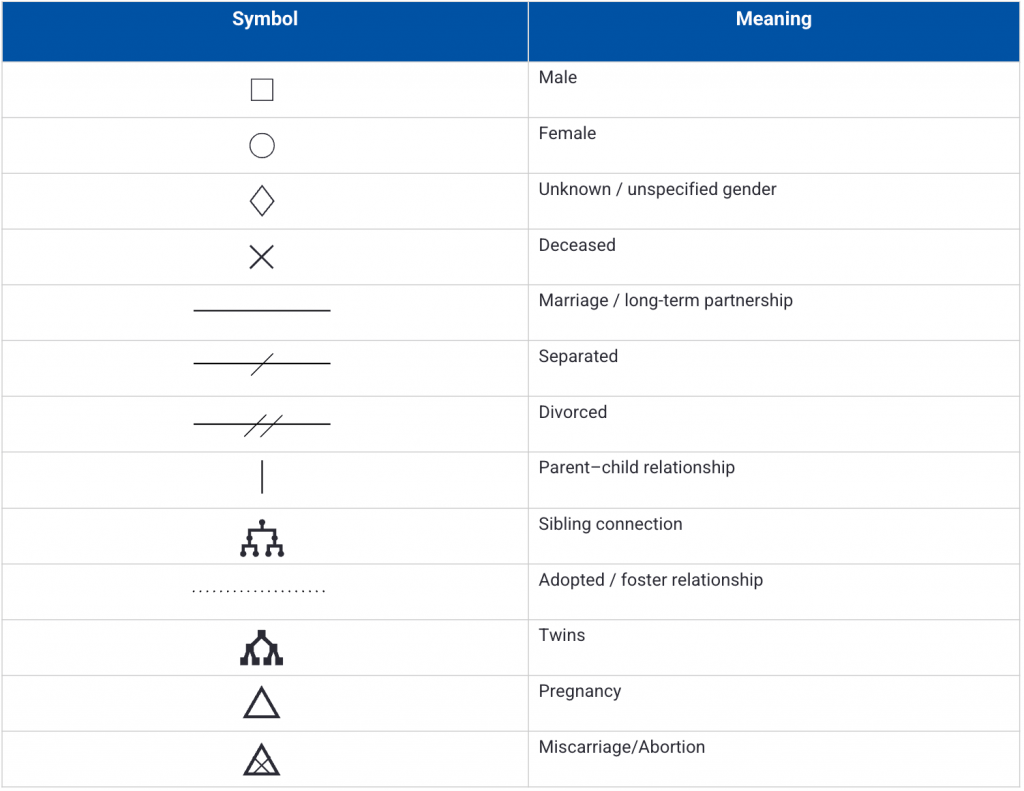
NOTE: Keep the shape sizes consistent throughout the diagram, because that consistency is what gives the genogram a clean, professional structure.
Optional add-ons
Add these only if required for coursework:
- Adoption or foster relationship markers
- Twins
- Miscarriage, abortion or stillbirth
If you’re unsure how to represent these, keep it simple and explain it clearly in your legend.
You might wonder, can I draw a diagram in Microsoft Word without memorizing symbols? Yes. But if you don’t standardize them, your readers might notice.
And no, does Microsoft Word have an organizational chart template that works for genograms? Not really. An org chart handles hierarchy. A genogram handles complex relationships. Those are different problems.
Set up your Word document for diagramming
A genogram is basically a detailed diagram, and Word behaves much better when you configure the page’s layout from the start.
Spending a few minutes on this setup makes the alignment, spacing and connectors far easier to manage once you start putting the diagram together.
1. Switch to landscape
Genograms grow sideways. If you use portrait mode instead of landscape, it squeezes generations into each other.
In Word, go to:
Layout → Orientation → Landscape
2. Reduce your margins
You will also need horizontal room, especially to fit in three generations.
Go to:
Layout → Margins → Narrow
3. Turn on gridlines
Gridlines help you align rows cleanly. If you’re building a Word Online genogram, gridline options may be limited. Desktop Word gives you more control.
Go to:
View → Gridlines
4. Pick a font and stick to it
I prefer something neutral like Calibri 10 or 11 pt for labels.
Don’t mix fonts or make the names too large. Your genogram symbols in Word should stand out more than the text.
5. Set shapes to “in front of text”
This one is non-negotiable.
Right-click any shape → Wrap Text → In Front of Text
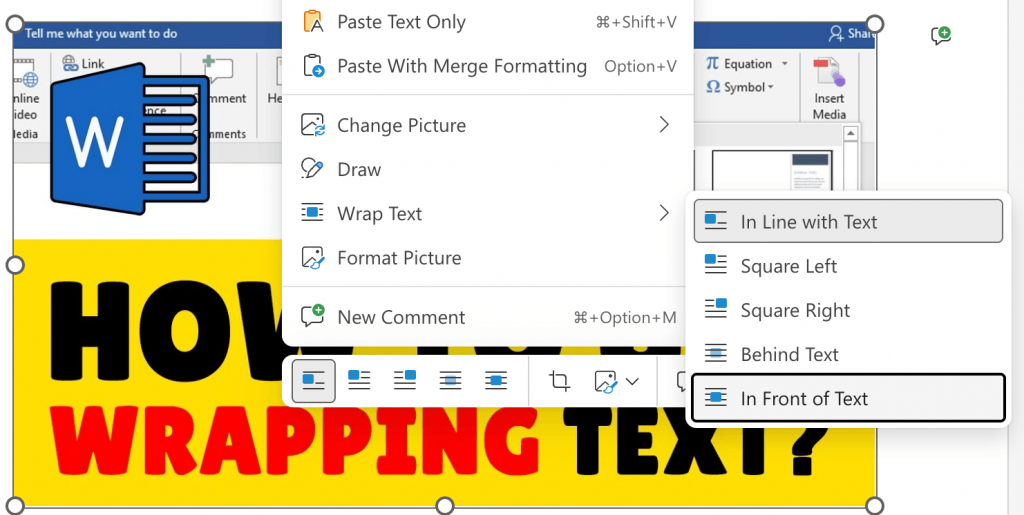
If you miss this, shapes will jump around.
You might still wonder, does Microsoft Word have an organizational chart template that makes this easier? It does. It’s called SmartArt and we have an entire section below that talks about how to use SmartArt.
For now, we’ll build a genogram manually. Once your page is set up, you’re ready to build your first person block.
Method 1 (Recommended): Shapes + Connectors
Here’s is a simple, no-hassle way to make a genogram in Word. Follow these steps in the prescribed order:
Step 1: Create your first “person block”
In the Word menu, go to:
Insert → Shapes → Rectangle or Square (male)
Insert → Shapes → Oval or Round (female)
Draw one shape. Keep dimensions consistent from the start. A good working size for a three-generation layout is roughly:
- 1–1.2 inches wide
- 1–1.2 inches tall
Here’s an example of a three-generation genogram template from Venngage that demonstrates this clearly:
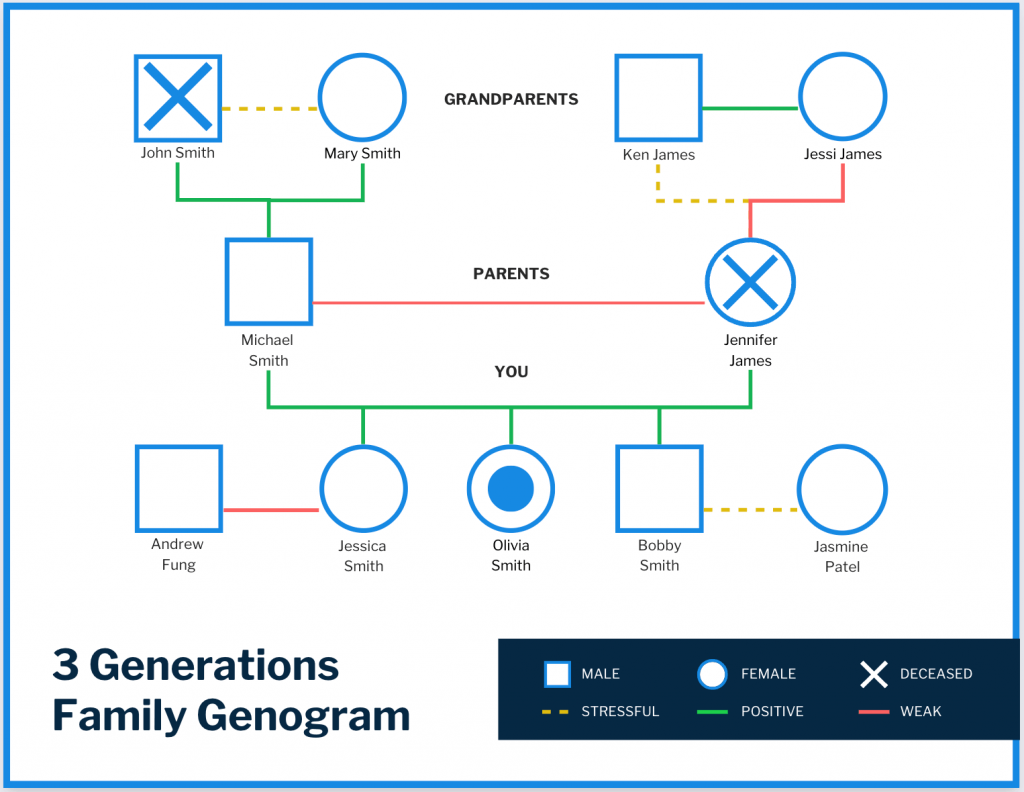
Don’t guess the size of each shape as you draw. Set one size and keep everything consistent so every block is equal.
Right-click the shape → Wrap Text → In Front of Text
Like we discussed earlier, this setup prevents shapes and layouts from jumping around unnecessarily.
Next, add the name:
Option A: Type directly inside the shape. This works best when you have short labels.
Option B:Insert → Text BoxSet it to No Fill and No Outline and place it under the shape.
You can use this option if you want tighter spacing or multiple lines.
Once the shape and label are final, select both → Right-click → Group
Grouping keeps the name and symbol locked together, so they move and align as a single unit while you build the rest of the diagram.
Step 2: Duplicate symbols fast
Instead of redrawing shapes every time, treat your first symbols as a small library you can reuse across the diagram.
Redrawing from scratch often leads to slightly different sizes, line weights or formatting, which slowly makes the genogram look uneven. I learned it the hard way when I was new to drawing genograms.
It’s much better to copy and paste your first square and circle so the formatting stays consistent.
This also helps create a “symbol bank” on the far right side of the page that you can duplicate whenever needed. For example:
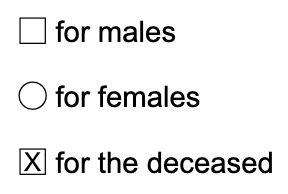
Pro-tip: If you’d rather not build a symbol library from scratch, Venngage offers a large icon library with thousands of icons that go far beyond basic genogram symbols. Read more about using icons to improve your visual storytelling.
Step 3: Build the top generation row
Start with grandparents or the oldest generation. Place shapes roughly in position first.
Then select them all → Shape Format → Align → Align Top
Now space them evenly:
Align → Distribute Horizontally
This is where most student genograms go wrong. Uneven spacing looks rushed and unprofessional.
Build one generation at a time and fix the alignment before moving down.
Step 4: Add couple relationships
Go to:
Insert → Shapes → Lines → Connector (Straight)
Connectors snap to shapes and stay attached when you move or realign the symbols, whereas plain lines often drift out of place and need constant readjustment.
For instance, if you hover over a shape, you’ll see small connection points appear. Click directly on those points. When connected properly, the line sticks even if you move the shape.
Next, draw a horizontal line between partners.
For separation:
- Add one small diagonal line across the partner line.
For divorce:
- Add two diagonal slashes.
Keep slashes thin and centered.
Edge case: remarriage
Create a separate partner line. Leave visual breathing room between relationships. Do not stack lines tightly. Clarity beats compression.
Step 5: Add children and siblings
Follow this exact pattern:
- From the couple line, drop a vertical connector down.
- Draw a horizontal sibling line.
- Drop vertical connectors to each child shape.
This creates clean branching. Now select all child shapes → Align Top
Then Distribute Horizontally
Once again, don’t rely on your eyes to give space between sibling symbols.
Step 6: Add notes or markers without clutter
In genograms, “Dx” is shorthand for “diagnosis.”
It’s commonly used in medical, psychology and social work genograms to label a health health conditions associated with a person in the family.
It’s best to keep these labels short. For example:
- Dx: Diabetes
- b. 1972
- “Adopted”
Explain all codes in your legend. Avoid long medical paragraphs inside shapes.
Take a look at this medical genogram, which uses color-coding to clearly show diagnoses and health conditions across family members:
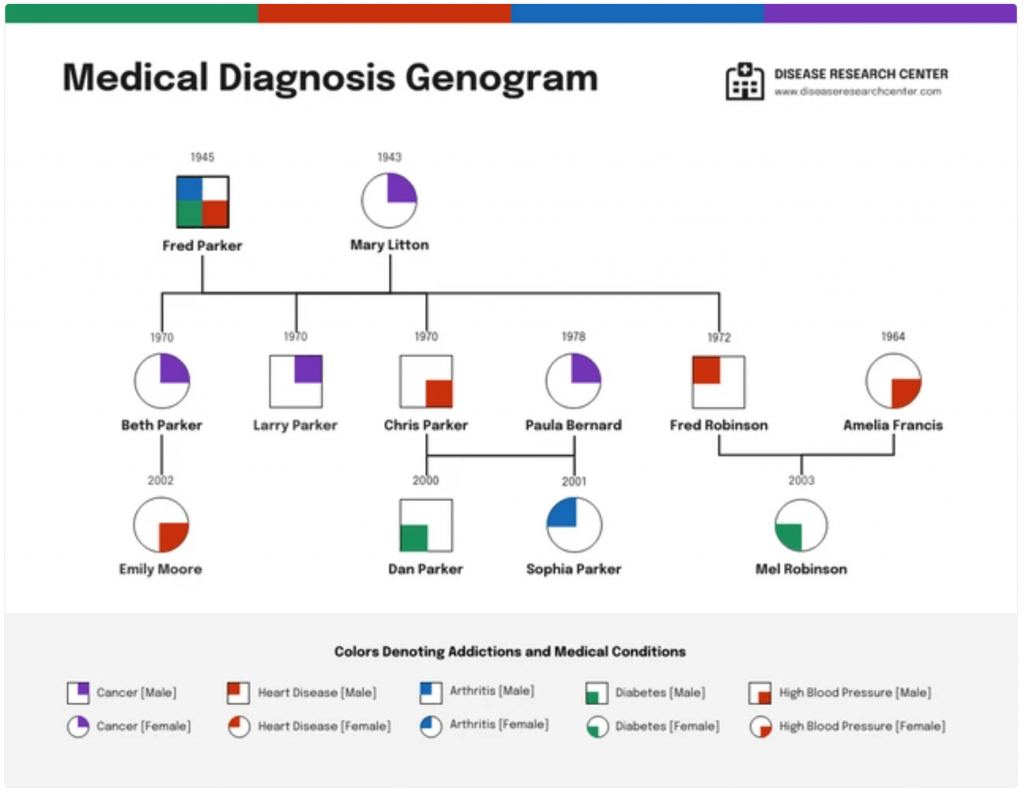
You can color a label if you have a clear reason for it, but most genograms are traditionally printed in greyscale. Dark outlines with a 1–1.5 pt line weight tend to print the cleanest.
Keep sensitive information minimal, especially if this uses real family data.
Step 7: Make it look professional
Standardize everything:
- Line weight: 1–1.5 pt
- Same outline color across all shapes
- Even vertical spacing between generations
Select a couple → Align → Align Middle
Keep each generation on an invisible horizontal band, almost like rows across the page. This simple mental model helps you maintain structure as the diagram grows.
It also helps to zoom out occasionally and look at the layout as a whole. If the diagram starts to feel crowded or misaligned at around 70% zoom, it’s usually a sign that you should fix a thing or two in it.
Step 8: Group by family units
Only group after the connectors are correct.
Select:
- Couple shapes
- Their partner line
- Their children and branch connectors
Right-click → Group
Now you can move entire family units safely.
Don’t group the entire page at once because this might make future edits painful.
Step 9: Add a legend or key
Place a small legend in the bottom or side corner.
Include:
- Male square
- Female circle
- Deceased X
- Marriage line
- Divorce slash
- Any abbreviations used
I personally like how this psychotherapy genogram template presents its legend clearly:
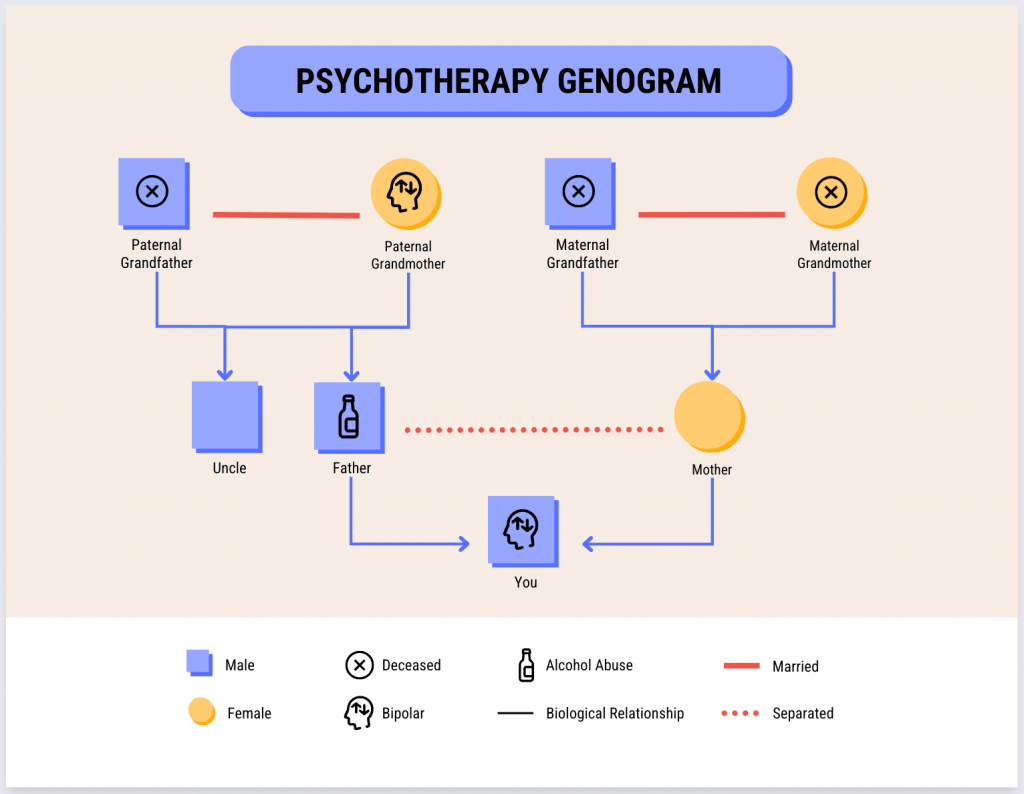
If you’re making a genogram as part of an academic coursework, add:
- Title
- Date
- “Three Generations” note
Your intended readers should understand your diagram without asking questions.
Method 2: Steps to create a genogram with SmartArt
SmartArt is faster, but it’s also more rigid.
Use this if you need a simple, clean family-tree style layout. Skip it if your genogram includes divorce, remarriage, blended families or detailed annotations.
Here’s how to go about it.
Step 1: Insert a hierarchy layout
Go to:
Insert → SmartArt → Hierarchy
Choose a basic hierarchy chart to begin with and keep the structure simple. Avoid heavily styled presets since they tend to add formatting that you’ll end up undoing anyway.
Next, click OK. You’ll see a top box with subordinate boxes underneath.
Step 2: Enter names using the text pane
Click the arrow on the left side of the SmartArt graphic to open the Text Pane.
Type names there.
- Press ‘Enter’ to add a sibling.
- Press ‘Tab’ to create a child level.
This is quick for basic generational structure.
Step 3: Adjust layout and style
Click the SmartArt graphic → Go to SmartArt Design
Keep the formatting minimal. Use:
- Add Shape to insert more family members
- Change Colors for minimal styling
- Layout options if needed
Where SmartArt works best
If your goal is speed and simplicity, SmartArt gets you there. It’s great for:
- Straightforward, single-marriage family structures
- One or two generations
- No complex relationship markers
Where SmartArt fails
SmartArt genogram struggles with:
- Divorce or separation slashes
- Multiple partnerships
- Remarriage with children from different unions
- Custom symbols like diamonds or deceased markers
- Emotional or medical overlays
You can convert SmartArt to shapes by right-clicking → Convert to Shapes. This gives you more control but defeats the simplicity that makes SmartArt attractive.
If you need precision, Shapes + Connectors (Method #1) still wins.
Can you use Word’s Draw tool for a genogram?
Yes, you can. But you probably shouldn’t. Here’s why:
What the Draw tab is good for
The Draw tab works well for:
- Quick sketches
- Circling or annotating parts of your diagram
- Marking emotional relationship lines by hand
- Adding emphasis during class discussion
If you use a stylus or touchscreen, freehand drawing feels natural.
You can draw squares, circles and lines manually. You can even convert ink to shapes in some Word versions.
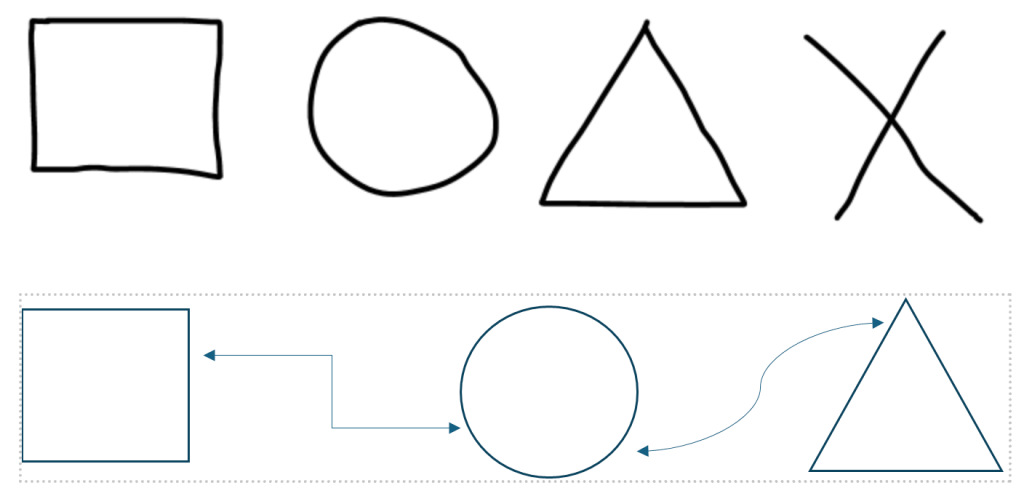
Our recommendation: Use Draw for annotations. Use Shapes for drawing the actual genogram.
Here’s the difference between the two, with Draw results at the top and Shapes at the bottom:
Why the Draw tab is not ideal for structure
Freehand lines don’t snap to connection points, auto-align or stay perfectly straight. Once you start moving shapes around, those lines tend to shift, which makes editing frustrating.
If you want a clean, editable genogram, Method #1 give you far more control, while the Draw tool is better suited for quick sketches or annotations.
If the Draw tab is missing/disabled
From the top menu, go to:
File → Options → Customize Ribbon
Make sure Draw is checked.
On some desktop versions, the tab appears only if you’re using a touch-enabled device. Word Online may also limit certain ink features.
Word for Mac vs Windows vs Word Online
The core tools exist across versions of Word, but the menus move and some features shrink online. If you build in one version and edit in another, expect small differences.
Here’s what actually changes.
Where Wrap Text, Align and Group Live On Mac
On Word for Mac:
- Wrap Text appears under Shape Format after you select a shape. You can also right-click the shape to access it.
- Align sits inside Shape Format → Arrange → Align.
- Group appears when you select multiple objects and right-click, or under Shape Format → Arrange → Group.
The functionality matches Windows. The ribbon layout looks slightly different.
If you’re figuring out how to make a genogram in Word for Mac, the biggest adjustment is menu placement, not capability.
Word Online limitations
Word Online works for basic shape placement. It becomes restrictive when you need precision.
Common friction points:
- Fewer connector options
- Less reliable snapping to connection points
- Limited alignment and distribution controls
- Grouping that feels inconsistent on complex layouts
A simple structure works fine. A dense three-generation genogram with remarriages and annotations becomes harder to manage.
If you start a Word Online genogram and it begins to fight back, move to desktop.
Best workflow for clean submission
Build and format your genogram in desktop Word. Store the file in OneDrive if you need cloud access. Export a final PDF before submission.
That approach gives you layout control and reduces shifting across devices. We’ll cover exactly how to export a stable PDF in the next section.
How to save, export and submit
Most genograms run into trouble right at the finish line, when shapes shift, lines detach or the spacing changes when you open the file on another computer.
Here’s how you prevent that.
1. Save your working file properly
Always save your editable version as .docx.
This keeps grouping, connectors and formatting intact. Don’t submit your only editable copy. Keep a master version in case you want to revisit the orignal draft later.
2. Export the final version as PDF
Once you’re done finalizing the genogram, go to:
File → Export or File → Save As → PDF
Unlike a .docx file, PDF locks the layout.
In a .docx file, Word may rearrange elements depending on version, device or printer settings. But PDF retains almost every formatting down to the line weight.
After exporting, open the PDF and zoom in to make sure that the alignment, symbols and connectors sit exactly where you placed them.
3. Keep the entire genogram on one page
Most people expect a single-page layout unless there’s a clear reason to spread the genogram across multiple pages.
To make that happen:
- Use Landscape orientation
- Set Margins → Narrow
- Select siblings and use Distribute Horizontally
- Tighten vertical spacing between generations
- Avoid oversized shapes
If spacing feels crowded, reduce gaps evenly rather than shrinking random elements.
4. Group before final adjustments
We’ve touched this briefly earlier. As a reminder, do this before your final export:
Select family units → Group
That’s because grouped elements move together. Ungrouped connectors might drift during last-minute edits.
Pro-tip: Don’t group the entire page into one massive object. Keep grouping logical by family clusters.
5. Optional: Save as an image
If you need to save your genogram as a larger report:
- Take a high-resolution screenshot. I really like Greenshot for this because it lets you capture a specified area and export a clean PNG image.
- Or, you can also select the grouped diagram → Right-click → Save as Picture
PNG works well for documents, especially when you export it at a high resolution so the diagram appear clear and not blurry.
Tips and troubleshooting
Even a carefully built genogram can run into issues, because Word tends to behave in unpredictable ways when you’re dealing with more complex diagrams.
Here are some common issues you might encounter, along with the fixes that usually resolve them.
1. Shapes jump around
Problem: You move one shape and everything shifts.
Fix: Right-click the shape → Wrap Text → In Front of Text
If even one shape is set to “In Line with Text,” Word treats it like a paragraph. That’s when layouts collapse.
2. Lines don’t stay attached
Problem: You move a person block and the relationship line stays behind.
Fix: Use Connectors, not regular lines.
Go to: Insert → Shapes → Lines → Connector (Straight)
When you attach it correctly, the connector snaps to a connection point on the shape. If you do not see a snap highlight, it is not properly attached.
3. It’s hard to select the right object
Problem: You click a line but select a shape behind it. Or you cannot grab a small slash.
Fix: Go to Shape Format → Selection Pane
This shows every object on the page in a list. Click the exact item you want.
If you do not see the Selection Pane, use Select → Select Objects from the ribbon.
4. Alignment looks slightly off
Problem: Rows look uneven. Spacing feels inconsistent.
Fix: Select the shapes → Align → Align Top
Then → Distribute Horizontally
For couples, use Align Middle, so partner shapes sit perfectly level.
Zoom out to 70 percent. Misalignment becomes obvious at lower zoom levels.
5. The diagram becomes impossible to edit
Problem: You grouped everything at once. Now small edits are painful.
Fix: Undo full-page grouping.
Group in smaller units:
- Each couple
- Each sibling cluster
- Each family branch
6. Printing looks faint or blurry
Problem: Lines look thin on paper. Slashes disappear.
Fix:
- Increase line weight to 1–1.5 pt
- Avoid pale grey outlines
- Use solid black or dark grey
- Export as PDF instead of printing from .docx
Always preview the PDF before submission.
7. The page feels too crowded
Problem: Everything fits, but it looks cramped.
Fix:
- Reduce vertical spacing evenly
- Slightly shrink the shape dimensions
- Re-distribute horizontally
- Switch to Landscape if you forgot
Do not randomly shrink some shapes and not others. Keep proportions consistent.
Make your own reusable genogram template in Word
If you plan to create more than one genogram, it’s worth setting up a reusable template instead of starting from scratch every time.
A simple genogram in Word template takes a few minutes to build, but it can save you hours later when you need to create new diagrams.
Step 1: Design a clean starter page
Open a new document and set it up exactly how you like:
- Landscape orientation
- Narrow margins
- Preferred font and size
Now you can add your structural assets.
1. Pre-sized symbols
Create:
- A square for male members
- A circle female members
- A diamond, if you use it
- A deceased version with X
Set:
- Line weight to 1–1.5 pt
- Consistent outline color
- Standard dimensions
These symbols will work as your master shapes in the symbol library.
2. Pre-styled connector lines
Insert:
- A horizontal partner connector
- A vertical parent-child connector
- A sample sibling line
Format them properly the first time, with the correct line thickness and clean alignment. That way, you never have to re-style lines again.
3. Legend box
In one corner, build a compact legend:
- Symbol meanings
- Line meanings
- Abbreviation key
Keep it neat and minimal. This travels with every future genogram.
4. Sample 3-generation grid spacing
Place faint placeholder shapes to mark:
- Top generation band
- Middle generation band
- Bottom generation band
Align and distribute them evenly. You can delete placeholders later.
Step 2: Add a blank “symbol bank” page
Add a second page. Keep:
- Extra male and female symbols
- Deceased variants
- Extra connectors
This becomes your drag-and-drop area. It keeps your working page clean.
Step 3: Save as a template
Go to: File → Save As
Choose file type: Word Template (.dotx)
Save it in your Templates folder.
Next time, open Word → New → Personal and select your template.
You now have your own structured genogram template in Word, which keeps your diagrams clean, consistent and ready to use whenever you need them.
Privacy and ethics
Genograms often represent real people and relationships, so it’s important to handle that information with care.
1. Anonymise when possible
Your diagram should show patterns, not expose personal data.
If this is for a class project, use initials instead of full names. Remove exact birth dates if you don’t really need them.
Avoid listing detailed medical histories unless your assignment specifically asks for them.
You can label someone as “Dx: Cardiac condition” instead of naming a specific diagnosis.
2. Store files securely
Save your working file on a personal device or secure cloud storage.
Avoid emailing unencrypted documents that contain sensitive family information.
If you must submit online, export as PDF and upload through your institution’s learning platform rather than sending it casually over email.
If you’re sharing your screen during class, double-check that no unrelated personal files are visible.
3. Understand the context
This guide shows you how to build a genogram in Word. It is not a clinical documentation standard.
If you’re using genograms in therapy, social work, healthcare or research, follow your organization’s (and industry’s) confidentiality policies and documentation guidelines.
When in doubt, reduce details so the diagram stays clear and people’s privacy is protected.
Better alternatives to building genograms in Word
You can build an okay three-generation genogram in Word using Shapes, Connectors, Align, Distribute and smart grouping. For assignments and small case maps, that’s enough.
But if you find yourself wrestling with layout, scaling or presentation polish, a dedicated genogram tool makes more sense. Here are three strong options.
1. Venngage
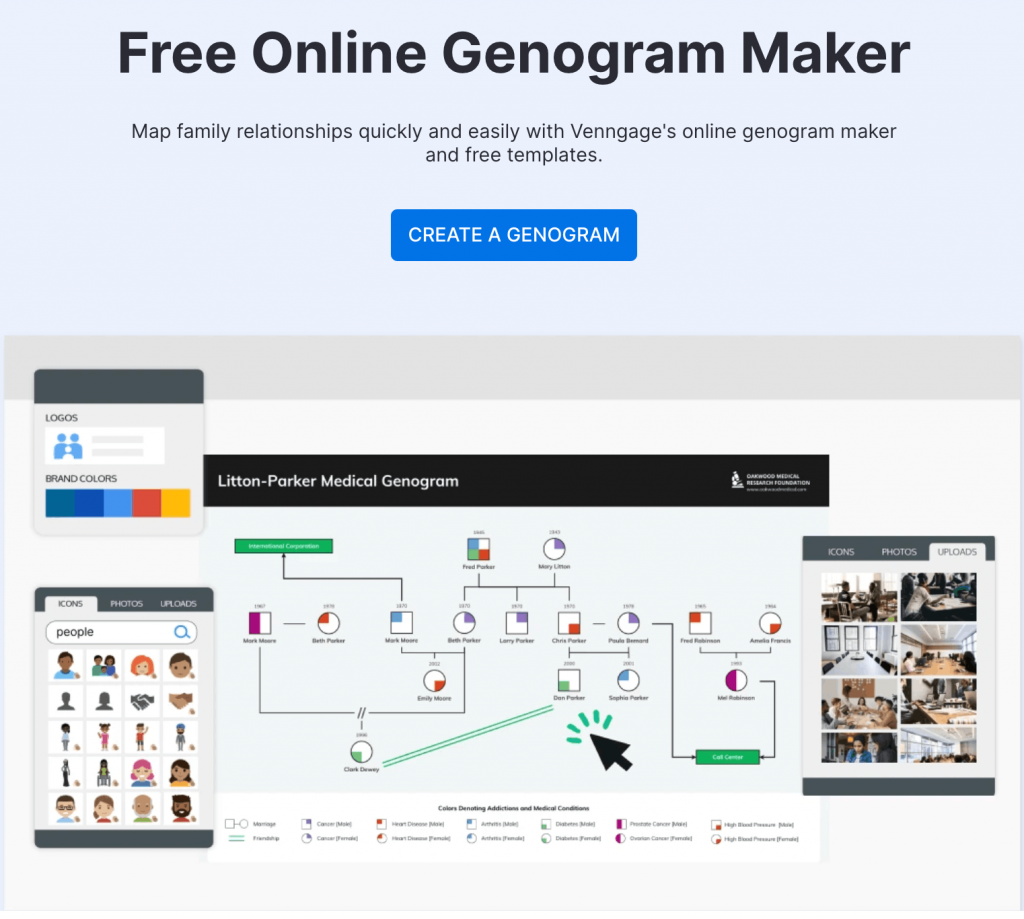
Best for: Presentation-ready genograms and client-facing visuals.
Venngage Genogram Maker comes with a rich library of ready-to-use yet customizable genogram templates.
You get structured layouts, drag-and-drop editing and clean PDF/PNG exports. If visual clarity matters, Venngae is a great choice.
Pricing: Free plan available; paid plans start at $10/month (checked March 9, 2026).
2. GenoPro
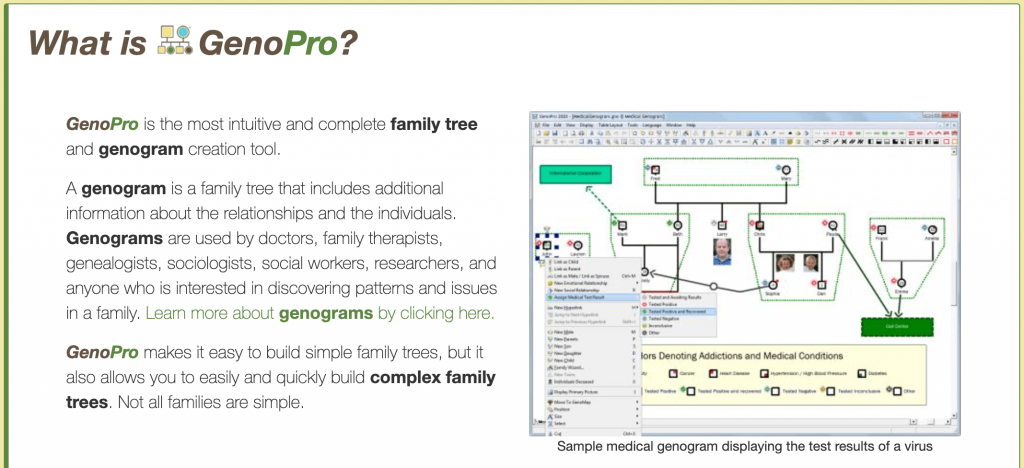
Best for: Therapy and social work documentation.
GenoPro focuses specifically on genograms, with detailed relationship lines and layered family dynamics. It suits clinicians who need depth over design polish.
Pricing: One-time license at $49 (checked March 9, 2026); Windows only.
3. Genogram Analytics
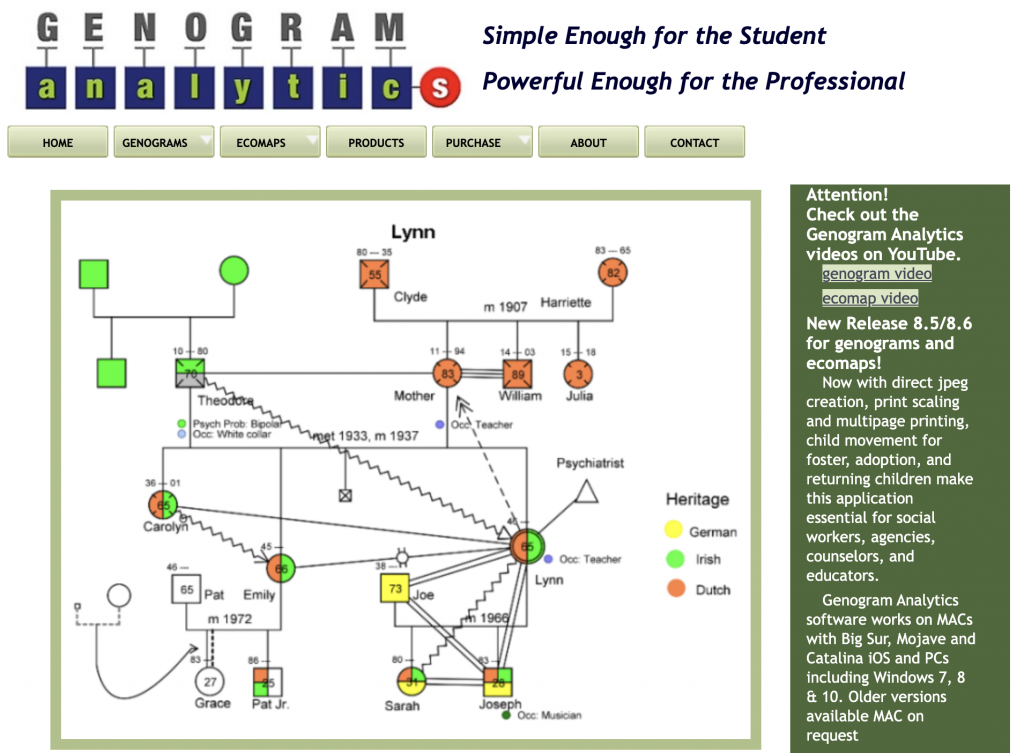
Best for: Clinical and healthcare assessment settings.
Genogram Analytics centers on structured data input and assessment workflows. It fits organizations that treat genograms as formal documentation rather than visual diagrams.
Pricing: Paid plans start at $39 for students and $195 for professionals (checked March 9, 2026).
A better way to create genograms than Word
Microsoft Word may not be built specifically for genograms, but you can still use it to create a clean three-generation diagram with the right setup. The key is treating Word like a diagramming canvas rather than a text document.
If you want to create visually polished, professional-looking genograms for academic or medical use, you might find it easier to use a dedicated tool like Venngage’s Genogram Maker.