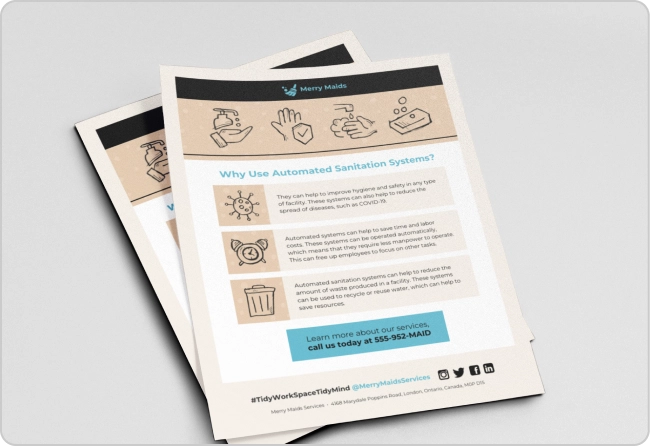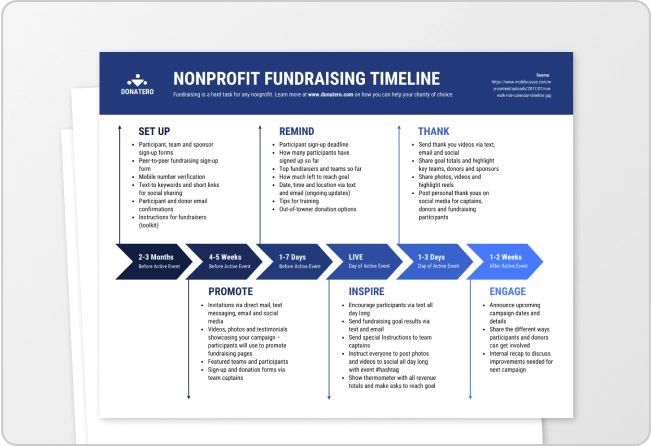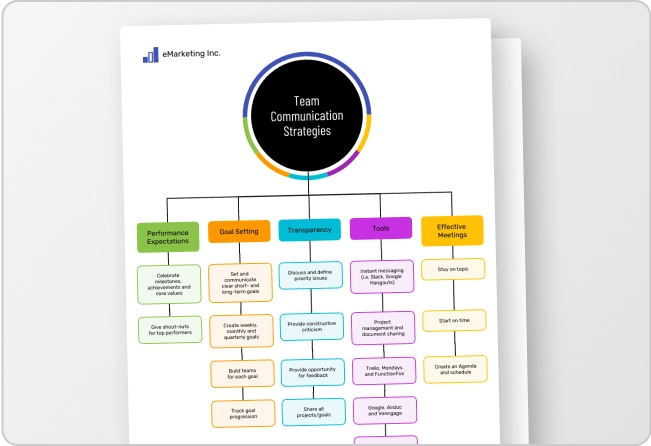


Creating infographics, banners, or documents and presentations used to be hard.
Fortunately, tools like Venngage, Canva, PhotoADKing and Adobe Express made design easy for everyone.
But one headache still remains and that is how to create accessible documents, presentations, reports, charts, and other similar assets.
Most graphic design software like Canva and Adobe Express still lack accessibility features.
This means after creating a digital report or presentation, you’ll need to export it first and test manually using a third-party tool for accessibility issues.
Not only is this repetitive, but a waste of time.
But not all graphic design software is built equal.
In this post, I’ll review the best graphic design software for accessibility.
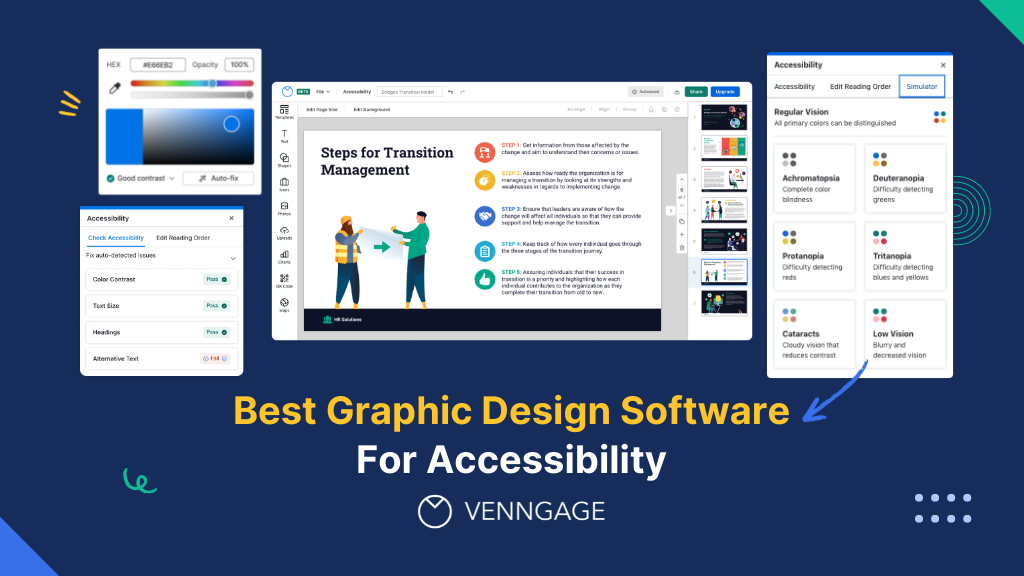
By the way, Venngage lets you create accessible designs in minutes. To get started, check out our Accessible Design Tool.
Quick answer: The best accessible graphic design software at a glance
- Adobe Photoshop: Best overall for professionals
- Venngage: Best for Accessible Designs and Visual Communication (PDF/UA workflows)
- Canva: Best for Beginners, Social Media, and Templates
- Figma: Best for UI/UX Collaboration
- Affinity Designer: Best Subscription-Free Vector Tool
- CorelDRAW: Best for Print/Signage Workflows
- GIMP: Best Free Photo Editor
- Adobe Express: Best Canva-Style Adobe Alternative
- VistaCreate: Best for animated social content
Comparison table: Features, pricing model, and platforms
How we tested these tools
I’ve worked across enough design workflows to know that the software itself either makes accessible design easier or fights you the whole way. The difference usually comes down to a handful of non-negotiable features.
Real-time colour contrast checking
I checked if the tool can flag contrast ratio against WCAG AA (4.5:1 for body text, 3:1 for large text) while you’re still designing.
Alt text and image description fields
I tested this by dropping a product image into each tool and seeing how far I could get without touching code. The ones I rated highest let me add alternative text directly at the asset level, inside the design file. A few had the field buried so deep I almost missed it. (Almost doesn’t count when you’re handing off to a developer who’s already moving on to the next task.)
Accessible typography controls
WCAG 2.2 requires text to stay readable when spacing is adjusted — line height up to 1.5x, word spacing up to 0.16x font size. I tested this by pushing spacing adjustments on body text across tools. Several locked those settings behind global styles with no per-element override.
Screen reader-compatible export
I ran the same document layout through each tool and checked the output with a screen reader to ensure that the software supports tagged PDF export to ensure heading hierarchy, image context and sequence.
Accessibility templates and design system support
Most importantly, I checked if the software supports accessibility templates and has an in-built accessibility checker.
Best graphic design software by category (Detailed picks)
In this list, I’ll be looking at several free graphic design software. Here’s a sneak preview of the winner in terms of accessibility:
1. Venngage
Venngage is a WCAG-compliant graphic design software. One reason why Venngage is the best design tool for accessibility is its PDF/UA export capability which ensures documents, reports, charts, and presentations you create and share are accessible.
There’s no need for manual checks.
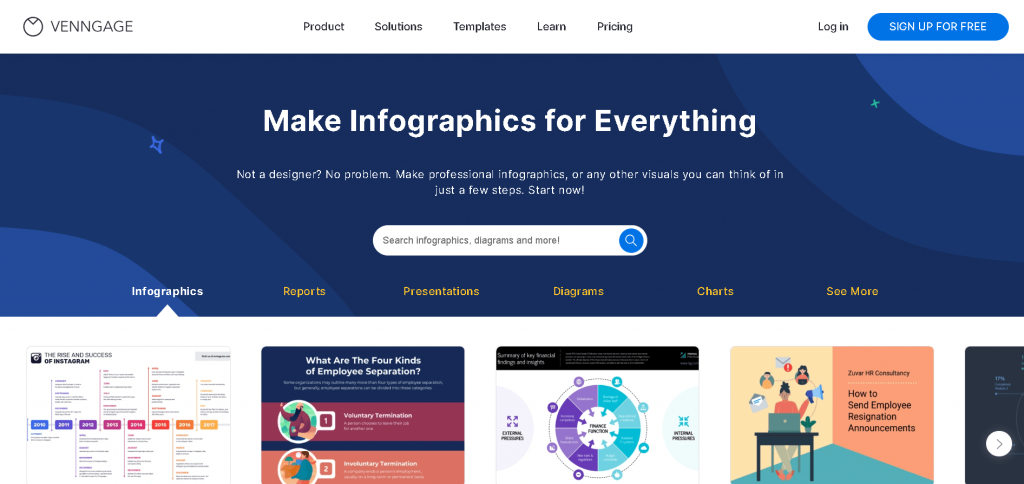
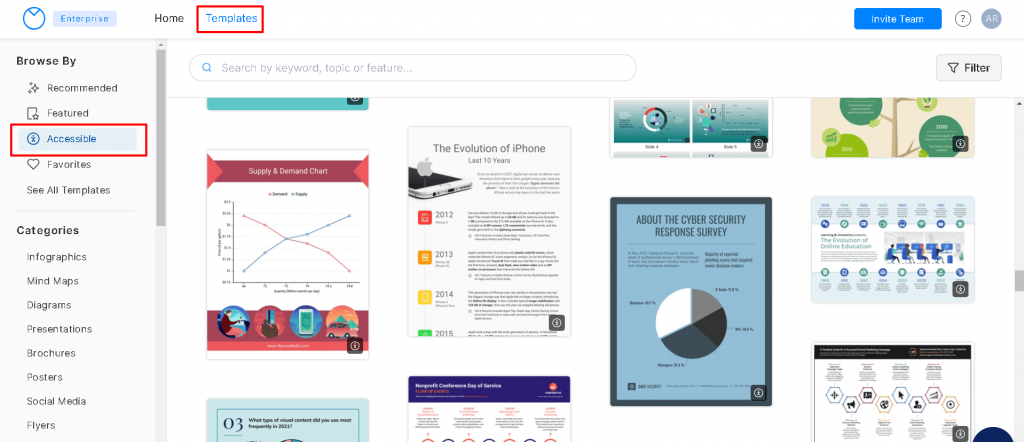
Not only does it make it easy to find accessible templates, but the platform also has built-in accessibility testing tools.
And unlike other software on this list, making accessible designs in Venngage is simple.
Once you sign-up for a free account, you’ll find accessible templates waiting for you to be customized.
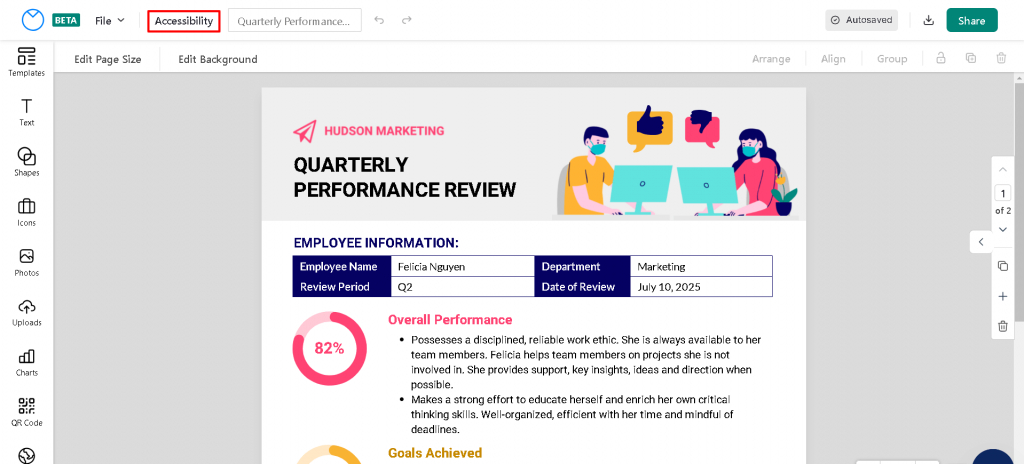
Pick the type of visual content you want to create. For example, I selected a quarterly performance review template.
Notice the accessibility tab at the top? That’s where you can access all accessibility-related information and features for your design.
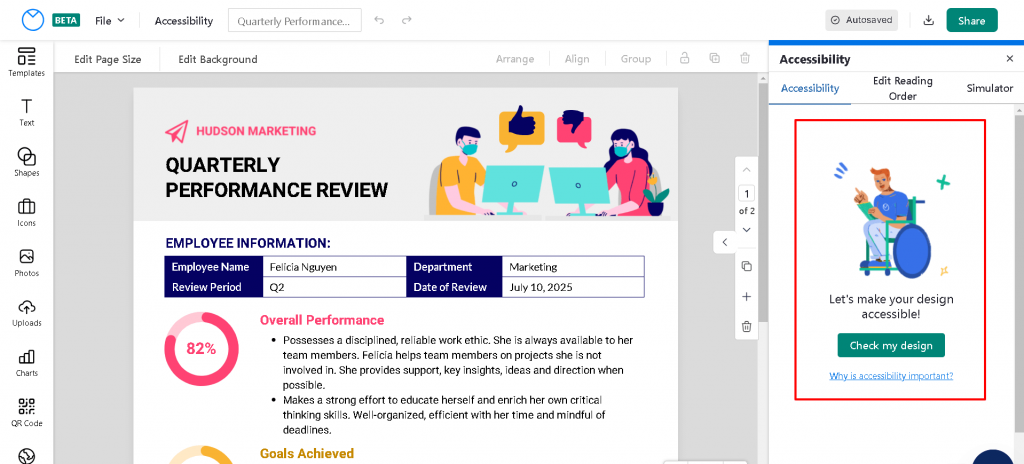
When you click on it, you should see an option to run a test.
And here are my results:
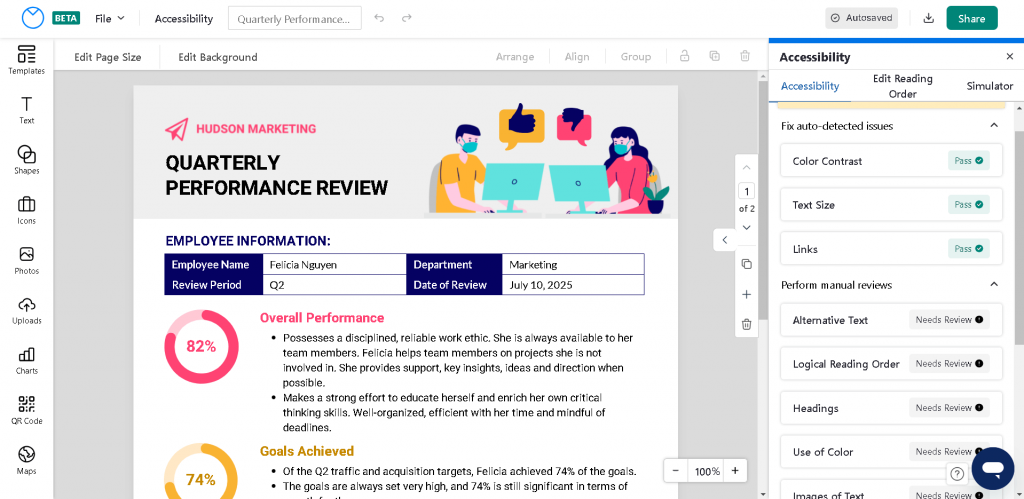
As you can see, Venngage prompted me to review the reading order, alternative text, headings, and more.
Want to learn more about accessibility and alt text, reading order, and headings? Check out our help section
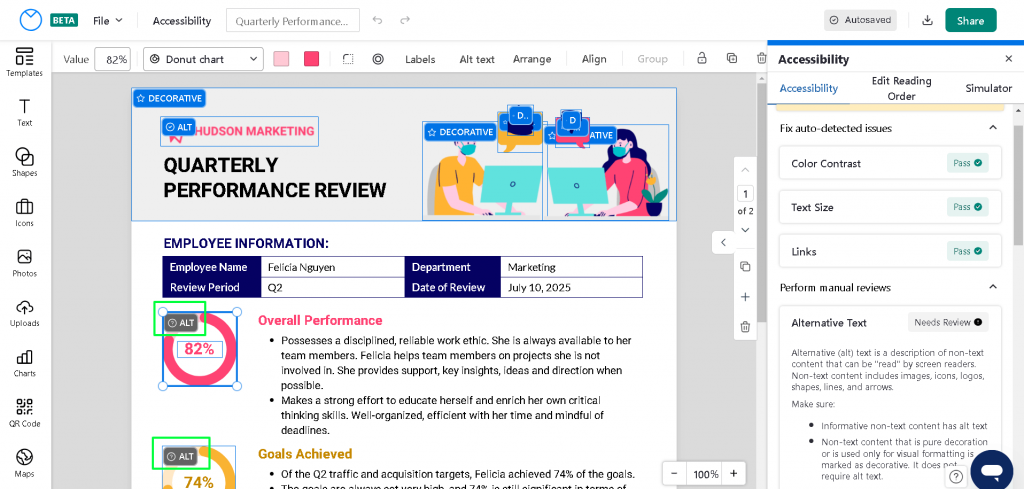
- Add alt text to elements in your design
- Manage reading order
- Create and tag headings and titles for accessibility
For a full overview, you can read our page on how to create an accessible design with Venngage.
Just click on a review and Venngage will highlight what needs to be fixed and let you quickly apply changes.
Venngage also has standalone accessibility testing tools such as an accessible color palette generator and a color contrast checker that you can use for inspiration to create accessible designs.
Best for: Teams producing infographics, reports, and data visualisations who need WCAG compliance built into the workflow.
Not ideal for: UI/UX design, vector illustration, or photo editing.
Accessibility features: Real-time AI accessibility audit for contrast, font readability, and alt text. Accessible PDF export with screen reader support. WCAG-compliant templates available across all paid plans.
Pricing: Free plan available (limited exports and branding). Premium starts at $19/month. Business at $49/month. Enterprise pricing on request.
Platforms: Web-based. Works on any modern browser across Mac, Windows, and Linux. No dedicated desktop or mobile app.
Exports: PNG, PDF, accessible PDF, PPTX, HTML. No SVG, PSD, or AI file export.
2. Adobe Express
Adobe Express is another player in the world of cloud-based graphic design tools.
It is a product of the Adobe family (I’m sure you know Adobe Illustrator and Adobe Reader), but with basic features and pre-made templates to allow non-designers to create visual content.
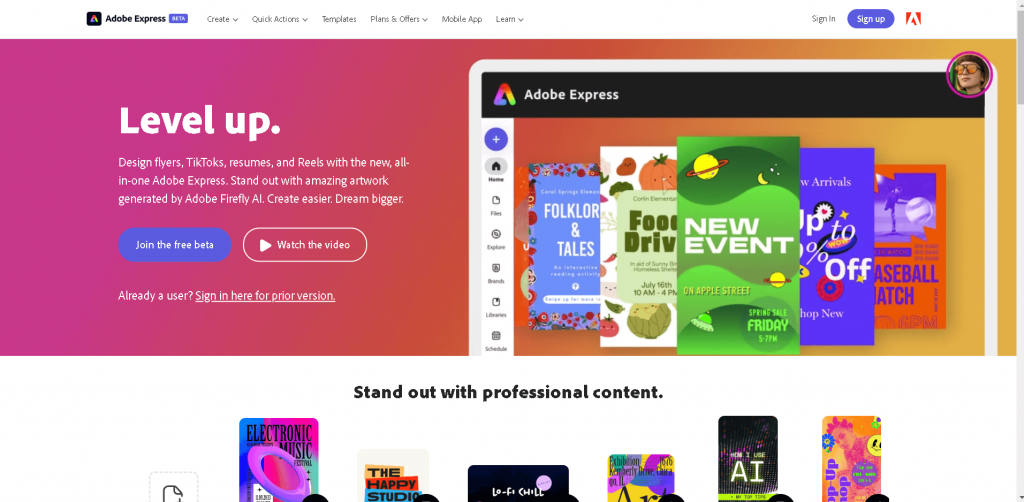
Adobe’s range of templates is impressive, but it leaves a lot to be desired in terms of accessibility.
Let’s say I want to create a digital brochure to promote a yoga retreat. How accessible or inclusive can I make the design with Adobe Express?
Well, Adobe does give you some accessibility features like the ability to control reading order.
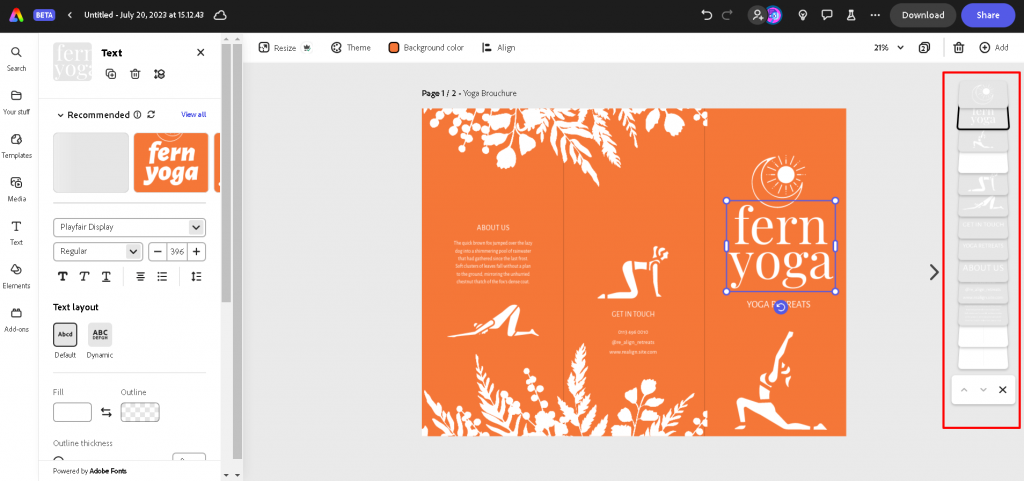
But it’s missing some key features like the ability to add alt text to images or check if the contrast ratio of text and background is at least 4:5:1 as per WCAG guidelines.
By the looks of it, I’m sure that template would not pass.
Another shocking omission in Adobe Express is the inability to set alt text and add document titles.
I thought that would come standard with Adobe.
So while you might have many templates to choose from on Adobe, it might not be accessible unless you use third-party automation testing tools to make sure.
Best for: Teams already embedded in the Adobe Creative Cloud ecosystem who need a faster, simpler tool for day-to-day content without leaving the Adobe environment.
Not ideal for: Teams needing precise WCAG typography control, document accessibility, or complex layout work.
Accessibility notes: No native contrast checker on the canvas. No accessible PDF export. Alt text can be added to images but the workflow is not surfaced prominently. Relies on the broader Adobe ecosystem for deeper accessibility compliance.
Pricing: Free plan available (25 AI credits/month, limited templates). Premium at $9.99/month per user. Teams at $9.99/user/month with a two-seat minimum. Enterprise pricing on request.
Platforms: Web-based, iOS, and Android. Files sync across devices via Creative Cloud.
Exports: PNG, JPG, PDF, MP4, GIF. No SVG, PSD, AI, or accessible PDF export.
3. Canva
I’m sure you’ve all heard of Canva.
It’s the most popular online design software for creating posters, banners for social media, infographics, reports, and more.
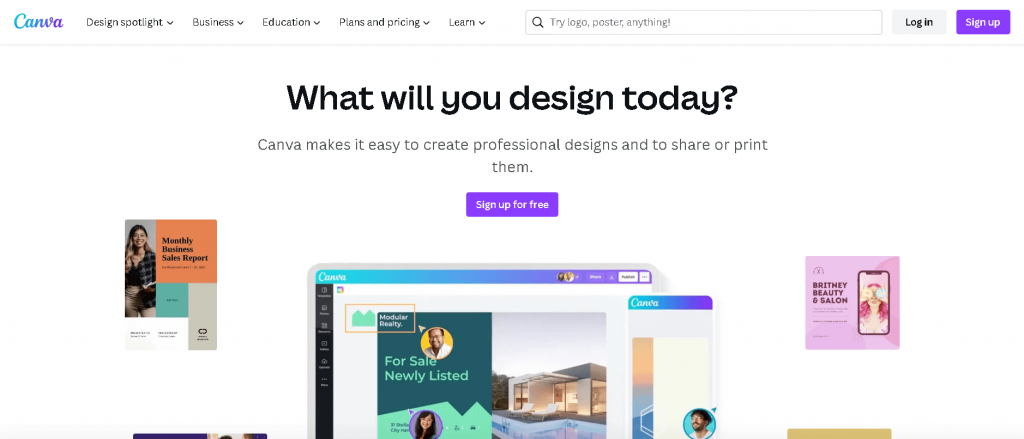
You’ll find Canva also has many templates and snazzy features.
But what about accessibility?
Well, Canva has certainly been working hard to integrate accessibility features over the years, but they don’t have everything yet and making your designs accessible isn’t intuitive.
For example, while editing this flyer, it isn’t clear how I can test the color contrast of the design or edit the reading order.
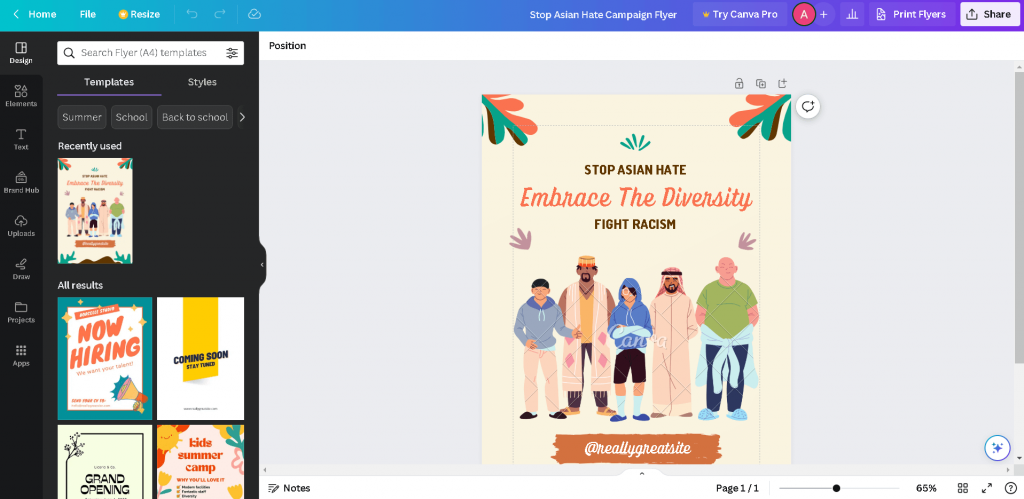
After some snooping around, only the ability to add alt text to images was intuitive.

While this is important, setting alt text is pointless if you can’t control the reading order.
Imagine a screen reader reading the footer section of your poster or presentation first. That will likely confuse someone with a visual impairment and cause them to leave.
There are also some other key accessibility features missing from Canva such as the ability to add document titles or insert text tags.
Best for: Cross-functional teams where non-designers are producing their own content and need a tool with almost no learning curve.
Not ideal for: Teams producing complex, fully WCAG-compliant PDFs or documents requiring precise reading order control without post-export remediation.
Accessibility notes: Built-in Design Accessibility checker covering contrast, typography, and alt text. AI-assisted alt text suggestions. PDF export includes basic heading tags and reading order, but complex layouts require manual remediation post-export. Strives to meet WCAG 2.2 AA but does not guarantee full compliance.
Pricing: Free plan available (basic templates, 5GB storage). Pro at $12.99/month per individual. Teams starting at $14.99/month for up to five users. Enterprise pricing on request.
Platforms: Web-based, iOS, and Android. Files sync across devices.
Exports: PNG, JPG, PDF, accessible PDF (basic), SVG, MP4, GIF, PPTX. No PSD or AI file export.
4. Figma
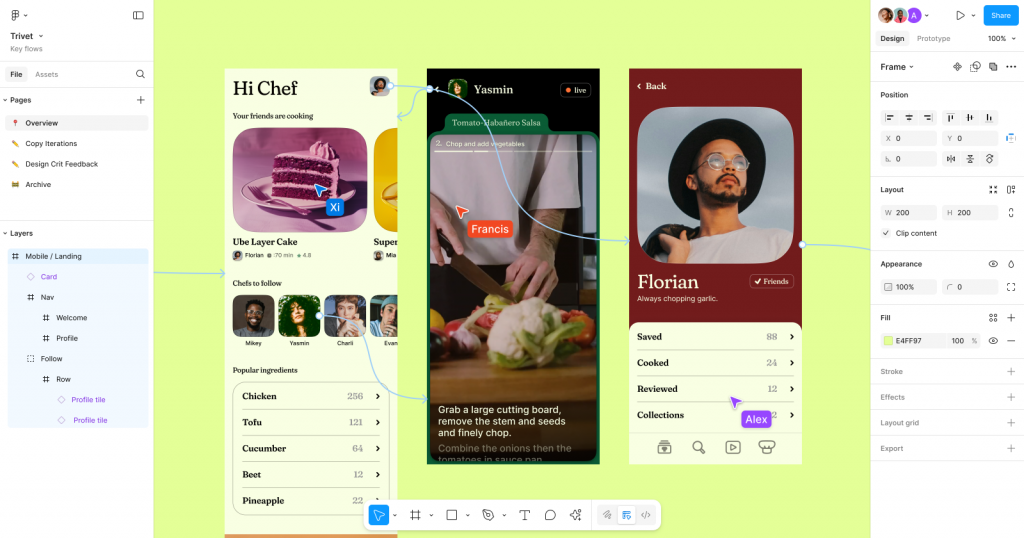
Figma is the industry standard for UI/UX design and product teams. It’s a browser-based, vector design and prototyping tool built around real-time collaboration.
tested the accessibility workflow by running contrast checks, annotating focus order and ARIA labels, and pushing a file through Dev Mode to see what a developer would actually receive. The built-in contrast checker flagged issues without needing a plugin. The annotations landed cleanly on the other side. The Stark plugin, which layers on top natively, added colour blindness simulation and alt text annotation that I’d want in any serious accessibility workflow.
The learning curve is real. Figma rewards designers who invest time in it, and teams that don’t won’t get close to its ceiling. The March 2025 pricing restructure also changed the seat model significantly — mid-cycle seat additions on annual plans now bill monthly at a higher rate, which catches teams off guard as they scale.
Best for: Product and UI/UX design teams who need pixel-precise control, developer handoff, and a robust accessibility annotation workflow in one place.
Not ideal for: Non-designers, teams producing print or document-heavy output, or anyone who needs offline-first functionality.
Accessibility notes: Built-in contrast checker in the colour picker. Native annotation tools for focus order, ARIA labels, and semantic HTML tags. Screen reader support for canvas navigation. Works toward WCAG 2.2 AA compliance in its own UI. Plugins like Stark and the A11y Annotation Kit extend the accessibility workflow significantly. No accessible PDF export.
Pricing: Free Starter plan (3 design files, 3 FigJam boards). Professional at $12/editor/month billed annually. Organisation at $45/editor/month. Enterprise at $90/editor/month. Viewer seats are free on all plans.
Platforms: Web-based and desktop app (Mac and Windows). iOS and Android apps available for viewing and commenting.
Exports: PNG, JPG, SVG, PDF. No accessible PDF, PSD, or AI file export.
5. VistaCreate
Last on our list is VistaCreate, another graphic design tool with thousands of free templates to choose from.
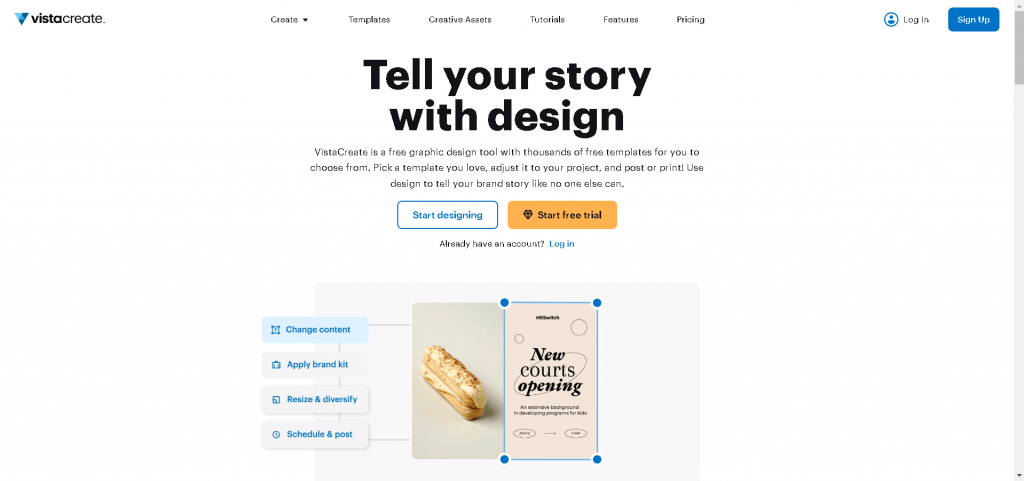
And again, just like every other free design software on this list, VistaCreate offers plenty of customization options.
But if you want to create an accessible design, VistaCreate fails miserably.
The tool offers no features to make your design accessible. Even something as basic as the ability to add an alt text to images in your design is not available.
Even if you upgrade to a Pro account, you’ll get no accessibility features.
Best for: Small teams and solo creators producing social media and marketing content on a tight budget.
Not ideal for: Any team with WCAG compliance requirements or producing document-style output.
Accessibility notes: No native contrast checker, alt text support, or accessible export options. No stated WCAG compliance. Accessibility checks would need to be handled entirely outside the tool.
Pricing: Free Starter plan available. Pro at $10/month, billed monthly. Annual billing reduces the cost further.
Platforms: Web-based, iOS, and Android.
Exports: PNG, JPG, PDF, GIF, MP4. No SVG, accessible PDF, PSD, or AI file export
6. Affinity Designer
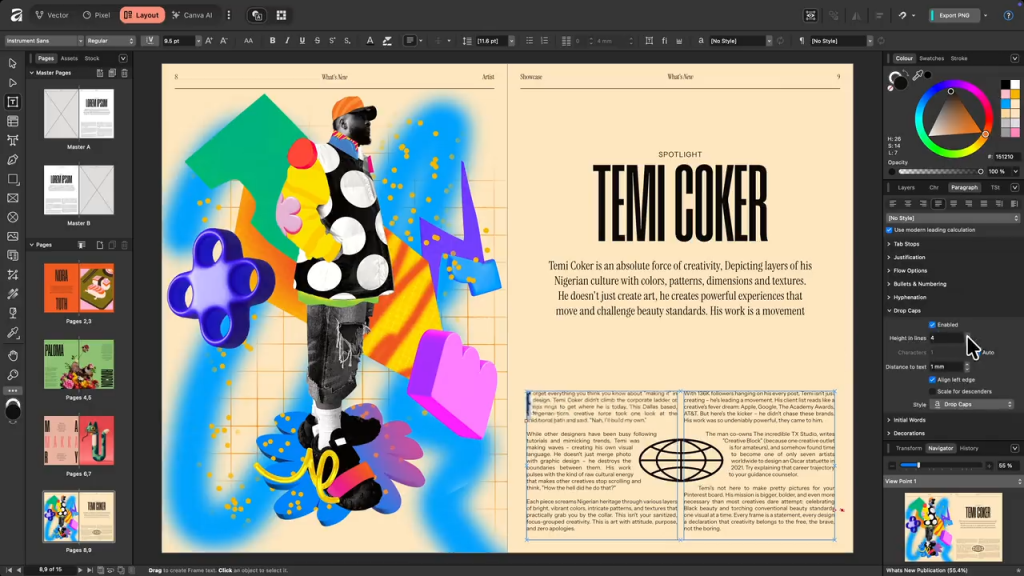
Affinity Designer is a professional vector and raster design tool built for illustrators, graphic designers, and anyone producing logos, icons, UI mockups, or print layouts. It’s the most credible subscription-free alternative to Adobe Illustrator.
I tested it on a set of vector brand assets and a multi-artboard print layout. The vector tools are precise, the non-destructive workflow holds up well on complex files, and the seamless switching between vector and pixel personas is genuinely useful.
It’s also worth noting there’s no real-time cloud collaboration. Files are shared externally via Dropbox or exported. This fine for solo designers, but a friction point for larger teams.
Best for: Professional designers and illustrators who need precise vector tooling without a subscription and don’t require built-in accessibility compliance features.
Not ideal for: Teams with WCAG compliance requirements, collaborative workflows, or document-heavy output.
Accessibility notes: No native contrast checker, alt text fields, or accessible PDF export. Colour blindness simulation is not built in. Accessibility checks need to be handled entirely outside the tool.
Pricing: Free core app (as of late 2025 relaunch). AI-powered features via subscription at $15/month or $120/year. Previously $69.99 per platform as a one-time purchase — check Affinity’s current pricing page for updated terms.
Platforms: Mac, Windows, and iPad.
Exports: SVG, PDF, PNG, JPG, EPS, TIFF, PSD, AFDESIGN. No accessible PDF export.
7. CorelDRAW
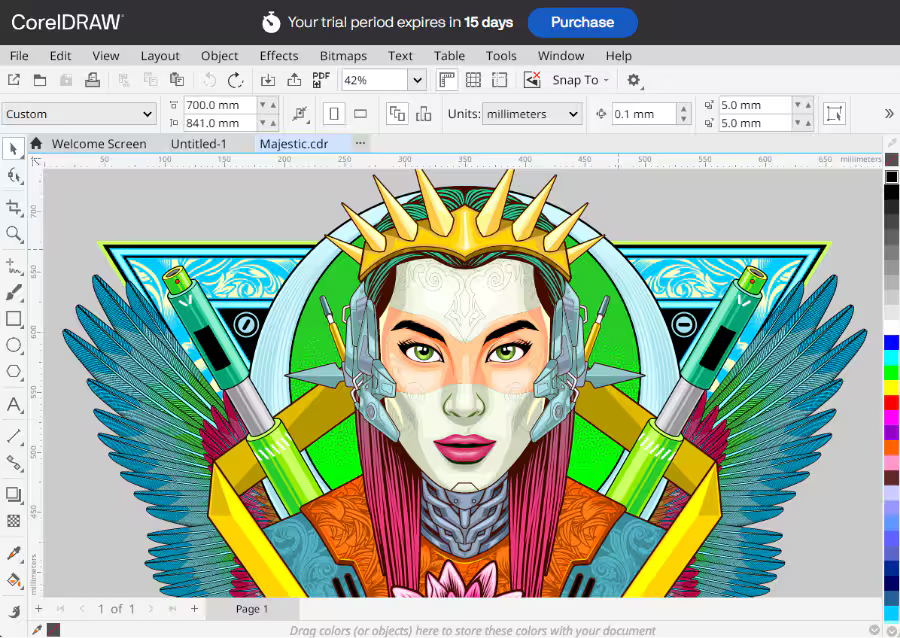
CorelDRAW Graphics Suite is a professional-grade vector illustration, page layout, and photo editing toolkit that’s been the go-to for print designers, sign makers, and packaging professionals for decades.
It covers a wide range of disciplines in one package — vector drawing, multi-page layout, typography, and photo editing via Corel PHOTO-PAINT — making it particularly strong for teams that move between digital and print without wanting multiple subscriptions.
The vector tools are comprehensive, CMYK colour management is solid, and the print-ready PDF export options are more granular than most tools in this list. File compatibility with Adobe formats remains a consistent friction point — SVG and EPS exports occasionally produce issues, and round-tripping between CorelDRAW and Illustrator requires manual checking.
On accessibility, CorelDRAW doesn’t offer a native WCAG contrast checker or accessible PDF export. For teams with compliance requirements, that gap needs to be filled with external tools.
Best for: Print designers, sign makers, and packaging teams who need professional vector and layout tools with strong CMYK and print-ready output.
Not ideal for: Teams producing digitally accessible documents, UI/UX design, or anyone already embedded in the Adobe ecosystem.
Accessibility notes: No native contrast checker or accessible PDF export. No stated WCAG compliance tooling. Colour blindness simulation is not available. Accessibility checks need to be handled outside the tool.
Pricing: Subscription at $249/year. One-time perpetual licence also available (2026 version). 15-day free trial available.
Platforms: Windows (primary). macOS supported with limitations. Web-based version (CorelDRAW Web) available for subscribers.
Exports: SVG, PDF, AI, EPS, PNG, JPG, TIFF, CDR. No accessible PDF export.
8. GIMP (GNU Image Manipulation Program)
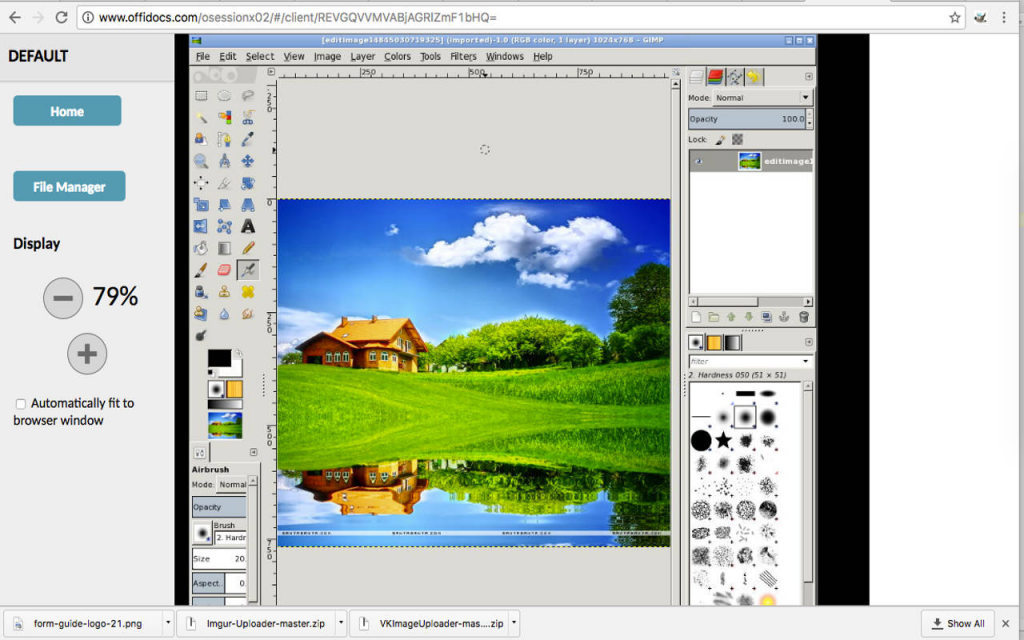
GIMP (GNU Image Manipulation Program) is a free, open-source image editor that covers the core photo editing and raster graphic manipulation workflows most designers need — layers, masking, colour correction, retouching, and a broad plugin ecosystem. It’s the most capable zero-cost alternative to Photoshop available, and for teams on tight budgets or individuals who don’t need subscription-based tooling, it punches well above its price point.
I tested it by running a set of photo retouching and colour correction tasks. The toolset is genuinely powerful and the customisable interface rewards the time you put into configuring it. The honest trade-off: the interface is dated and the learning curve is steeper than any other tool on this list. I also hit a crash mid-session on a complex layered file, which is a known issue with the open-source development model.
On accessibility, GIMP has no contrast checker, no alt text support, and no accessible export options. It’s a raster editing tool first, and accessibility tooling is not part of its scope.
Best for: Designers and photographers who need a capable free image editor and are willing to invest time in learning the interface.
Not ideal for: Teams with WCAG requirements, vector work, or anyone who needs a polished, stable production environment.
Accessibility notes: No native contrast checker, alt text fields, or accessible export options. No WCAG compliance tooling of any kind. Not suitable for accessibility-focused workflows without significant external tooling.
Pricing: Completely free. Open-source with no subscription or licence fees.
Platforms: Windows, macOS, and Linux.
Exports: PNG, JPG, TIFF, GIF, BMP, PSD, PDF, WebP. No SVG, accessible PDF, or AI file export.
10. Adobe Photoshop
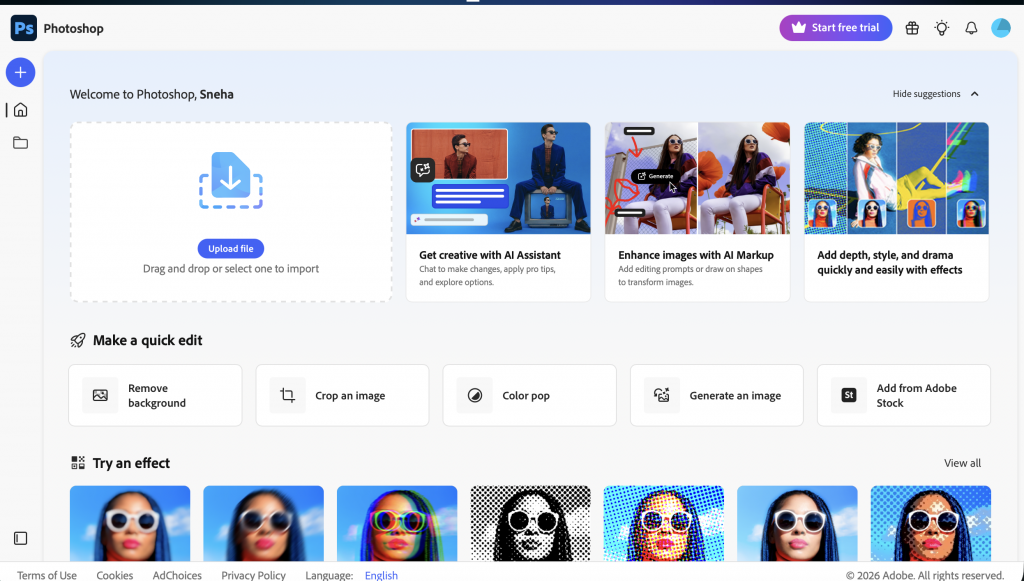
Photoshop is the go-to tool for photo editing, compositing, digital illustration, and asset production at the highest level of quality and control. It’s great for teams producing high-end visual assets or working in a Creative Cloud environment.
I tested it across a retouching workflow and a set of social graphics. The AI tools held up well — Generative Fill produced usable results with minimal manual cleanup, and the new colour correction tools reduced the number of adjustment layers needed on complex edits.
Accessibility tooling is where Photoshop shows its limits. Colour blindness simulation is available via View > Proof Setup, and third-party plugins can check contrast ratios, but there’s no native WCAG checker built in. Adobe’s own conformance report confirms that alt text is only preserved on HTML export, not PDF — a significant gap for any team producing accessible documents from Photoshop files.
The subscription cost also adds up quickly once you factor in Creative Cloud Pro for full app access.
Best for: Professional photographers, retouchers, and design teams producing high-end visual assets within the Adobe Creative Cloud ecosystem.
Not ideal for: Teams producing accessible documents, vector work, or anyone who needs WCAG compliance tooling built into the workflow.
Accessibility notes: Colour blindness simulation available via soft-proofing. No native WCAG contrast checker — requires a third-party plugin. Alt text is only preserved on HTML export, not PDF. No accessible PDF export. Adobe’s own conformance report notes that most UI functions are not accessible without vision.
Pricing: Photoshop standalone at $22.99/month. Creative Cloud Pro (20+ apps) at $59.99/month. No one-time purchase option.
Platforms: Mac, Windows, iPad, and web (limited functionality on web and iPad).
Exports: PSD, PNG, JPG, TIFF, PDF, GIF, SVG, WebP. No accessible PDF export.
How to choose graphic design software (2-minute framework)
Here are a few things you need to keep in mind to find the best accessible graphic design tool.
- What are you designing? Match the tool to the job. Photo editing, vector, page layout, and UI/UX each have purpose-built options, and most tools optimise for one over the others.
- Skill level. Beginners need speed and guardrails. Professionals need control and flexibility. Most tools are built with one of these users in mind, not both.
- Budget. Free tiers work well for solo projects. For teams, factor in collaboration seats and export limits before committing to a plan.
- Platform. Confirm the tool runs natively on your setup. Web-based tools offer the most flexibility while desktop apps tend to offer more performance.
- Collaboration and handoff. If you’re working with developers, prioritise tools with annotation support, shared libraries, and clean export. Solo designers can deprioritise this entirely.
FAQs on graphic design software
What are the key features to look for in accessible graphic design software?
The key features you should look for in an accessible graphic design software are those that align with guidelines set in Web Content Accessibility Guidelines (WCAG) version 2.2 such as Venngage. With Venngage, expect to get access to accessible features like alt text support, logical reading order, document titles, contrast checker, and more.
Which graphic design software supports exporting designs in PDF/UA format for accessibility?
Venngage supports the export of designs in PDF/UA format for accessibility. This free graphic design software is WCAG-compliant, ensuring that documents, reports, charts, and presentations created and shared are accessible.
What are some accessible alternatives to Canva or Adobe Express?
An alternative to Canva or Adobe Express for creating accessible designs is Venngage, a graphic design tool that specifically targets accessibility. It is WCAG-compliant and offers features to create accessible designs, including PDF/UA export capability and built-in accessibility testing tools.
Is CorelDRAW still used in 2026?
Yes, but by a specific audience. CorelDRAW still has a strong user base in print production, sign making, large-format design, and technical illustration — industries where its colour management, cutting machine compatibility, and print-ready PDF output are genuinely hard to replace.
Conclusion: Choose based on what you design most often
In a world full of digital communication, creating accessible content is a necessity.
While there are many graphic design tools out there to help you create designs, only Venngage allows you to create visual content that is also accessible.
Don’t isolate some of your users by choosing the wrong tool.
Start creating stunning accessible designs today with our free Accessible Design Tool.