

If you’ve ever started a project and thought, “Wait, what are we supposed to be doing next?”, a timeline can help. A good timeline lays everything out clearly so you can see what needs to happen, when it needs to happen, who’s responsible and what needs to be finished first.
The process itself is pretty straightforward: define your goal, list the major tasks or events, put them in order, assign dates and add milestones, owners and dependencies. Once it’s all mapped out, you’ll have a much easier time keeping things on track.
Quick answer: How to create an effective timeline
Step 1: Define the purpose and scope.
Step 2: List key tasks, events, milestones.
Step 3: Put everything in chronological order.
Step 4: Add realistic dates and durations.
Step 5: Identify dependencies.
Step 6: Assign owners and deadlines.
Step 7: Choose a timeline format.
Step 8: Review and update it regularly.
What makes a timeline effective
Not all timelines are equally useful.
I’ve seen timelines that are basically just a list of dates. While that’s fine for showing when something happened, it doesn’t tell you much about what needs to happen next.
An effective timeline answers four simple questions:
- What needs to happen?
- When does it happen?
- Who owns it?
- What needs to happen first?
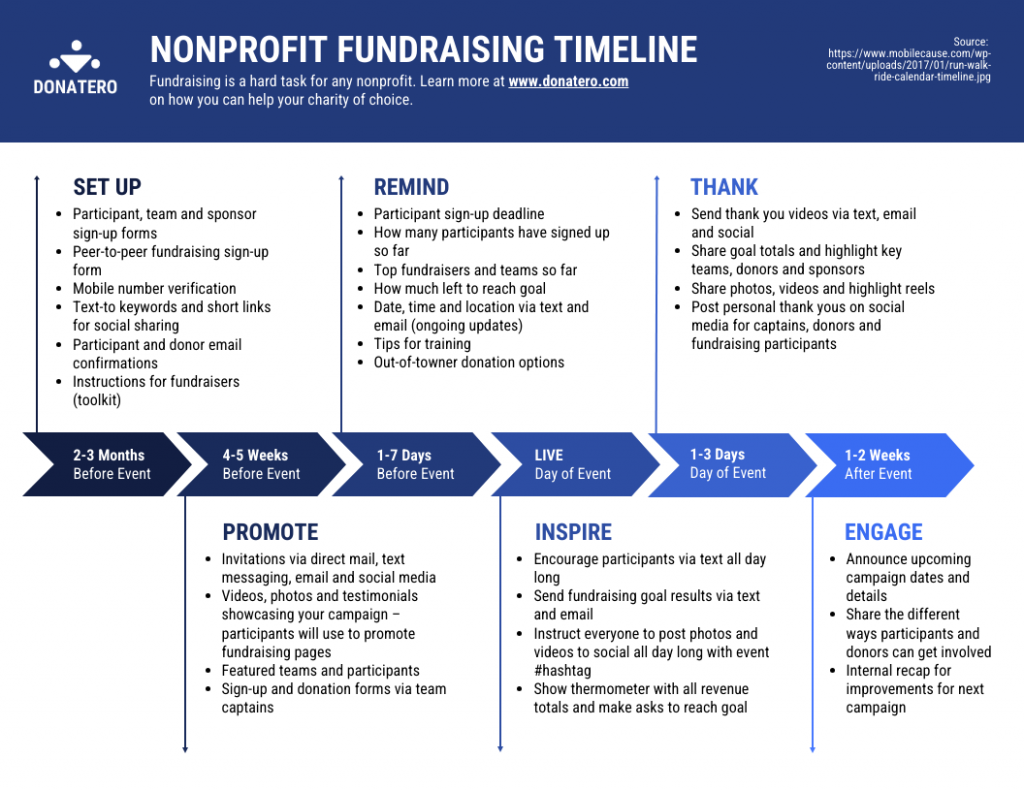
That’s why timelines are useful for everything from planning a marketing campaign to organizing an event or managing a school project. They turn a long list of ideas into something you can actually follow.
It’s also worth knowing the difference between a few common planning tools:
- A timeline shows tasks, events or milestones in chronological order.
- A project plan covers the bigger picture, including goals, resources, budget and scope.
- A project schedule gets into the details of individual tasks and deadlines.
- A Gantt chart is simply one way to visualize a timeline.
The best timelines strike a balance. They give you enough detail to stay organized without making you scroll through pages of information.
Adding the essential timeline elements
Whenever I’m creating a timeline, I focus on a few key pieces first. Get these right and the rest tends to fall into place.
Start and end dates
Every timeline needs boundaries. Without a clear start and end date, it’s easy for projects to feel like they’re dragging on forever. Defining the timeframe helps everyone understand the scope from the start.
Example: “Website redesign timeline: Jan. 2–Feb. 20.”
Tasks, events or phases
Think about what you’re actually mapping out.
- Tasks are things you need to do.
- Events happen at a specific moment.
- Phases group related work together.
If your timeline starts feeling crowded, try grouping smaller tasks into phases. It’s much easier to scan a timeline with “Planning” and “Design” than one with 30 tiny tasks competing for attention.
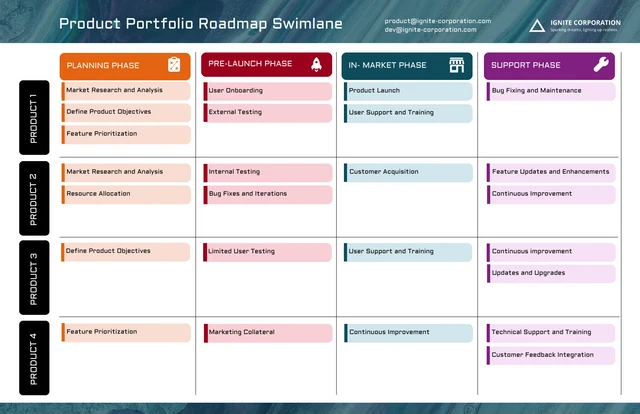
Milestones
Milestones are the moments people care about most.
These are the checkpoints that show progress and help you answer the question, “Are we on track?”
Some common examples include:
- Project kickoff
- Design approval
- Beta launch
- Event day
- Final delivery
I like to make milestones stand out visually because they’re usually the first thing stakeholders look for.
Dates and durations
Not every task takes the same amount of time.
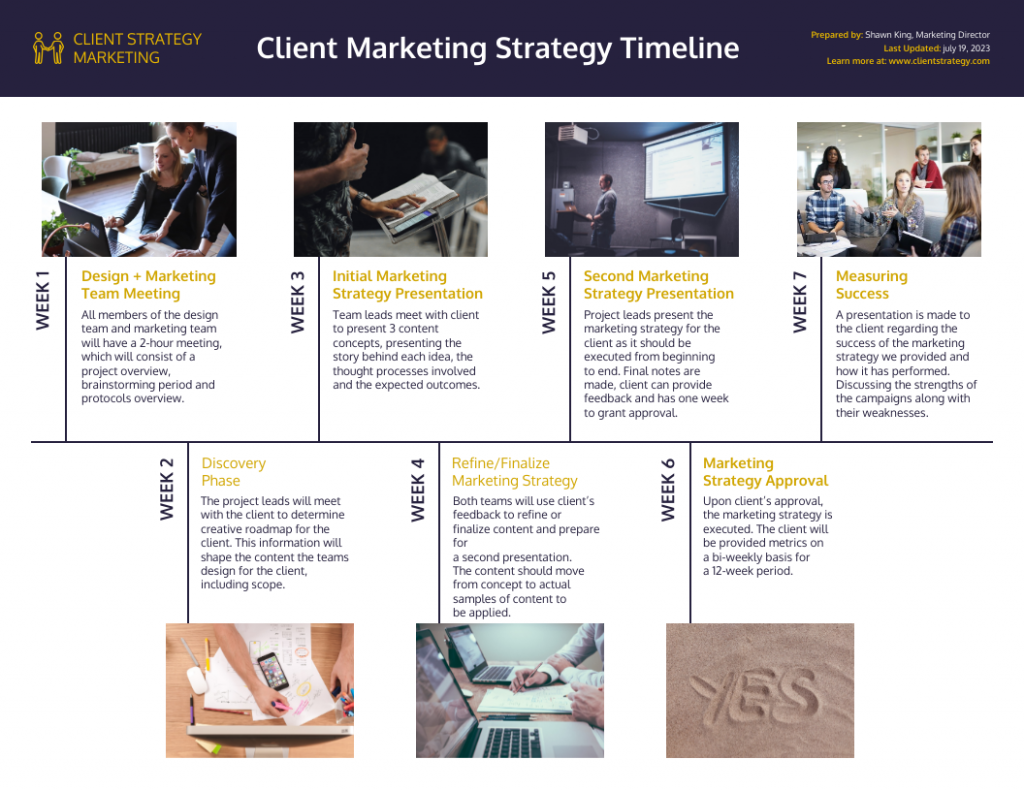
Some things happen in a day, while others stretch across several weeks. Adding start dates, due dates and durations helps like in this client marketing strategy timeline template sets realistic expectations and makes scheduling a lot easier.
Dependencies
This is where many timelines fall apart.
A dependency simply means one task relies on another. For example, you can’t send invitations until the guest list and invitation design are approved.
When you map out dependencies early, you’re much more likely to spot bottlenecks before they become problems.
Owners or person in charge
If everyone owns a task, nobody owns it.
Assigning a person to each task creates accountability and makes follow-ups much easier. It also eliminates those awkward moments where everyone assumes someone else is handling it.
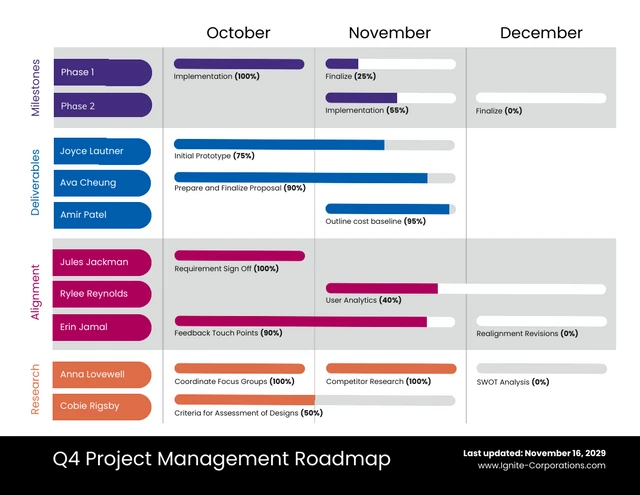
Notes, labels and status
You don’t need a lot of extra information, but a little context can go a long way.
For project timelines, I often add simple status labels like:
- Not Started
- In Progress
- At Risk
- Blocked
- Complete
The key is keeping labels short and useful.
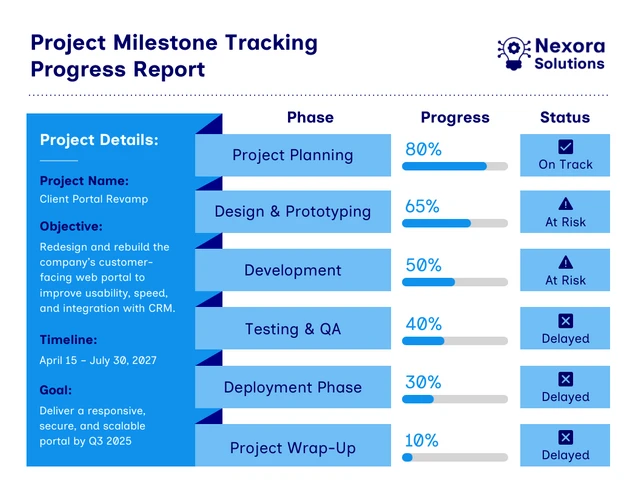
You can also use this project milestone tracking progress report template to monitor key deliverables, track milestone completion, identify potential delays early and keep stakeholders updated on project progress all in one clear, easy-to-follow report.
Visual hierarchy
A timeline should be easy to understand at a glance.
Use color coding, milestone markers and consistent spacing to guide the reader’s eye. If people need several minutes to figure out what’s important, the timeline is probably doing too much.
When in doubt, simplify. Clear timelines almost always outperform complicated ones.
Essential timeline elements at a glance
Create an effective timeline step by step
Whenever I create a timeline, I try to resist the urge to jump straight into assigning dates. It feels productive, but it’s usually the fastest way to end up with unrealistic deadlines.
Instead, I start by figuring out what needs to happen, who’s involved and how everything connects. Once those pieces are in place, building the timeline becomes much easier.
1. Define the purpose
Before opening a spreadsheet or timeline tool, take a minute to ask yourself what you’re actually trying to accomplish.
Is this timeline for a project, an event, a school assignment, a product launch or a historical overview? Who will be looking at it? Are you planning future work or explaining something that already happened?
The answers will determine how much detail you need.
For example, if I’m creating a product launch timeline, I’ll include owners, deadlines and dependencies because multiple teams need to stay aligned. But if I’m putting together a historical timeline, I usually only need dates, events and a bit of context.
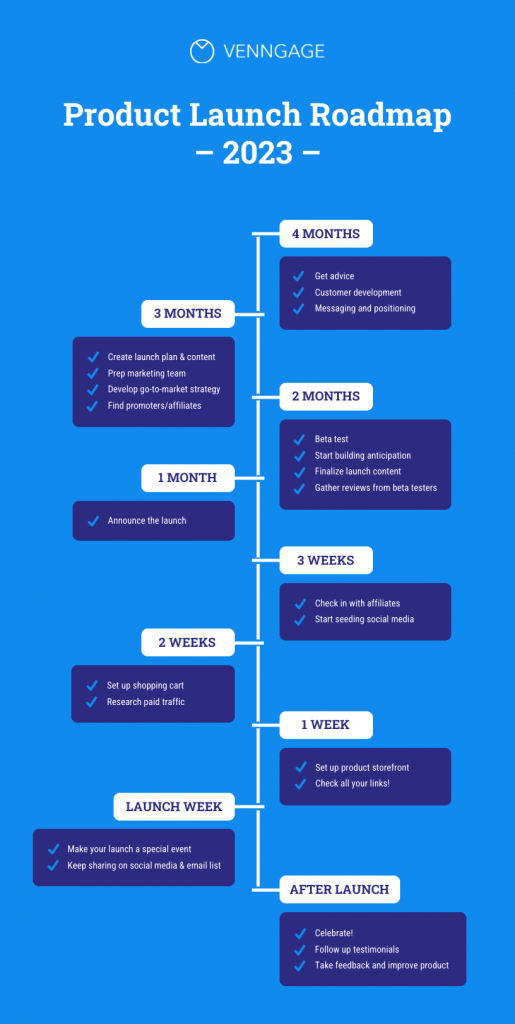
Getting clear on the purpose upfront makes every decision that follows easier.
2. Set the scope and timeframe
One of the easiest ways to create a messy timeline is to keep adding “just one more thing.”
That’s why I like to define the boundaries early.
Ask yourself:
- When does this timeline start?
- When does it end?
- What deliverables need to be included?
- Are there approval points or constraints to account for?
A clear scope keeps your timeline focused and prevents it from turning into a giant brain dump of every task you can think of.
3. List the major tasks, events or milestones
At this stage, I don’t worry about dates or order yet. I just get everything out of my head and onto the page.
For a project timeline, that might include planning, research, approvals, production, testing, launch and follow-up. For a historical or educational timeline, it could be key events, people, turning points and outcomes.
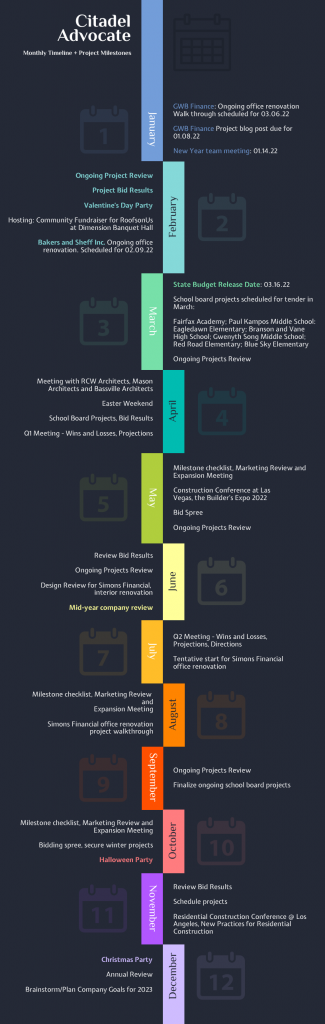
If the project is large, I break bigger tasks into smaller pieces. It’s much easier to estimate and organize work when you’re looking at manageable chunks instead of one massive task like in this 12-month long timeline project template:
4. Put everything in order
Once I have my list, I start arranging things chronologically.
Some timelines run horizontally from left to right, while others flow vertically from top to bottom. Project timelines often use a Gantt chart format that maps tasks across a calendar.
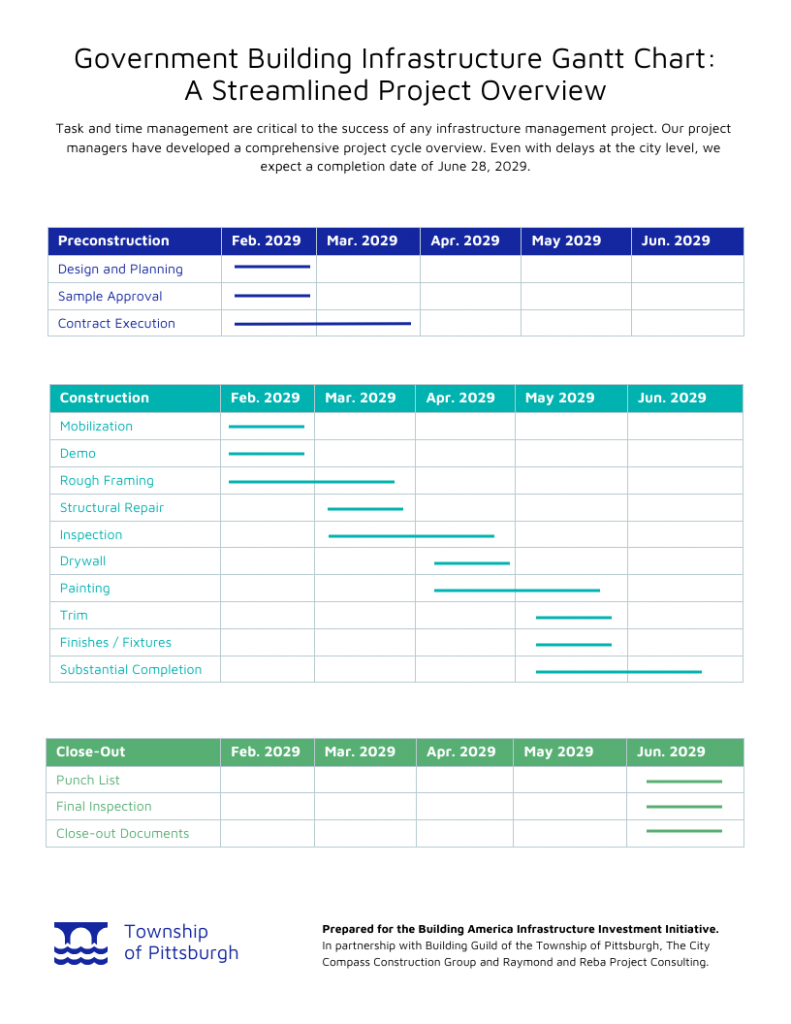
The format matters less than the logic. Someone looking at your timeline should immediately understand what happens first, what comes next and what can happen at the same time.
5. Estimate realistic durations
This is the step where optimism usually sneaks in.
We’ve all looked at a task and thought, “That’ll only take a couple of days,” only to realize later that reviews, revisions and unexpected delays weren’t part of the estimate.
When I’m estimating time, I try to:
- Break large tasks into smaller steps.
- Ask the people doing the work for input.
- Look at similar projects I’ve completed before.
- Account for reviews and approvals.
- Leave some buffer time for surprises.
For example, instead of writing “Build website — 2 weeks,” I’d break it into copywriting, design, development, QA and revisions. The estimate instantly becomes more realistic.
6. Identify dependencies and bottlenecks
This is usually where timelines start to feel like puzzles.
Some tasks can’t begin until others are finished. You can’t launch a campaign before creative assets are approved. You can’t finalize a presentation before the research is complete.
I like to identify these relationships early because they’re often the biggest source of delays.
A simple arrow, connector line or dependency column can make these connections much easier to spot.
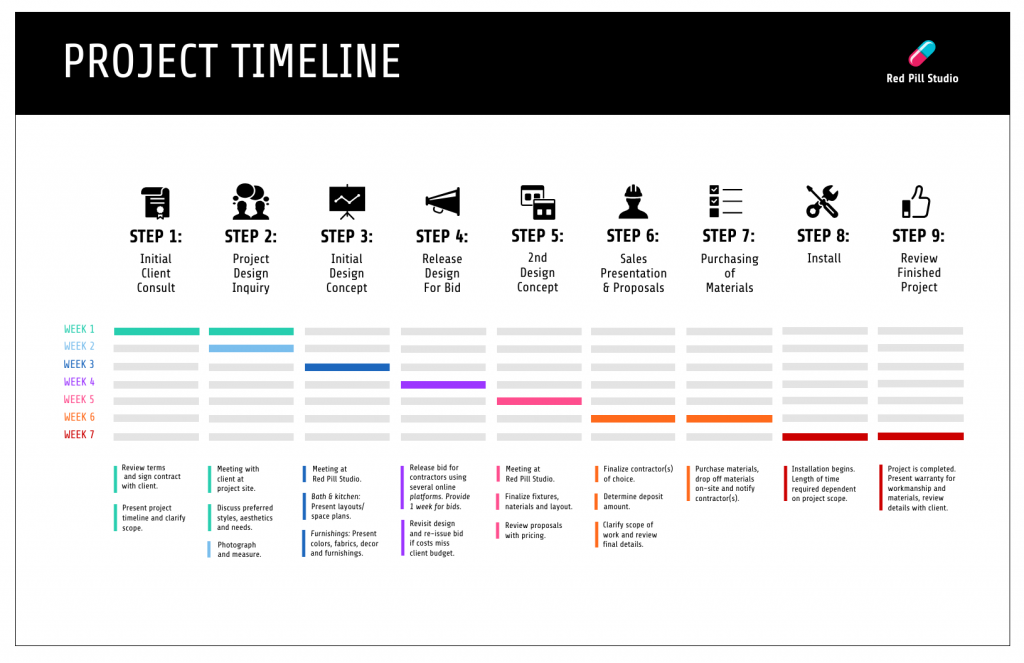
7. Add owners, deadlines and milestones
Now it’s time to turn your timeline into something people can actually use.
For each major task, add:
- An owner
- A due date
- Any review or approval dates
- Relevant milestones
- A status if the work is already underway
One thing I’ve learned from team projects: if ownership isn’t clear, tasks tend to sit untouched because everyone assumes someone else is handling them.
Milestones are helpful too. They give stakeholders a quick way to check progress without digging through every task on the timeline.
8. Choose the right format
Not every timeline needs a Gantt chart.
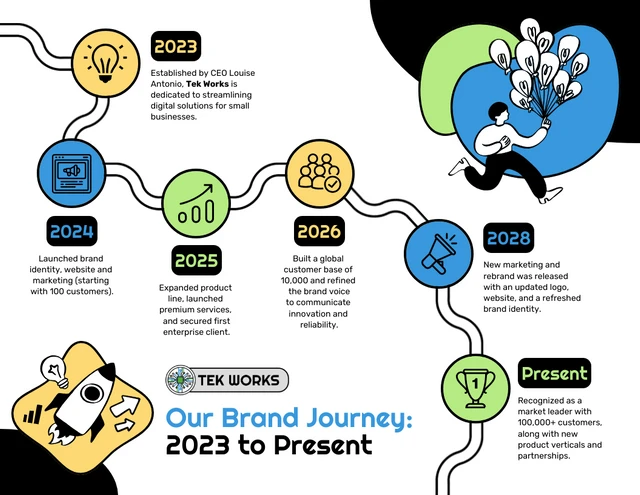
If I’m explaining a simple sequence of events, a horizontal timeline is usually enough. If there’s a lot of text or context, I might use a vertical timeline. For project management, Gantt charts work well because they show both timing and dependencies.
A few common options include:
- Horizontal timelines for simple sequences
- Vertical timelines for detailed explanations
- Gantt charts for projects
- Roadmaps for strategy planning
- Interactive timelines for presentations and storytelling
The best format is usually the one that helps people understand the information fastest.
A timeline isn’t something you finish and never look at again.
Projects change. Deadlines move. Priorities shift. People take vacation right when you need them most.
That’s why I treat timelines as living documents.
Once you share the timeline, confirm responsibilities, check deadlines and ask stakeholders to flag any conflicts. Then revisit it regularly.
For active projects, a weekly review is usually enough. For major launches or events, I often check timelines daily. For longer projects, milestone reviews tend to work well.
The goal isn’t to create a perfect timeline. It’s to create one that stays useful as things change.
Compare a good timeline vs. a bad timeline
I’ve seen beautifully designed timelines that were almost impossible to use and simple timelines that kept entire projects running smoothly.
What matters isn’t how fancy the timeline looks. It’s whether people can quickly understand what needs to happen next.
A simple test I like to use: if someone can look at the timeline and figure out the next milestone, owner and deadline within 30 seconds, it’s probably working.
Choose the best timeline format for your purpose
One mistake I see a lot is people picking a timeline format before they know what information they need to show.
The truth is, there’s no single “best” timeline format. A timeline that’s perfect for a company history probably won’t work for a website redesign project and a Gantt chart is often overkill if you’re simply showing a sequence of events.
If you’re unsure where to start, a simple horizontal timeline is usually the safest option. You can always add more detail later if the project grows in complexity.
Review an example of an effective timeline
It’s often easier to understand timeline best practices when you see them in action.
Let’s look at a simple website redesign project. Notice how it combines phases, dates, owners, dependencies and milestones without becoming overwhelming.
There are a few reasons this timeline works well:
- The date range is clear from start to finish.
- Tasks are grouped into phases, making the timeline easier to scan.
- Every phase has an owner.
- Dependencies show what needs to happen before the next stage can begin.
- Milestones highlight major progress points.
- Testing is given dedicated time before launch.
One thing I’ve learned from working on content and website projects is that testing and approvals are usually the first things people try to squeeze when deadlines get tight. Keeping those phases visible on the timeline makes them much harder to skip and that’s often what prevents last-minute surprises from turning into bigger problems.
Copy this simple timeline template
If you’re staring at a blank page wondering where to start, a simple template can make the process much easier. Instead of figuring out what fields to include, you can focus on filling in the details and building your timeline.
The template below works for projects, events, product launches, school assignments and most other planning scenarios.
Simple timeline template
Timeline Name:
Purpose:
Start Date:
End Date:
Primary Owner:
Phase 1
- Task/Event:
- Start Date:
- End Date:
- Duration:
- Owner:
- Dependency:
- Status:
- Milestone:
- Notes:
Phase 2
- Task/Event:
- Start Date:
- End Date:
- Duration:
- Owner:
- Dependency:
- Status:
- Milestone:
- Notes:
Phase 3
- Task/Event:
- Start Date:
- End Date:
- Duration:
- Owner:
- Dependency:
- Status:
- Milestone:
- Notes:
Timeline planning table
If you prefer working in a spreadsheet, here’s the same template in table format.
You can copy this template into Excel, Google Sheets, Word, Google Docs, Notion, Airtable or your favorite project management tool and customize it to fit your workflow.
I usually recommend starting simple and adding more detail only when you need it. A timeline that people actually use is far more valuable than a perfectly designed one that’s too complicated to maintain.
Select the best tool to create your timeline
The best timeline tool depends on what you’re trying to accomplish.
If you’re mapping out a few events for a school project, you probably don’t need project management software. On the other hand, if you’re managing a launch with multiple teams, deadlines and dependencies, a simple document may not be enough.
A good rule of thumb: choose the simplest timeline making tool that can handle the level of detail you need.
Word or Google Docs
If you’re creating a simple timeline for a report, assignment or event overview, Word or Google Docs is often enough.
You can build timelines using tables, shapes, lines or SmartArt. In Microsoft Word, one of the easiest options is:
Insert > SmartArt > Process
This creates a basic timeline structure that you can customize with dates and descriptions.
Best for: School projects, reports, simple event timelines and historical overviews.
For a detailed walkthrough, read our guide on how to make a timeline in Google Docs.
Excel or Google Sheets
When you need to organize dates, owners, statuses and tasks, spreadsheets offer more flexibility.
I often use a spreadsheet during the planning stage because it’s easy to sort tasks, adjust dates and track progress. You can even create simple Gantt-style timelines using conditional formatting or bar charts.
Best for: Project planning, task tracking and structured timelines.
Limitation: Manual updates can become tedious as projects become more complex.
If you’re creating a project timeline with multiple deadlines, learn how to make a project timeline in Excel to keep everything organized in one place.
PowerPoint or Google Slides
If your timeline is going into a presentation, PowerPoint or Google Slides is usually the better choice.
Both tools make it easy to create visually appealing timelines using SmartArt, shapes, icons and templates.
Best for: Executive summaries, stakeholder presentations and milestone updates.
Limitation: Great for presenting timelines, not managing them.
Not sure where to start? Here’s how to make a timeline in PowerPoint or Google Slides in just a few simple steps.
Venngage
Sometimes the goal isn’t project tracking, it’s creating something visually engaging.
Tools like Venngage are useful for timeline infographics, classroom projects, social media graphics and visual reports where design and readability matter more than task management features.
You can also use Venngage’s AI Timeline Generator to turn a simple prompt into a polished timeline, then customize colors, icons and layouts to match your project.
Best for: Infographics, educational timelines and visual storytelling.
Project management software
When multiple people are involved, dedicated project management tools can save a lot of headaches.
Examples include Asana, monday.com, Jira, ClickUp, Microsoft Project and Smartsheet.
These tools can automatically handle dependencies, ownership, status updates and collaboration.
Best for: Team projects, launches, construction projects, software development and ongoing work.
Limitation: They can feel overwhelming if you only need a simple timeline.
TimelineJS and interactive timeline makers
If you’re building a timeline that people will explore online, interactive tools are worth considering.
Tools like TimelineJS let you combine dates with images, videos, maps and other media.
Best for: Historical timelines, journalism, educational content and digital storytelling.
Hand-drawn timelines
Sometimes the fastest timeline is the one you sketch on a whiteboard or notepad.
Hand-drawn timelines work well for brainstorming sessions, workshops, classroom activities and early planning discussions.
Once plans start changing, though, digital timelines become much easier to edit, share and maintain.
Timeline tool comparison
Avoid common timeline mistakes
Even well-designed timelines can fail if the planning behind them isn’t solid.
Most timeline problems come down to a few common mistakes: unrealistic expectations, missing dependencies, unclear ownership or simply forgetting to update the timeline after it’s created.
Adding too much information
A timeline should make information easier to understand, not harder.
If every task includes multiple paragraphs of explanation, people will stop using the timeline altogether.
Keep labels short and move extra context into notes, comments or linked documents.
Starting with dates before scope
This is probably the most common mistake I see.
People start assigning dates before they’ve defined the actual work, deliverables or constraints.
The result is usually a timeline that looks organized but quickly falls apart once the real work begins.
Figure out what needs to happen first. Then estimate when it can happen.
Forgetting dependencies
A timeline can look perfectly organized and still be impossible to execute.
If Task B depends on Task A, that relationship needs to be visible.
Before finalizing dates, double-check that dependencies are clearly marked and accounted for.
Setting unrealistic deadlines
Wishful planning isn’t project planning.
Good deadlines account for workload, complexity, reviews, approvals and unexpected issues.
Whenever possible, use past projects as a reality check instead of relying on best-case assumptions.
Failing to assign owners
If nobody owns a task, it’s surprisingly easy for it to disappear.
Every major task or milestone should have one clearly accountable owner, even if multiple people contribute to the work.
Leaving out buffer time
Projects rarely go exactly as planned.
Approvals take longer than expected. Vendors miss deadlines. Feedback arrives late. Priorities change.
Building some buffer time into the schedule makes timelines much more resilient when those inevitable surprises happen.
Using the wrong format
Not every timeline format works for every situation.
A simple horizontal timeline is great for showing a sequence of events, but it can become difficult to manage when tasks overlap or depend on one another.
For more complex work, a Gantt chart or project management platform is often a better fit.
Letting the timeline go stale
A timeline isn’t useful if it no longer reflects reality.
Whenever dates, owners, scope or dependencies change, update the timeline and communicate those changes to anyone affected.
The longer a timeline goes without updates, the less people trust it.
Making the design hard to read
Even the best plan won’t help if people can’t understand it.
Avoid:
- Too many colors
- Tiny text
- Inconsistent spacing
- Crowded labels
- Unclear date intervals
If someone needs several minutes to figure out what’s happening, the design probably needs simplifying.
Practitioner note: In real project planning, the most dangerous timeline mistake is hiding uncertainty. If a date depends on approval, vendor delivery, budget sign-off or another team, make that risk visible on the timeline. It’s much easier to manage uncertainty when everyone can see it.
Before I share a timeline, I like to do one final reality check.
It’s easy to get caught up in dates and formatting and forget to ask a simple question: Will this timeline actually help people do their jobs?
That’s where this timeline health check comes in. Score each category from 0–2 points and add up your total.
Timeline health check
Scoring guide:
- 0–10 points: Needs revision.
- 11–16 points: Usable, but could benefit from cleanup.
- 17–20 points: Strong, shareable timeline.
I like this framework because it focuses on whether the timeline is practical, not just whether it looks good. A beautifully designed timeline isn’t very useful if nobody knows who’s responsible for what or if the dates aren’t realistic.
Starting a timeline when you feel stuck
Sometimes the hardest part of creating a timeline is figuring out where to start.
When that happens, I stop worrying about every task and focus on the big picture first.
Start with:
- The final goal.
- The final deadline.
- Three to six major milestones.
Then work backward.
Once the milestones are in place, it’s much easier to fill in the tasks between them.
For example, if you’re planning an event, your timeline might start looking like this:
- June 30: Event day
- June 20: Final walkthrough
- June 10: Confirm vendors
- May 25: Send invitations
- May 10: Finalize venue
- May 1: Confirm budget
From there, you can add supporting tasks, owners, approvals and dependencies.
One thing I remind myself when planning complex projects: you don’t need every task figured out on day one. Start with the anchor dates and major milestones, then build the timeline around them.
Follow this final timeline checklist
Before you hit send, publish the timeline or share it with stakeholders, do one final review.
A few minutes spent checking the basics can save a lot of confusion later.
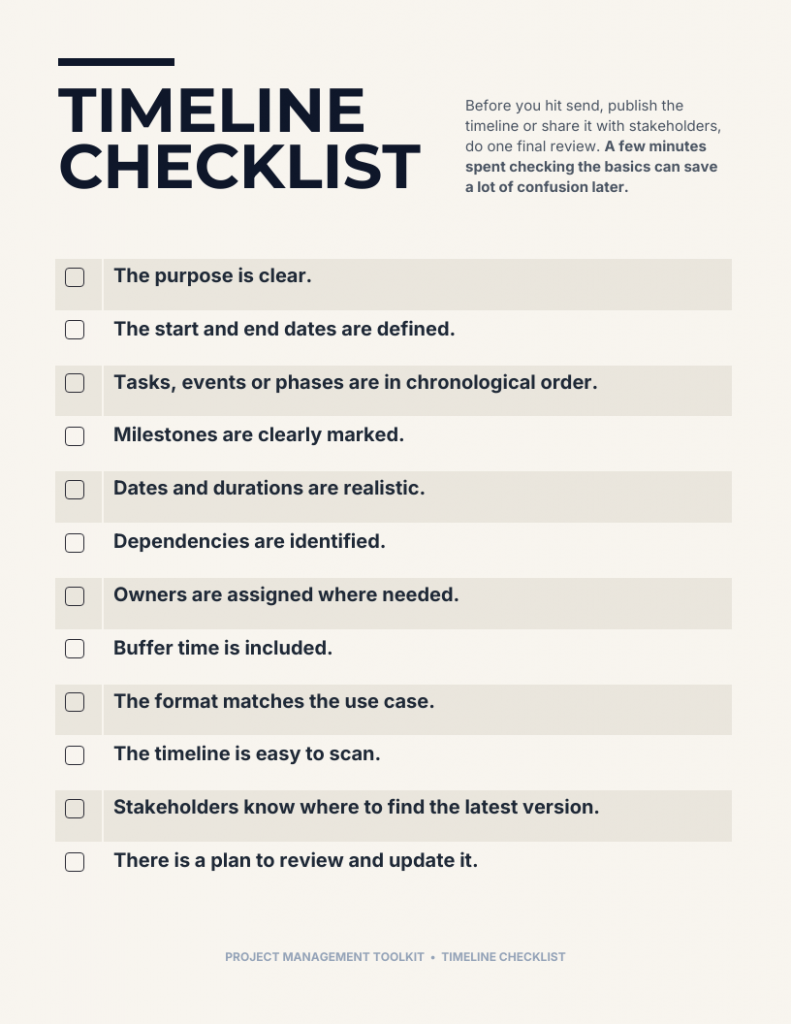
If you can check off every item on this list, your timeline is likely ready to share. More importantly, it’s ready to be used, not just admired.
Frequently asked questions
What are the key elements of a timeline?
A timeline typically includes dates, tasks or events, milestones and a clear chronological sequence. For project timelines, I also recommend including owners, durations, dependencies, deadlines and status updates. The goal is to help people quickly understand what needs to happen, when it needs to happen, who is responsible and what must happen first.
What does a good timeline look like?
A good timeline is clear, chronological and easy to scan. It highlights important dates, milestones, responsibilities and dependencies without overwhelming people with unnecessary detail. If someone can understand the next milestone, owner and deadline within a few seconds, the timeline is probably doing its job.
What is the best program to create a timeline?
The best program depends on what you’re creating. Word or Google Docs work well for simple timelines, while Excel or Google Sheets are useful for structured planning and basic Gantt charts. PowerPoint is ideal for presentations, Canva and Venngage are great for visual timelines and project management tools are better for collaborative projects with dependencies and ongoing updates.
Can I create a timeline in Excel?
Yes. Excel is one of the most flexible tools for creating timelines. You can build a simple timeline with tables, use templates or create a Gantt-style chart with start dates, end dates, durations, owners and status tracking. For many projects, Excel offers a good balance between simplicity and flexibility.
Is there a timeline template in Word?
Yes. Microsoft Word includes timeline layouts through Insert > SmartArt > Process. You can also build a timeline manually using shapes, lines, text boxes or tables. For simple project timelines, reports and school assignments, Word’s built-in templates are often enough to get started quickly.
What are the most common timeline mistakes?
The most common timeline mistakes are setting unrealistic deadlines, forgetting dependencies, failing to assign owners, leaving out buffer time and trying to include too much information. Another common issue is creating a timeline once and never updating it. Even a well-designed timeline loses value if it no longer reflects reality.
What are the three main types of timelines?
The three most common timeline types are chronological timelines, project management timelines and comparative timelines. Chronological timelines show events in order, project timelines track tasks and milestones over time and comparative timelines display multiple sequences side by side to highlight similarities, differences or overlapping activities.
How do you make a simple timeline?
To make a simple timeline, start by listing your tasks or events, arranging them in chronological order and adding dates. Then choose a horizontal or vertical layout and add short labels or milestone markers. If you’re feeling stuck, start with the final goal and deadline, then work backward to identify the major milestones.
Is it better to make a timeline digitally or by hand?
It depends on your goal. Hand-drawn timelines are great for brainstorming, whiteboarding and classroom activities. Digital timelines are usually better for editing, sharing, collaborating and keeping information up to date. For anything that will change over time or involve multiple people, I’d choose a digital timeline.
Build better timelines with less effort
An effective timeline does more than display dates, it helps people understand the sequence of events, track progress and stay aligned on important goals.
Whether you’re planning a project, mapping out company milestones or illustrating historical events, a well-designed timeline makes complex information easier to follow.
By defining your purpose, organizing key milestones and choosing a clear visual layout, you can create timelines that are both informative and engaging.
Ready to get started? Use one of Venngage’s customizable timeline templates to turn your ideas into a polished timeline in minutes.