


Free AI Infographic Generator
Turn your text or documents into on-brand infographics that explain processes, visualize data, and summarize long-form content. Type prompts like 'Create a 5-step process infographic for our onboarding' or 'Summarize this report into a one-page visual', upload a CSV or a doc. No design skills required.




Browse through infographic templates
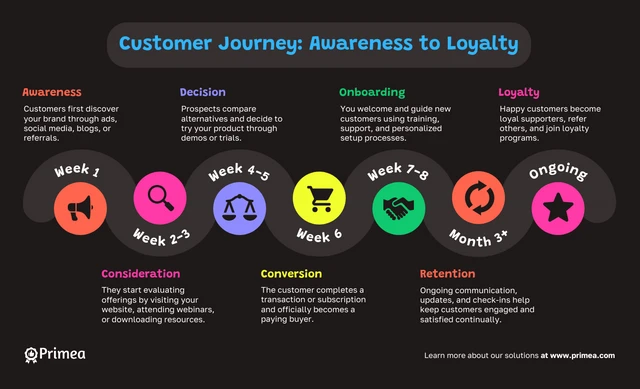
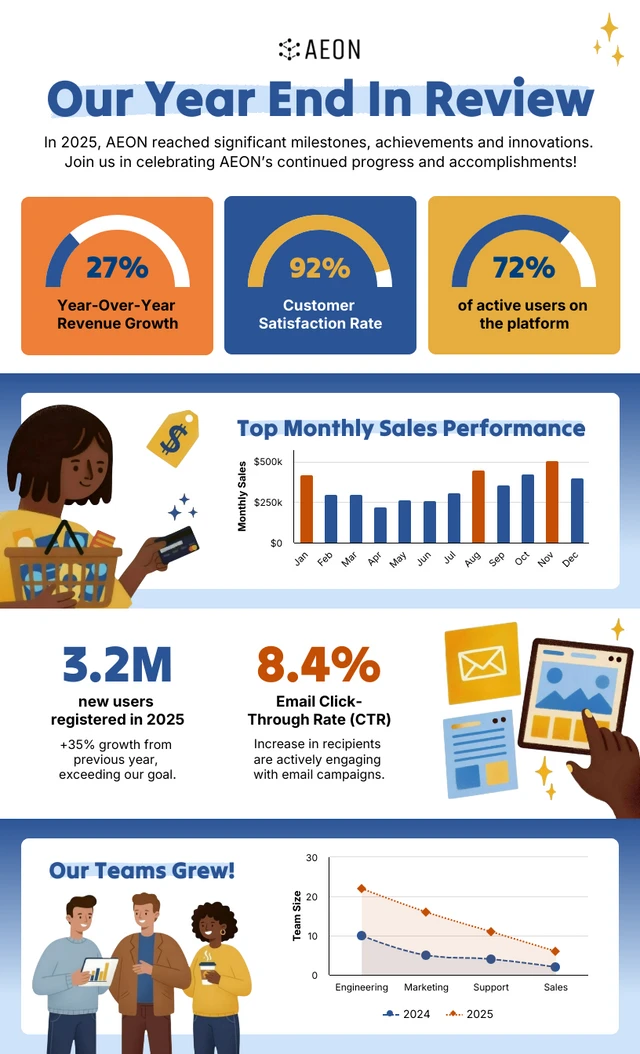
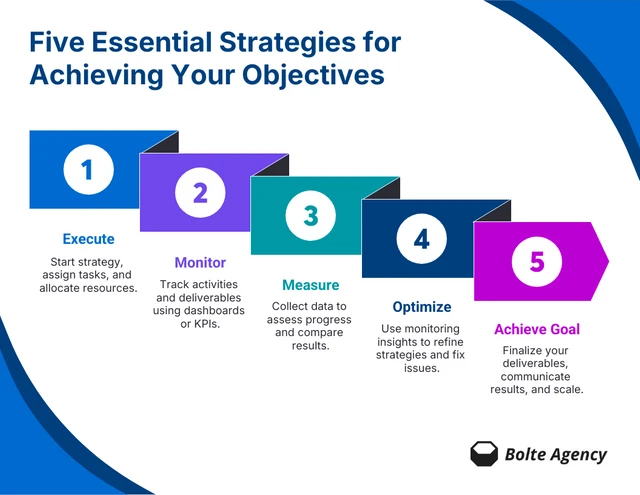
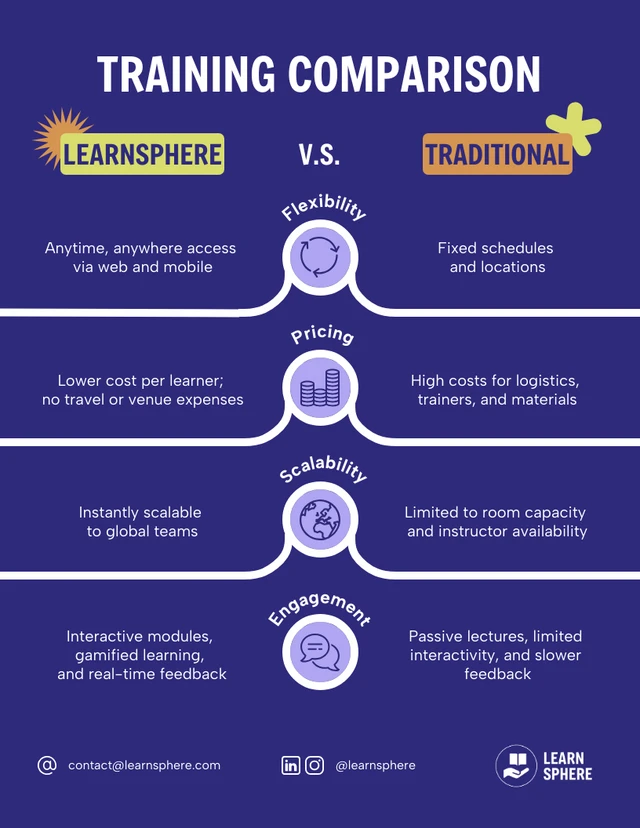
AI-Powered Tools
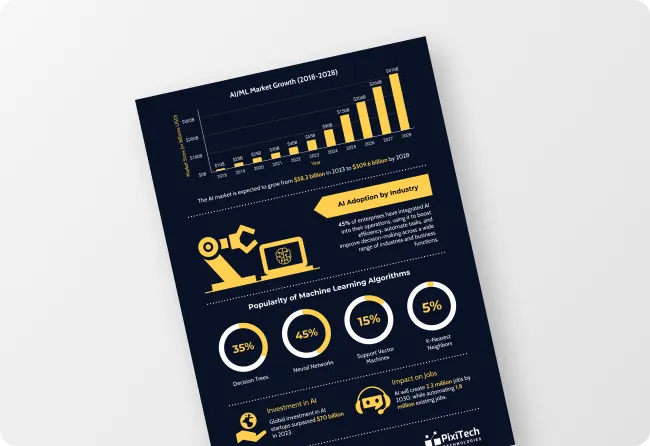
How To Write A Prompt That Generates The Infographics You Want?
Name the type of infographic: Process flow, timeline, comparison, stat block, framework diagram. This helps determines the infographic layout,
Add the actual content:Paste the real steps, numbers, or points you want included. Instead of 'make an infographic about our onboarding process,' add the actual steps: 'Step 1: discovery call. Step 2: signed contract,' and so on.
Mention the channel: Mention where you want to use infographic. For example, a LinkedIn carousel, a printed report, a sales deck, a board presentation.

Sample Prompts You Can Modify and Use
“Create a 5-step process infographic for our customer onboarding, formatted as a horizontal flow for a sales deck. Step 1: discovery call. Step 2: signed contract. Step 3: kickoff meeting. Step 4: first login. Step 5: 30-day check-in. Use brand colors and one icon per step.”
“Build a vertical infographic for our CRM rollout, going to all-hands Slack. Phase 1: requirements gathering (Jan). Phase 2: vendor selection (Feb-Mar). Phase 3: pilot with sales team (Apr). Phase 4: full rollout (May). Phase 5: post-launch review (Jun). Show one milestone per phase.”
“Make a one-page infographic summarizing our Q3 results, for a board update. Revenue: $2.4M (up 18% YoY). New customers: 47. Churn: 3.1%. Top region: West. Net promoter score: 62. Use a stat-block layout with four sections.”
“Create a vertical infographic of our four-phase transformation framework for social media. Phase 1: assess current state. Phase 2: design the future model. Phase 3: implement in pilot. Phase 4: scale and optimize. Add one sentence under each phase explaining the goal.”
How to Create an Infographic Using AI
Step 1
Write a Prompt and Upload Your File
Describe the infographic you want, like a process flow, report, framework, or comparison. Attach a CSV, Excel sheet, PDF, or Word doc if you have source content for the AI to use.
Step 2
Generate or Pick a Layout
The AI builds the infographic from your prompt, or you can start from one of 12,000+ infographic templates. Set the page size to match where it's going, whether that's LinkedIn, print, or a multi-page long-form layout.
Step 3
Edit the Data and Visuals
Click any chart to edit its data or upload a new CSV, with options for bar, column, pie, funnel, pyramid, word clouds, and heat maps. Swap any icon for an AI-generated one in 3D, bold, monotone, outline, or sticker style.
Step 4
Apply Your Brand Style and Refine the Copy
Click any text on the infographic to use AI Writing Assistant, which can shorten, expand, or polish the copy. Ask AI Designer to apply your brand colors and logos from your Brand Kit, and use the eyedropper to match exact hex codes when you need them.
Step 5
Export or Share the Infographic
Download the infographic as a PDF, PNG, PPT, or HTML, or share a private link for collaboration, giving you a ready-to-use visual for reports, presentations, or campaigns.
Rollout Maps and Training Visuals for Internal Comms and HR Teams
A new policy, a benefits change, or a system rollout usually starts as a long internal doc on Notion or email that nobody reads completely. Building a visual to replace them is its own project, especially without a designer on the team.
Venngage's AI Infographic Generator takes care of the design work so the rollout stays on schedule. Paste your plan or upload the project doc and it generates a multi-page infographic with a section for each phase. Replace icons, adjust copy, change the color palette, add your company logo and it's ready to share.
Generate AI Infographics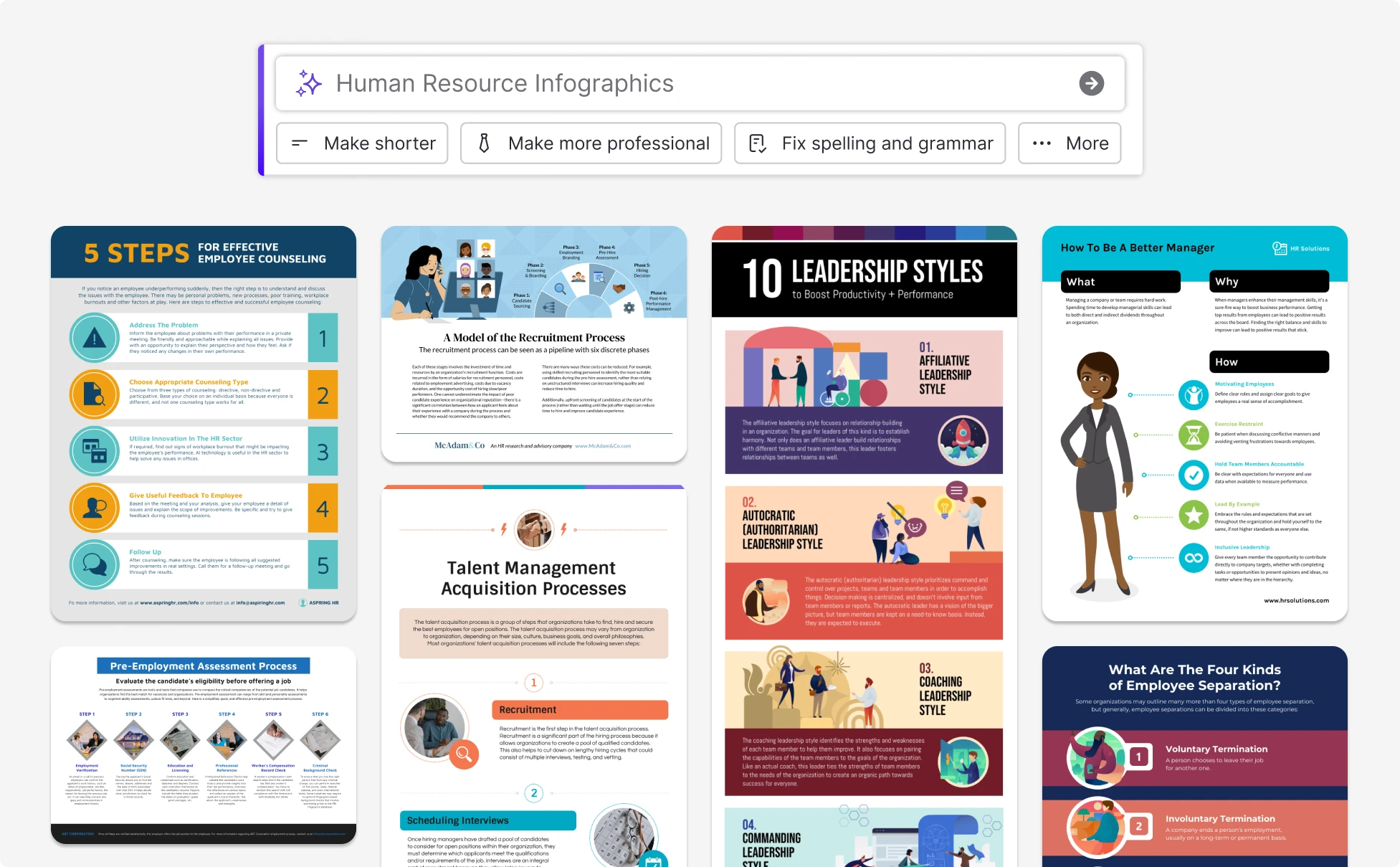
Explainer infographics and content summaries for marketers
Marketers use infographics across the content funnel: explainers for blog posts, lead-capture PDFs, social variants, and email visuals. Producing them one campaign after another is its own workload, and the design queue rarely matches the marketing calendar.
Venngage's AI Infographic Generator gives marketing a way to keep up with the calendar. Paste the campaign brief or upload a long-form post, and the AI creates an infographic with relevant sections, callouts, and icons. Use the Brand Kit to add your brand colors, fonts, and logo in one click so the infographic is on-brand without manual styling.
Generate AI Infographics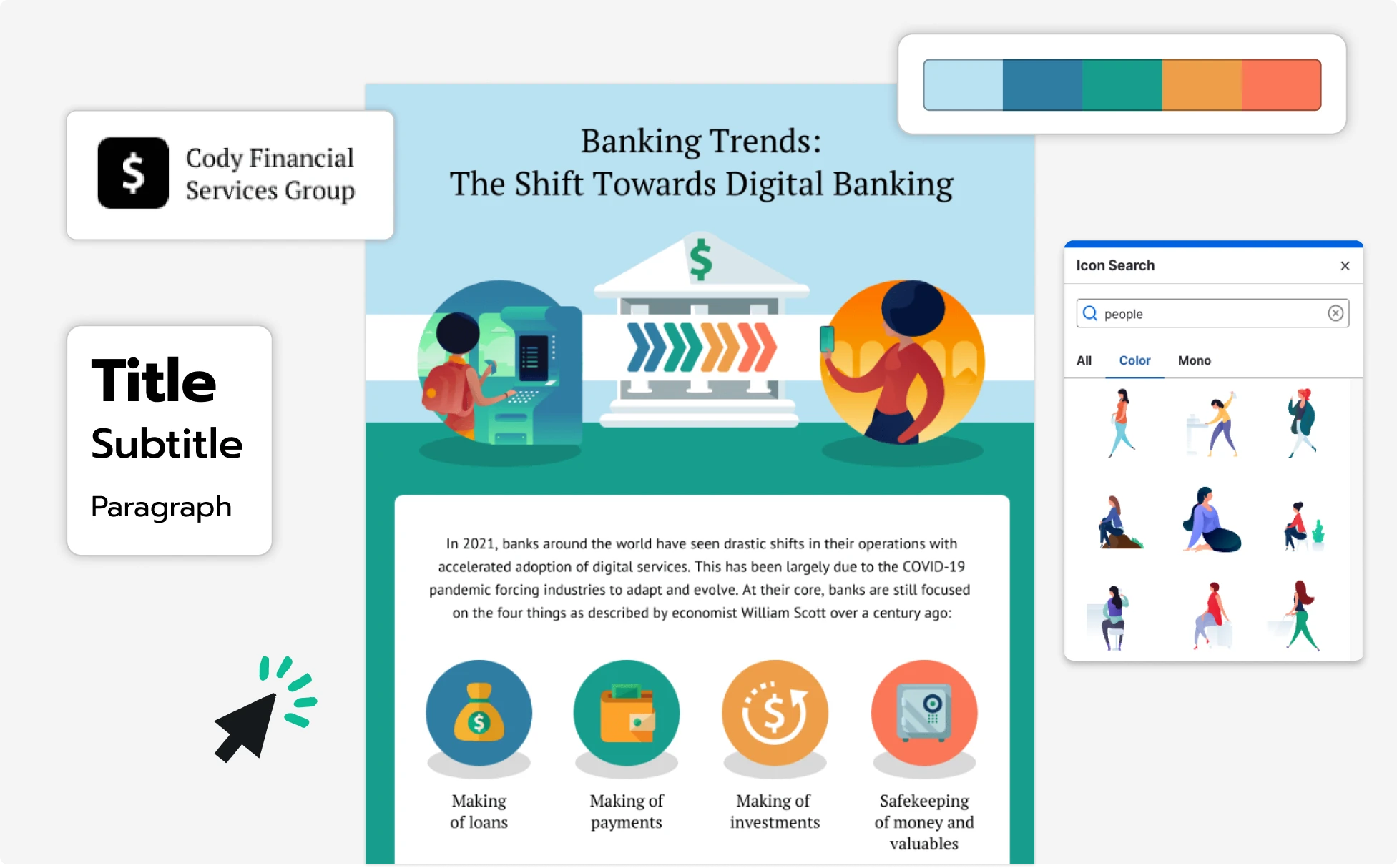
Framework and lead-capture infographics for consultants
A freelance consultant needs to constantly create frameworks, comparisons, and lead-capture content as infographics, for both clients and their own marketing. There's no in-house design support, and freelance designers come at a few hundred dollars per visual.
Venngage's AI Infographic Generator takes the design work off the table. Start from one of 12,000+ infographic templates or generate one from a prompt, and the AI creates a working file with sections, charts, and icons in place. Swap any icon for an AI-generated one in 3D, bold, monotone, outline, or sticker style, or generate custom royalty-free images for the visual without paying for stock.
Generate AI Infographics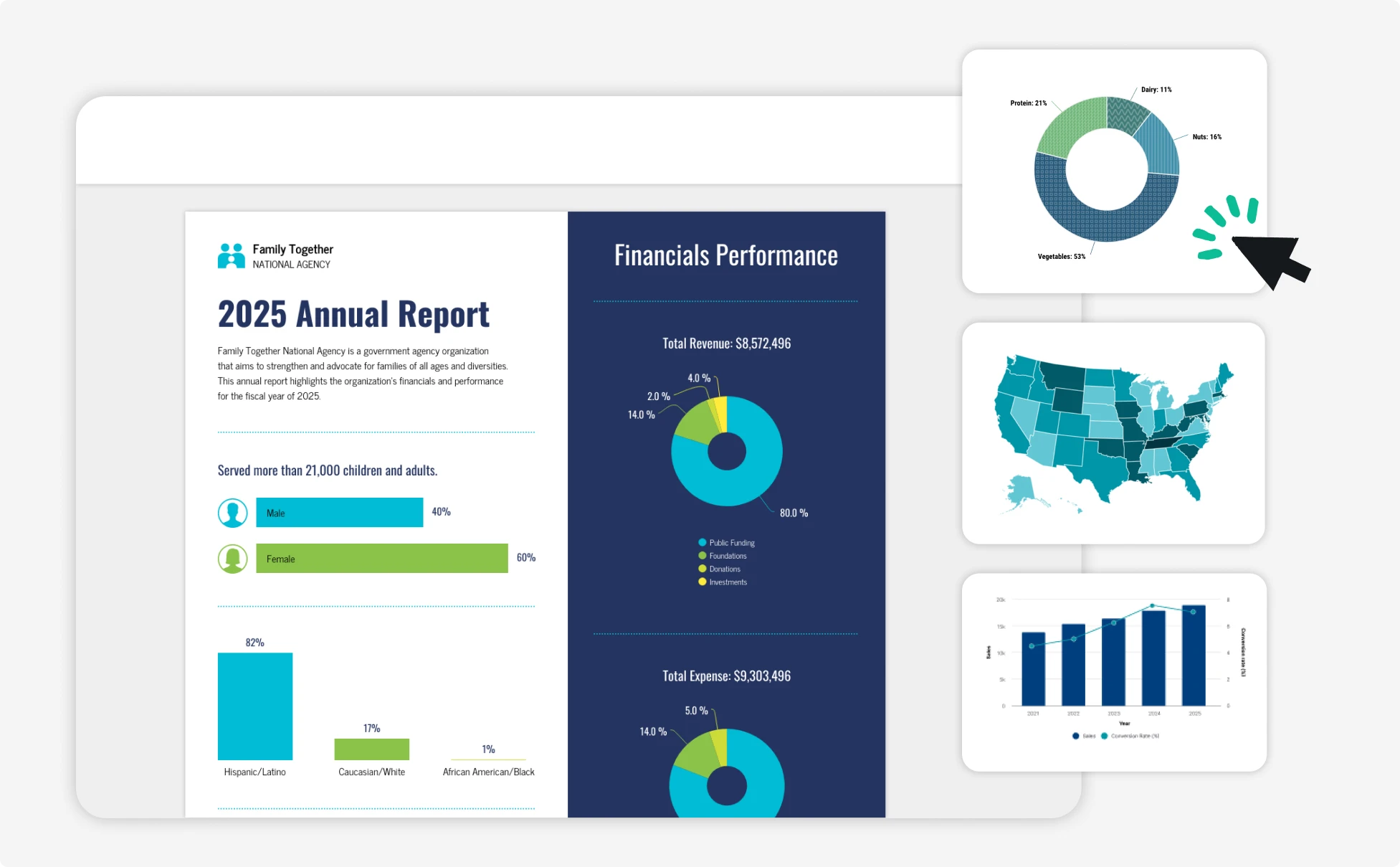
Fuel Your Creativity with AI-Powered Design Tools
Venngage is your one-stop shop for creating impactful presentations, infographics, reports, and more. It's a favorite among professionals, educators, and marketers for a reason:
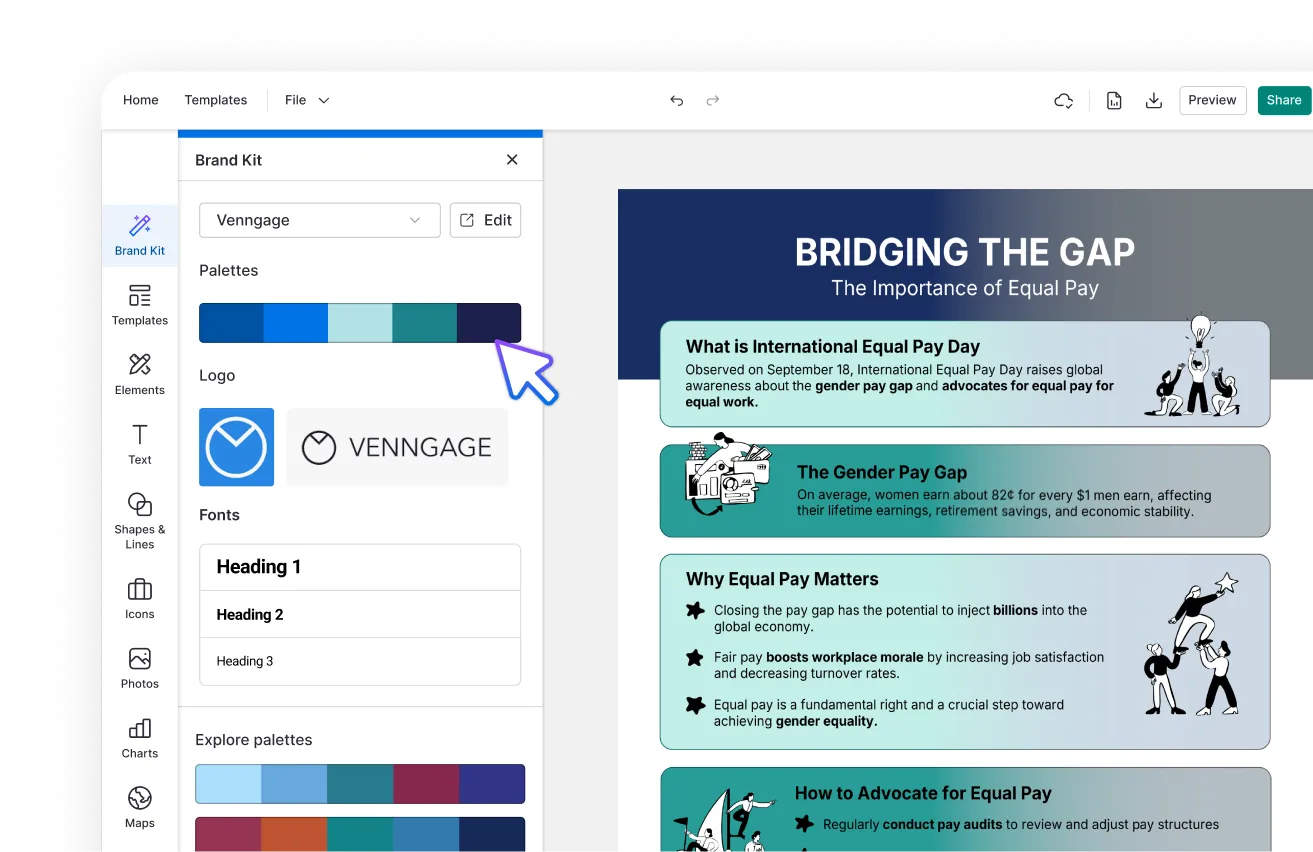
AI Branding Automation
Instantly extract brand colors, fonts, and styles. Auto-apply your logo and visual identity to every design for seamless brand consistency.
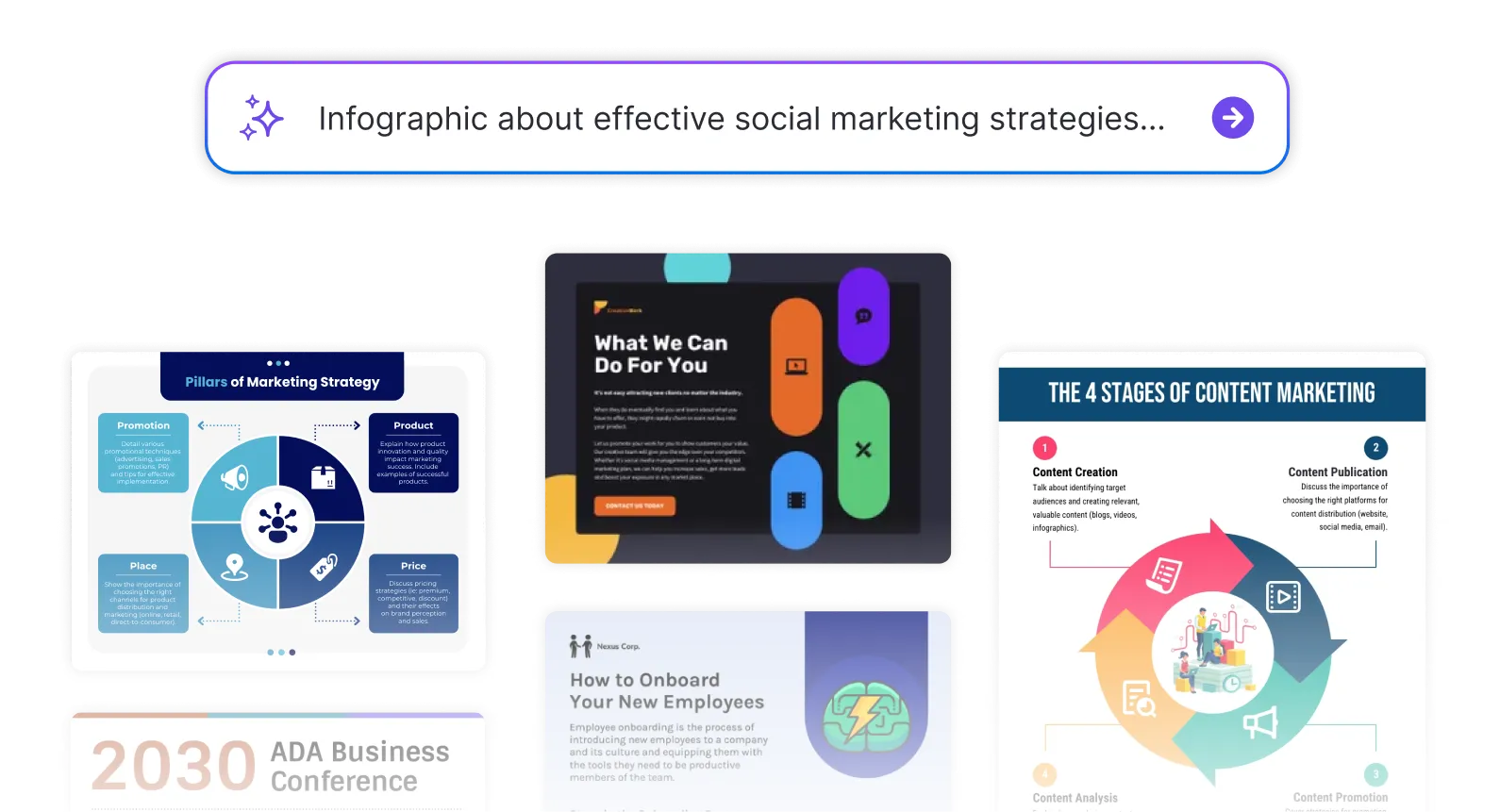
DesignAI Generator
Turn simple prompts into stunning professional visuals in seconds. Describe what you need in plain language and watch our AI generate layouts optimized for maximum visual impact.
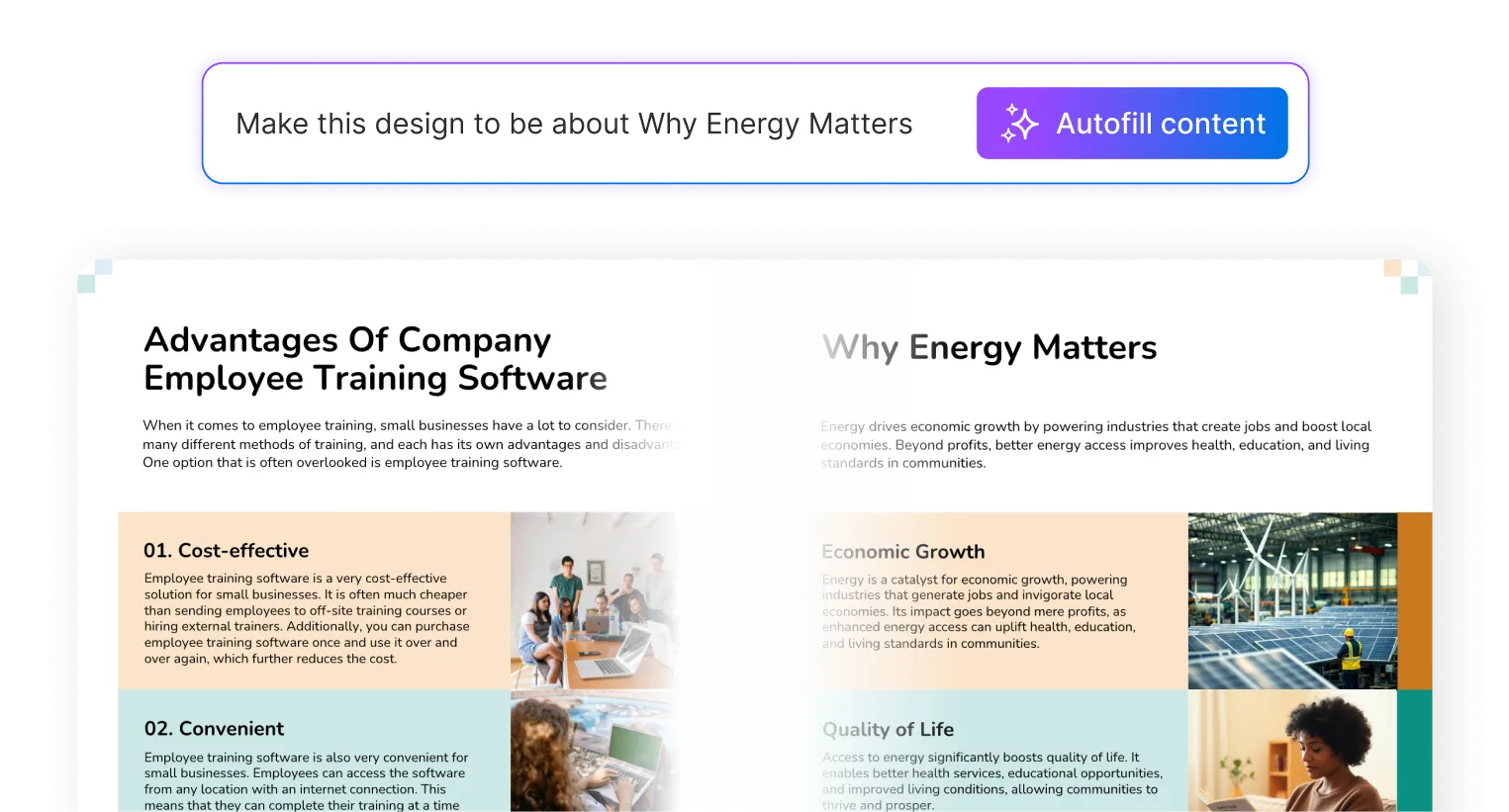
AI Content Auto-Fill
Kickstart your design process in seconds. Choose a template and let our AI auto-fill it with relevant, on-brand content, ideal for streamlining workflow and boosting productivity.
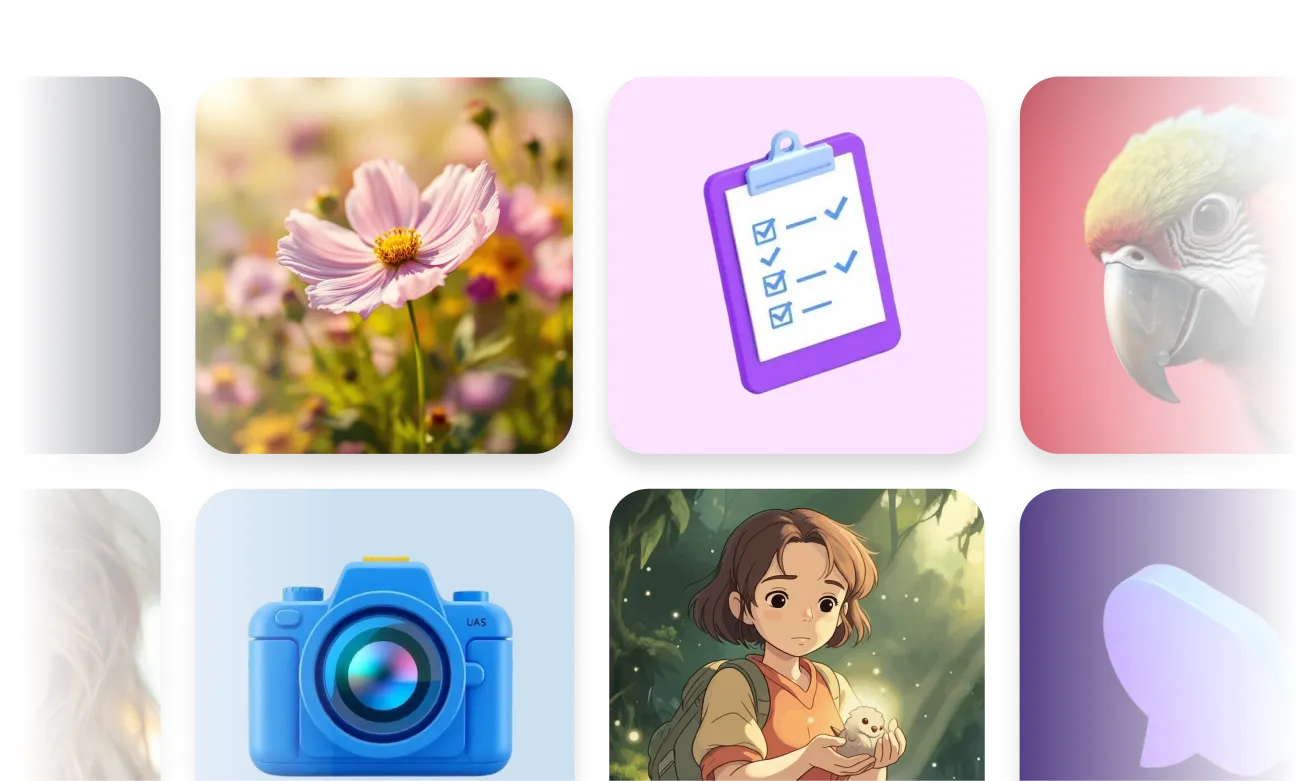
AI Generated Icons and Images
Create unique visuals that perfectly match your content and style. Generate custom illustrations, icons and images that align perfectly with your brand.
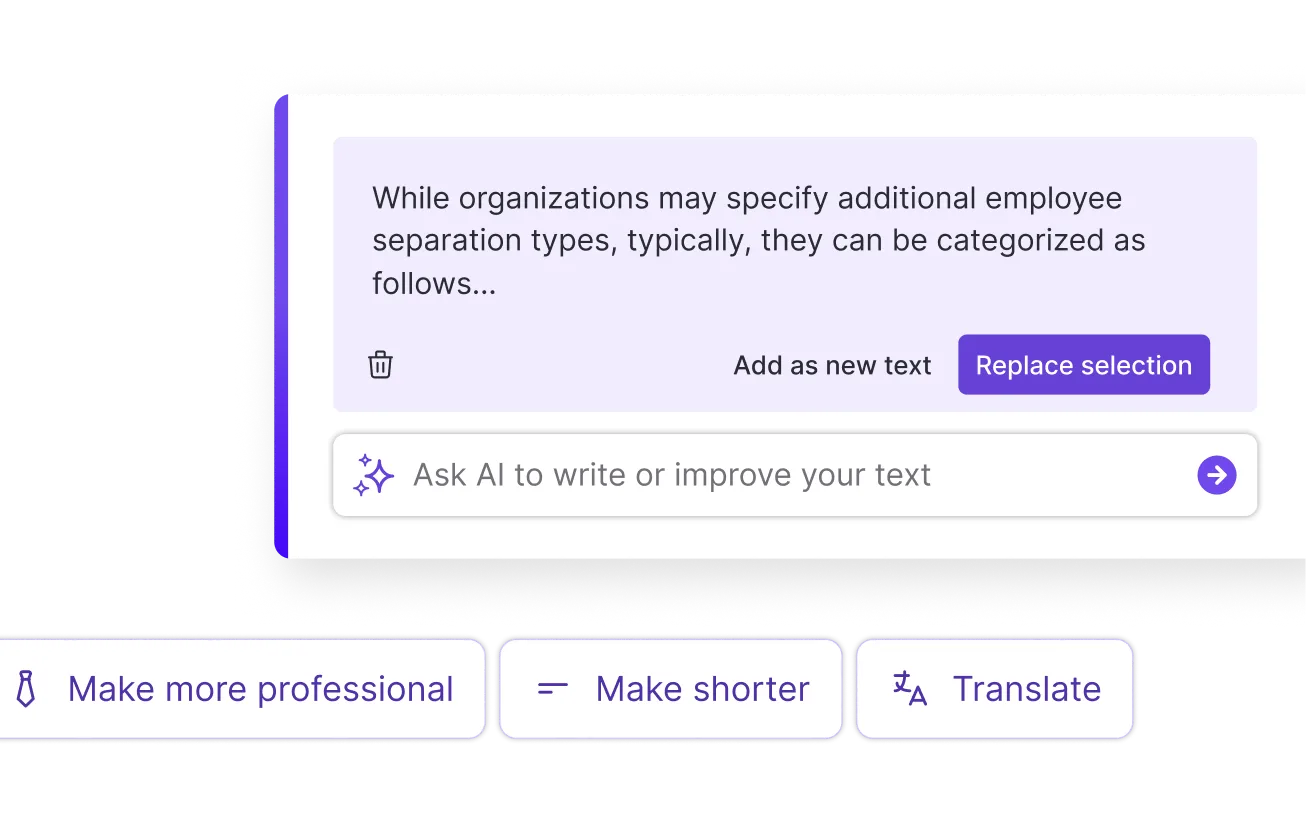
AI Writer and Translation
Enhance clarity, rewrite content, and instantly translate text to create accessible, global-ready visuals.
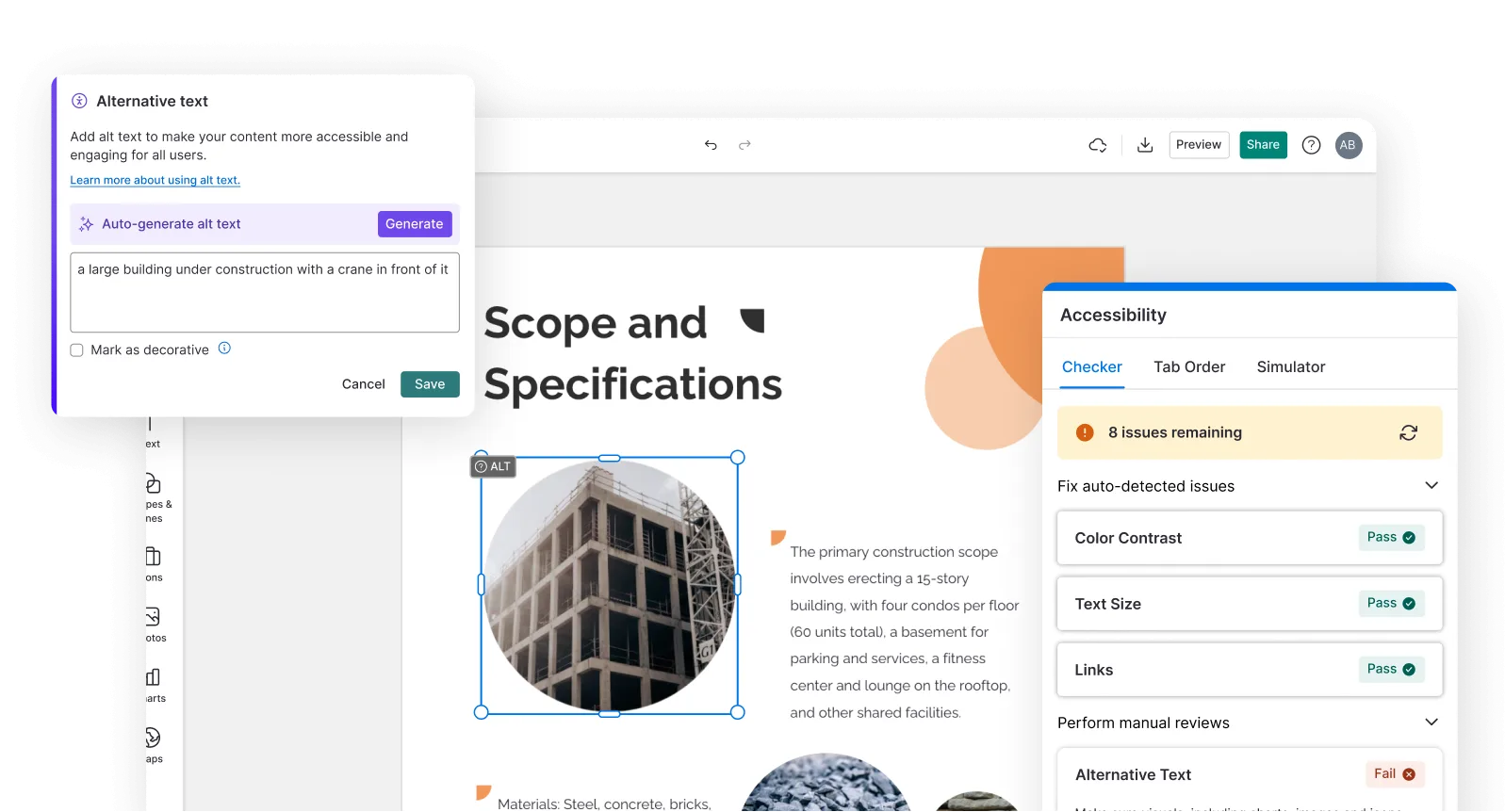
Smart Accessibility AI
Ensure every project looks great and works for everyone. Use AI to write alt text check contrast, layout, and font readability, and export fully WCAG-compliant visuals and PDFs.

What Our Customers Say
Venngage is the easiest way I know of to make infographics.
FAQs
Yes, you can fully customize all AI-generated templates on Venngage's platform. improve this. You can change the text, swap chart types and data, adjust the layout, replace icons and images, and apply your brand kit, either by hand in the editor or through the built-in AI tools.
Yes, Venngage offers a wide variety of infographic designs to suit different needs and preferences. Whether you're looking for something sleek and modern, or more detailed and data-focused, you'll find numerous options to choose from in our extensive template library.
Yes, the AI-generated infographics created using Venngage's tools are copyright-free. You can use them for both personal and commercial purposes without any restrictions on copyright. However, it's always good practice to ensure that any externally sourced content you include is also cleared for use.
We offer a free plan so you can try out all our AI features without spending anything. If you want more advanced features like private sharing and auto branding, we've got Premium and Business plans available too.
Just paste your data or main points into the AI prompt. Venngage can auto-generate charts and suggest visual layouts for you. You can then customize everything from colors and icons to fonts to match your message or brand.
Technically, yes—ChatGPT can generate basic infographic visuals using certain tools. But for more polished, customizable designs, platforms like Venngage are a better fit. They’re built specifically for visual content and offer templates, brand tools, and layout flexibility that go beyond what ChatGPT can do alone.
Yes! Venngage has pre-sized templates for platforms like Instagram, LinkedIn, and YouTube. You can use vertical formats, create video-style infographics, and export in social-friendly file types.
Canva and Piktochart are design-first tools that handle infographics as one of many formats. Venngage is built specifically for infographics, with stronger data handling (direct CSV and Excel upload, editable charts and maps), full editability of AI-generated output, and built-in accessibility features.
AI can generate a wide range—timelines, fact sheets, reports, flyers, marketing infographics, and more. You can also pick from different styles to match your purpose and audience.
A good infographic usually includes a clear title, key data points, short explanations, icons or visuals, and a logical flow that guides the reader through the information. Venngage’s AI Infographic Generator helps organize your content into sections so your data, insights, and visuals are easy to understand.
A common infographic size is 800 × 2000 pixels or 600 × 1800 pixels for web viewing because it works well for scrolling and sharing online. With Venngage, you can adjust the canvas size in the editor to create infographics for websites, reports, or presentations.
Venngage’s AI Infographic Generator can create many types of infographics, including statistical infographics, process infographics, timeline infographics, comparison charts, and informational infographics. These formats help explain data, summarize research, or present key ideas visually.
You can paste your text, research summary, or article into Venngage’s AI Infographic Generator or describe it in a prompt. The AI will organize the information into sections and generate a visual infographic layout that you can edit and customize.
Yes. Venngage allows you to resize infographics to fit different social media formats such as Instagram, LinkedIn, or Pinterest. You can generate the infographic, adjust the layout in the editor, and export it as a PNG, PDF, or presentation slide for sharing online.