


Free AI Discord Banner Generator
Create custom Discord banners for gaming servers, profiles, and communities, without awkward cropping.




Browse Through More Banner Templates
Popular AI Design Generators
Sample Prompts You Can Modify and Use
“Create an anime-style Discord banner for a server called Neo Haven. Use a nighttime Tokyo street background with neon signs, purple-blue lighting, and bold glowing text for the server name. Keep enough empty space for the Discord overlay.”
“Design a Discord gaming banner for a clan called Void Raiders. Use a dark fantasy background with lightning effects, glowing red accents, and a powerful character silhouette in the center. Add the clan name in bold modern typography.”
“Create a Discord profile banner for an anime community called Sakura Syndicate. Use a cherry blossom background with soft pink lighting, anime-style clouds, and clean white text for the server name.”
“Generate a cyberpunk Discord banner for a server called Pixel District. Use a futuristic city background with neon pink and blue lights, holographic signs, and glowing typography with a dark gaming aesthetic.”
How to Create Discord Banners Using AI
Step 1
Describe Your Discord Banner Style
Enter your banner type, server theme, community name, and preferred style. Add style, such as gaming, anime, lofi, minimal, or cyberpunk themes.
Step 2
Generate the Discord Banner Design
Click generate. Venngage’s AI Discord Banner Generator creates a custom banner with layouts, colors, typography, and visuals based on your prompt.
Step 3
Edit the Copy and Customize the Layout
Use the AI Writing Assistant to rewrite the tagline or refine the tone. Click any text block to replace placeholder copy with your actual Discord server name, handle, schedule, or tagline.
Step 4
Add Your Logo, Avatar, or Custom Visuals
Upload your avatar, logo, gaming artwork, or creator graphics. Use Venngage’s AI Image Generator to create custom backgrounds, icons, and visuals that match your Discord style.
Step 5
Apply Your Brand Kit and Export
Load your Brand Kit to apply your colors, fonts, and logo. Export the banner as PNG or JPG, sized to Discord's banner spec and upload to your profile, server, or invite page.
Design a Discord Server Banner as a Server Owner
Discord banners can get cropped awkwardly after upload. Server overlays may cover parts of your design, logos placed near the edges can disappear on mobile, and text can lose clarity after resizing.
Venngage’s AI Discord Banner Generator creates banners designed for your server from a simple prompt. Enter your theme, colors, and text to generate a first draft, then customize the logo, fonts, graphics, and layout in the editor.
Generate Discord Banners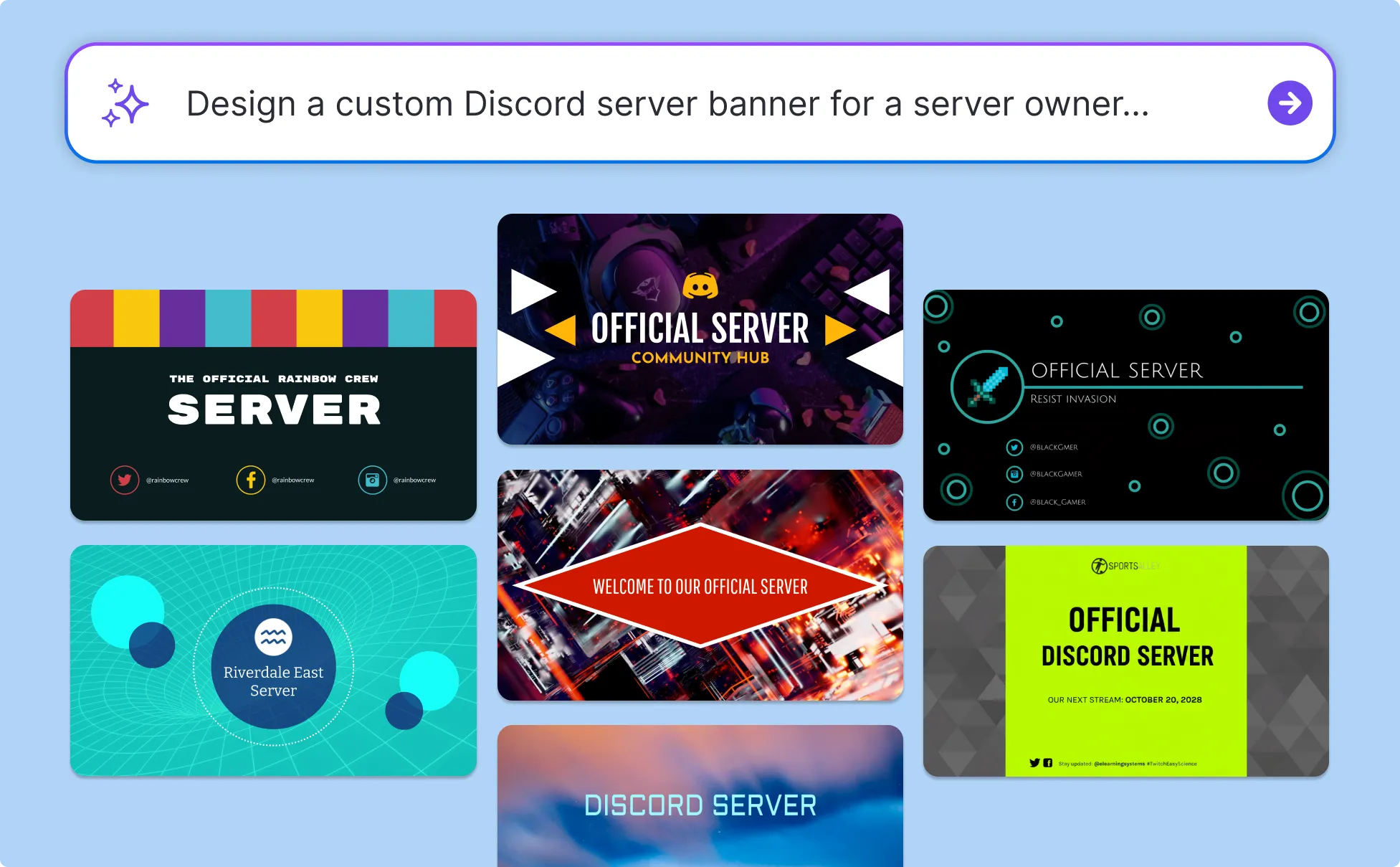
Create a Branded Discord Profile Banner as a Creator
Your Discord profile is an extension of your creator brand. Mismatched colors, fonts, or visuals can make it feel disconnected from your Twitch, YouTube, TikTok, or other channels.
With Venngage, you can generate a banner from a prompt. Easily customize it in the editor, upload your logo, and apply Brand Kit to match your Twitch streams, YouTube channel, or TikTok content.
Generate Discord Banners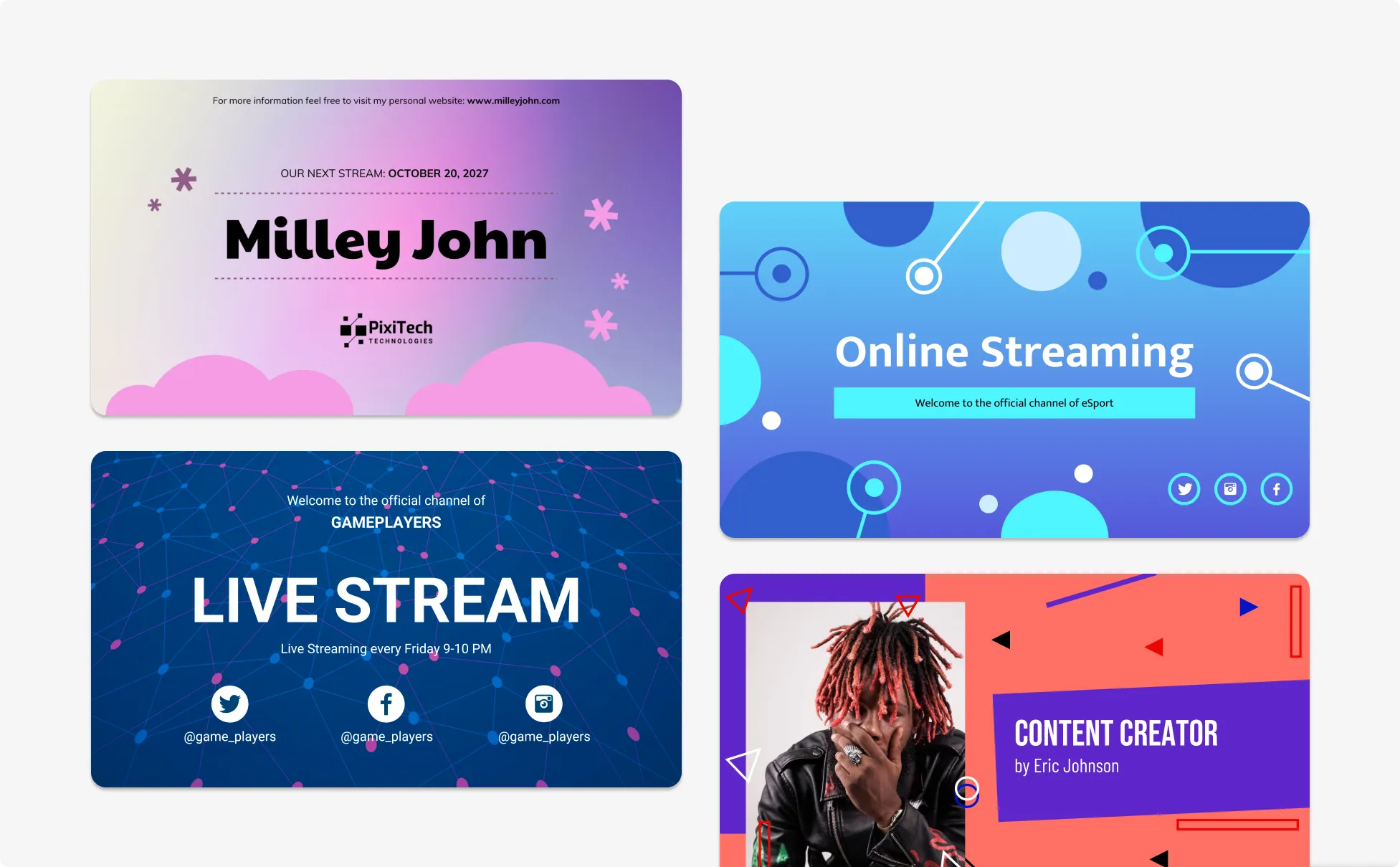
Produce Event and Campaign Banners as a Community Manager
Active Discord communities need fresh visuals for tournaments, giveaways, announcements, and seasonal events. Updating banners regularly can become time-consuming.
Venngage makes repeat banner creation easier. Start with an AI-generated design, update event details or CTAs in the editor, and save reusable templates so future announcements take minutes instead of a full redesign.
Generate Discord Banners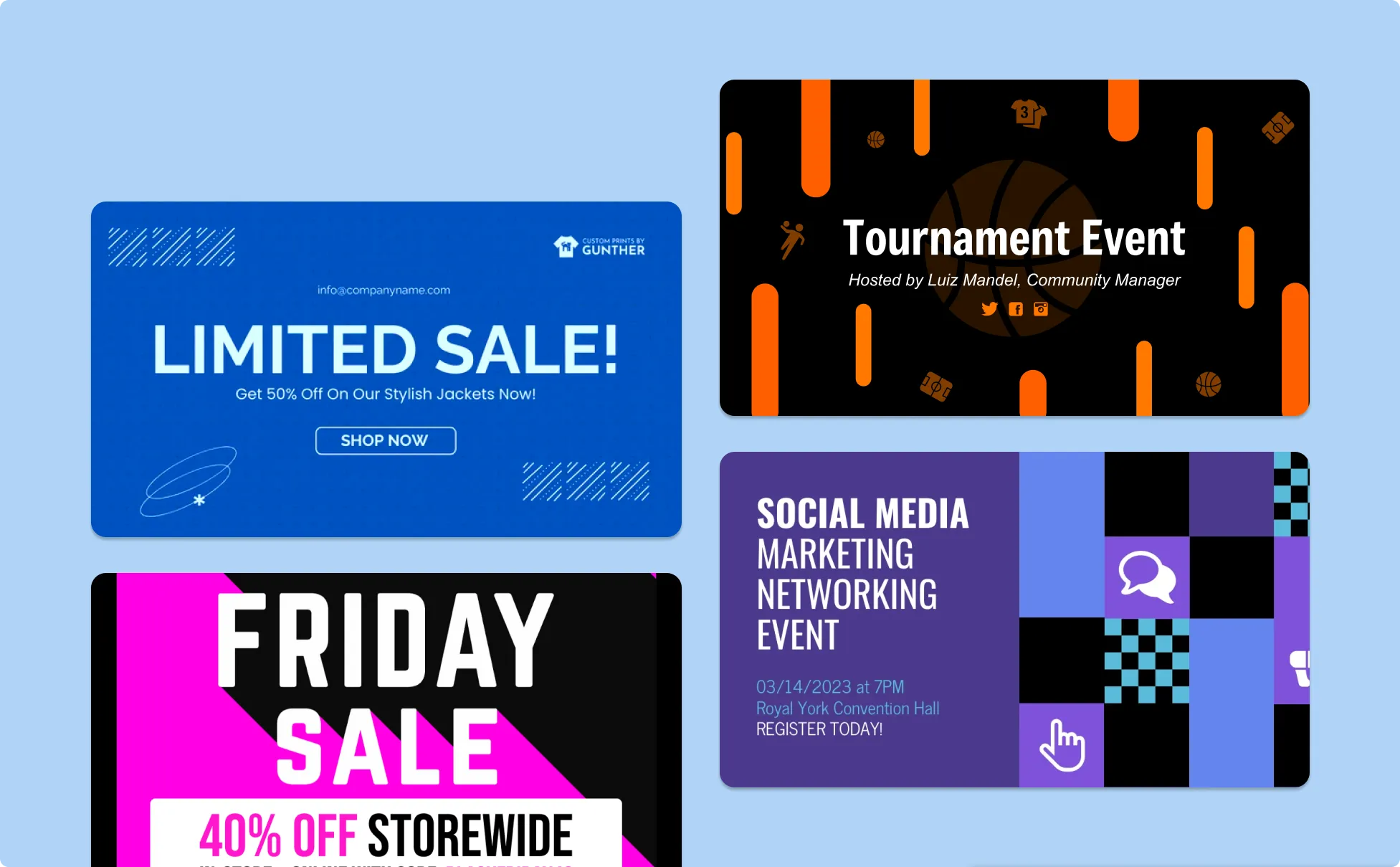
Generate Discord Banners In Seconds With Our AI Discord Banner Generator

Create Vibrant Discord Banners Without Design Experience
Skip complicated tools like Photoshop or Figma. Venngage’s AI Discord Banner Generator turns your text prompt into a custom banner you can edit, personalize, and upload in minutes.

Create Banners for Every Server You Run or Event You Host
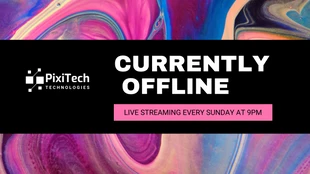
Design Twitch, YouTube, and Discord banners for tournaments, offline screens, community servers, and gaming events using Venngage.
Generate Banner Visuals in Seconds
Use Venngage's AI Image Generator to create background art, mascots, or scene visuals that fit your prompt. Use the AI Icon Generator for clan icons, game icons, or category symbols.
Ensure Brand Consistency for All Banners
Save your colors, fonts, and logo once in Brand Kit and apply them to every Discord banner in one click.
Refine Your Banner Copy With the AI Writing Assistant
Use the AI Writing Assistant to tighten your tagline, sharpen a CTA, or rewrite event copy to fit the layout. Adjust the tone for a gaming clan, a creator community, or a customer server.
Export Discord Banners That Stay Sharp on Discord
Create Discord banners with the right dimensions and export quality. Keep your server and profile banners sharp, clear, and properly positioned across devices.
Fuel Your Creativity with AI-Powered Design Tools
Venngage is your one-stop shop for creating impactful presentations, infographics, reports, and more. It's a favorite among professionals, educators, and marketers for a reason:
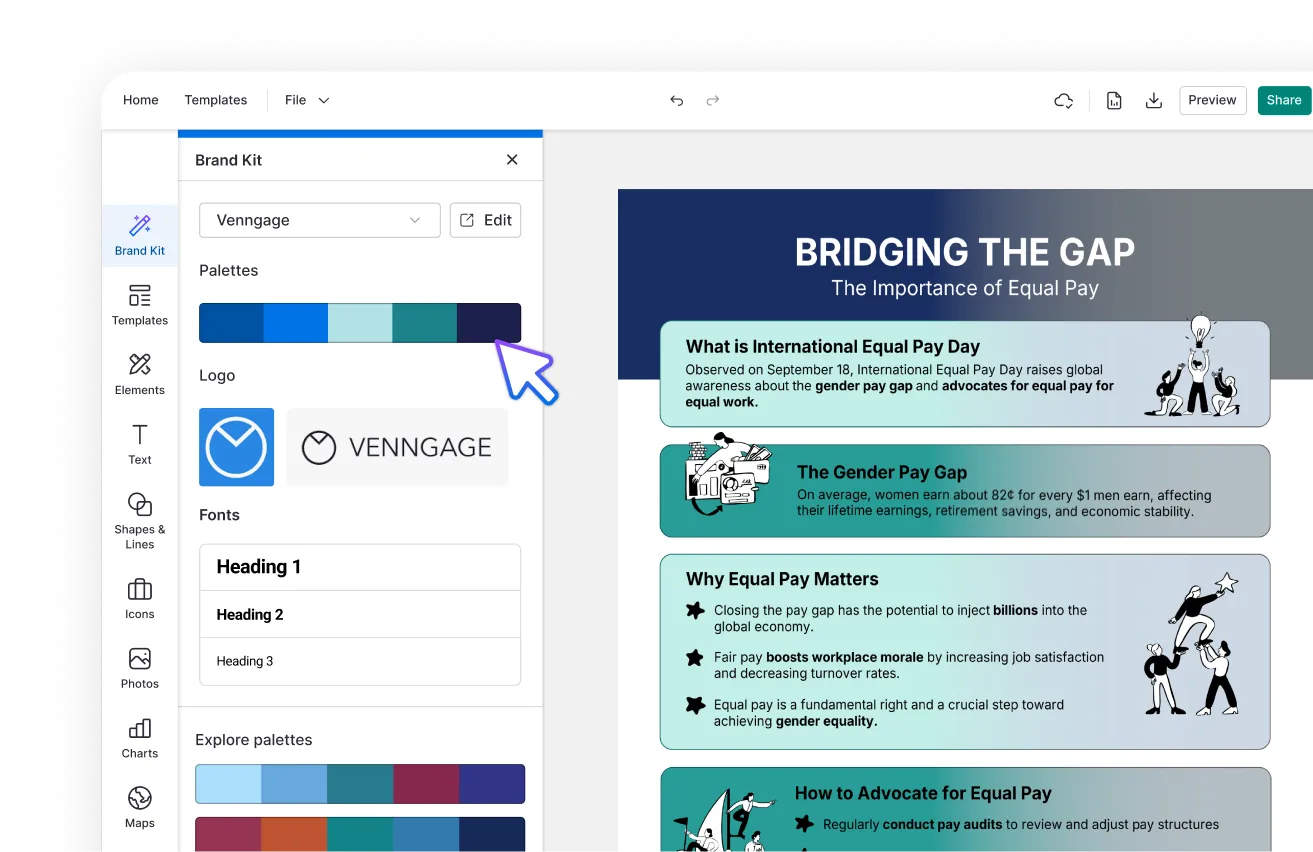
AI Branding Automation
Instantly extract brand colors, fonts, and styles. Auto-apply your logo and visual identity to every design for seamless brand consistency.
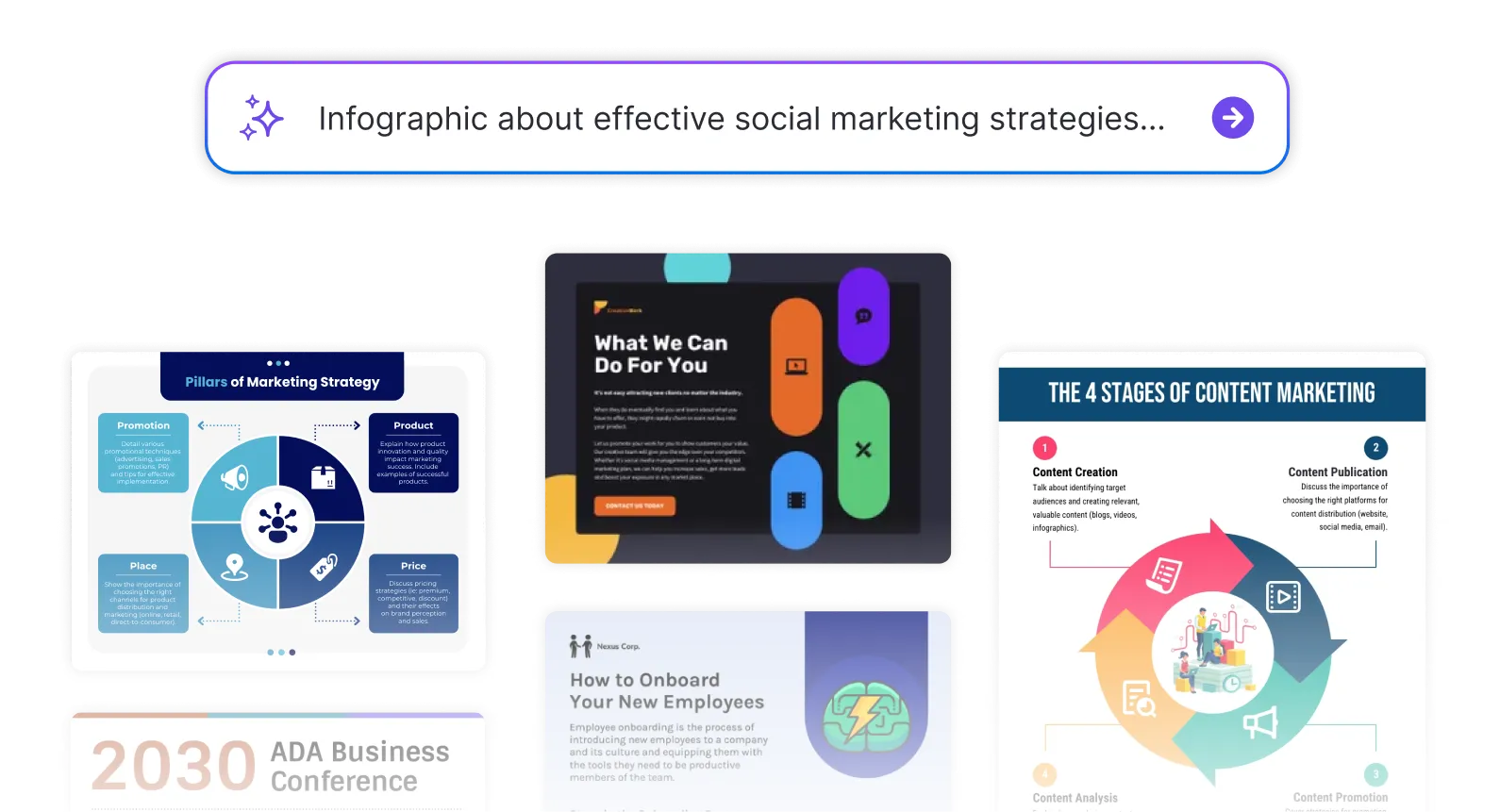
DesignAI Generator
Turn simple prompts into stunning professional visuals in seconds. Describe what you need in plain language and watch our AI generate layouts optimized for maximum visual impact.
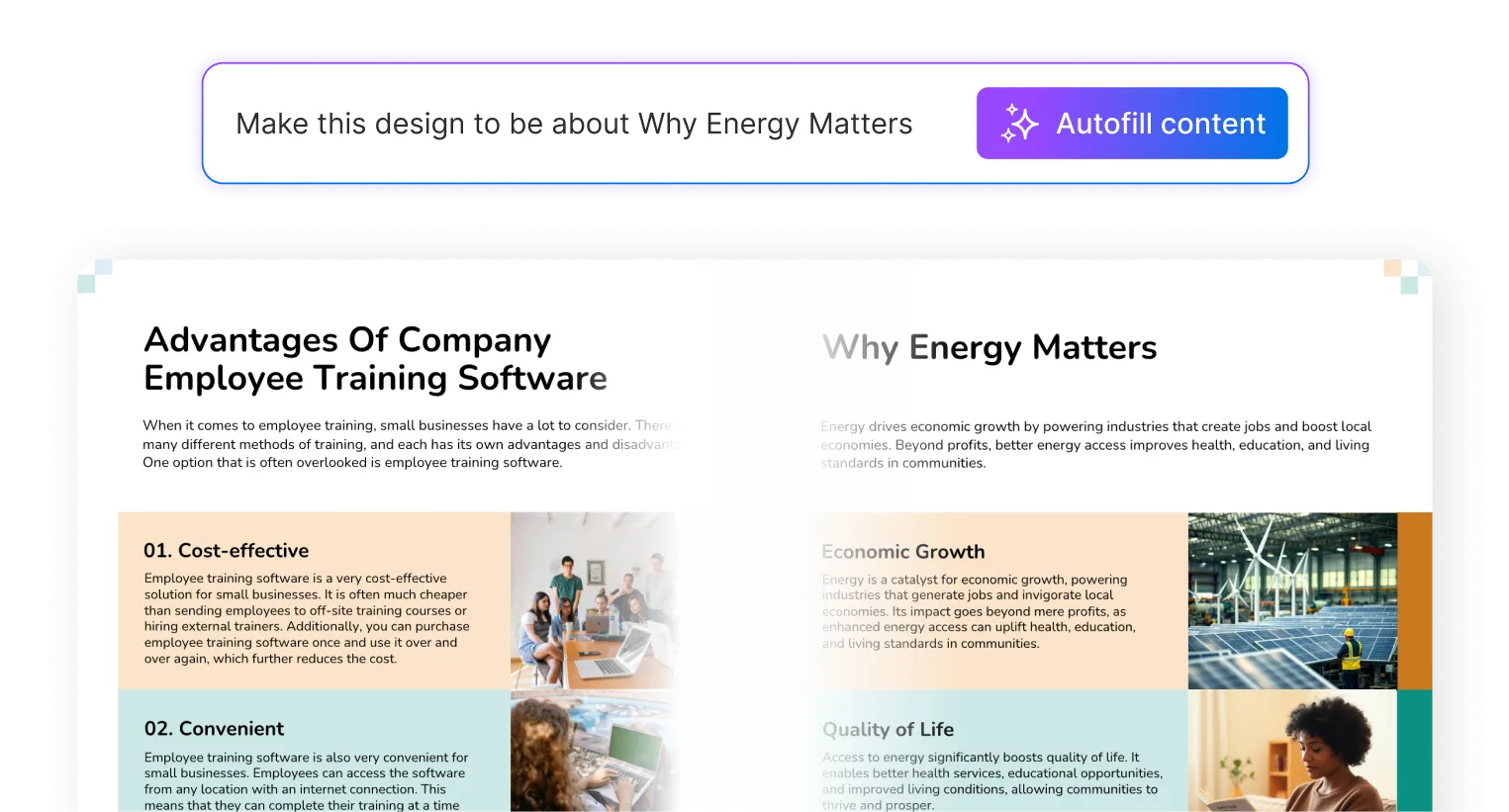
AI Content Auto-Fill
Kickstart your design process in seconds. Choose a template and let our AI auto-fill it with relevant, on-brand content, ideal for streamlining workflow and boosting productivity.
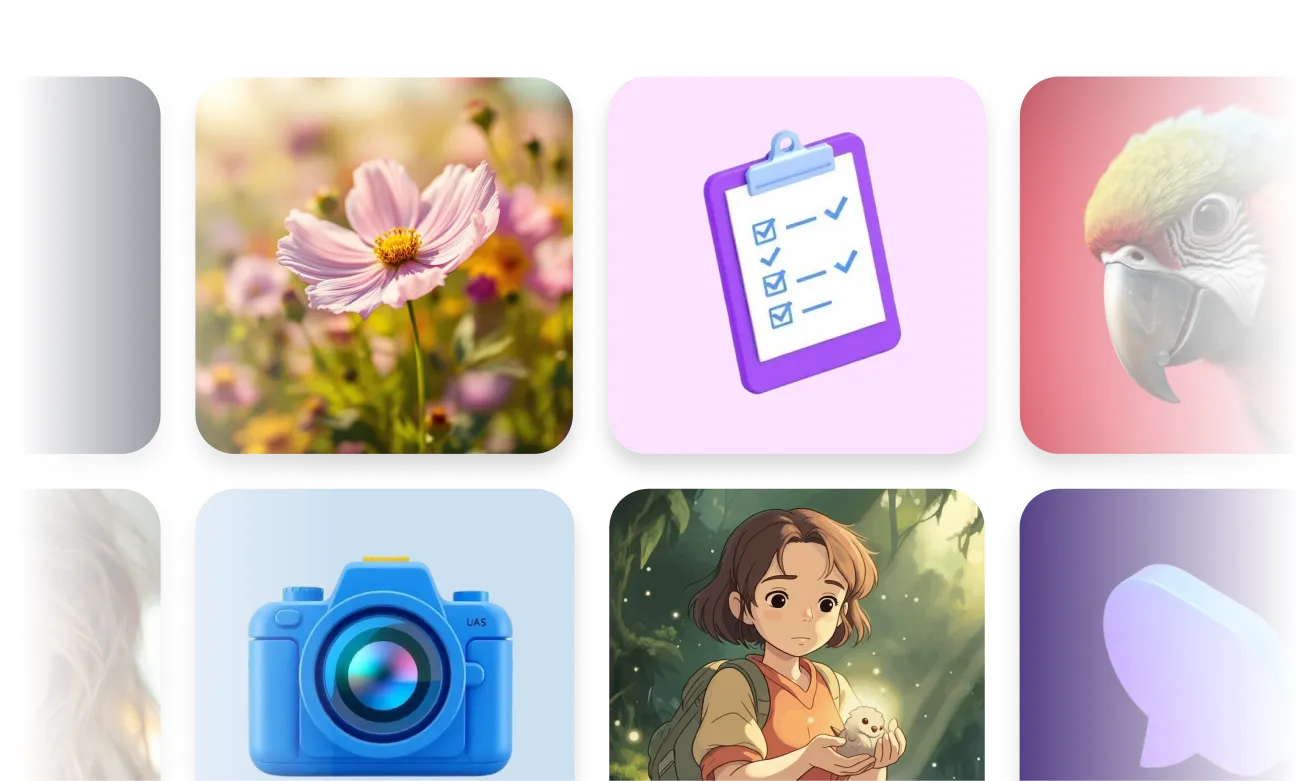
AI Generated Icons and Images
Create unique visuals that perfectly match your content and style. Generate custom illustrations, icons and images that align perfectly with your brand.
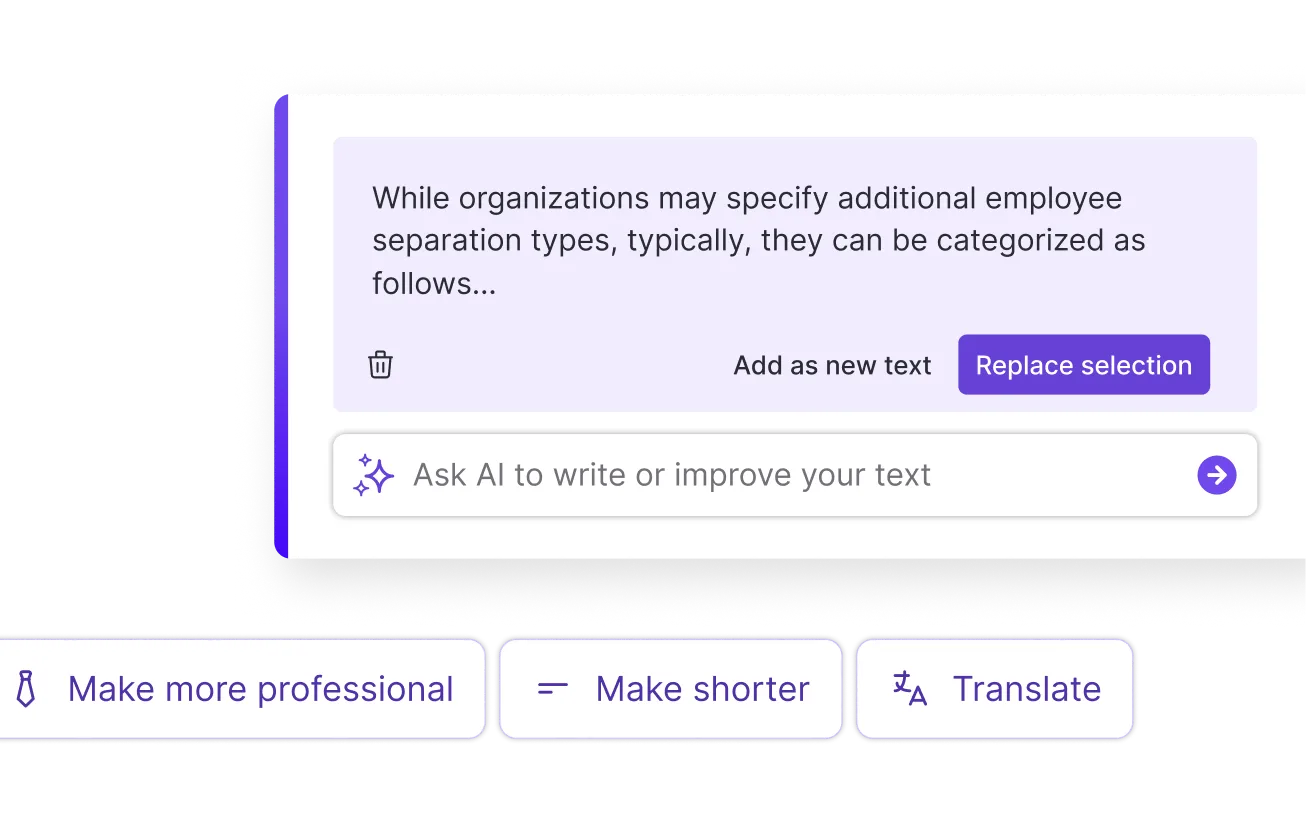
AI Writer and Translation
Enhance clarity, rewrite content, and instantly translate text to create accessible, global-ready visuals.
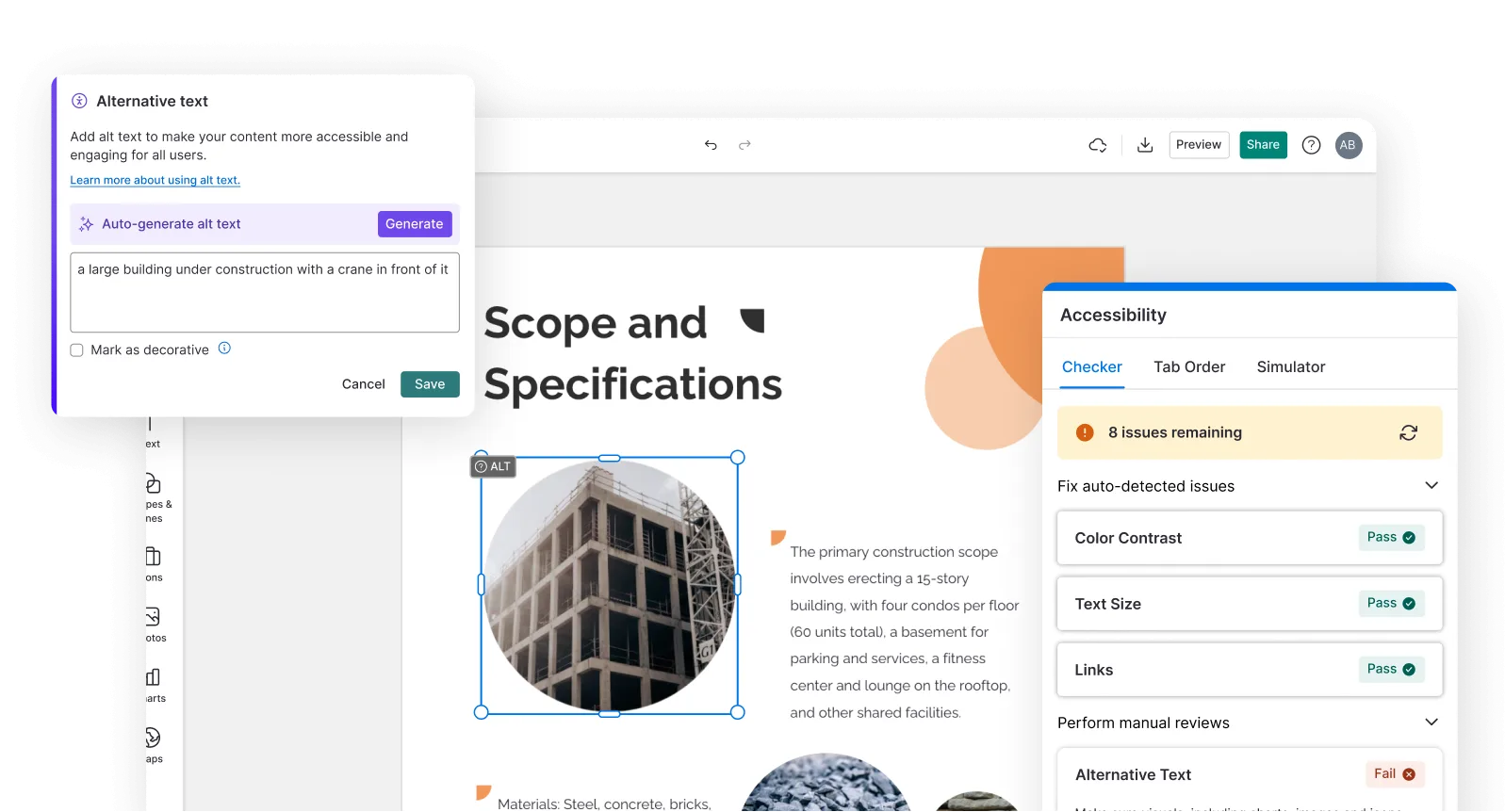
Smart Accessibility AI
Ensure every project looks great and works for everyone. Use AI to write alt text check contrast, layout, and font readability, and export fully WCAG-compliant visuals and PDFs.
FAQs
Discord uses different sizes depending on where the banner is placed. A server banner needs to be 960x540 pixels at a 16:9 aspect ratio and displays at the top of the channel list. A profile banner needs to be 600x240 pixels at a 5:2 aspect ratio and displays at the top of your user profile card. A server invite background needs to be 1920x1080 pixels at 16:9 and displays when someone opens an invite link to your server. All three need to stay under 10MB. Venngage's AI Discord Banner Generator exports at these dimensions, so the file is ready to upload without resizing in a second tool.
It depends on which banner you're setting. A profile banner on your personal account requires Discord Nitro. A server banner requires the server to reach Server Boost level 2, which is separate from Nitro on your personal account. A server invite background is available to any server in Community mode without Nitro or a server boost.
Yes. Venngage creates an editable design, not a flat image. You can rewrite the headline, swap your logo in, change the colors, reposition elements, and adjust anything else in the drag-and-drop editor. This is the main difference between Venngage and AI image generators that hand you back a fixed file you can't change.
Yes. Regenerate the banner as many times as you need to get the layout, palette, or composition you want. You can also duplicate a finished banner and edit the copy or visuals to produce variations for different events, channels, or campaigns without rebuilding the design from scratch.
We offer a free plan so you can try out all our AI features. If you want more advanced features like private sharing and auto branding, we've got Premium and Business plans available too.